

Updated March 23, 2023
Introduction to PowerShell Remove-Item
Removing a file is very common to work in our life, so we all are deleting some files and data daily, almost all programming languages provide remove file feature, but the good thing about PowerShell that it can remove many things other than files, like registry, alias and functions also. If we delete any system files many times all related files are not deleted, so with the help of PowerShell Remove-Item we can even delete related files also. It can delete any large file with better speed along with deleting all its related files. We will discuss in this topic about syntax and uses along with base practices.
Syntax
A very simple syntax for PowerShell Remove-Item is
Remove-Item {-path}-optional “sourcePath/sourceFile”-{force,include,exclude,Recurse,whatif...}
Below syntax is cover regular use things,
Remove-Item

[-Path(source folder location)] <array of string>-optional

[-Force]-optional

[-Filter <String(filter contents for delete)>]-optional

[-Include <array of string>](specify contents need to be included like *.pdf,*.txt)-optional

[-Exclude <array of string>](specify contents need to be excluded like *txt ,*pdf)-optional

[-Recurse](this commands allow to delete folder containing another folder folder)-optional

[-WhatIf](It shows what can happen if command run)-optional

[-Confirm](before  deleting any file ask for confirmation)-optional

[<CommonParameters>]
Parameters
Here are the following parameters of PowerShell Remove-Item mention below:
- Confirm: It is possible that by mistake we can run delete command and we know a delete command can do very blunder, so for such type of situation Confirm will be very useful as it will ask you once before deleting.
- Exclude: This command takes an array, so whichever item you wanted to exclude you can mention in these commands. We can also use the wildcard in exclude command, like “*txt”
- Filter: Here we can specify filter parameters for Remove-item command.
- Force: Many times when the file is open we could not be able to delete it, so by using the command -Force we can delete it. Here it will give access to remove those items which are not allowed to remove, for example, if there is any file with read-only access and we wanted to remove this file then we can use this command. Or take another example if the file already open and we want to delete it than we can use -Force.
- Include: Include is performed a similar task as -exclude, the only difference is here can define wildcard for files to be included at the time of removing file or media.
- LiteralPath: This command can delete the file on one or location in array format we can define them in an array of string format, we should use this command very carefully.
- Path: It is the path from where we are going to delete an item. This -path command also allows wildcard.
- Recurse: Here it Deletes folder containing folder inside it like we are removing a folder called /Ranjan and it contains three more folders /job /education /locations and all these folders contain some more folders inside it, which means child folder inside the child. So to delete this kind of file system we use -Recurse commands.
- WhatIf: This only shows what could happen if the command runs, or in simple terms, it describes the command outcome.
Examples to Implement Power Shell Remove-Item
Here are the Examples for implementation of Power Shell Remove-Item.
Example #1
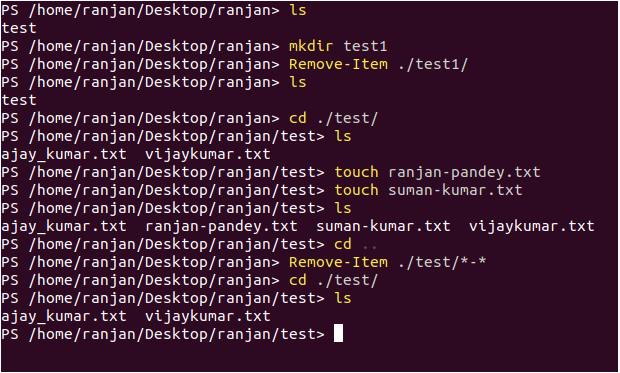
Let us delete files without any contents inside it. Here we are simply deleting a folder that contains nothing inside it. An example screen is given below.
Remove-Item ./test1/
Delete all files which include “-” in their names from test folders. It’s a very useful command as here we are deleting all the files which contain the name “-”.We can see in the Image below initially folder test contains 4 files out of the two files “ranjan-pandey.txt” and “suman-kumar.txt” contains “-”. So on running the command below it will delete these two files.
Remove-Item ./test/*-*
Output:
Example #2
Let us do some recursive delete, in this, we are going to delete a folder(directory) and this folder also contains a subdirectory within the folder itself.
Remove-Item ./ranjan1/ -Recurse
Output:
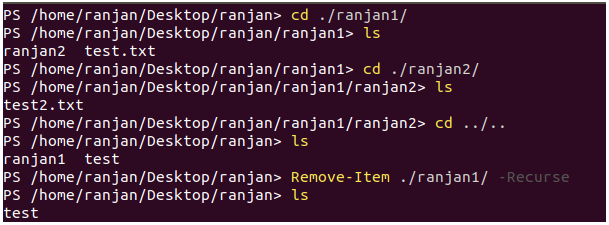
In the above example folder “ranjan1” contains “ranjan2” and “test.txt” file and again “ranjan2” contains a “test2.txt” now to delete the ranjan1 folder we need to write command -Recurse along with Remove-Item.
Example #3
Many times some hidden files left even after deleting all contents, so to perform a complete delete we can use “-Force”. Let us one example of command -Force Remove, This command used when we have some hidden files, so to delete hidden files we can use force.
Remove-Item -path ./test/ -Force
Output:

In this example -Force will delete all files along with if any hidden file from the test.
Example #4
whatIf command, this command display what will happen on the execution of the command, please see the image below.
Remove-Item ./ranjan1 -whatif
Output:

Example #5
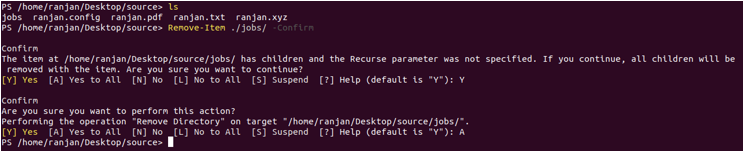
In this example we are covering “-Confirm”.We are trying to delete a folder Jobs with passing -Confirm command here. Once we run this command it asked for if you want to delete it, and once we said “yes” it shows error file already exists, You can understand the utility of -Confirm command here as, file will be deleted only if you agree even after running the command, means very less possibility of making any mistakes.
Delete-Item -path ./source/ -Confirm
Output:
Example #6
let me explain to you one more very useful example here, suppose you want to delete all files from the folder with the specific extension, like “.txt”,”.xls”,”.pdf”.
Remove-Item -Path ./source/* -Include *.txt
Output:
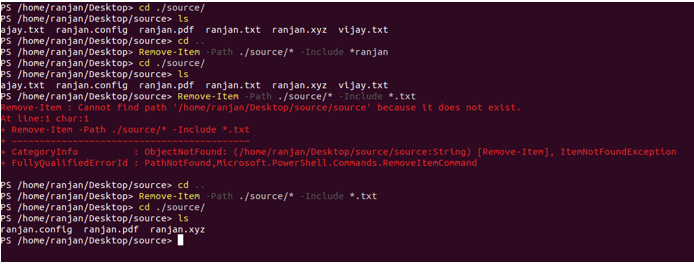
In the above example we are deleting all the files having “.txt” as the extension . in the same you can try to delete “.pdp” and “.config” extensions. These commands are very useful when we have a very huge amount of file and we wanted to delete some specific with a specific extension.
Conclusion – PowerShell Remove-Item
PowerShell Remove-Item command is a very useful command it plays a very pivotal role when we have a very huge amount of file inside the file system. When we have to delete the file with huge subfolders, it provides various types of supporting commands like -Force, Include and many others to perform its special duties.
Recommended Articles
This is a guide to PowerShell Remove-Item. Here we discuss the parameters of Power Shell Remove-Item along with the respective examples. You may also look at the following article to learn more –

