
Updated March 10, 2023
Introduction to PowerShell if File Exists
There are scenarios in PowerShell wherein a new file needs to be created. However, before creating the file it is advisable to check if the file exists or not so that the existing file will not be overwritten or if properly not happened an error might be thrown. To achieve this in PowerShell there are many ways that will be covered in this article. The most popular method is using Test-Path cmdlet. The other methods include Get-Item and Get-ChildItem.
Syntax of PowerShell if File Exists
Syntax of powershell if file exists is given below:
Test-Path Cmdlet Syntax: This cmdlet is used to check not only a file exists but also it can be used to check if a path exists. It returns true if there is a match. An error is returned if the path is null.
NAME

Test-Path

SYNTAX

Test-Path [-Path] <string[]> [-Filter <string>] [-Include <string[]>] [-Exclude <string[]>] [-PathType {Any | Container

| Leaf}] [-IsValid] [-Credential <pscredential>] [-UseTransaction] [-OlderThan <datetime>] [-NewerThan <datetime>]
[<CommonParameters>]
Test-Path -LiteralPath <string[]> [-Filter <string>] [-Include <string[]>] [-Exclude <string[]>] [-PathType {Any |

Container | Leaf}] [-IsValid] [-Credential <pscredential>] [-UseTransaction] [-OlderThan <datetime>] [-NewerThan

<datetime>]  [<CommonParameters>]
ALIASES

None
- -Credential: This parameter fetches the credential that will be used to execute this cmdlet. The data type of this parameter is PSCredentail. None is the default value. It can process pipeline input however wildcard characters are not permitted.
- -Exclude: This is used to exclude things from search check. String is the data type of this parameter. None is the default esteem. It doesn’t process pipeline input whereas wildcard characters are accepted.
- -Filter: This is used to apply conditional filtering on the input. String is the data type of this parameter. None is the default esteem. It doesn’t process pipeline input whereas wildcard characters are accepted.
- -Include: This includes the files and paths that needs to be checked for existence. String is the datatype of this parameter. None is the default esteem. It doesn’t recognize pipeline input and wild card characters are accepted.
- -IsValid: This checks if the path or the file is valid or not. True is returned is the syntax if valid else false. Switch is the data type of this parameter. None is the default esteem. Pipeline input is not accepted, and wildcard characters are also not permitted.
- -LiteralPath: This is also like the path to be tested. The only difference is that the value of this parameter is considered literal. String is the datatype of this parameter. Pspath and LP are the other alias for this. None is the default esteem. Pipeline input is accepted whereas wildcard characters are not permitted.
- -NewerThan: This denotes the timeline that is greater that needs to be checked for the files and path. The data type of this parameter is datetime. None is the default esteem. Pipeline input is not recognized, and wild card characters are also not permitted.
- -OlderThan: This denotes the timeline that is older that needs to be checked for the files and path. The data type of this parameter is datetime. None is the default esteem. Pipeline input is not recognized, and wild card characters are also not permitted.
- -Pathtype: This denotes the type of path in which the file is being searched. It can accept containers, leaf, and any as values. An example of a container is a directory; an example of a leaf is a file, and any can be either of both. The data type of this parameter is TestPathType. The alias is Type. None is the default esteem. It doesn’t accept pipeline input and doesn’t accept wildcard characters.
- Using .Net Method: In dot net class, there is a method called as exists(). This checks whether a file is there and if it exists true is returned.
- Using Get-Item and Get-ChildItem: This is used to check for paths or files in one or more locations. In case if the file is not there an error is thrown.
Syntax:
NAME

Get-Item

SYNTAX

Get-Item [-Path] <string[]> [-Filter <string>] [-Include <string[]>] [-Exclude <string[]>] [-Force] [-Credential

<pscredential>] [-UseTransaction] [-Stream <string[]>]  [<CommonParameters>]
Get-Item -LiteralPath <string[]> [-Filter <string>] [-Include <string[]>] [-Exclude <string[]>] [-Force] [-Credential

<pscredential>] [-UseTransaction] [-Stream <string[]>]  [<CommonParameters>]
ALIASES

gi

AME

Get-ChildItem

SYNTAX

Get-ChildItem [[-Path] <string[]>] [[-Filter] <string>] [-Include <string[]>] [-Exclude <string[]>] [-Recurse] [-Depth

<uint32>] [-Force] [-Name] [-UseTransaction] [-Attributes {ReadOnly | Hidden | System | Directory | Archive | Device |

Normal | Temporary | SparseFile | ReparsePoint | Compressed | Offline | NotContentIndexed | Encrypted | IntegrityStream

| NoScrubData}] [-Directory] [-File] [-Hidden] [-ReadOnly] [-System]  [<CommonParameters>]
Get-ChildItem [[-Filter] <string>] -LiteralPath <string[]> [-Include <string[]>] [-Exclude <string[]>] [-Recurse]
[-Depth <uint32>] [-Force] [-Name] [-UseTransaction] [-Attributes {ReadOnly | Hidden | System | Directory | Archive |

Device | Normal | Temporary | SparseFile | ReparsePoint | Compressed | Offline | NotContentIndexed | Encrypted |

IntegrityStream | NoScrubData}] [-Directory] [-File] [-Hidden] [-ReadOnly] [-System]  [<CommonParameters>]
ALIASES

gci

ls

dir
Examples of PowerShell if File Exists
Following are the examples are given below:
Example #1
Input:
Write-Host "Demo of if file exists" -ForegroundColor Green

$fi = 'c:\test.txt'

if (-not(Test-Path -Path $fi  -PathType Leaf)) {

try {

$null = New-Item -ItemType File -Path $fi  -Force -ErrorAction Stop

Write-Host "The file [$fi ] is created." -ForegroundColor Green

}

catch {

throw $_.Exception.Message

}

}

else {

Write-Host "Cannot create [$fi] because it is already available." -ForegroundColor Red

}
Output:


In the above example, when the script is run for the first time, the file was not there, and it got created. When the script is run for the second time since the file already exists it is not created.
Example #2
Input:
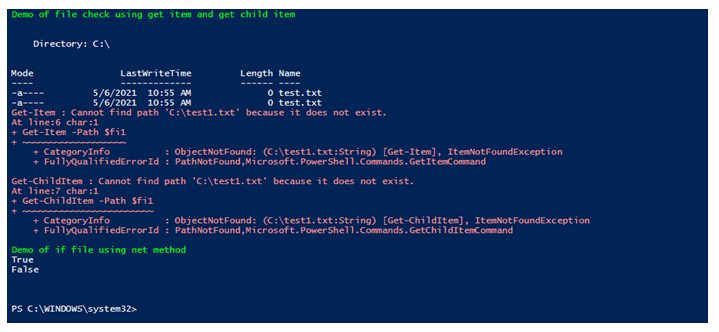
write-host “Demo of file check using get the item and get child item” -ForegroundColor Green
$fi = 'c:\test.txt'

Get-Item -Path $fi

Get-ChildItem -Path $fi

$fi1='c:\test1.txt'

Get-Item -Path $fi1

Get-ChildItem -Path $fi1

Write-Host "Demo of if file using net method" -ForegroundColor Green

[System.IO.File]::Exists($fi)

[System.IO.File]::Exists($fi1)
Output:
Conclusion
Thus, the article showed in detail different ways of checking if a file exists in PowerShell. It explained the syntax of each cmdlet, its parameters, and its usage with appropriate examples. To learn more in detail it is better to write sample scripts and execute them.
Recommended Articles
This is a guide to PowerShell if File Exists. Here we also discuss the introduction and syntax of powershell if file exists along with different examples and its code implementation. You may also have a look at the following articles to learn more –

