


MAX IF in Excel
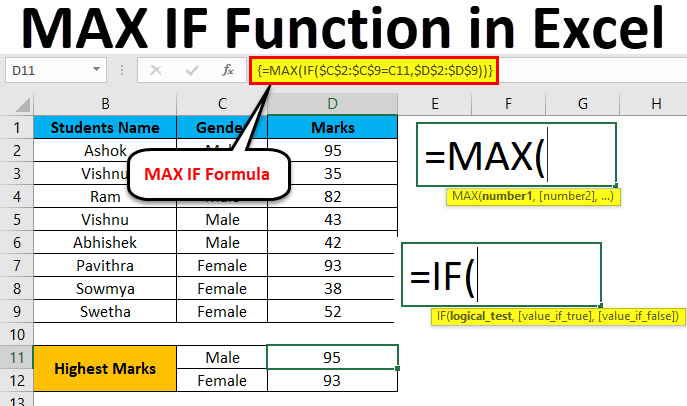
Max function and IF function in Excel are used to find the maximum value from the given range of datasets with the defined criteria. The MAX function returns the maximum value from the selected number range, and the IF function helps find that number with chosen criteria. For this, we can first apply the IF function where, as per syntax, we choose Criteria Range and select the value range with the criteria we want. Once done, then cover the complete IF function in the MAX function’s syntax with curly brackets.
There is no separate syntax for the MAXIF function in Microsoft Excel, but we can combine the MAX and IF functions in an array formula.
MAX Formula in Excel
Below is the MAX Formula in Excel:
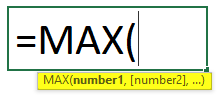
Arguments of MAX Formula:
- number1: This number 1 refers to a numeric value or range which contains a numeric value.
- number2 [optional]: This number2 refers to a numeric value or range which contains a numeric value.
IF Formula in Excel
Below is the IF Formula in Excel:
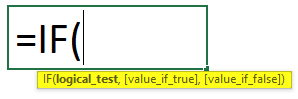
Arguments of IF Formula:
- Logical test: This is a logical expression value to check whether the value is TRUE or FALSE.
- Value _if_ true: This value returns if the logical test is true.
- Value _if_ false: This value returns if the logical test is false.
How to Use MAX IF Function in Excel?
MAX and IF Functions in Excel are very simple and easy to use. Let’s understand the working of the MAX IF Function in Excel with some examples.
Example #1 – MAX Function in Excel
In this example, we will first learn how to use the MAX function with the below example.
Consider the below example, which shows sales data of the product category wise.
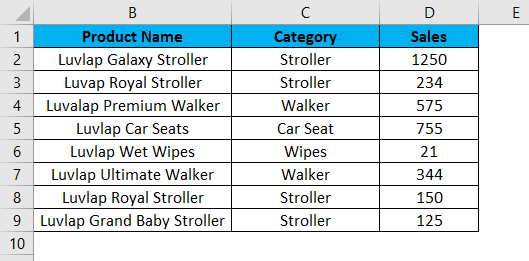
Now we will use the MAX function to determine which has the largest sales value by following the steps below.
Step 1 – First, select the new cell, i.e., D11.
Step 2 – Apply the MAX function, i.e., =MAX(D2:D9)
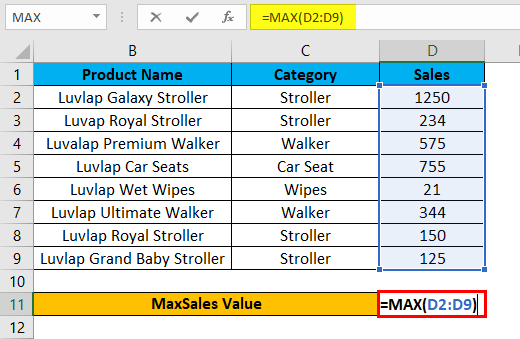
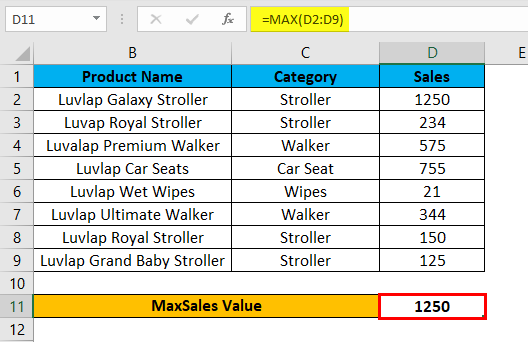
Step 3 – Press enters so that we will get the MAX value is 1250, which is shown in the below screenshot.
In the below result, the Max function will check for the largest number in the D column and return the maximum sales value as 1250.
Example #2 – Using MAX IF Function in Excel with an array formula
In this example, we will learn how to use the MAX IF function in Excel. Assume that we need to check the largest sales value category wise. Using only the max function, we can check only the maximum value, but we cannot check the maximum value category wise if the sales data contain a huge category and sales value.
In such a case, we can combine MAX and If Functions with an array formula so that it makes the task very easier to find out the largest sales value category wise in Excel.
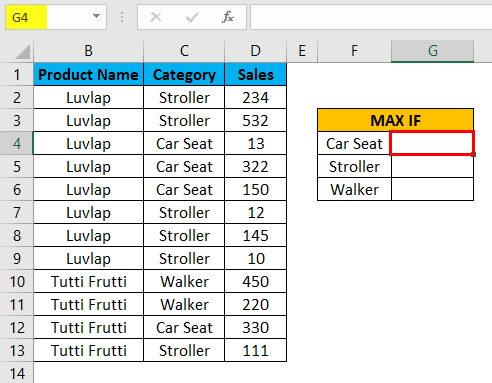
Consider the example below, which has the Product Name, Category, and Sales value shown below.
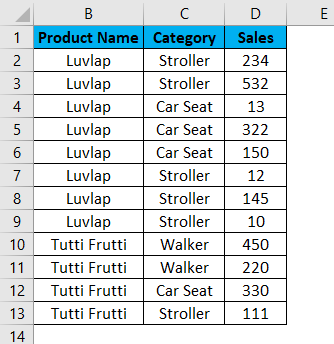
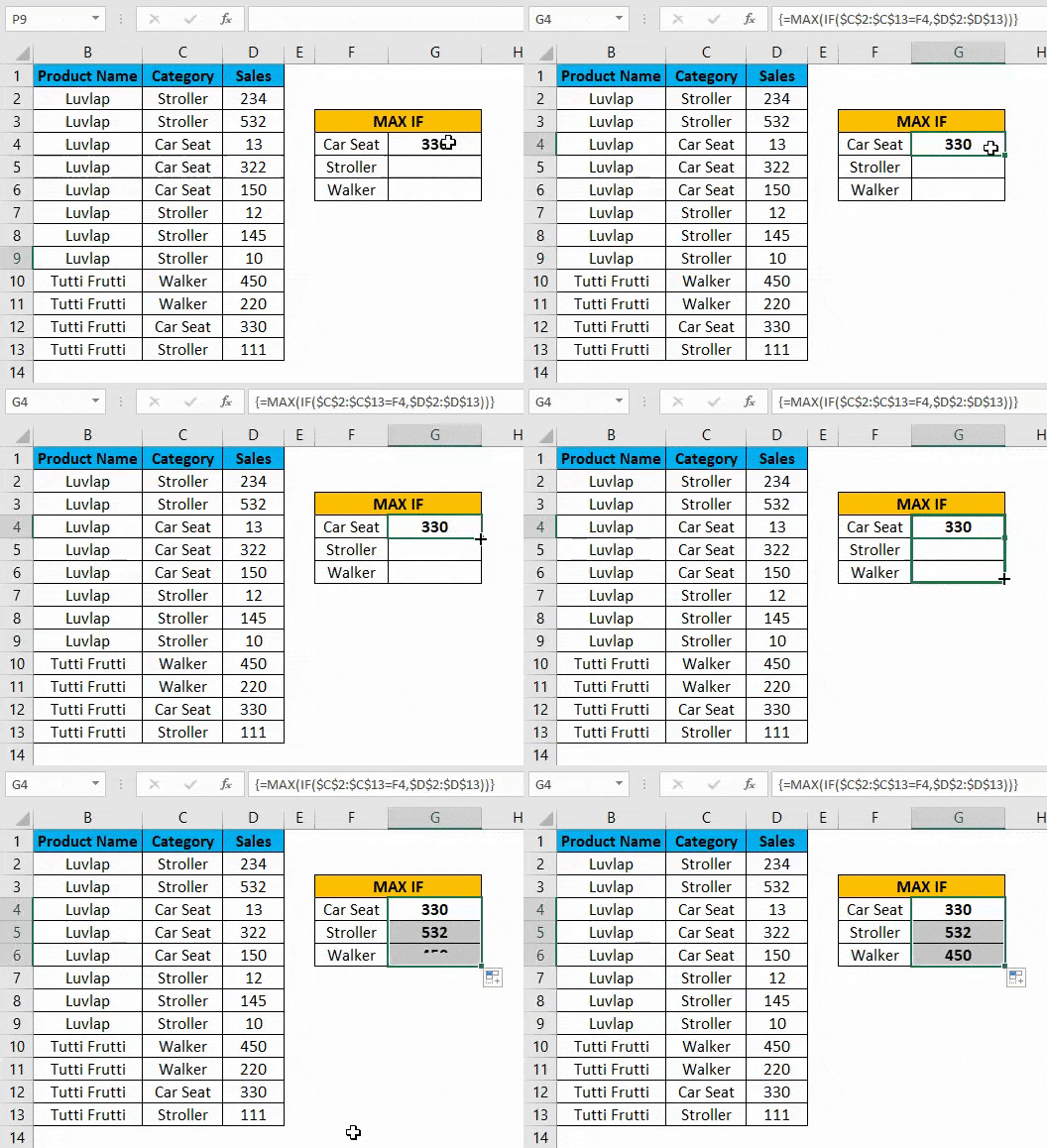
Now we will apply the Excel MAX IF function to determine the maximum sales value by following the steps below.
Step 1 – First, we will create a new table with a category name to display the result, as shown below.
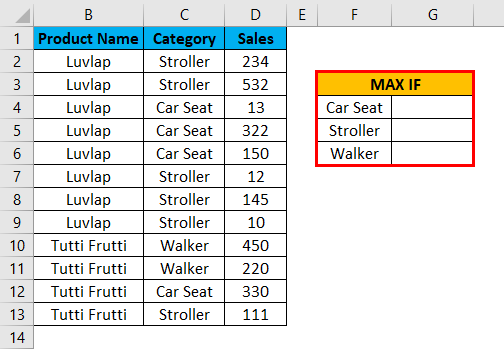
Step 2 – Select cell G4.
Step 3 – Apply the MAX IF formula i.e. =MAX(IF(C$2:C13=F4,D2:D13))
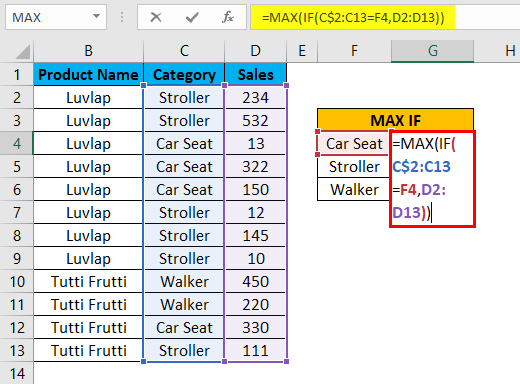
In the above formula, we applied MAX and IF functions, and then we selected Column C2 to C13, where we listed the category name as C2:C13. Then we checked the condition by selecting the cell as F4 where the F4 column is nothing but Category Name.
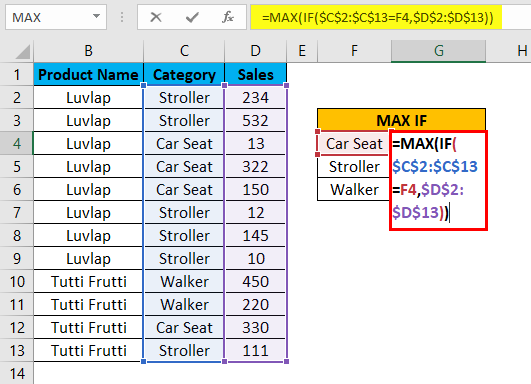
Now the if condition will check for the entire category name in C2 to C13 column to determine whether it matches the mentioned Category name in the F4 column; if the category name matches, it will return the largest sales value from the selected D column as D2 to D13 and lock the cells by pressing F4 where we will get the $ symbol to indicate that cells are locked. We have given the Formula as =MAX(IF($C$2:$C$13=F4,$D$2:$D$13)).
After the MAXIF function is completed by closing all the brackets now, hold SHIFT+CTRL and then press enter as SHIFT+CTRL+ENTER so that we will get the output in the array formula where we will get open and closing parenthesis at the opening and end of the statement, which is shown in the below screenshot.
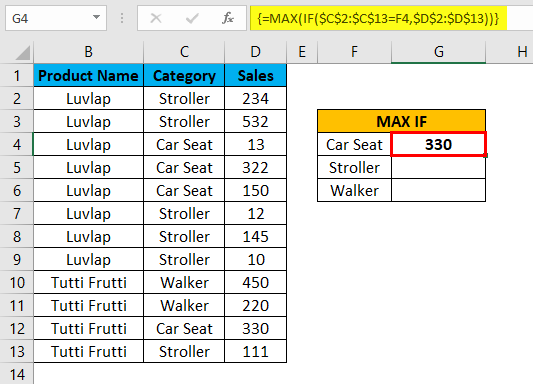
Here as we can see in the above screenshot MAX IF function checks for the category name in the D column as well as in the F column, and if it matches, it will return the largest value; here, in this example, we got the output as 330 which is a largest sales value in the category.
Now drag down the MAX IF formulas for all the cells so that we will get the output result which is shown below.
Example #3 – Using MAX IF Function in Excel with an array formula
In this example, we will use the same Excel MAX IF function to determine the highest marks from a set of students.
Consider the below example, which shows student name along with their Gender and Marks, which is shown below.
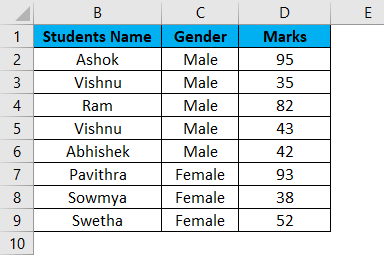
Here in this example, we are going to find out Gender wise who has scored the highest marks by following the below steps.
Step 1 – First, create a new table with Male and Female as separate columns to display the result shown below.
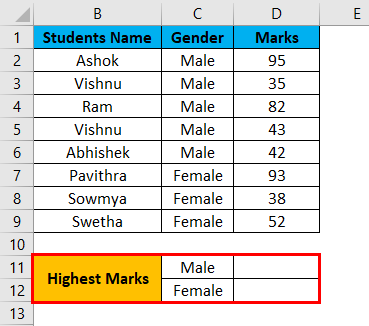
Step 2 – We will apply the Excel MAX IF function as follows. Select cell D11.
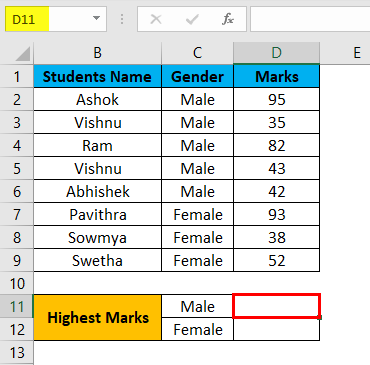
Step 3 – Insert the MAX IF function by selecting the Gender column from C2 to C9.
Now we have to give the condition as IF(C2:C9=C11, D2:D9), which means that the IF condition will check for the gender from the C2 column whether it matches with C11 and If the gender matches MAX IF function returns the highest value.
Step 4 – Now lock the cells by pressing F4 so that the selected cells will be locked, shown in the screenshot below.
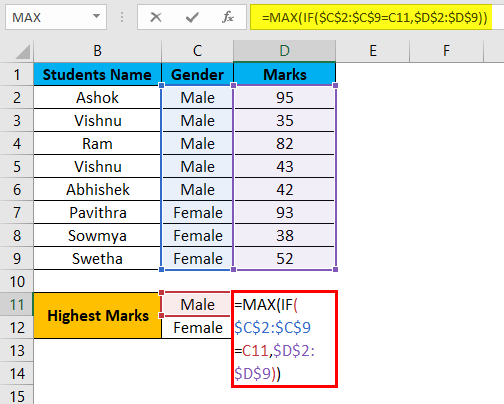
Step 5 – Once we complete the MAXIF function, Hit SHIFT+CRL+ENTER to make it an array formula to see the opening and closing parenthesis in the MAX IF function, shown below.
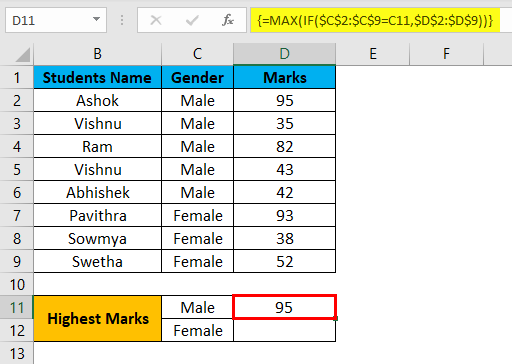
We can see that we got the highest mark of 95 for the gender MALE in the above screenshot.
Step 6 – Drag down the formula for all the below cells to get the output as shown below.
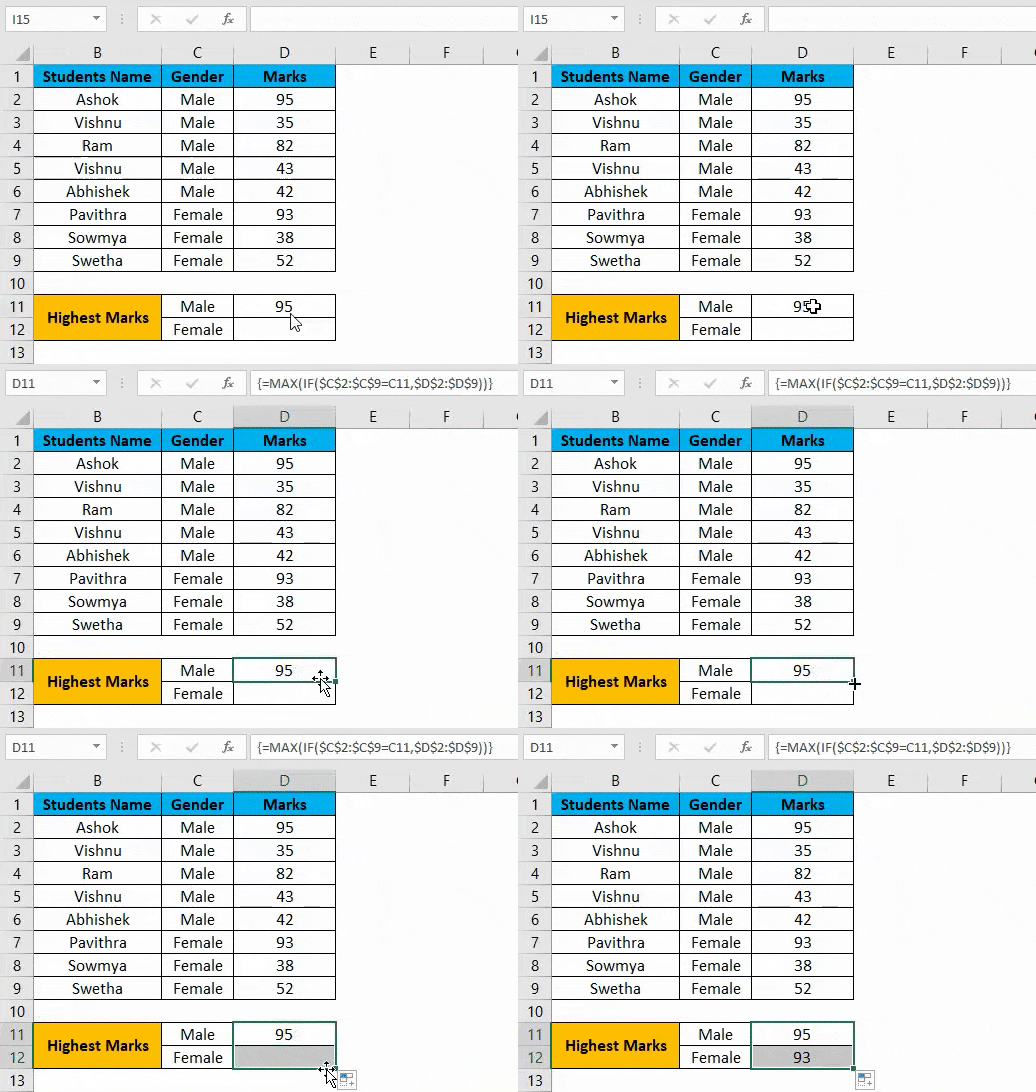
In the above result using the Excel MAX IF function, we have found the highest marks gender-wise, where MALE scored 95 as the highest mark, and for FEMALE, we got 93 as the Highest mark.
Things to Remember
- In Microsoft Excel, no such MAX IF function exists as SUMIF and COUNTIF.
- We can combine the MAX and IF functions in the formulation.
- MAX IF function will throw an error #VALUE! If we did not apply the SHIFT+ENTER +KEY, ensure you use the MAX IF function as an array formula.
Recommended Articles
This has been a guide to MAX IF in Excel. Here we discuss how to use MAX IF Function in Excel, practical examples, and downloadable Excel templates. You can also go through our other suggested articles –

