


Quick Answer
A MacBook troubleshooting process begins by identifying whether the problem is caused by hardware or software. A MacBook problem is more likely software-related when it changes in Safe Mode, affects only one app or account, or begins after a macOS update. It is more likely hardware-related when it appears before login, follows a drop, liquid exposure, or lid movement, or affects power, charging, the display, or several functions at once.
Key Takeaways
- Hardware refers to the physical parts of a MacBook, such as the battery, screen, keyboard, ports, storage, and logic board.
- Software includes macOS, installed apps, system settings, and stored data.
- Back up important files before starting any MacBook troubleshooting steps.
- Stop testing immediately if you notice battery swelling, liquid damage, smoke, or excessive heat.
- Apple Diagnostics, Activity Monitor, Battery Health, and Disk Utility provide useful clues, but no single test can identify every intermittent issue. Testing one possibility at a time is the most reliable approach to MacBook troubleshooting.
1. Understanding Hardware and Software
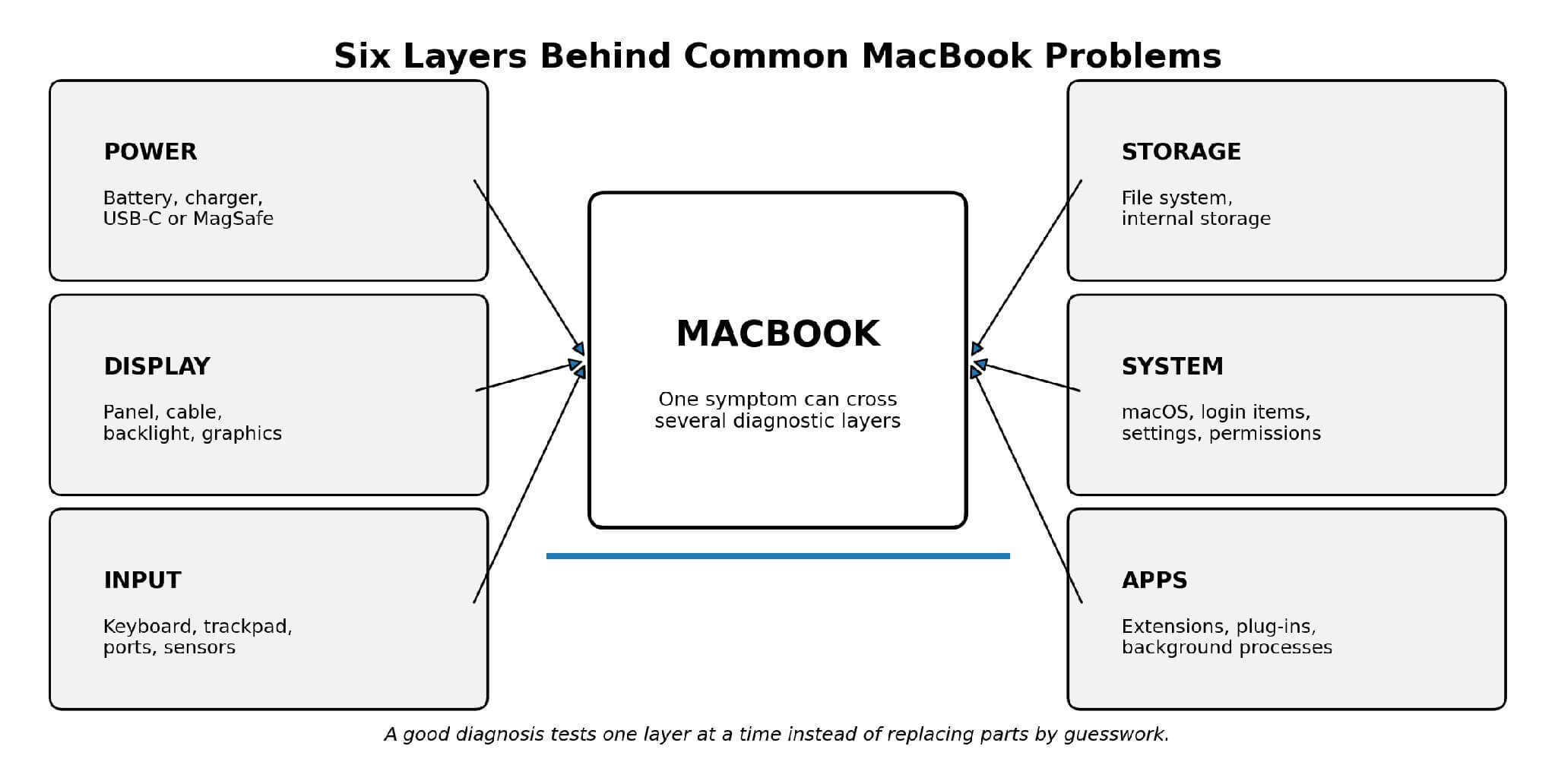
Hardware includes the screen, battery, keyboard, trackpad, storage, ports, cooling system, and logic board. Software includes macOS, apps, login items, and stored files. The display is hardware, but brightness settings remain software; the battery is hardware, but background processes shorten its runtime.
As a rule, hardware faults stay the same when the software environment changes, while software faults often change with a different crather thannt, app, or setting. One layer can still influence the other, so treat this as guidance for hardware and software rather than a strict rule.
2. Protect Data and Stay Safe
Back up before changing settings, repairing a disk, or reinstalling macOS, since storage faults can worsen without warning. Time Machine can copy files to external or network storage.
Stop using the MacBook if the case is lifting, the battery looks swollen, liquid has entered, or it becomes dangerously hot, and disconnect power if safe. Never press a swollen case flat or keep charging if there is visible damage. Built-in batteries are not suitable for casual opening.
3. Record the Symptom
Record exactly what happens, when, and what changed beforehand: model, year, macOS version, charger type, and any recent update, drop, or liquid exposure. Note whether it happens before or after login, in one app or all apps, or only on battery, since this shows which layer to test first during MacBook troubleshooting.
4. Common Symptoms and Likely Causes
| Symptom | First safe check | Software clue | Hardware clue |
| Will not turn on | Disconnect accessories; test outlet, adapter, and cable | Starts in Recovery or reaches startup options | No response with known-good power; prior liquid or impact |
| Runs slowly or freezes | Check free storage and Activity Monitor | One app, login item, or user account is affected | Same freeze in Safe Mode or Recovery; storage errors |
| Battery drains quickly | Check Battery Health and Energy use | One process uses high energy | Service Recommended, swelling or repeat shutdowns |
| Screen flickers or stays black | Observe before login; test an external display | Only one app or display setting triggers it | Changes with lid angle, pressure or impact |
| Keyboard or trackpad fails | Test another account and accessibility settings | Behavior changes after login or with a utility | Raised case, failed key group or liquid history |
| Cannot load macOS | Use Recovery and Disk Utility First Aid | System repair or reinstall restores startup | Storage missing or errors cannot be repaired |
A few clues add nuance. Fan noise or a faint image under bright light can show a “dead” screen is actually powered on. A swollen battery can press against the trackpad from below, so a sudden change in click feel matters. For startup failures, run First Aid from the last volume upward through containers and the device; if storage keeps disappearing, physical service may be needed.
5. A Safe Step-by-Step Diagnostic Method
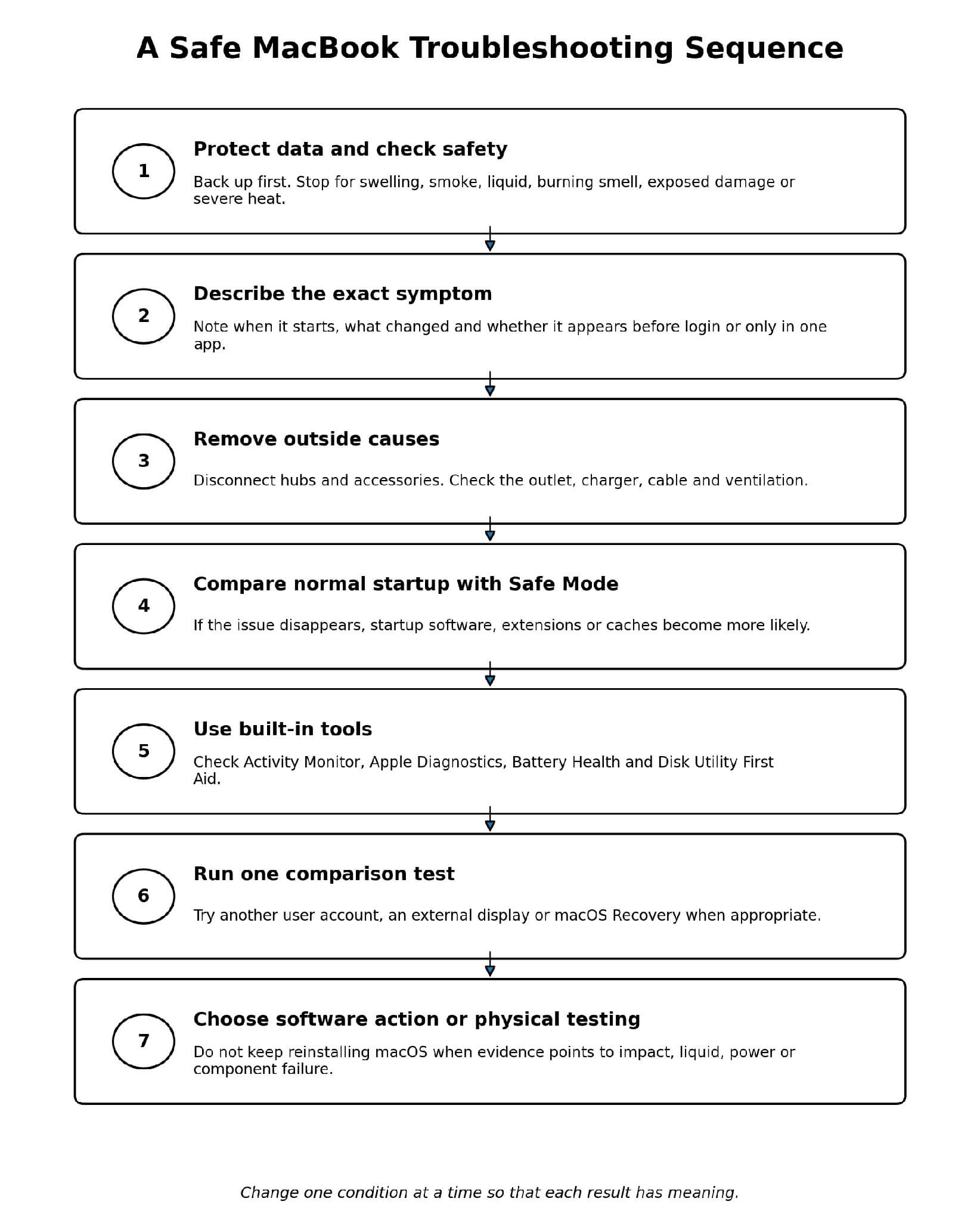
Many of the checks below use built-in system software that manages hardware, startup, storage, and running processes.
- Remove non-essential accessories, then test on a known-working outlet and adapter on a hard, flat, ventilated surface.
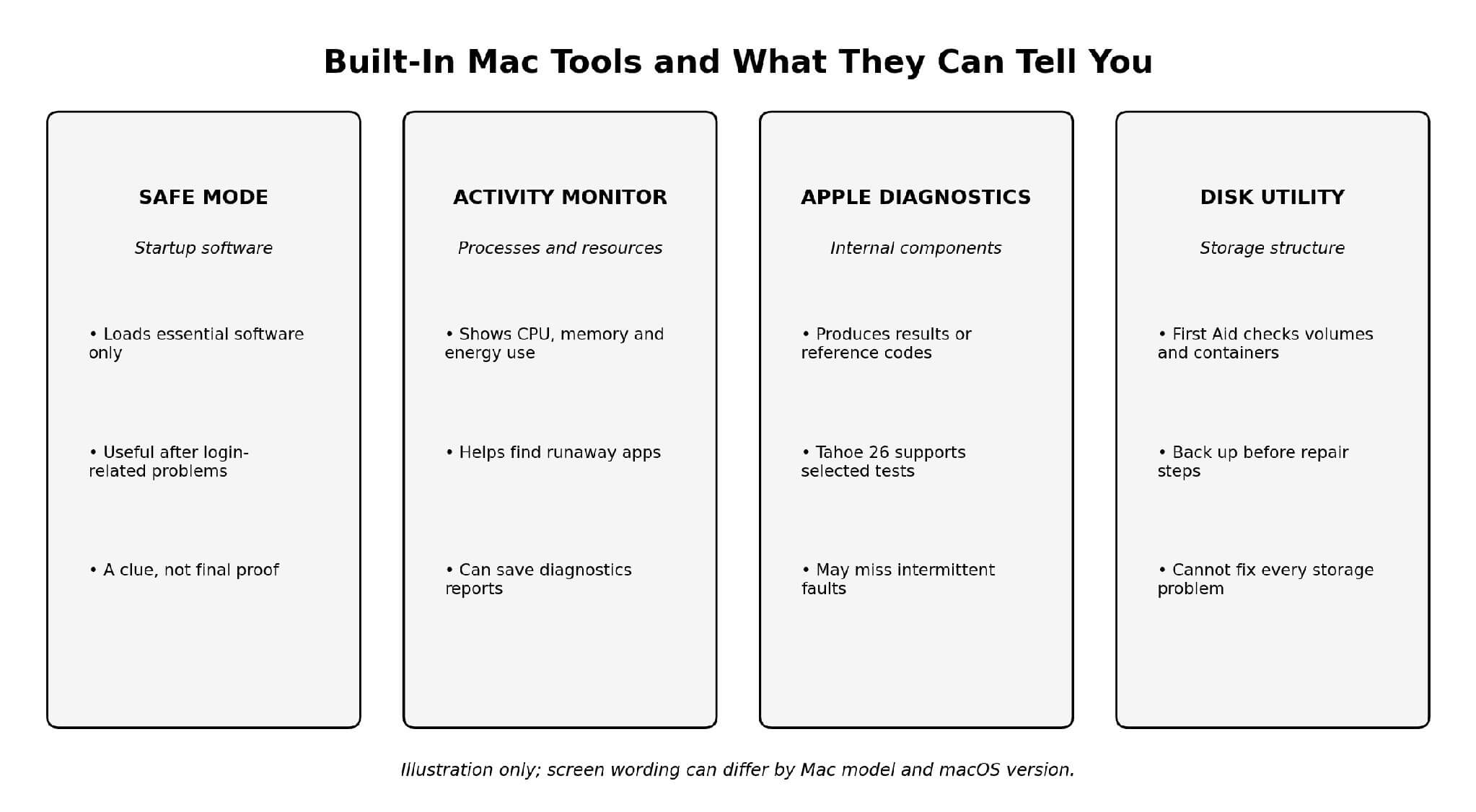
- Compare Safe Mode with normal startup. On Apple Silicon, hold the power button to enter startup options, select Volume, then hold Shift and choose Continue in Safe Mode. On Intel Macs, hold Shift at restart until login appears. If the problem disappears, suspect login items or recent apps.
- Check Activity Monitor, sorting by CPU or Energy for a process that stays unusually high when idle, and record it before quitting anything unfamiliar.
- Run Apple Diagnostics: hold the power button to access startup options, then press Command-D on Apple silicon, or hold D at startup on Intel Macs, and record every reference code.
- Check storage with Disk Utility First Aid, running it from the last volume upward through containers and the device, with a backup ready.
- Run one controlled comparison at a time, such as a temporary account, an external display, or Recovery, and read the pattern rather than any single result, since intermittent faults can escape a short test.
6. Hardware Versus Software Clues
| Observation | More Likely Software | More Likely Hardware |
| When it starts | After login or when one app opens | Before login, at startup options or during Recovery |
| What changed | Update, new app, plug-in, setting, or login item | Drop, pressure, liquid, cable wear, or battery age |
| Safe Mode | Problem improves or disappears | Problem remains unchanged |
| User accounts | Only one account is affected | Every account is affected |
| Physical movement | No repeatable effect | Lid angle, connector movement or pressure changes the fault |
| Diagnostic pattern | Resource use, permissions, or files explain the symptom | Reference code, missing component, or repeatable power fault |
Remember:
No single clue is conclusive. A strong diagnosis combines symptom history, startup behavior, and at least one controlled comparison during MacBook troubleshooting.
7. Three Practical Examples
- An M-series Air overheats only after login, with a cloud-sync process at high CPU and no issue in Safe Mode; removing the app fixes it, pointing to software.
- A Pro’s screen flickers at a specific lid angle and goes dark when opened wider, before login, while an external display stays stable, pointing to hardware.
- A MacBook shuts down at around 30% battery in both normal and Safe Mode, with Battery Health reporting Service Recommended, also pointing to hardware.
8. When to Arrange Physical Testing
Stop home MacBook troubleshooting for liquid exposure, battery swelling, smoke, exposed electrical damage, severe overheating, no response to known-good power, or display impact marks.
Professional testing makes sense when a fault appears before login, in Safe Mode and Recovery, Disk Utility cannot repair the storage, or several functions fail together. A good repair assessment explains what was tested, which part is suspected, and how pricing and warranty work. Readers can review MacBook repair services in Singapore before arranging an assessment.
9. Repair or Replace
Weigh the Mac’s age, repair cost, and the importance of its data. A battery or port fault on an otherwise reliable Mac is often worth repairing, while extensive liquid damage is less predictable. “No power” is a symptom, not a repair plan, so ask for a diagnosis that separates the battery, charging system, storage, display, and logic board.
10. MacBook Troubleshooting Diagnostic Worksheet
| Detail | What to Record |
| Model | MacBook Air or Pro, screen size, chip or processor, approximate year |
| Exact symptom | Visible message, sound, light, shutdown pattern, or display behavior |
| When it began | After update, new app, drop, liquid, travel, charger change, or no clear event |
| Repeat pattern | Before login, after login, under load, at one battery percentage or randomly |
| Tests completed | Safe Mode, Activity Monitor, Apple Diagnostics, First Aid, external display |
| Codes and messages | Copy the complete wording or reference code |
| Backup status | Date and location of the latest usable backup |
| Safety concerns | Swelling, smell, smoke, liquid, heat or physical damage |
Final Thoughts
MacBook troubleshooting works best when it follows the evidence: back up first, record the symptoms, check Safe Mode, check Activity Monitor, and protect files before using Disk Utility. Software problems tend to vary by app, account, or startup conditions, while hardware problems are more likely to occur before login, after impact, or across several tests.
Frequently Asked Questions (FAQs)
Q1. Can a software problem permanently damage hardware?
Answer: Rarely, though a runaway process can raise heat and battery use enough to warrant investigation.
Q2. Does Safe Mode prove the problem is software?
Answer: No, it makes startup software more likely, but should be used alongside other evidence during MacBook troubleshooting.
Q3. Can Apple Diagnostics miss a hardware problem?
Answer: Yes, intermittent cables, liquid residue and temperature-related faults may not appear in a short test.
Q4. Should I reinstall macOS before getting a diagnosis?
Answer: Not usually. Start with a backup, Safe Mode, Activity Monitor and Disk Utility first.
Q5. Why does my MacBook say Service Recommended?
Answer: The battery holds less charge than when new, and reduced runtime or swelling justify assessment.
Q6. Can low storage make a MacBook freeze?
Answer: Yes, very little free space affects updates, caches, and temporary data.
Q7. Will diagnosis erase my files?
Answer: Basic checks like Safe Mode and Activity Monitor normally don’t, but disk repair carries data risk, so keep a backup.
Q8. When should I seek a repair service instead of continuing to troubleshoot?
Answer: For physical damage, liquid, swelling, severe heat, no power, repeated shutdowns, or a fault that survives Safe Mode and Recovery.
Recommended Articles
We hope this guide helps you identify whether your MacBook issue is caused by hardware or software and troubleshoot it safely. Explore these recommended articles for more insights into MacBook troubleshooting, macOS issues, hardware repairs, system diagnostics, and laptop maintenance.

