


Updated July 10, 2023
What is Autodesk Maya?
Autodesk Maya, commonly shortened to just Maya, is a 3D computer graphics application that runs on Windows, macOS, and Linux, originally developed by Alias Systems Corporation (formerly Alias|Wavefront) and currently owned and developed by Autodesk. It creates assets for interactive 3D applications (including video games), animated films, TV series, and visual effects.
Pre-requisites to Install Maya
1. The installation of Maya can be started by first downloading the setup from their website. You will get the serial and product keys required for installation once you download the required product version according to the operating system and language.
2. An email with the required product and license details will be sent to your registered AutoDesk account id.
Before installation, also ensure you meet the minimum system requirement.
- CPU: Multi-core Interior AMD processor (64-bit).
- Graphics Card: Any of the Maya certified or Maya test cards.
- RAM: 8 GB of RAM (16 GB or more recommended).
- Hard Disk: 4 GB of free disk space to install.
- Pointing Device: Three-button mouse.
Please check for any previous reboot from any other application install that is not pending. If it is pending, then restart the computer.
Types of Installation
Below are the four types of installation:
- Single Installation: A standalone license is required for this type of installation, and we will look at this type in this article.
- Single Installation Network: The license server model is required to install this type of installation on multiple computers within a network. In-Network license server model, there is again a single, distributed, and redundant license server depending on the number of servers used.
- Virtual Installation: Virtual installation allow to use of Maya in the virtual environment depending upon the subscription with single-user access, multi-user access, and network server
- Trial Version: The trial version allows us to run the full software version but has a limited-term license, which is usable for a set number of days. You can have a trial subscription or trial software. Free software is available at the Education Community site for students and educators.
How to Install Maya?
Below we will learn about how to install Maya in a step-by-step manner:
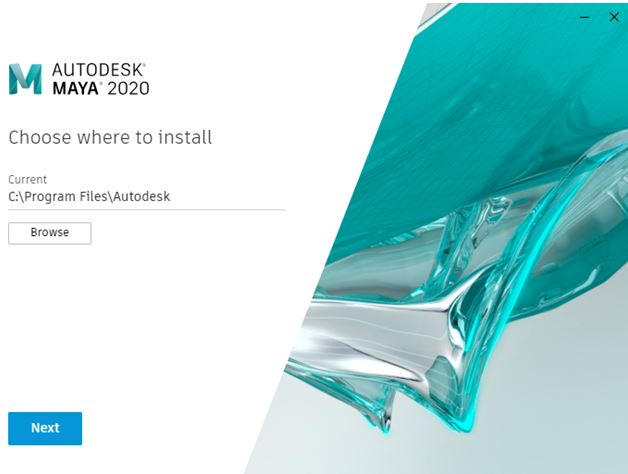
Step 1: Start with the downloaded installer. After preparing for the install dialog, you will get the above “choose where to install” dialog. Here you can set the installation path, which is defaulted to “C:\Program Files\Autodesk”. Suppose you have any previous version installed, like Maya 2019, then there is no need to uninstall it as you can run multiple versions of Maya side by side. Also, after installation, you can carry forward the configuration and settings of the previous version.
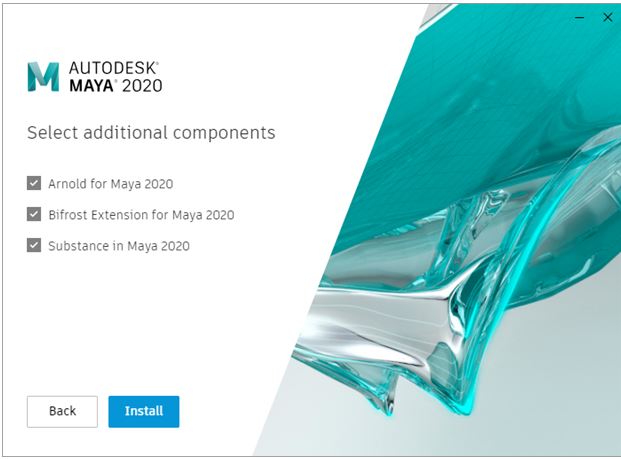
Step 2: Next, you can select additional components, which are the Arnold renderer, Bifrost Extension, and substance.
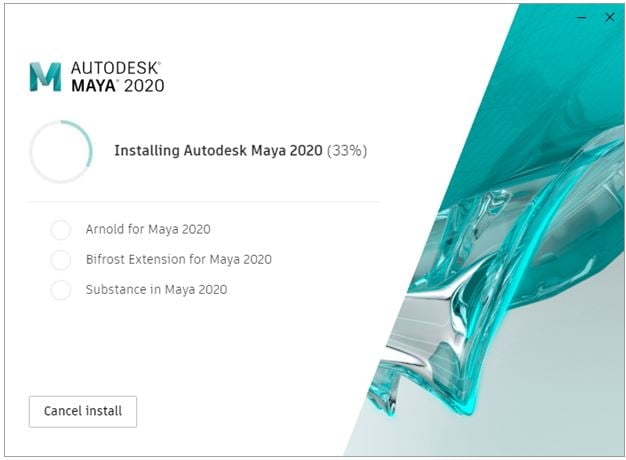
Step 3: After clicking install, the application will be installed along with selected components. It will take 10-20 minutes to install, depending on the system and network speed.
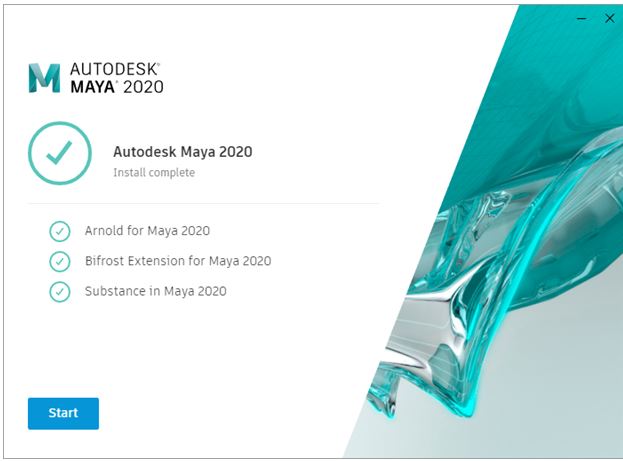
Step 4: After the installation is successful, click start, with an option to select a single-user or multi-user. Depending on the license purchased, you can select accordingly.
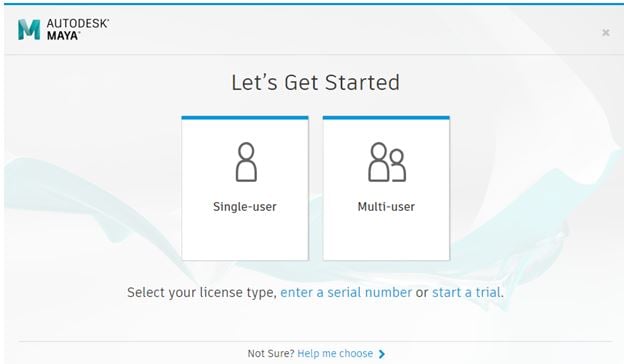
Step 5: Then, you will be required to log in with your Autodesk account. So, enter your email id and on the next screen password.
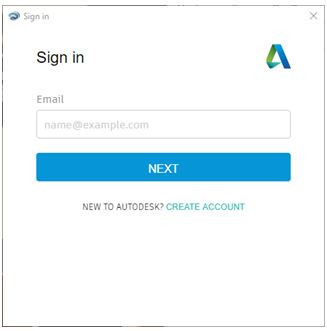
Step 6: At this point, if you have not purchased a license, you could opt to start a trial that will launch the application, but you can use it for 30 days. If you have purchased the license, you can click “Already have a license?”
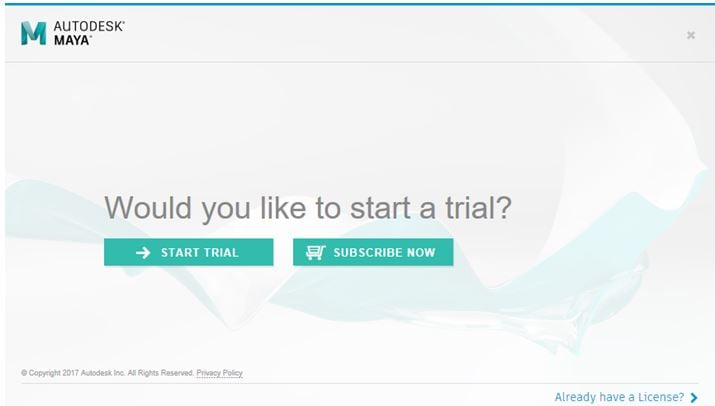
Step 7: Next, you will be greeted with an Autodesk privacy statement stating its terms and conditions and how your personal information is used.
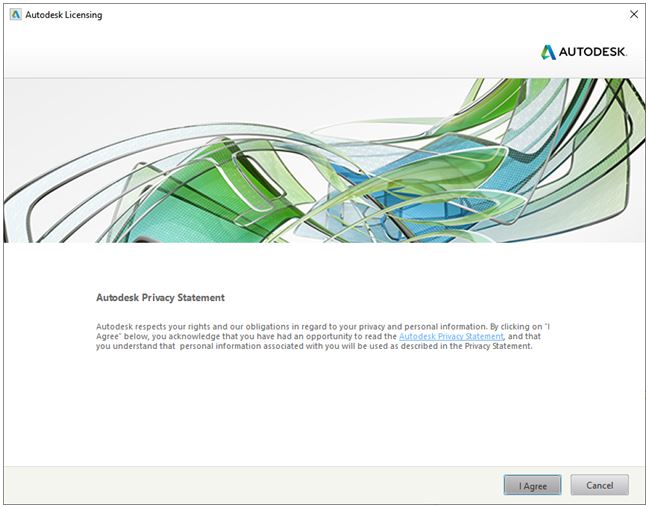
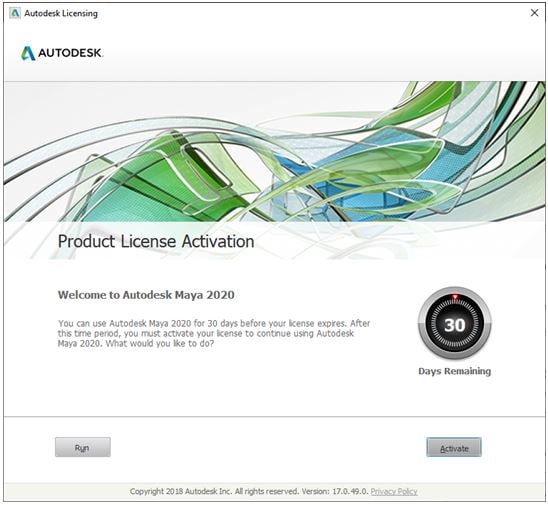
Step 8: After accepting the Autodesk privacy policy, you have 2 options:
- Run: In this case; you can use Maya for 30 days, the same as the trial version.
- Activate: In this case, you can use the full software version until your license expires.
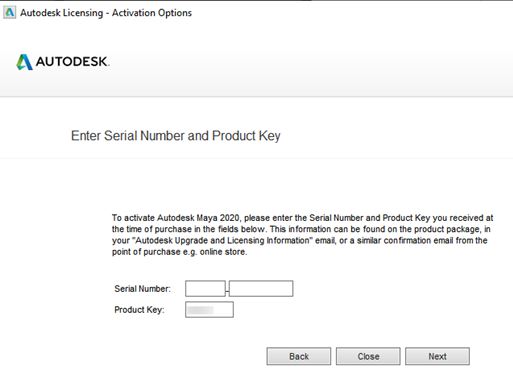
Step 9: When you activate, you will be prompted to add the serial number and a product key.
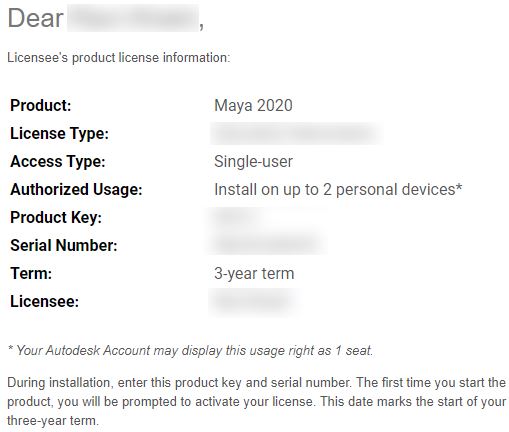
Step 10: Following the format, you will receive an email from Autodesk with a product key and serial number.
Step 11: After adding the correct information, your activation will be successful.
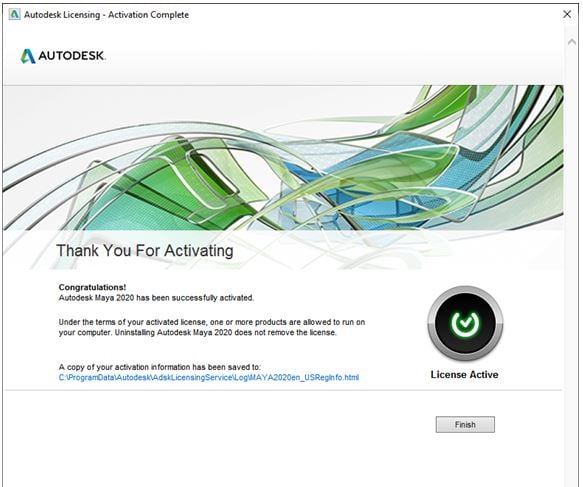
Step 12: After successful activation, a desktop icon, “Maya 2020”, will be created. Double-clicking it will open the application with the following welcome screen.

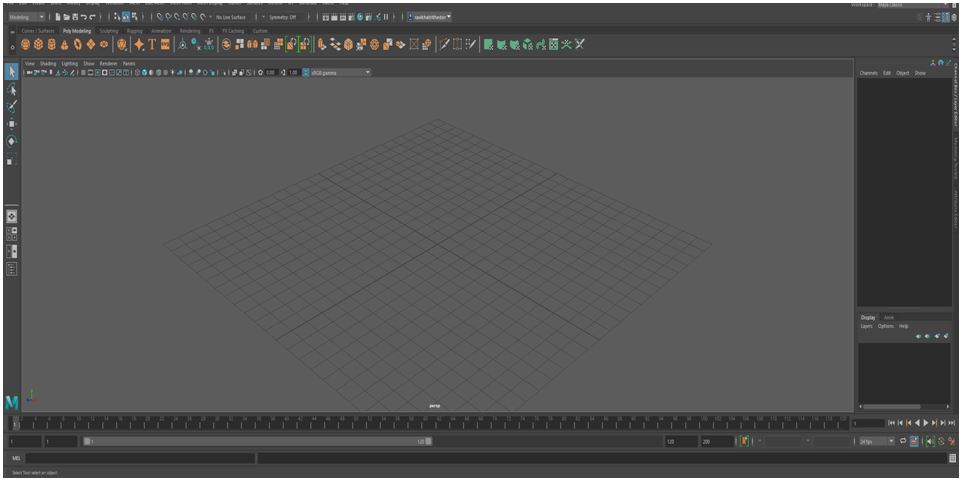
Step 13: Finally, you will get the main interface of your application. Congratulation, you have successfully installed Autodesk Maya 2020.
Troubleshoot Installation Problems
- AutoCAD for Mac and Mac OS X v10.13.x (High Sierra) compatibility.
- Error: “.NET 4.5 is not installed” when installing Autodesk 2016/2015 or older products.
- Error 1603 during the installation of Autodesk software.
- Error 1606 when installing an Autodesk product.
- How to remove and reinstall Microsoft Visual C++ Runtime Libraries.
- Revit: Templates and families not installed.
- Mac Install SSO error in 2016 or newer program installation.
- Communication Failure message during download and installation.
- Error: “The system cannot open the device or file specified”.
- Error: “Product download consists of multiple files…”.
- Error: Installer encountered an error and could not start the NetSession client.
If any of the above errors occur during installation following are some troubleshooting guidelines:
- Check you have a compatible Mac OS X version installed.
- Download and install the required .Net version from the Microsoft site.
- Perform a clean uninstall to remove any residual files and folders. And if the previous application fails to uninstall, try using the Microsoft Fixit tool.
Troubleshoot Activation Problems
- No Serial Number Needed – Sign In (Autodesk ID Licensing).
- Activation wizard display error.
- Error: “Invalid serial number”.
- Error 10: Activation Limit Reached.
- Unable to activate products due to Error 10.
- Register Today (Product Activation Wizard) displays only two radio buttons.
- Serial number errors during Activation.
If any of the above errors occur during installation, the following are some troubleshooting guidelines. Enable HTTP (port 80) and HTTP (port 443) access to the following domains:
- *.virtualearth.net
- *.cloudfront.net
- *.google-analytics.com
- *.akamaiedge.net
- *.amazonaws.com
- *.getsatisfaction.com
- *.autocadws.com
- *.akamaintechnologies.com
- *.msecnd.net
- *.microsoft.com
- *.google.com
- *.edgekey.net
- *.newrelic.com
- *.velasystems.com
- *.nr-data.net
- *.autodesk.com
- There might be a typo in the serial number, or the serial number is no longer valid, or else the serial number is not valid for this particular product as Autodesk have multiple products, or you have exceeded the activation limit.
Conclusion – Install Maya
So, to summarize, we have installed Autodesk Maya 2020 along with system requirements, downloading, and activation procedure and made everything up and running. So Maya is ready to create amazing artwork, models, and animations.
Recommended Articles
We hope that this EDUCBA information on “Install Maya” was beneficial to you. You can view EDUCBA’s recommended articles for more information.

