


Updated August 11, 2023
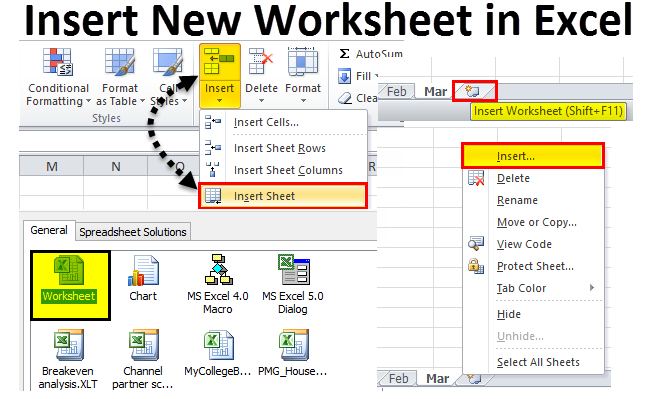
Insert New Worksheet in Excel (Table of Contents)
- Insert New Worksheet in Excel
- Modify Default Number of Worksheets
- Insert New Worksheet in Existing Workbook
Insert New Worksheet in Excel
When you open an excel workbook, how many worksheets can you see? Maybe you have not realized how many you see by default.
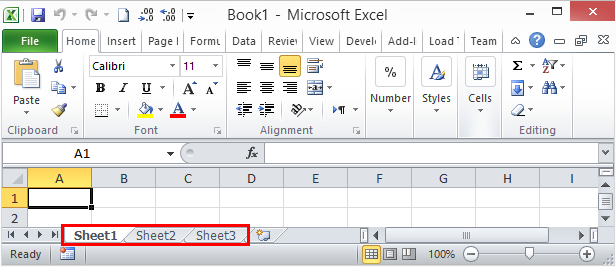
If there are no modifications in settings by default, Excel will give you 3 worksheets named Sheet 1, Sheet 2, and Sheet3, as shown in the below image.
In this article, I will show you ways of adding new worksheets in excel, how to modify the number of worksheets when you open a new excel workbook, how to change the color, theme, etc… in this article.
Open New Workbook from your Computer
Let me start with opening a new workbook in excel. For this article, I am using Excel 2010, and the operating windows are Windows 10.
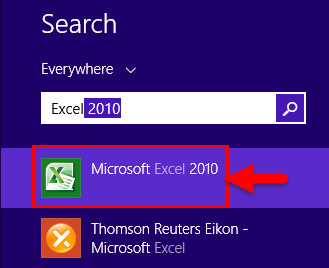
Step 1: In your computer’s search box, type excel; it will show you the excel app in your computer.
Step 2: Click on the Excel version app on your computer.
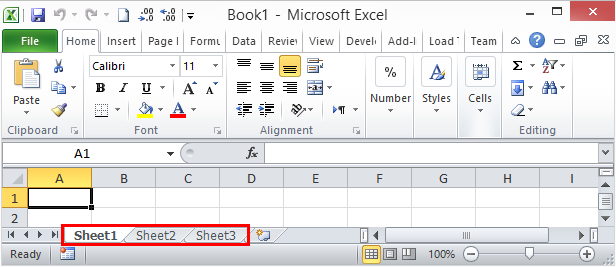
Step 3: If any of the workbooks are already open, you will directly see a new workbook and a total of 3 worksheets.
Now we will see how to modify the number of worksheets by default.
Modify Default Number of Worksheets
Now we have seen default excel can give us 3 worksheets in the new workbook. However, if you are not satisfied with the number of worksheets, in the first go itself, excel offers you to modify a number of worksheets as per your wish. Follow the below steps to modify your excel settings.
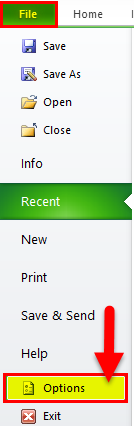
Step 1: Go to FILE.
Step 2: Under FILE, go to OPTIONS.
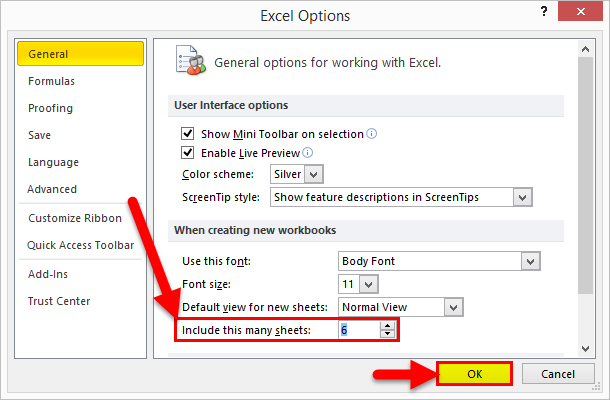
Step 3: Select GENERAL Excel Options and select Include this many sheets. Here you can insert up to 255 worksheets when the new workbook is inserted. It is highly unlikely we use 255 worksheets. I have limited my worksheets to 6.
Step 4: Click on Ok to complete the process.
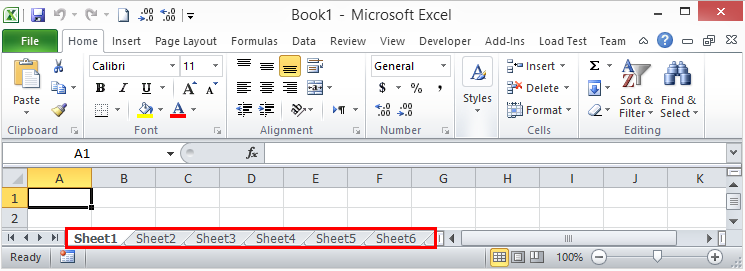
Step 5: Now open a new workbook and see the magic.
The shortcut key is Ctrl + N to open a new workbook when at least one excel workbook is already open.
I have 6 worksheets instead of the regular 3 worksheets when the new workbook is inserted. This modification is applicable for all the workbooks going forward.
Insert New Worksheet in Existing Workbook
Now we have learned how to modify the number of worksheets when we open a new workbook. Now we will concentrate on ways of inserting a new worksheet in the existing workbook.
Assume you are working in a workbook and you have 3 worksheets already. Now you have to insert one more worksheet for the new month sales; you can insert a new worksheet manually and use a shortcut key.
Insert New Worksheet in Excel Manually – Method 1
Step 1: Right-click on any of the worksheet.
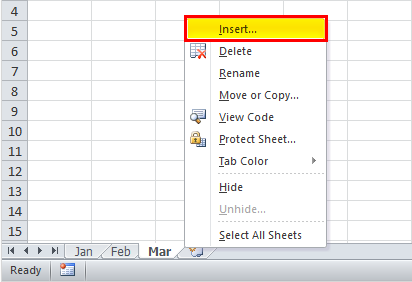
Step 2: Select the Insert option, and you will see below the window. Select Worksheet as the option.
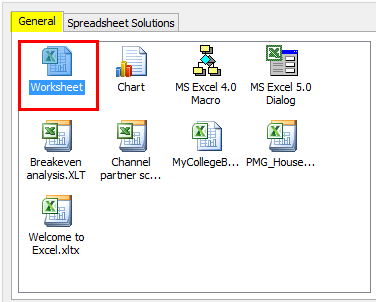
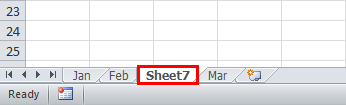
Step 3: Since I have right-clicked on the worksheet Mar now, I have a worksheet on the left of the Mar worksheet.
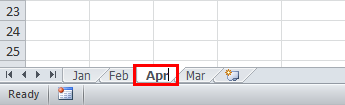
Step 4: Now, you can rename this worksheet by double-clicking on the sheet name.
Insert Worksheet Manually – Method 2
If you think the previous step was a bit lengthy and time to consume, you can choose this one. This is as easy as you like.
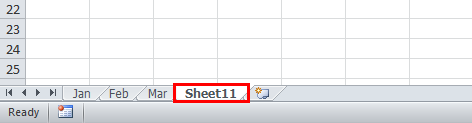
After all the worksheet, you will see the Plus (+) icon.
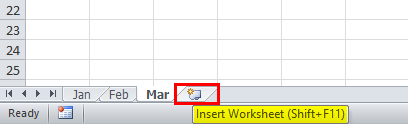
Click on this Plus icon to insert a new sheet. This will insert the worksheet to the right of the active worksheet.
Insert Worksheet Manually – Method 3
We have one more way of creating a new worksheet manually. This is also a simple one but of a manual process.
Go to the HOME tab and Find the Insert button under the HOME tab.
Now select the Insert Sheet option.
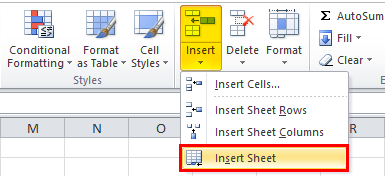
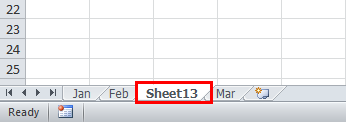
This will insert the new worksheet to the left of the active worksheet.
Using Shortcut Key – Method 4
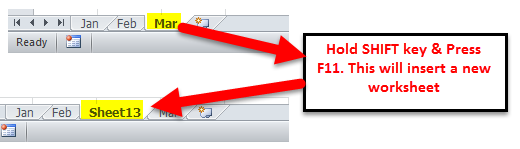
We can also Insert New Worksheet in Excel by using the shortcut key Shift + F11
Enough of manual methods in excel to Insert New Worksheet in the existing workbook. Yes, the manual process is a frustrating one, and that is why we have the shortcut key to insert very quickly.
Press the keys Shift + F11 key together; it will insert a new worksheet to the left of the active worksheet.
Create a Copy of Existing Worksheet as New Worksheet
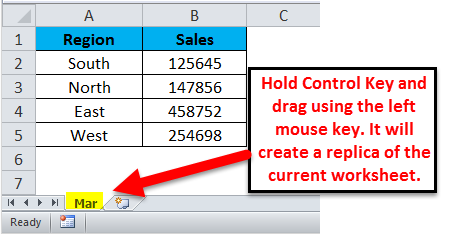
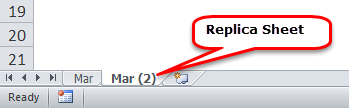
If you are working on the worksheet and need a replica of the worksheet you are working on, you can create a replica of the sheet.
Assume your current worksheet name is Mar. Hold the Ctrl key and drag the worksheet to the right side; you will have a replica of the worksheet.
Things to Remember About Insert New Worksheet in Excel
- In order to insert multiple sheets once, you need to select those sheets which you want to insert and click the shortcut key.
- Insert New Worksheet in Excel is a feature that automatically adjusts the width or height of a cell.
- To rename the worksheet, double click on the sheet name and type the new name.
- All the method insert the new worksheet to the left of the active worksheet excel, clicking on the Plus icon button.
Recommended Articles
This has been a guide to Insert New Worksheet in Excel. The easiest way to adjust a column is to use the Insert New Worksheet in Excel. Here we discuss how to use Insert New Worksheet in Excel along with practical examples and downloadable excel template. You can also go through our other suggested articles –

