


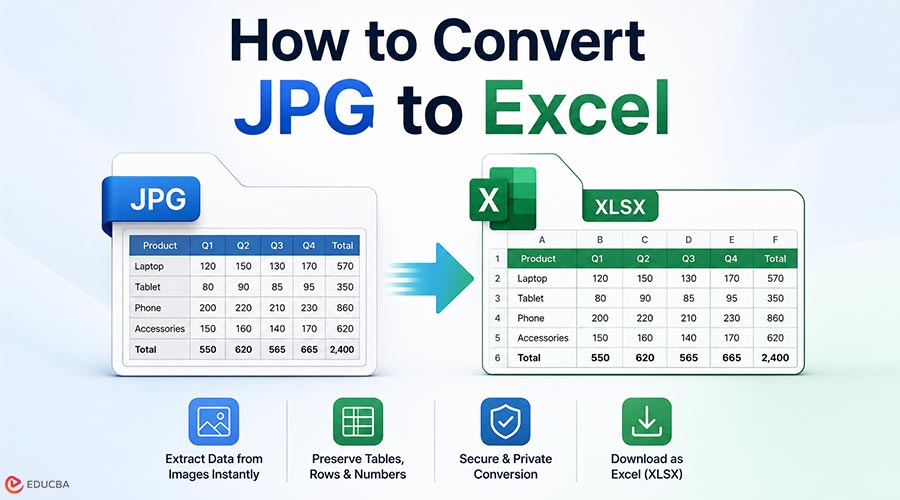
You have an image containing data. A scanned invoice. A photographed table. A screenshot from a report. You need it in an editable spreadsheet. Retyping it is slow and easy to get wrong. That is what the JPG-to-Excel conversion solves. But not every image converts cleanly. And not every tool that converts JPGs to Excel handles every situation well. Knowing the difference saves you a lot of cleanup time.
Does Your Image Type Actually Matter?
Yes. It matters more than most people expect.
- Screenshot of a digital table — The text is sharp, lines are clean, and contrast is high. Most tools handle this without issues when you perform a JPG to Excel conversion.
- Scanned document at 300 DPI or higher — Flatbed scanners give OCR tools clean, consistent input to work with, improving accuracy during JPG to Excel conversion.
- Phone photo of a printed table — Camera angle, lighting, and paper glare all affect the result. Before uploading, run your photo through a document scanner app like Microsoft Lens. It corrects perspective and boosts contrast. That one step improves results when you convert JPG to Excel online.
- Handwritten tables — Standard OCR is not built for handwriting. If your data is handwritten, manual entry is more realistic than relying on a JPG-to-Excel converter.
Why Do Some Conversions Come Out Wrong?
Most errors stem from three factors: image quality, tool limitations, and JPG compression.
JPG is a lossy format. Every time a JPG is saved, it loses small details. Fine table borders and thin text can degrade before you even upload the file. If your image appears slightly blurry, convert it to PNG first. PNG is a lossless format that provides OCR tools with cleaner input, resulting in better conversion results.
Tool limits are also a real problem. Many free converters cap file sizes at 5MB. Others give you one free conversion per day. Some fail on tables that use spacing instead of visible lines between columns. Without visible borders, a basic OCR engine tends to merge all the data into a single column.
For most everyday cases, a tool like WPS Office’s JPG-to-Excel converter handles them without a login or conversion cap. That matters when you are working through a stack of files and do not want to stop at an artificial limit.
Does Excel Already Do This?
Yes, but with conditions. Microsoft Excel 365 has a “Data from Picture” feature under the Data tab. You upload an image, and Excel reads it and extracts the data into cells.
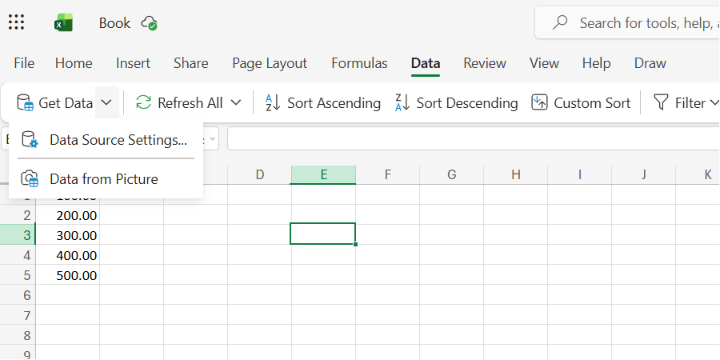
Figure 1: Accessing the native “Data from Picture” feature under the Data tab in Excel for the Web.
It works reasonably well on clean, simple tables. You need an active Microsoft 365 subscription to use it. If you are on a standalone version of Excel or using someone else’s machine, the feature may not be there. It also struggles with merged cells and multi-column headers.
If you have an active 365 subscription, it works well for quick JPG-to-Excel conversion tasks. For anything more complex, or if you want a browser-based option that requires no software or login, a dedicated online tool to convert JPG to Excel is the faster route.
Data Privacy: What Happens to Your Uploaded Files?
It is worth thinking about before uploading any sensitive file.
When you perform a JPG-to-Excel conversion online, your file is sent to a third-party server. For personal invoices, financial statements, or client documents, that is worth considering.
Trusted services typically delete files automatically after processing, often within an hour. They also rely on encrypted connections for security. It is important to choose tools that clearly outline how they manage privacy and handle uploaded files.
Avoid it for sensitive files if the privacy policy is unclear or missing.
For documents that cannot leave your device, desktop software with local processing is the right call. WPS Office can handle JPG-to-Excel conversion on-device without uploading.
How to Convert JPG to Excel Online: The Actual Steps
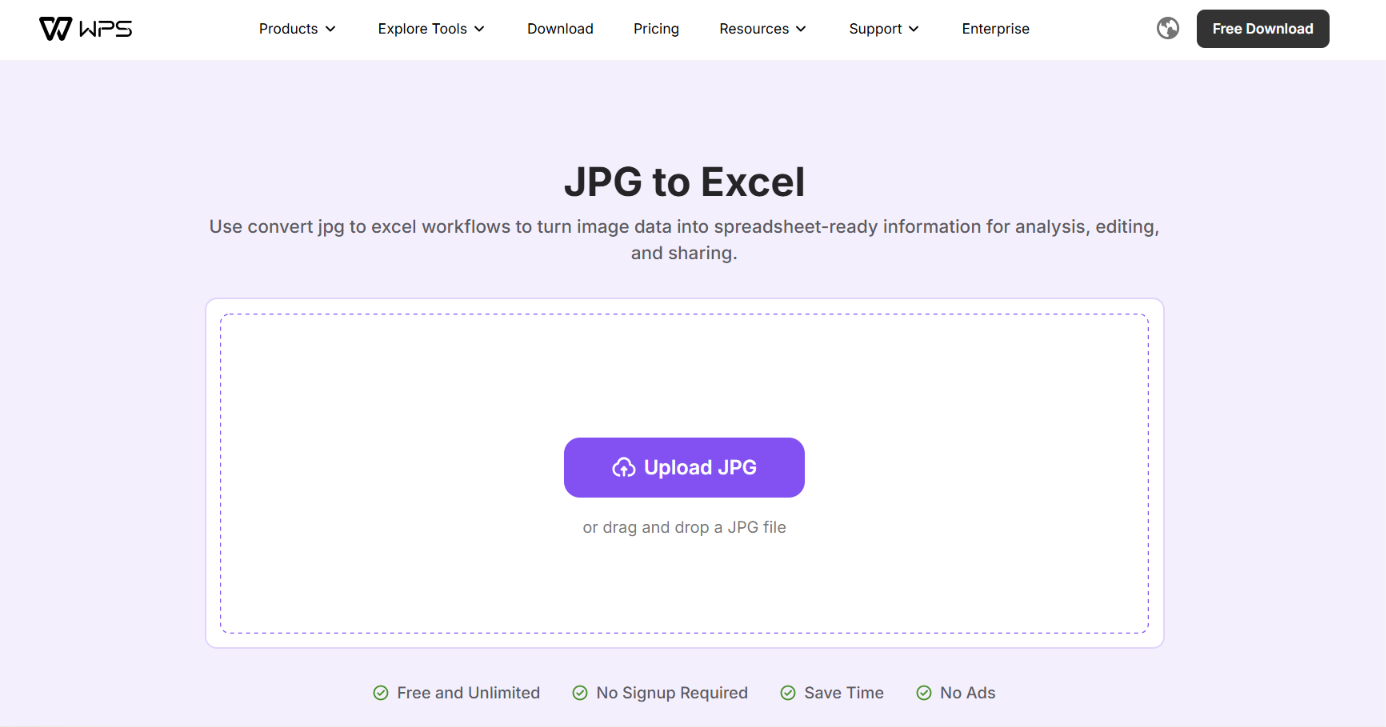
Figure 2: The web user interface of an online converter featuring a clean drag-and-drop file upload zone.
For most users, a browser-based tool is the practical choice for converting JPGs to Excel.
- Open the converter in your browser. No signup needed.
- Upload your JPG by dragging it in or clicking to browse.
- The tool scans the image and automatically detects rows, columns, and text.
- Download the XLSX file.
- Open it in Google Sheets, Excel, or any spreadsheet app.
The entire JPG-to-Excel conversion process takes under a minute for a standard image. If your image quality is lower or the table is complex, the output may need light cleanup.
When Are Online JPG-to-Excel Converters the Wrong Choice?
Not every situation calls for an online JPG-to-Excel converter.
Skip it if:
- You need to convert dozens of images at once, but the tool limits the batch size.
- Your organization has data-handling policies that prohibit uploading files to external servers.
- Your images contain handwriting or non-standard formatting — OCR correction time may cancel out the time saved by the JPG-to-Excel conversion.
In these cases, desktop software with local processing is the more practical answer.
Post-Conversion Checklist: Cleaning Up Your Data
Even a clean JPG-to-Excel conversion needs a few minutes of review.
Check that numbers are imported as numeric values rather than text strings. Excel’s status bar shows a sum if the cells are recognized as numbers—if it shows a count instead, the cells are text. Select the cells, go to the Data tab, and use Text to Columns to reformat them as numbers.
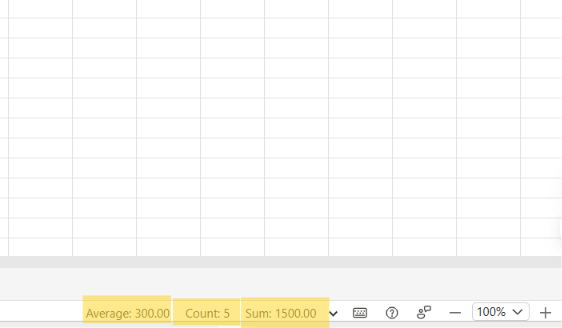
Figure 3: Excel status bar confirming data converted to numeric values.
Look for merged cells that split incorrectly. Verify that column headers did not shift during conversion. For financial documents, always verify totals against the original image before using the data in any report or formula.
Final Thoughts
Converting an image to Excel is straightforward when you pick the right JPG to Excel conversion method for your file. The important factor is selecting a tool that matches the type of image you are working with. Always review the privacy terms before uploading sensitive documents, especially when using any online JPG-to-Excel converter. Once the file is converted, take a moment to clean up the output — small errors are normal and much easier to fix early.
For regular use, a browser-based JPG-to-Excel converter with no signup and no conversion limits handles most cases quickly and efficiently. For sensitive files or high-volume work, desktop software with local processing remains the more secure and reliable option for converting JPGs to Excel.
Frequently Asked Questions (FAQ’s)
Q1. Can I convert JPG to Excel online for free without creating an account?
Answer: Yes. Online tools that convert JPG to Excel allow you to upload and convert images without registration. A JPG-to-Excel converter can process the file instantly and provide a downloadable spreadsheet.
Q2. Why does my converted Excel file show numbers as text?
Answer: This is common in JPG-to-Excel conversions when OCR misinterprets numeric values. After you convert JPG to Excel, you can fix it using Excel’s “Convert to Number” option or Text to Columns under the Data tab.
Q3. Is it safe to upload invoices or financial documents to an online JPG-to-Excel converter?
Answer: It depends on the online tool used for JPG-to-Excel conversion. Trusted platforms use encryption and automatic deletion. For sensitive data, offline JPG-to-Excel conversion is safer.
Q4. Does image-to-Excel conversion work on mobile?
Answer: Yes, the JPG-to-Excel conversion online works in mobile browsers. You can take a picture, upload it to a JPG-to-Excel converter, and then download the Excel file directly to your mobile device.
Q5. Which image formats are supported by JPG-to-Excel converters?
Answer: Most tools support JPG, JPEG, and PNG formats for converting JPG to Excel. PNG often produces better results because it preserves clarity and reduces compression noise during image-to-Excel conversion.
Recommended Articles
We hope this guide on JPG-to-Excel conversion helps you efficiently extract data from images and improve workflow accuracy. Explore these recommended articles for additional insights and strategies to enhance your data extraction, OCR accuracy, and spreadsheet productivity.

