


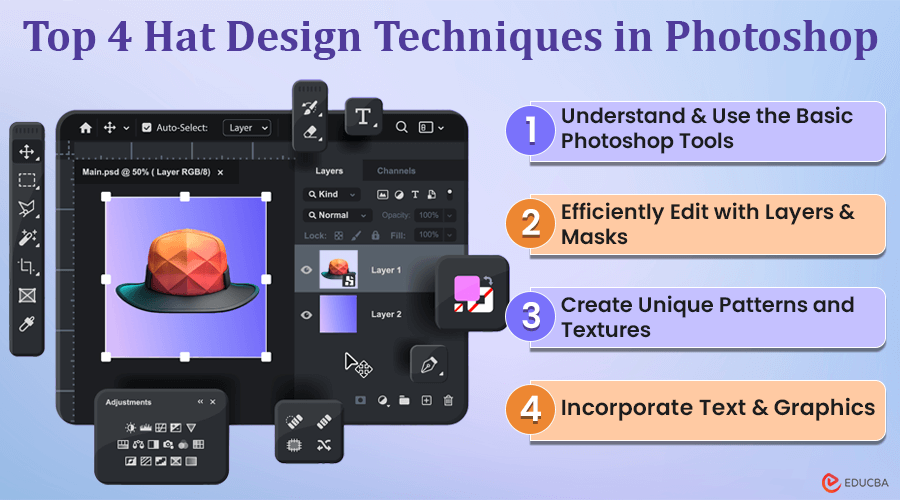
Introduction to Hat Design Techniques in Photoshop
Hats are not just accessories; they express style, personality, and culture. Whether it is a fedora, a baseball cap, or a beanie, each hat design carries its unique charm. Hat design has become more accessible because of software like Adobe Photoshop. In this article, we will explore various hat design techniques in Photoshop for hat designers.
Top 4 Hat Design Techniques in Photoshop
#1. Understand & Use the Basic Photoshop Tools
Mastering Photoshop tools and features is essential for hat design. The toolbar is your artistic toolbox that offers selection tools for precision and brushes for creativity. Adjustment layers allow effortless color and tone adjustments.
Layers let you work on elements separately without changing the originals, while masks hide/reveal parts seamlessly. Filters offer quick, creative options, and Blending Modes open new possibilities by combining layers uniquely.
Custom shapes and paths aid in intricate designs, and learning shortcuts boosts workflow efficiency. Familiarizing yourself with these tools empowers you to realize your hat design visions with precision and creativity digitally.
#2. Efficiently Edit with Layers and Masks
Understanding layers and masks in Photoshop is crucial for designing hats effectively. Layers let you work on different design parts simultaneously without affecting the overall composition. Masks allow precise control over which areas of the design are visible, seamlessly facilitating experimentation with effects and textures.
With layers and masks, you can create professional-grade hat designs with intricate details, unique color schemes, and seamless blending for a standout final product.
#3. Create Unique Patterns and Textures
Try using Photoshop to create unique patterns and textures to make your hat designs stand out. Experiment with different brushes and blending modes to find your style. Adding color gradients can make your designs more interesting.
Be creative with your designs by mixing floral patterns, geometric shapes, or abstract textures. Customizing patterns lets you create hats that truly reflect your personality.
Learning Photoshop to craft custom hat patterns and textures opens up endless possibilities for creativity. Mastering this skill will elevate your designs to the next level, whether you prefer bold prints or subtle details. Keep practicing and experimenting to find your unique style and make your designs stand out.
#4. Incorporate Text and Graphics
Adding text and graphics to hat designs using Photoshop brings depth and creativity to your projects. With Photoshop’s text tool, you can easily integrate meaningful phrases or logos onto hats, adjusting fonts, sizes, and colors to suit your vision. Whether intricate patterns or minimalist icons, graphics can be seamlessly incorporated using blending modes and opacity settings.
Tips to Optimize Hat Designs Through Photo Manipulation
Enhancing your hat designs through photo manipulation is crucial for presenting them accurately. Here is a structured approach to elevate your designs:
- Image Selection: Begin by choosing high-quality images that complement each other. Consistent lighting is key for a cohesive look.
- Blending Modes: Experiment with blending modes to integrate your hats seamlessly into various scenes. Adjust the color balance and saturation for natural blending.
- Shadow Enhancement: Adding realistic shadows enhances the authenticity of your designs. Pay attention to light direction and intensity for convincing results.
- Distraction Removal: Use tools like the clone stamp and healing brush to remove distractions, ensuring the focus remains on your hats.
- Perspective Adjustment: Adjust perspectives to fit your hats seamlessly into their surroundings. It helps create a realistic and integrated appearance.
- Reflections and Textures: Consider reflections and textures to add depth to your designs. Mimicking real-world surfaces enhances the overall authenticity.
Final Thoughts
Advanced Photoshop techniques can take your hat designs to the next level. Hat Designers often use blending modes, custom brushes, and detailed layer styles to make their creations stand out. Practicing regularly is important for getting better at Photoshop. Try new techniques and features to unleash your creativity. With dedication, you will soon be making stunning hat designs that stand out. So, get into Photoshop and explore the endless possibilities for hat design!
Recommended Articles
We hope you use the mentioned Hat Design Techniques in Photoshop to create innovative hat designs. For more design-related guides, here are the resources you can check.

