


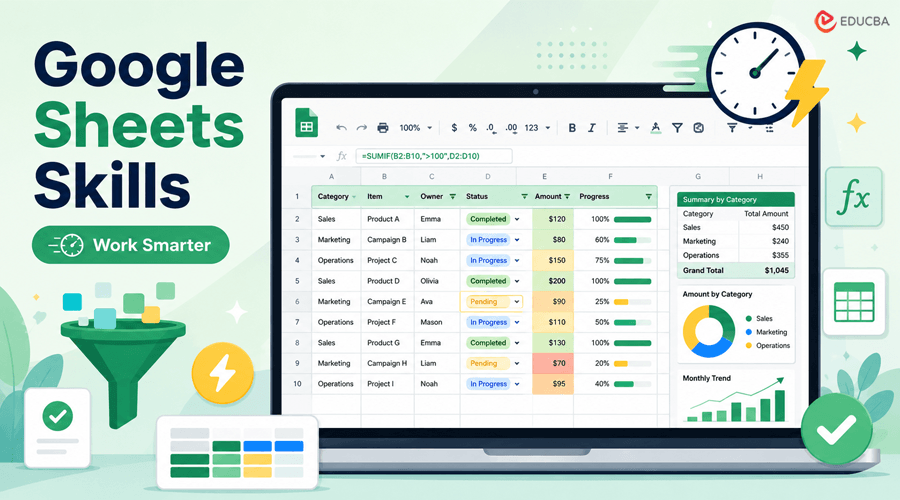
Google Sheets is easy to start using. Open a spreadsheet, enter some numbers, add a formula, and you already have something useful.
The harder part is learning the right Google Sheets skills to work efficiently.
A spreadsheet that takes someone an hour to update can often be handled in ten minutes with the right formula, shortcut, or structure. This matters whether you are tracking expenses, preparing reports, organizing customer data, managing projects, or simply cleaning up a large list.
You do not need to learn every Google Sheets function. A relatively small set of practical Google Sheets skills can cover a surprising amount of everyday spreadsheet work.
Here are ten worth learning.
1. Use Absolute References When a Value Should Stay Fixed
One of the first spreadsheet mistakes people make is copying a formula and accidentally moving a cell reference that should not change.
Suppose column B contains product prices and cell F1 contains a tax rate of 20%.
You might start with:
=B2*F1
However, when you drag the formula down, Google Sheets changes F1 to F2, F3, F4, and so on.
Instead, write:
=B2*$F$1
The dollar signs lock the reference to F1.
This is useful for tax rates, exchange rates, commissions, conversion factors, targets, and any other value that needs to remain constant while another part of the formula changes.
Learning the difference between relative references such as B2 and absolute references such as $B$2 is one of the most useful Google Sheets skills for working with formulas.
2. Stop Manually Adding Conditional Totals
A common spreadsheet contains hundreds of transactions, and someone manually filters the table to calculate a total.
A formula usually does that.
SUMIF adds values that meet one condition.
For example:
=SUMIF(B2:B500,”Paid”,D2:D500)
This adds values in column D only when the corresponding cell in column B says “Paid.”
For multiple conditions, use SUMIFS.
For example:
=SUMIFS(D2:D500,B2:B500,”Paid”,C2:C500,”Spain”)
That could calculate the value of paid transactions from Spain without requiring any filtering.
The same principle applies to COUNTIF, COUNTIFS, AVERAGEIF, and AVERAGEIFS.
These functions are especially valuable in sales reports, budgets, inventory sheets, marketing trackers, and operations dashboards.
Learning conditional formulas is an important part of developing practical Google Sheets skills because they can eliminate repetitive manual calculations.
3. Learn a Reliable Lookup Method
Many business spreadsheets consist of separate tables that need to connect.
You may have one table containing:
- Product ID
- Product name
- Category
and another containing:
- Product ID
- Units sold
Instead of manually copying product information between the two tables, use a lookup.
A classic example is:
=VLOOKUP(E2,A2:C100,3,FALSE)
The formula looks for the value in E2 inside the first column of the selected table and returns the corresponding value from its third column.
The final FALSE requests an exact match.
Google Sheets also supports functions such as XLOOKUP and combinations of INDEX and MATCH, which may be more flexible for certain jobs.
The key skill is not memorizing every lookup formula. It is understanding the idea of using a shared identifier such as an invoice number, SKU, email address, or employee ID to connect two datasets.
Learning lookup functions is one of the most valuable Google Sheets skills for anyone who regularly works with business or customer data.
4. Clean Text With Formulas Instead of Editing Every Cell
Imported data is rarely as clean as you want it.
Names may contain unwanted spaces. Phone numbers may use inconsistent formatting. Product codes might need part of the text removed.
Google Sheets includes several functions that can fix these problems in bulk.
TRIM removes unnecessary spaces:
=TRIM(A2)
LOWER converts text to lowercase:
=LOWER(A2)
UPPER converts it to uppercase:
=UPPER(A2)
PROPER capitalizes words:
=PROPER(A2)
SUBSTITUTE replaces specified text:
=SUBSTITUTE(A2,”Ltd.”,”Limited”)
Functions like LEFT, RIGHT, MID, SPLIT, and REGEXREPLACE also help with more complex cleanup.
If you find yourself correcting the same text problem repeatedly, it is worth checking whether a formula can do it across the entire column.
Text-cleaning formulas are another useful Google Sheets skill, especially when working with imported or inconsistent datasets.
5. Use Conditional Formatting to Find Problems Quickly
Not every useful spreadsheet feature requires a formula.
Conditional formatting changes the appearance of cells when specified conditions are met.
You could use it to highlight:
- overdue invoices,
- duplicate IDs,
- sales below target,
- inventory running low,
- deadlines approaching this week,
- negative profit margins.
For example, imagine a stock sheet where column D contains the number of units remaining.
You could create a rule that highlights any value below 10.
Instead of reading hundreds of rows individually, the problem becomes visible immediately.
Conditional formatting works best when it communicates something meaningful. Coloring every possible value usually makes a spreadsheet harder to read, not easier.
6. Turn Repeated Categories Into Dropdowns
If several people update the same spreadsheet, inconsistent data quickly becomes a problem.
One person enters “Complete.”
Another writes “Completed.”
Someone else types “done.”
Although these all mean the same thing to a human, formulas and filters may treat them as separate values.
Dropdowns solve this by limiting entries to approved choices.
A project tracker, for example, might use:
- Not Started
- In Progress
- Blocked
- Complete
Dropdowns are useful for status fields, departments, priorities, locations, payment states, lead stages, and similar categories.
They reduce typing and make later analysis much more reliable.
7. Use Filters Without Changing the Underlying Data
Filters help you temporarily narrow a large table.
For example, you could show only:
- orders from this month,
- customers in one country,
- projects assigned to one employee,
- invoices that remain unpaid.
This is much safer than deleting rows you do not currently need.
When several people use the same spreadsheet, filter views are even better. A filter view lets you create your own filtered version without changing what everyone else sees.
That makes them particularly useful for shared operational spreadsheets.
8. Learn Through Small, Exact Examples
Spreadsheet skills are easier to learn by doing than by reading definitions.
Knowing that a function “performs a conditional sum” is less useful than seeing:
=SUMIF(A2:A20,”Paid”,B2:B20)
and understanding exactly what each range represents.
The same is true for formatting, sorting, lookups, pivot tables, and dozens of smaller Google Sheets tasks.
When you encounter something unfamiliar, look for instructions that show the actual cells, formula, and expected result. Resources such as SheetSteps organize Google Sheets templates, tutorials, and formula examples around individual tasks, which can be useful when you need to learn one specific operation without working through an entire spreadsheet course.
Once you understand the small example, recreate it using your own data.
That tends to stick much better than memorizing a list of functions.
9. Build Pivot Tables Before Building Complicated Reports
A pivot table summarizes a large dataset without requiring dozens of formulas.
Imagine a sheet containing 20,000 sales records with columns for:
- Date
- Salesperson
- Country
- Product
- Revenue
A pivot table could quickly show total revenue by salesperson, revenue by country, monthly sales, or sales by product category.
You can also combine rows and columns.
For instance, putting Country in the rows, Product in the columns, and Revenue in the values produces a compact summary of how each product performs in each market.
Pivot tables are especially useful when you have clean tabular data but are not yet sure which patterns you want to examine.
Rather than creating a separate formula for every question, you can rearrange the pivot table and explore the data interactively.
10. Separate Raw Data From Your Calculations
One of the best spreadsheet habits is also one of the simplest: avoid doing everything on one tab.
For a recurring report, you might use separate sheets for:
- Raw Data: The original export or source information.
- Clean Data: Standardized dates, categories, names, and calculated fields.
- Summary: Metrics and tables used for analysis.
- Dashboard: Charts and figures intended for presentation.
This structure makes mistakes easier to trace.
If a dashboard number suddenly looks wrong, you can work backward through the calculation rather than trying to understand a single sheet with imported data, formulas, notes, totals, and charts mixed together.
It also makes future updates considerably easier. Replace or append the raw data, and the rest of the workbook can continue using the same structure.
Separating data, calculations, and reporting is one Google Sheets skill that can make recurring spreadsheet work much easier to maintain.
The Best Google Sheets Skills Solve Repeated Problems
Getting better at Google Sheets is not about memorizing hundreds of functions.
Pay attention to the tasks you keep performing manually.
If you repeatedly copy information between tables, learn lookups. For tables you frequently filter to calculate totals, use conditional formulas instead. You can often clean imported data automatically by creating a repeatable transformation process. Likewise, if you rebuild a report every week, separate the raw data from the calculations and design the workflow so each update takes less work.
The most valuable Google Sheets skills eliminate repetitive work and make your spreadsheets easier to manage.
A good spreadsheet should not only give you the correct answer today. It should make it easier to get the same answer tomorrow.
Start with the repetitive parts of your current spreadsheets. That is usually where a little Google Sheets knowledge saves the most time.
Recommended Articles
We hope this guide helps you build practical Google Sheets Skills that save time, improve accuracy, and make everyday spreadsheet tasks easier. Explore these recommended articles for more insights into Google Sheets, spreadsheet formulas, data analysis, productivity tools, and workplace efficiency.

