


Introduction to Forecast Formula in Excel
The forecast formula is used to predict or calculate a future value based on past data in financial modeling. It uses linear regression to predict the value. This is one of the in-built Statistical Functions. It can also be used as a worksheet function in a formula with other functions. The user can use this function to calculate future growth, sales, etc. In Excel, 2013 and earlier versions have the Forecast function, which is now changed to FORECAST.LINEAR function. The forecast formula is still available in Excel 2016 and the latest version with backward compatibility.
Syntax:
FORECAST () – It will return future value based on past data. There are three parameters – (x, known_y’s, and known_x’s).
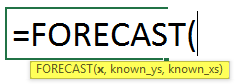
An argument in the FORECAST Function
x – It is a mandatory parameter for which the user wants to predict the value.
known_y’s an optional parameter; it is the data range or array of dependent data known.
known_x’s – It’s an optional parameter; it is the data range or array of independent data known.
The equation for Forecast: “y=a + bx ”
where: x and y are the samples means AVERAGE (known_x’s) and AVERAGE (known y’s).
How to Use Forecast Formula in Excel?
Excel Forecast Formula is very simple and easy. Let’s understand how to use the Excel Forecast Formula with a few examples.
Example #1 – Basic Forecast Formula in Excel
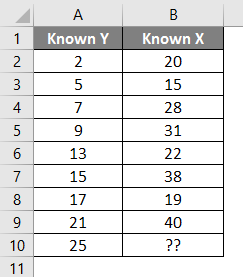
There are some known Y and X values, so a user wants to calculate the known Y 30 value for known X based on past data, which is known Y and known X. Let’s see how the Forecast Function can solve this problem.
Open MS Excel and go to Sheet1, where the user wants to calculate a Forecast value for 25.
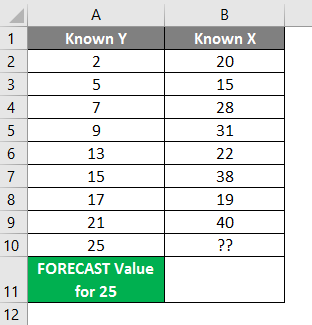
Create one header for the Forecast result to show the function result in cell A11.
Click on cell B11 and apply Forecast Formula.
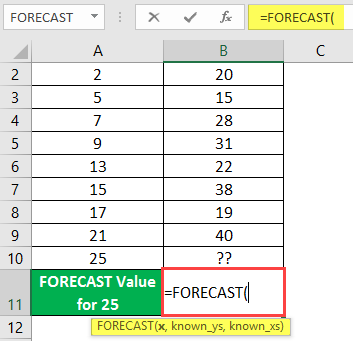
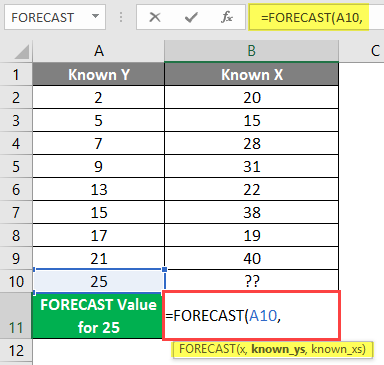
Now it will ask for x, which is the user wants to forecast the value; select cell A10.
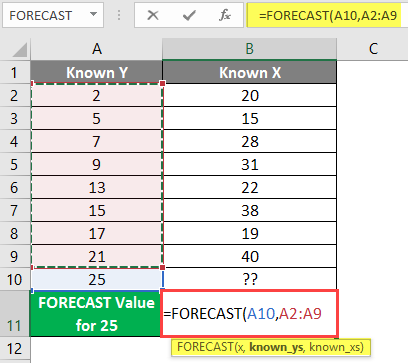
Now it will ask for a known, which the user already has in column A, and select cell A2 to A9.
Now it will ask for a known, which the user already has in column B. Select cell B2 to B9.
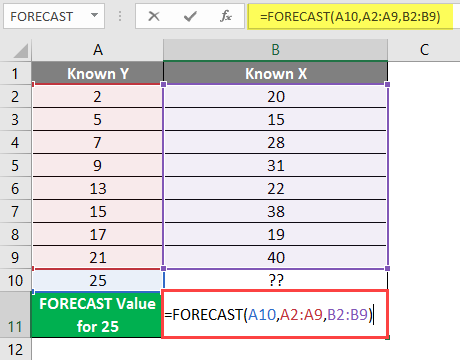
Press Enter key.
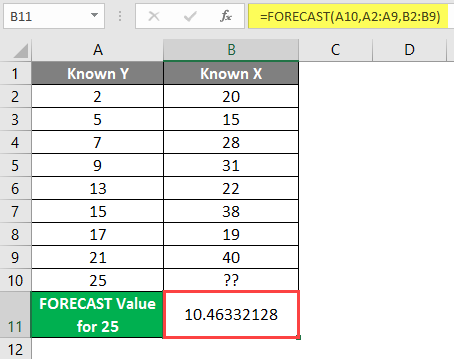
Summary of Example 1: The user wants to Forecast the value of 25, which is coming after calculation 10.46332128 based on all given data. Which is available in cell B11 as the Forecast result.
Example #2 – Forecast Formula for Company Future Expenses
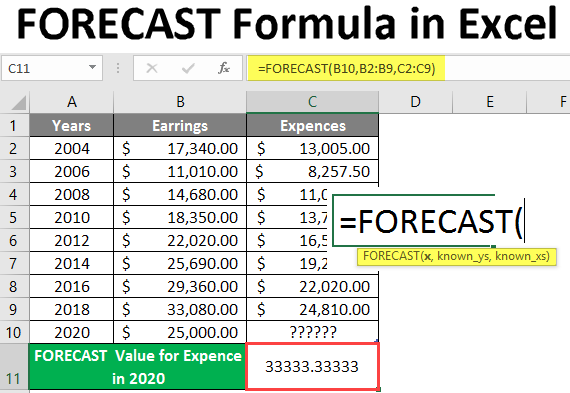
There is company data for their earnings and expenses from 2004 to 2018, as shown in the table below, so a user wants to calculate the expense value in the year 2020. Let’s see how the Forecast Formula can solve this problem.
Open MS Excel and go to Sheet2, where the user wants to calculate the expense value for the year 2020.
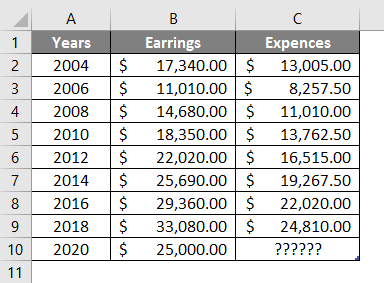
Create one header for the Forecast result to show the function result in cell A11 and merge it into cell B11.
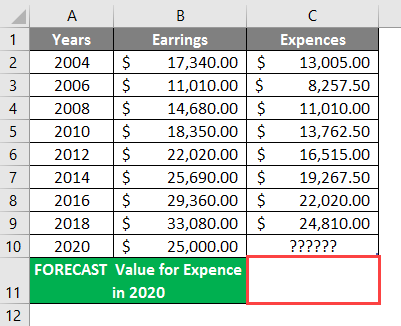
Click on cell C11 and apply Forecast Formula.
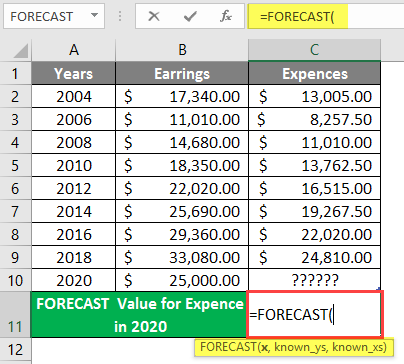
It will then ask for x, which is the user wants to forecast the value and select cell B10.
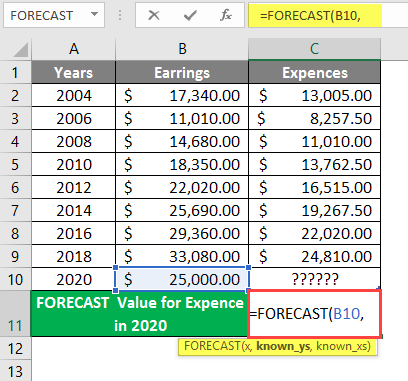
Now it will ask for known, which the user already has in column B, and select cell B2 to B9.
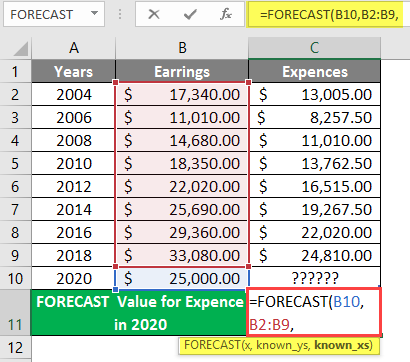
Now it will ask for known, which the user already has in column B, select cell B2 to B9, and write the formula in cell C11.
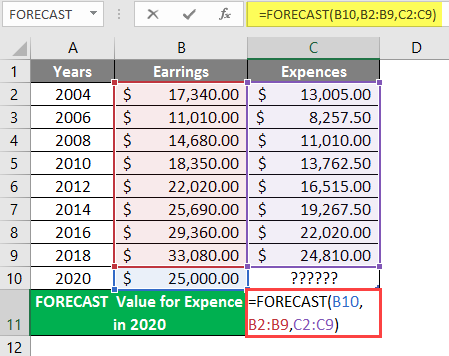
Press Enter key.
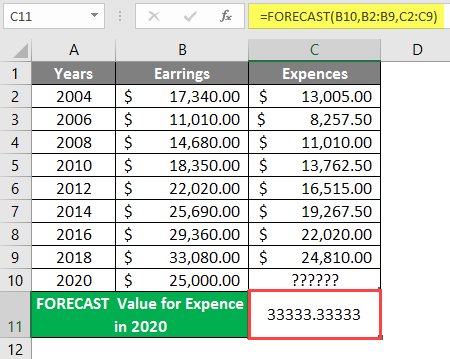
Summary of Example 2: The user wants to Forecast the expense value for 2020, which is coming after a calculation of 33333.3333 based on all given data. Which is available in cell C11 as the Forecast result.
Example #3 – Data Calculation and Comparing with the Forecast.Linear Formula
Data Calculation for park visitors in ABC Park and comparison with the Forecast.Linear Formula. There is an ABC Park where some data are given, like park visitors from 2014 to 2018, as shown in the table below, so a user wants to calculate the next 3 years park visitor number each year.
Let’s see how the Forecast Formula can solve this problem. Open MS Excel, Go to Sheet 3, where the user wants to calculate the next 3 years’ park visitor number each year.
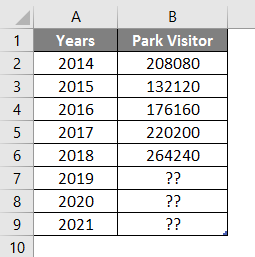
Create one header for the Forecast result to show the function result in cell D5 and merge it to cell D6.
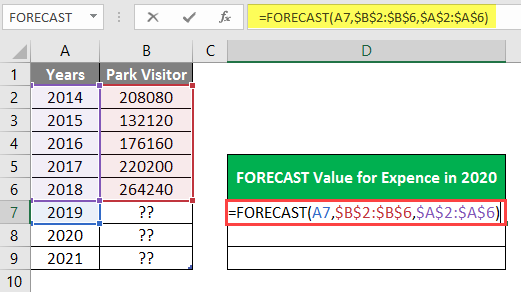
Click on cell D7 and apply Forecast Formula.
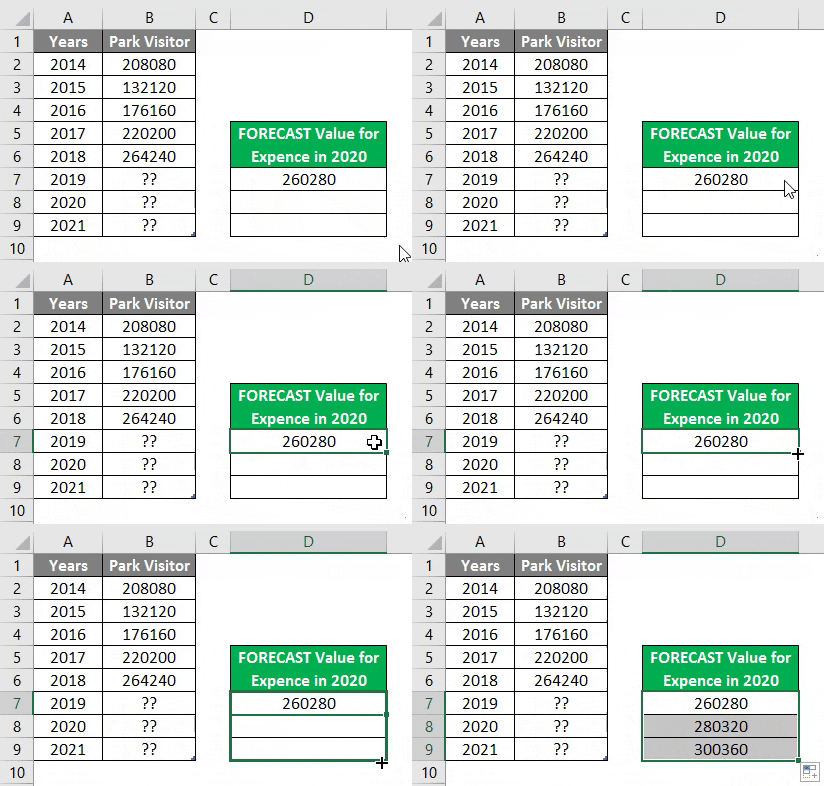
It will then ask for x, which the user wants to forecast the linear value and apply the formula in cell E7.

Press Enter key.
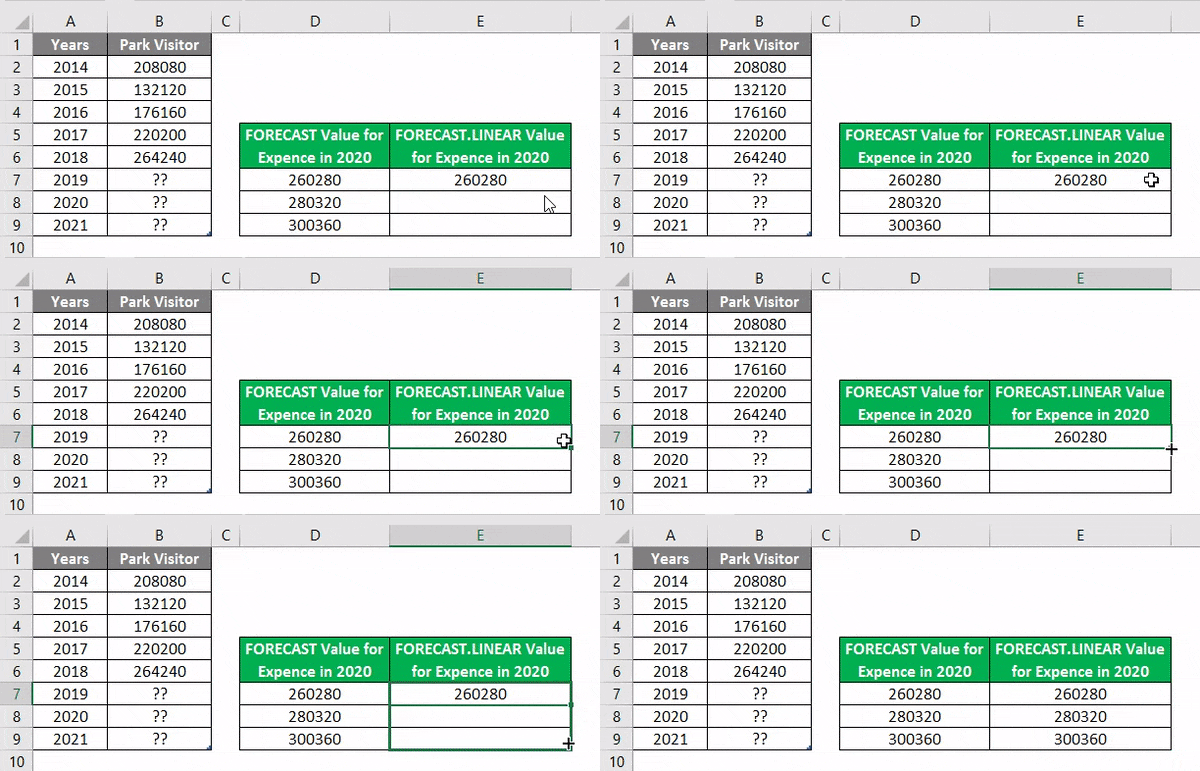
Summary of Example 3: The user wants to calculate the next 3 years’ park visitor numbers in each year, 2019 onwards, which is available in the D and E columns as the FORECAST result.
Things to Remember
- The FORECAST function will return a numeric value based on provided known data known_ys and known_x’s. The length of known_y’s and known_x’s must be the same.
- If x is a no-numeric value, then the FORECAST formula will return an #VALUE!
- If there is empty, non-numeric, or zero in the data known_y’s and known_x’s, then the FORECAST formula will return #DIV/0!
Recommended Articles
This is a guide to Forecast Formula in Excel. Here we discuss how to use Forecast Formula in Excel, practical examples, and a downloadable Excel template. You can also go through our other suggested articles –