

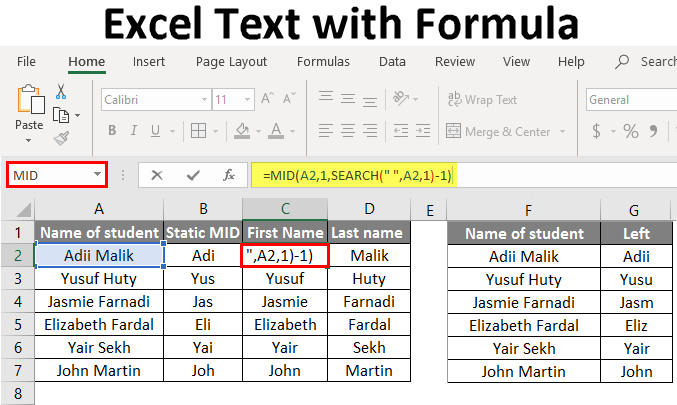
Excel Text Formula (Table of Content)
Introduction to Excel Text with Formula
Often, we need to extract some part of the text from a cell value, and that too dynamically. This might be a case where we need to extract only the first name from the complete names of the student or only the surname from the student’s full name. Or this may happen in the case where we need the day name from a date.
By using this inbuilt function of Excel, we can extract the defined characters from the text of another cell. Functions such as MID, TEXT, LEFT, and RIGHT can extract the text from another cell.
Methods to Use Excel Text with Formula
Excel Text Formula converts numbers to text in an Excel sheet; let’s look at a few methods.
Method #1 – Using the MID Function
The first step will be to decide whether to extract the text dynamically or just need a static count of characters.
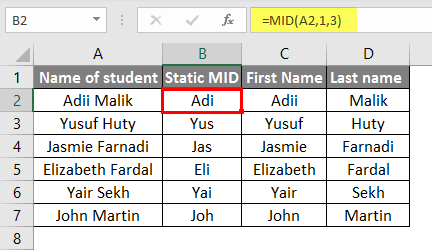
The next step will be to insert the formula if needed to extract the static count of characters.
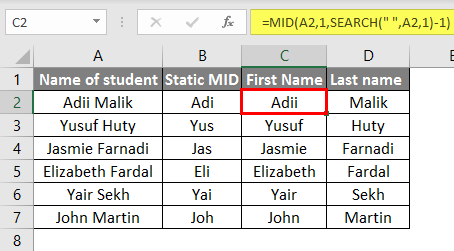
=MID(A2,1,SEARCH(” “,A2,1)-1)
A2 will be the location of the cell from where the text has to be extracted. 1 is the starting point from the text that has to be extracted. The search function will look up the occurrence of “Space” in the text and return the location of “Space”.
This way, the text is extracted only until the “Space”.
Method #2 – Using the LEFT Function
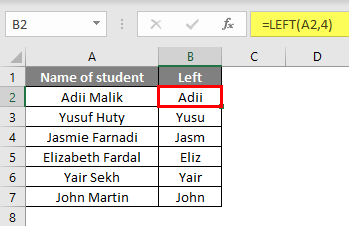
The first step will be identifying whether we need the characters from the text’s left or the cell’s right. We only need to use this function if we need the characters from the left. Now we need to use the below function of LEFT.
=LEFT(text,num_Chars)
The text will be the cell from where the text has to be extracted. Num_chars will be the character count that needs to be extracted.
Method #3 – Using TEXT Function
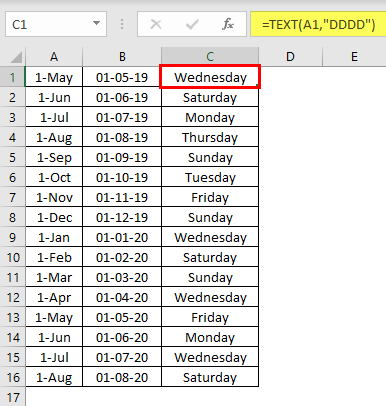
Using this function, we can convert any value to text; if we have a numeric value in a cell and need that value as TEXT, then we can use this function. First, we need to know in which format to extract the text.
Now we need to design the text formula.
=text (Text, format)
- TEXT= the location of the cell from where the Text has to be extracted.
- Format= is defining the format in which we need the text.
Method #4 – Using the RIGHT Function
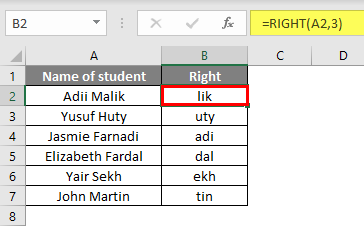
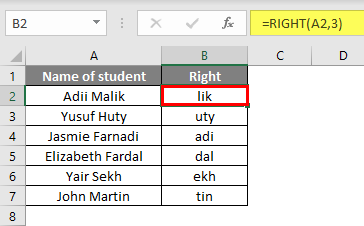
This function can be used if we need to extract the text starting from the right of the cell. We need to use the below function to extract the text starting from the right of a cell.
=RIGHT(text,num_Chars)
The text will be the cell from where the text has to be extracted.
Num_chars will be the character count that needs to be extracted.
Now we need to enter this formula in the cell, and the characters from the RIGHT will be extracted.
Illustrations to Extract Text Using Formula
Now, look at a few practical examples of extracting text using Excel formulas.
Illustration #1 – Extracting Text by using MID Function
By using the MID function, we can get the desired TEXT with this formula.
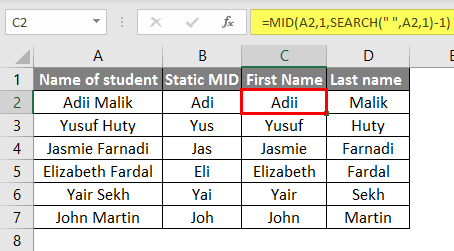
Illustration #2 – Extracting Text by using the Function TEXT
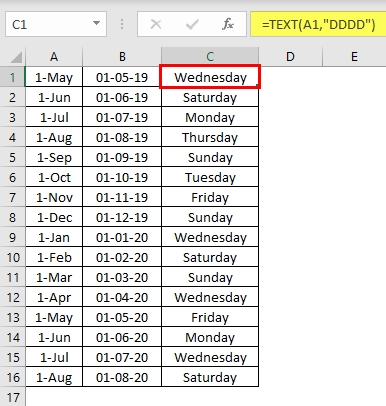
Illustration #3 – Extracting the Text by using the LEFT Function
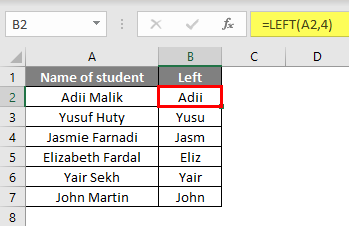
Illustration #4 – Extracting Text by using RIGHT Function
Things to Remember
- The characters extracted with the above functions’ help will be formatted as text, even if the values are extracted.
- Using the TEXT function, we can get the dates in the desired function, but this should be remembered that the extracted dates will be TEXT and not a date to Excel. We need to use a delimiter to format the text as dates.
- The function of LEFT and MID is the same if we extract the same count of characters as both the functions extract from the left of the cell.
- If the character counts that need to be extracted are not stagnant, then we need to use the function of SEARCH inside the function of MID to make the MID function dynamic.
Recommended Articles
This is a guide to Excel Text with Formulas. Here we discuss How to Use Excel Text with Formulas in Excel, examples, and a downloadable Excel template. You may also look at the following articles to learn more –

