


Updated August 23, 2023
MIN Function in Excel (Table of Contents)
MIN in Excel
Min function simply returns the minimum or lowest value from the selected range of numbers; whether a number is positive or negative, it will return the lowest number in both manners. For this, we just require a minimum of 2 numbers; at least among those using the Min function, we can find which is the lowest number. It does not consider text or any other character apart from the number, but it skips these things if it ever comes into the selected range.
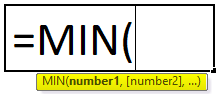
MIN Formula in Excel:
Below is the MIN Formula:
Arguments:
number1:- This number1 refers to a numeric value or range which contains a numeric value.
number2-[optional]:- This number2 refers to a numeric value or range which contains a numeric value.
Steps to Open MIN Function in Excel
We can find the MIN function in Excel under the category statistical function.
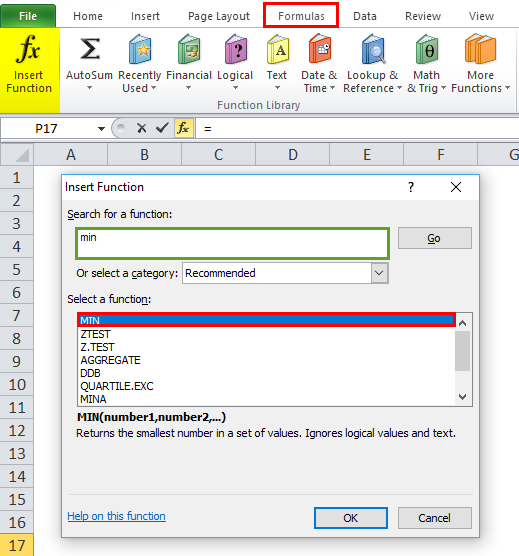
- Choose formulas. Click insert function. We will get a dialogue box. In the dialogue box, choose the category and select the MIN function.
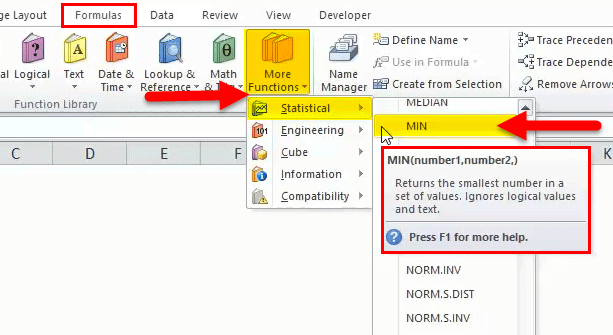
- Another way of the shortcut is in the advanced version; we can find more options in the formula bar. Choose more functions and select the category statistical and choose the MIN function.
Now let’s see the example of how the Min function works with the given data.
How to Use MIN Function in Excel?
MIN Function is very simple to use. Let us now see how to use the MIN function in Excel with the help of some examples.
Example #1
In the following example, we are going to see the MIN function using numerical values, text, null values, and negative values.
MIN function in excel always returns the smallest value depends on the given data.
Negative Value:
MIN Function in excel always considers the numeric values; even if we have a range of negative values, it will consider only numeric values.
If we have data with negative values, this MIN function will consider the lowest negative values of the given data and return the lowest negative value. Let’s see the below example, which shows sales data with negatives values.
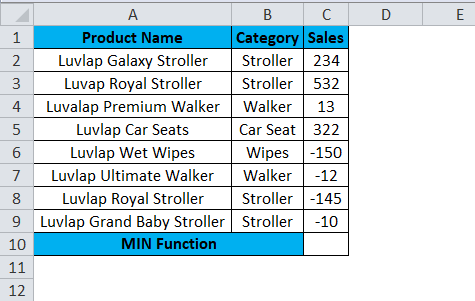
In the above example, now we are going to find out the minimum sales values and follow the below steps.
- Insert the MIN function
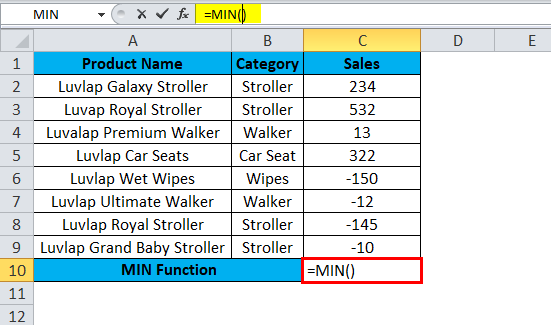
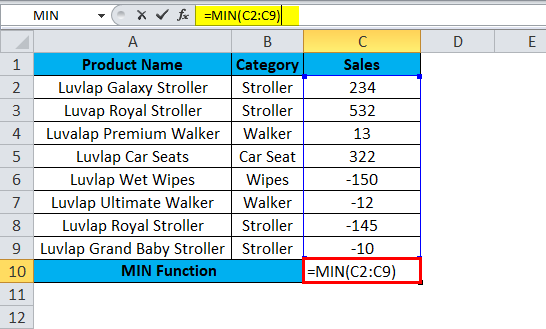
- Select the cell from where the data has been placed to assume that selecting C2:C9
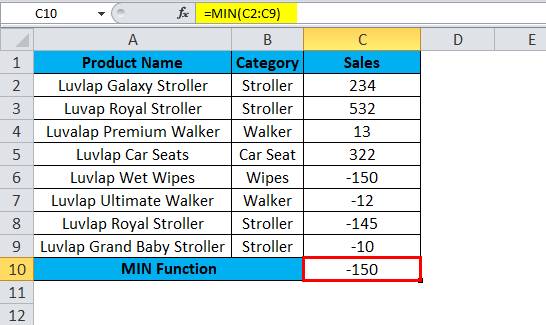
Result:
In the above example, we have seen the MIN function return the lowest negative value as-150. We can understand that the MIN function will consider numeric values and the lowest negative values.
Text Values :
Let us see another example using text where the MIN function is used exactly.
We will consider the same sales data with little modification changed in sales data shown below.
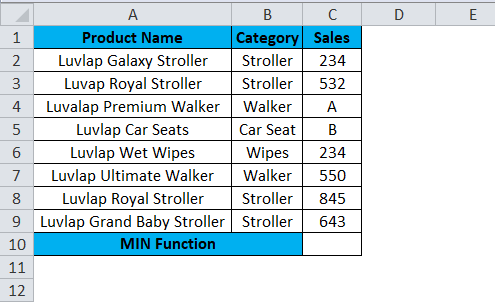
In the above sales data, we noticed that we had mentioned some grade names to the particular product name where Walker is named Grade A and Car Seat is named Grade B, the most top-selling online selling product.
Now we are going to use the MIN function to calculate the smallest value as we have already mentioned that the MIN function only consider the numeric values and omits the text values
Let’s apply the MIN function and check the result.
- First, insert the function MIN
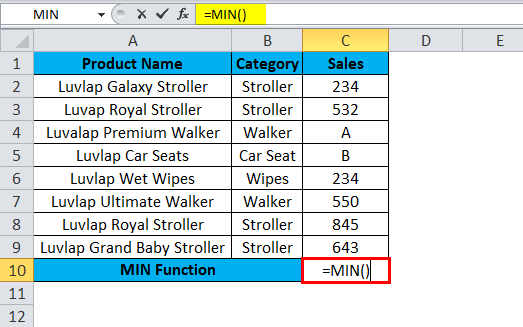
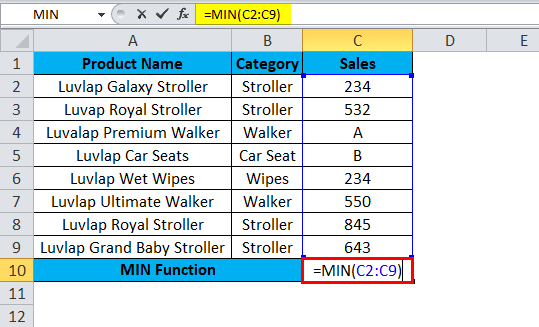
- Select the cells from C2:C9
- =MIN(C2:C9)
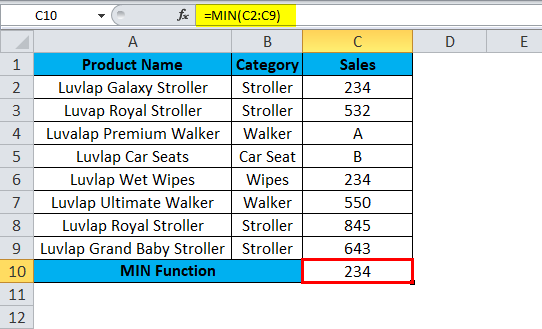
The above example clearly shows that the MIN function considered only numeric values, omitted the text, and returned the smallest value of the given values.
MIN function using NULL Values:
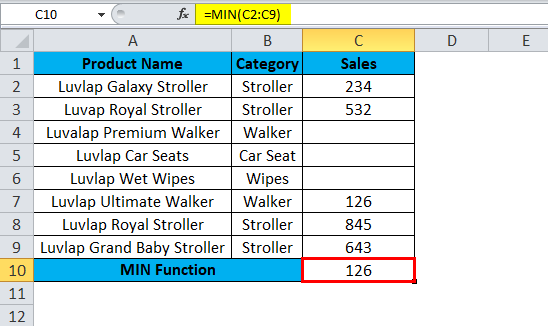
Assume that we have sales data with null values where sales have not happened for the specific month; in this case, if we apply the MIN function, it will consider the same numeric values and omits the null values.
Let’s see a working example to check the result; we have modified the same sales data with some small modifications where we have mentioned some of the product sales values as null values, i.e. blank values.
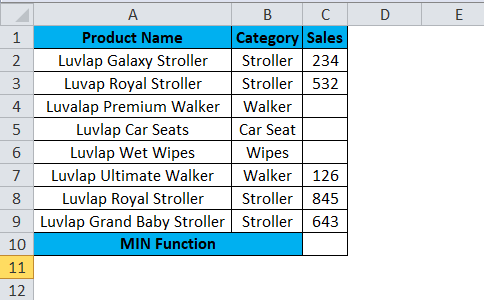
- First, insert the MIN function
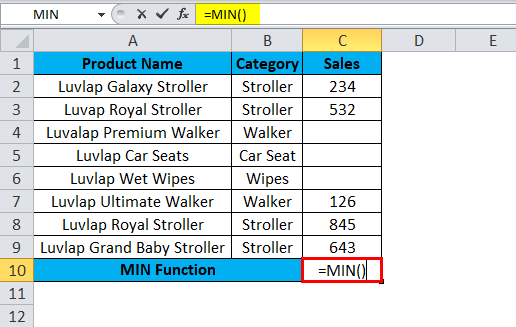
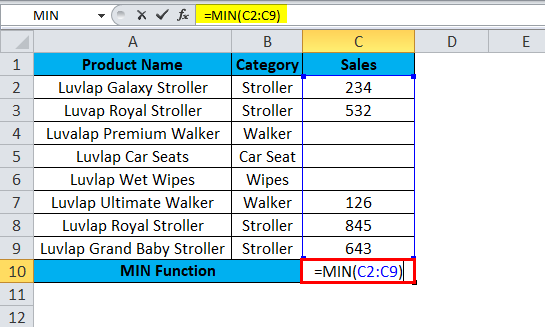
- Select the cell from C2:C9
- =MIN(C2:C9)
Result:
In the below example, the MIN function returned only the MIN value and omitted the null values shown below.
In this example, we have some range of numbers in the A and B column
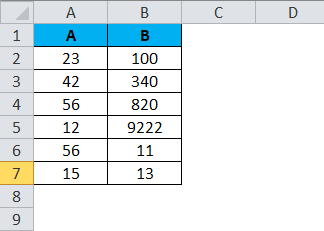
Follow the below steps to find out the minimum value.
- First, enter the function in cell A8
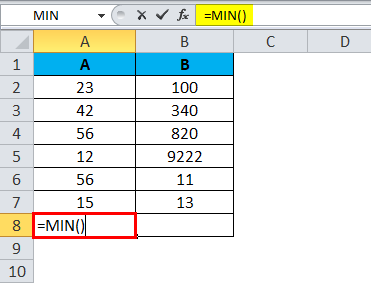
- =MIN(A2:A7).
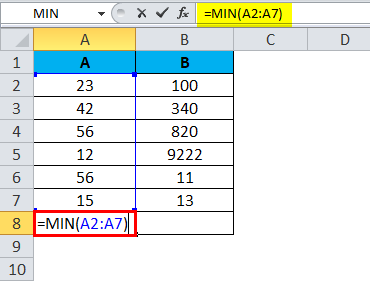
- Press Enter.
Now the MIN function will find the minimum value within the range of data, and the result has been shown below.
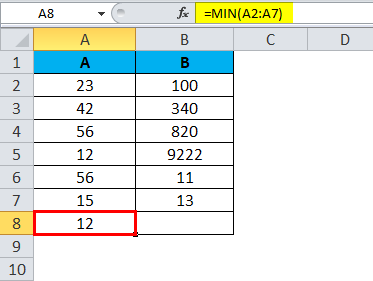
Similarly, we find min value for column B
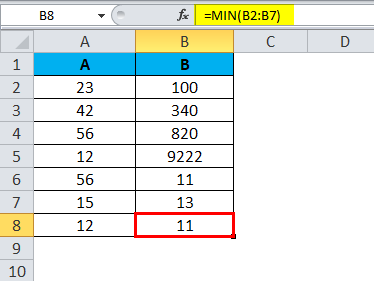
So we have found out the minimum value as 12 within the given range of data, and the same as in the B column, the min value is 11.
Example #2
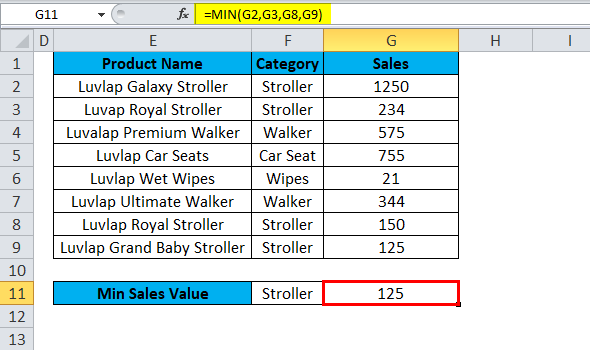
In the below example, we have some set of sales data with category wise sales value. Assume that we need to find out the specific category of minimum sales value. Here MIN function will be useful to find out the exact match.
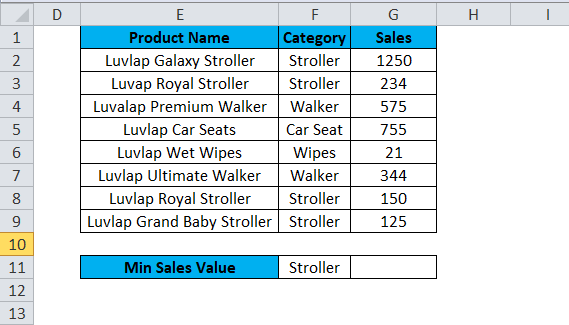
In this example, we are going to find the specific category named stroller MIN value; in order to find out the minimum value, please follow the below step
- Insert the MIN function
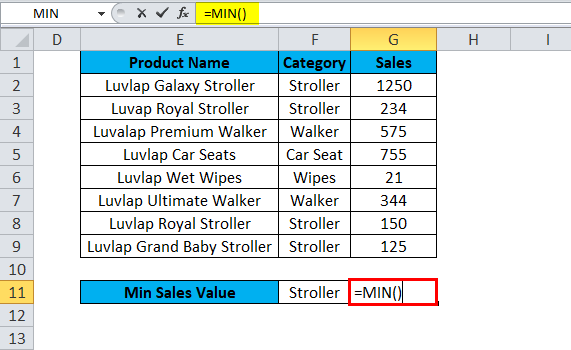
- Select the category type stroller
- =MIN(G2,G3,G8,G9)
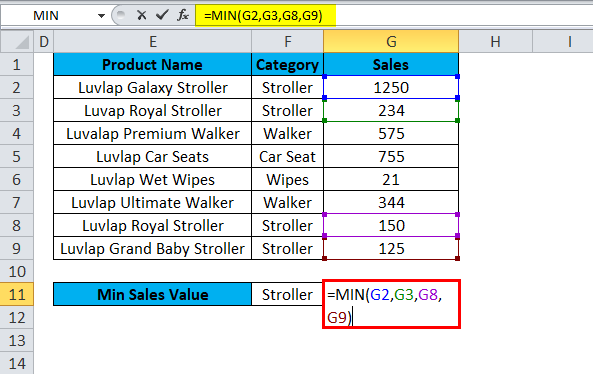
- Press Enter
- We will get the result as 125 as the MIN value for the category stroller
Example #3
Let’s see another example where we need to find the lowest mark of the students by gender-wise.
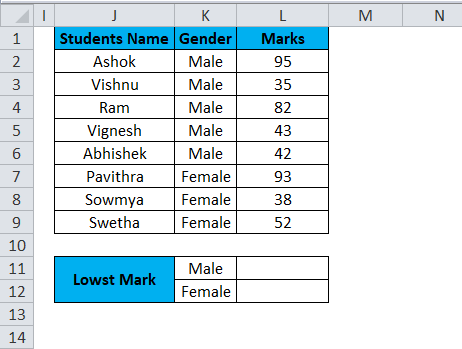
In order to find out the Lowest mark of the student’s gender-wise, please follow the below steps.
- Insert the MIN Function
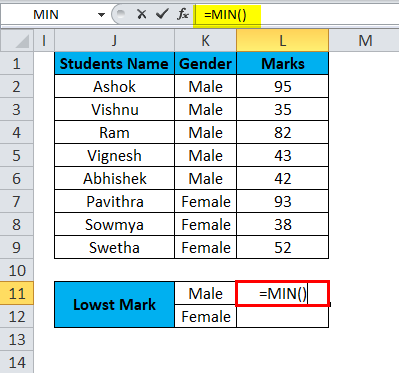
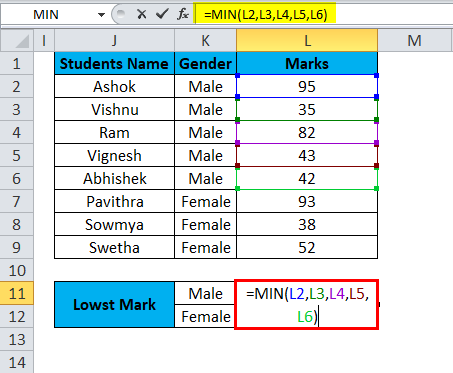
- Select the Gender column male and choose the MIN number.
- =MIN(L2,L3,L4,L5,L6)
Result:
Now we got the lowest mark for the male category as 35
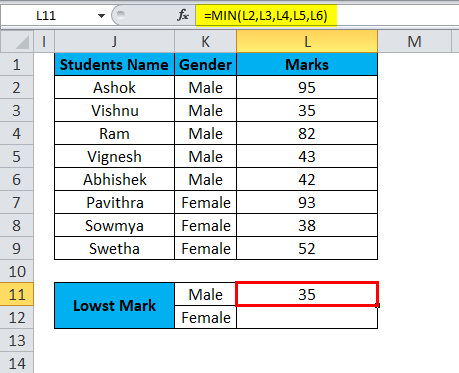
Now we need to find out the Lowest mark for the female category
In order to find out the Lowest mark of the student’s gender-wise, please follow the below steps
- Insert the MIN Function
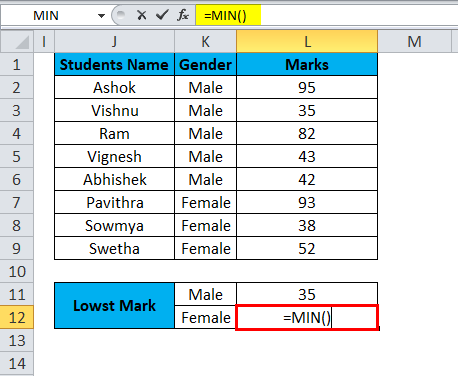
- Select the Gender column female and choose the MIN number.
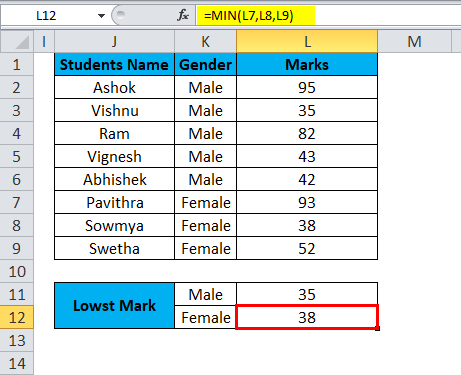
- =MIN(L7,L8,L9)
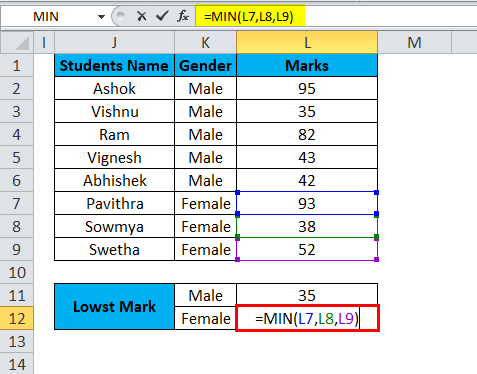
Result:
Finally, we got the lowest mark under the female category, as shown below
Suppose if we have GRADE mentioned in the student’s mark list, how this MIN function works. Let’s see with the example
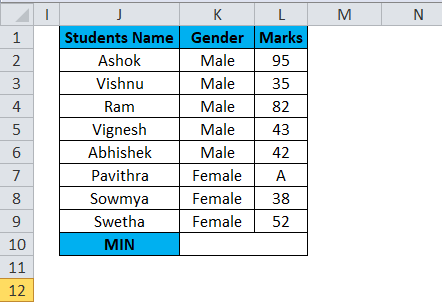
- Insert the MIN function
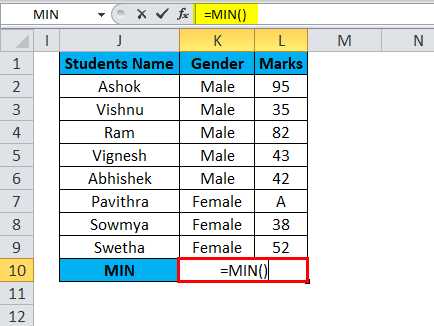
- Select the female gender category
- =MIN(L7,L8,L9)
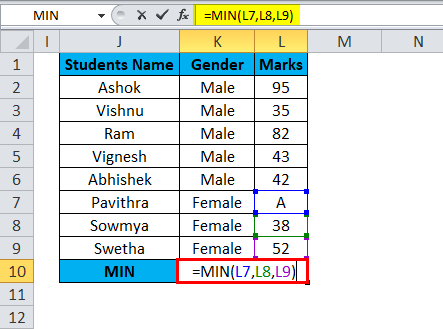
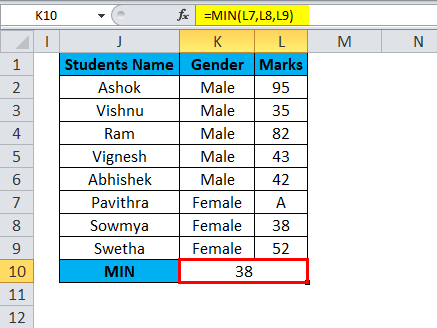
We have seen that in the MARKS Column, Grade A is mentioned for the particular student; if we apply the min function, excel will take only integer values and return the minimum value as shown in the below screenshot.
Common errors occur while using MIN in Excel:
- #Value: we have seen this error mostly in all the cases min function return this error if any non-numeric values have been used.
- MIN function will not consider logical, null, and text values.
Recommended Articles
This has been a guide to the Excel MIN function. Here we discuss the MIN Formula and how to use the MIN function along with practical examples and a downloadable excel template. You can also go through our other suggested articles –

