
Updated May 25, 2023
Introduction to Entity Framework PostgreSQL
Entity Framework PostgreSQL is the two things where Entity Framework is an Object-Relational Mapper for DotNet applications. It’s an object entity to a relational entity in a database that allows developers to develop db schemas for the coding. In contrast, PostgreSQL is nothing but the Object-Relational Database called RDBMS with object characteristics, extensibility, standard compliance, and free Open-Source software.
Overview of Entity Framework PostgreSQL
Entity Framework is the persistent Object-Relational Mappers (ORM) for the .Net Applications; it maps the applications object entity to a relational entity in a database, allowing developers to develop and edit db schemas from the coding. PostgreSQL is called Postgres, an Object-Relational Database, nothing but the RDBMS with object attributes with enhanced and standard compliances. It was the database server, so it is the essential function to store and return the data securely in response to requests from applications.
It performs the work task from small machine applications to bulky internet-facing applications with simultaneous users on macOS servers. PostgreSQL is free Open-Source software, and its default database is available for Microsoft Windows and Linux. PostgreSQL is a transactional and ACID complaint that has updated and materialized views, foreign keys, triggers, and stored procedures with other extendibility. The PostSQL Global Development group develops PostgreSQL.
Configure Entity Framework PostgreSQL
To Configuring the Entity Framework PostgreSQL, we are required to include the coding in the Startup.cs file initially; let’s alter the ConfigureServices() method as follows.
Code:
public void ConfigureServices(IServiceCollection services)
{
services.AddMvc().SetCompatibilityVersion(CompatibilityVersion.Version_2_2);
var _connectionString = Configuration["PostgreSql:ConString here"];
var _dbPassword = Configuration["PostgreSql:enter DbPassword here"];
var _builder = new NpgsqlConnectionStringBuilder(_connectionString)
{
Password = _dbPassword
};
services.AddDbContext<ApplicationContext>(options => options.UseNpgsql(_builder.ConnectionString));
}
We must configure the database once the AddMvc()method is configured.
There are some dotConnect for PostgreSQL which gives the extension methods as follows:
- ForPostgreSQLtoTable(): This method indicates the name of the table.
- ForPostgreSQLHasColumnName(): This method denotes the name of the column.
- ForPostgreSQLHasColumnType(): This method denotes the type of the column.
- ForPostgreSqlHasName(): This method indicates the name of the primary key and index key.
- ForPostgreSqlHasConstraintName(): This method denotes the Foreign key.
- ForPostgreSqlHasDefaultValueSql(): This method denotes the column’s default value.
Installing PostgreSQL
To install the required dependencies for PostgreSQL.
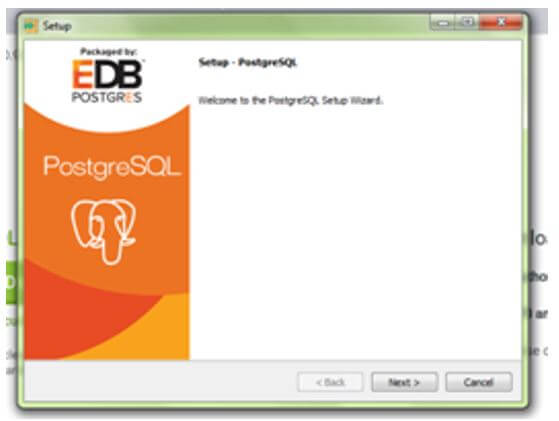
Download from the browser and start to install it as follows:
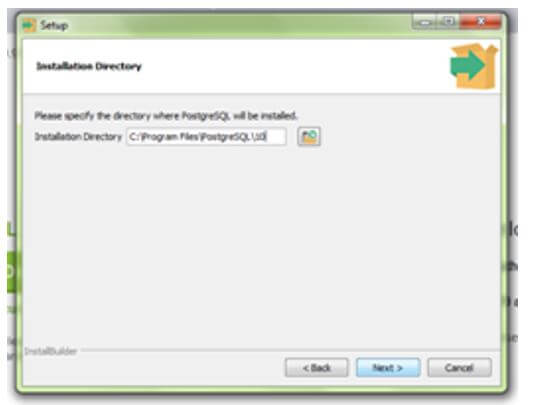
Select the location and then next.
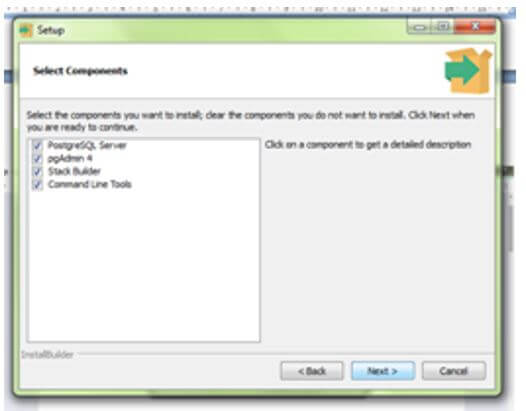
Check the necessary fields to proceed.
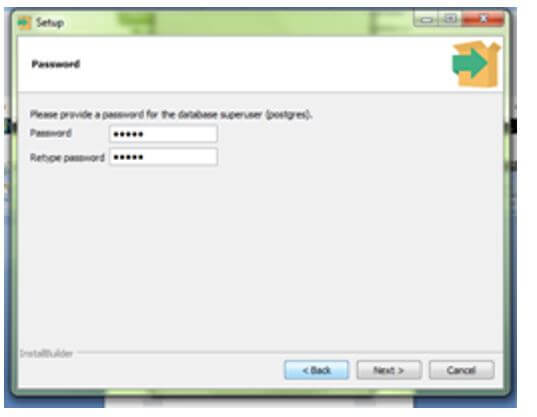
Enter the password for the database.
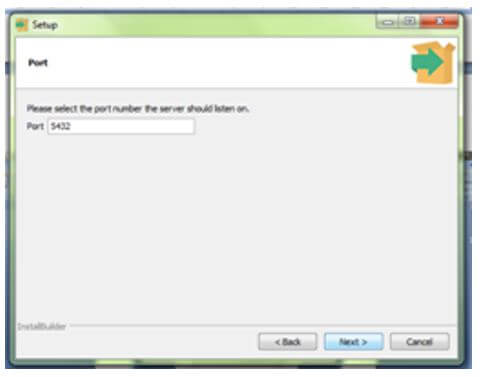
Next, the port number will be available; click on next.
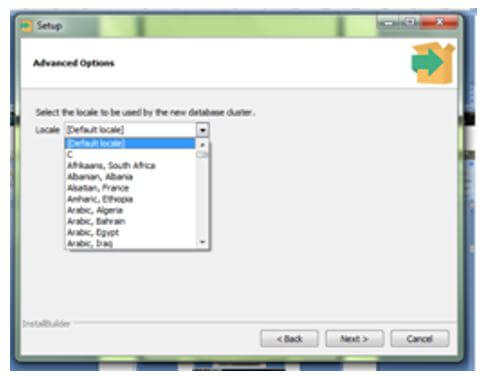
Please select the location; it is an advanced option to proceed.
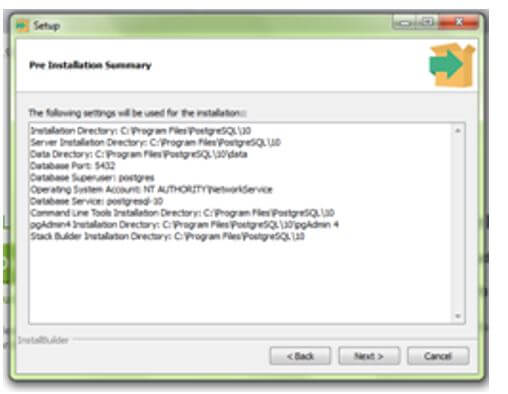
Finally, click on the Finish button to proceed.
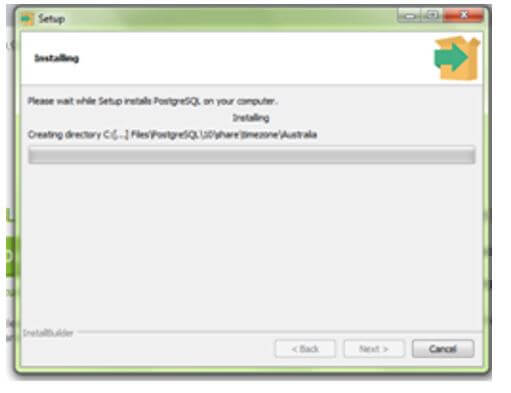
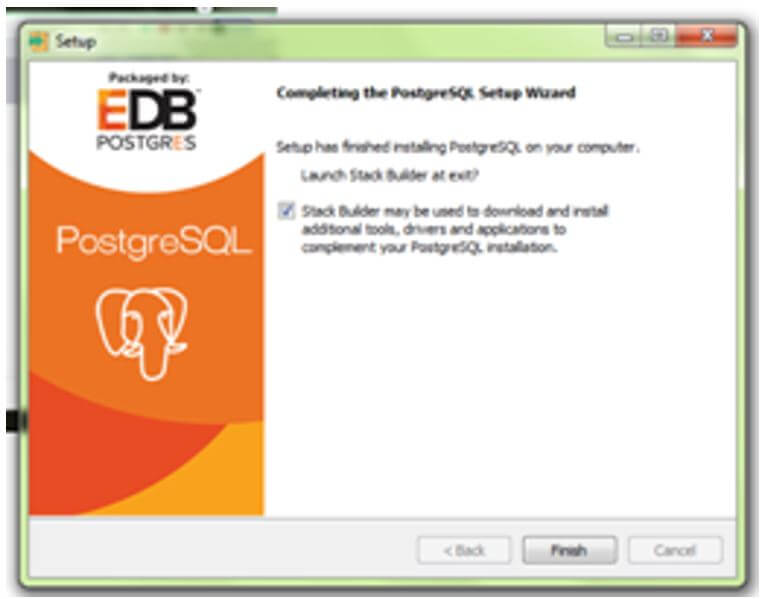
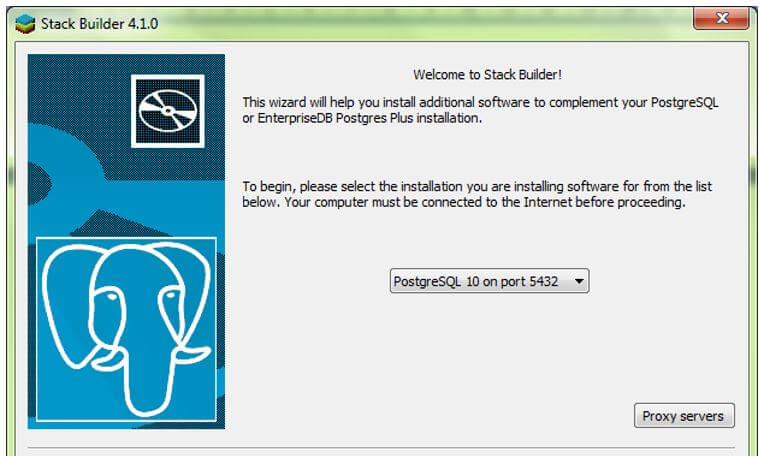
To install through commands as follows:
To facilitate PostgreSQL, which supports the application, we need to install the following dependencies of PostgreSql in our application.
We can make install it in the Package Manager Console (PMC).
PM> Install-Package Npgsql.EntityFrameworkCore.PostgreSQL – Version 2.2.4
Or, through dotnet CLI, we can make the installation.
PM>dotnet add package Npsql.EntityFrameworkCore.PostgreSQL – Version 2.2.4
Here we hardcoded to this version 2.2.4 because of the new version, Npgsql is the EF Core PostgreSQL provider dotnet add package Npgsql.EntityFrameworkCore.PostgreSQL –version 2.2.4
Creating Entity Framework PostgreSQL
Initially, create the table in PostgreSQL; open Elephantsql.com in the browser; it offers the free managed PostgreSQL you can try out for the sample application. Visit elephantsql.com and click on the Get a Managed database, and from that, select Try now for free, sign up with your credentials, and complete the registration. Then click Create New Instance to generate a new database and enter the name like Builders, click Select Region to continue, choose the data center location, and click on Review and Create Instance.
Click on the database name and then choose the browser in the menu where we can execute the SQL queries here, code the SQL queries and execute them as follows to create the person table.
Code:
CREATE TABLE tbperson(
personID serial PRIMARY KEY,
personFName VARCHAR,
personLName VARCHAR,
personB_date DATE,
personD_date DATE,
personFather INTEGER,
personMother INTEGER,
OwnerPERSONID INTEGER,
CONSTRAINT tbperson_personFather_fkey FOREIGN KEY (personFather)
REFERENCES tbperson (personID) MATCH SIMPLE
CONSTRAINT tbperson_personMother_fkey FOREIGN KEY (personMother)
REFERENCES tbperson (personID) MATCH SIMPLE
);
Once creating the table, let’s add some records, type the statements below, and execute the queries.
Code:
insert into tbperson (personFName, personLName, personB_date)
values ('Homer', 'Simpson', '1956-05-12');
insert into tbperson (personFName, personLName, personB_date)
values ('Marge', 'Simpson', '1956-03-19');
insert into tbperson (personFName, personLName, personB_date)
values ('Bart', 'Simpson', '1980-04-01');
insert into tbperson (personFName, personLName, personB_date)
values ('Lisa', 'Simpson', '1981-05-09');
insert into tbperson (personFName, personLName, personB_date)
values ('Maggie', 'Simpson', '1987-01-12');
Start Visual Studio, create a new project, choose the template ASP.NET Web Application, and click Next. Give the appropriate name for the project, click next, select the Web Application (Model – View – Controller), and click Create. Once the project solutions are created and then add the necessary packages if required from the menu, select Tools – NuGet Package Manager like EntityFrameworkCore, EntityFramework.Tools and Npgsql.EntityFrameworkCore.PostgreSQL through the install package. To configure the Entity Framework Classes with Postgres Fields. To generate the C# classes for accessing the database access here, we need to establish the connection string with the user id and password with hostname, port number, and the database name in the URL of the ElephantSQL database.
Just copy the URL as it looks like this:
Postgres://test:[email protected]:2323/abcdef.
From the above URL, we can get all the parameters as follows:
The user id is tested.
Password is xyz123.
The hostname is domain.db.elephantsql.com.
The Port number is 2323.
The database name is testdb.
To create the connection string, the values are the above data. Let’s write it as follows, “Server= domain.db.elephantsql.com ; Database=abcdef; User Id=test; Password=xyz123; Port=2323″
Then execute the Package Manager Console command and replace the connection string with yours.
Scaffold-DbContext”Server= domain.db.elephantsql.com ;Database= testdb;User Id=test;Password=xyz123;Port=2323”
Npgsql.EntityFrameworkCore.PostgreSQL.
-OutputDir ModelsGenerated
-Force
-Context
FamilyTreeContext
The above command will create the model class for the person and the dbContext class in the folder called ModelsGenerated; in the Solution Explorer, add the Controller and select the model class.
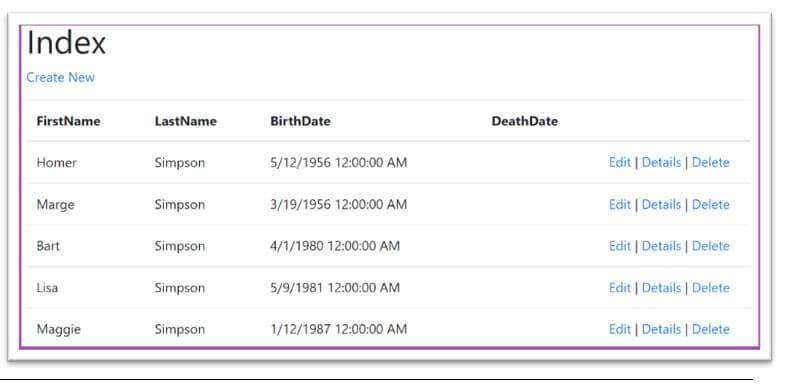
Finally, the index page as like shown below:
Code:
@if (Model.Tbperson.PersonMotherNavigation == null && Model.Tbperson.PersonFatherNavigation == null)
{
<b>Not Available</b><br />
}
@if (Model.Tbperson.PersonFatherNavigation != null)
{
<b>PersonFather: </b>@(Model.Tbperson.PersonFatherNavigation.FirstName + " " + Model.Tbperson.PersonFatherNavigation.LastName)
<a asp-action="Details" asp-route-personID="@Model.Tbperson.PersonFatherNavigation.PersonID">Details</a>
<br />
}
@if (Model.Tbperson.PersonMotherNavigation != null)
{
<b>PersonMother: </b>@(Model.Tbperson.PersonMotherNavigation.FirstName + " " + Model.Tbperson.PersonMotherNavigation.LastName)
<a asp-action="Details" asp-route-personID="@Model.Tbperson.PersonMotherNavigation.PersonID">Details</a>
<br />
}
<h2>@Model.Tbperson.FirstName @Model.Tbperson.LastName</h2>
<table>
<tr>
@if (Model.Tbperson.BirthDate != null)
{
<td>.Birthdate</td>
<td>@Model.Tbperson.BirthDate</td>
}
</tr>
<tr>
@if (Model.Tbperson.DeathDate != null)
{
<td>.Birthdate</td>
<td>@Model.Tbperson.DeathDate</td>
}
</tr>
</table>
<div>
<a asp-action="Edit" asp-route-personID="@Model.Tbperson.PersonID">Edit</a> |
<a asp-action="Index">.Back</a>
</div>
@if (!Model.Children.Any())
{
<h3>Nil</h3>
}
else
{
<h4>Children</h4>
<table class="table">
<thead>
<tr>
<th>First. name</th>
<th>Last. name</th>
<th>Birth. date</th>
<th>Death. date</th>
<th></th>
</tr>
</thead>
<tbody>
@foreach (var item in Model.Children)
{
<tr>
<td>@item.FirstName.</td>
<td>@item.LastName.</td>
<td>@item.BirthDate.</td>
<td>@item.DeathDate.</td>
<td>
<a asp-action="Edit" asp-route-personID="@item.PersonID">Edit</a> |
<a asp-action="Details" asp-route-personID="@item.PersonID">Details</a> |
<a asp-action="Delete" asp-route-personID="@item.PersonID">Delete</a>
</td>
</tr>
}
</tbody>
</table>
}
Output:
Conclusion
In this article, we have seen about the Entity Framework with PostgreSQL, which are nothing but the Object-Relations both helps to develop the application, the Entity Framework design makes exactly friendly for PostgreSQL developers.
Recommended Articles
We hope that this EDUCBA information on “Entity Framework PostgreSQL” was beneficial to you. You can view EDUCBA’s recommended articles for more information.

