


How to Make a PowerPoint Presentation Quickly?
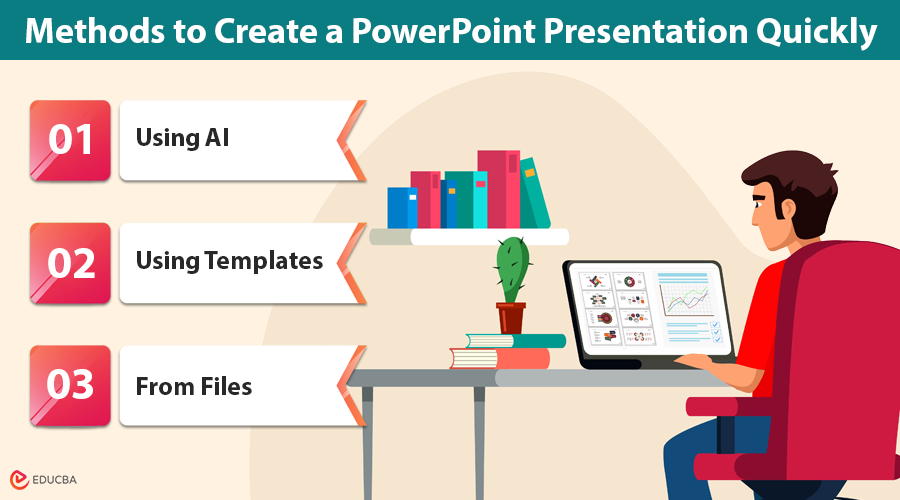
We have all been there—scrambling to finish slides at the last minute. When your to-do list says, “Create a PowerPoint presentation,” you know how long it can take. But what if you could get polished slides done in under a minute? This article will discover three easy ways to quickly create a PowerPoint presentation: AI tools, pre-made templates, and file conversion. Each method has its place, but EdrawMax AI PPT is your top pick for turning an idea into a fully formatted deck in seconds. No more wasting time on layouts or designs. Let us dive in.
Method 1: Create a PowerPoint Presentation Using AI
With EdrawMax AI PPT, you can skip the hard work of making slides from scratch. It helps you create a PowerPoint presentation in just seconds. No dragging, no formatting—just type your topic and click generate.
EdrawMax is a smart diagramming tool with over 15,000 templates and 26,000+ symbols, making it easy to customize your slides. The best part? You can export everything as a fully editable PowerPoint file. Here is how to make a PPT with AI:
Step 1: Start with Your Topic
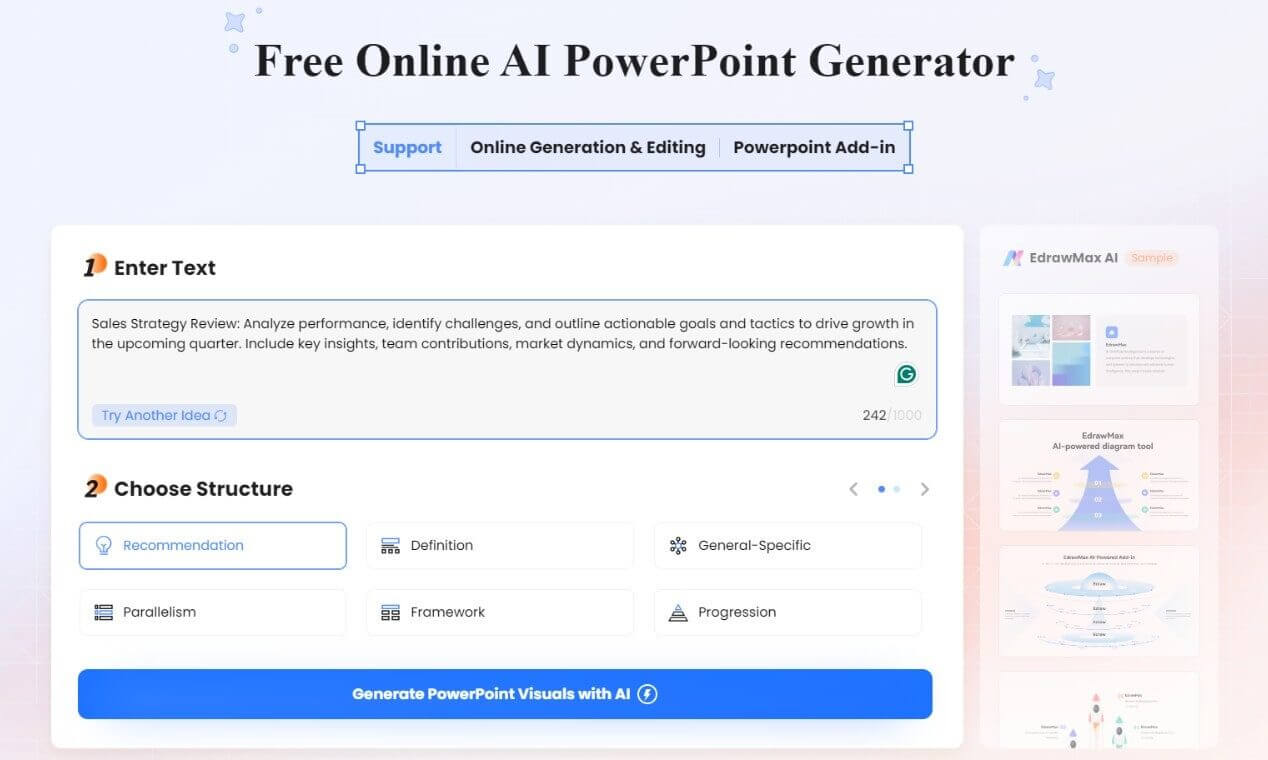
- Go to the EdrawMax AI PPT page in any web browser. This free online AI PowerPoint generator does not require a login or registration.
- You can either use the default prompts or customize your own. Type a clear prompt describing your requirements for personalized results.
- Here is an example custom prompt: “Sales Strategy Review: Analyze performance, identify challenges, and outline actionable goals and tactics to drive growth in the upcoming quarter. Include key insights, team contributions, market dynamics, and forward-looking recommendations.”
- Select a slide structure that fits your content flow. Options include Definition, General‑Specific, Parallelism, Framework, and more.
- If you are unsure, select Recommended to let AI choose a suitable one.
Step 2: Generate and Edit Slides
- Once provided with your requirements, press the Generate PowerPoint Visuals with AI button.
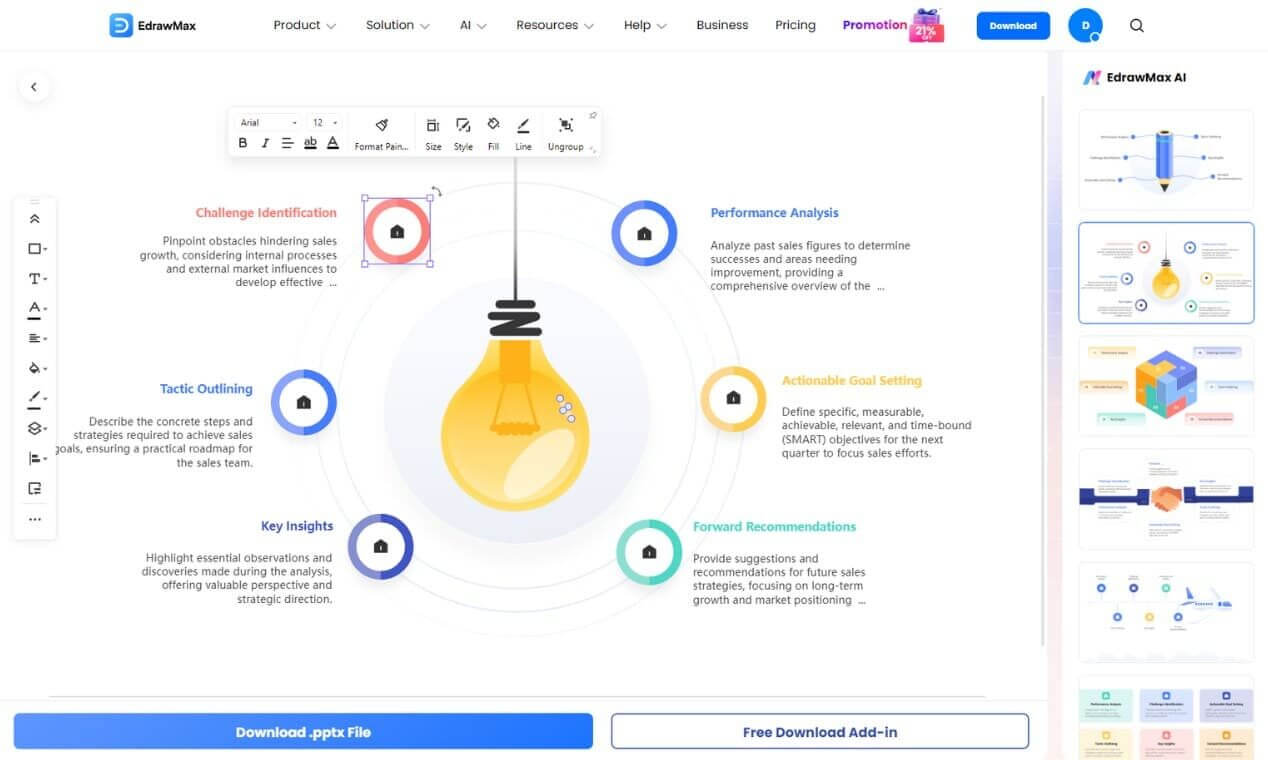
- Once generated, you can edit it directly within EdrawMax’s online editor—there is no need to download it immediately.
- Click any slide element to tweak text, swap shapes, or update visuals inside your browser.
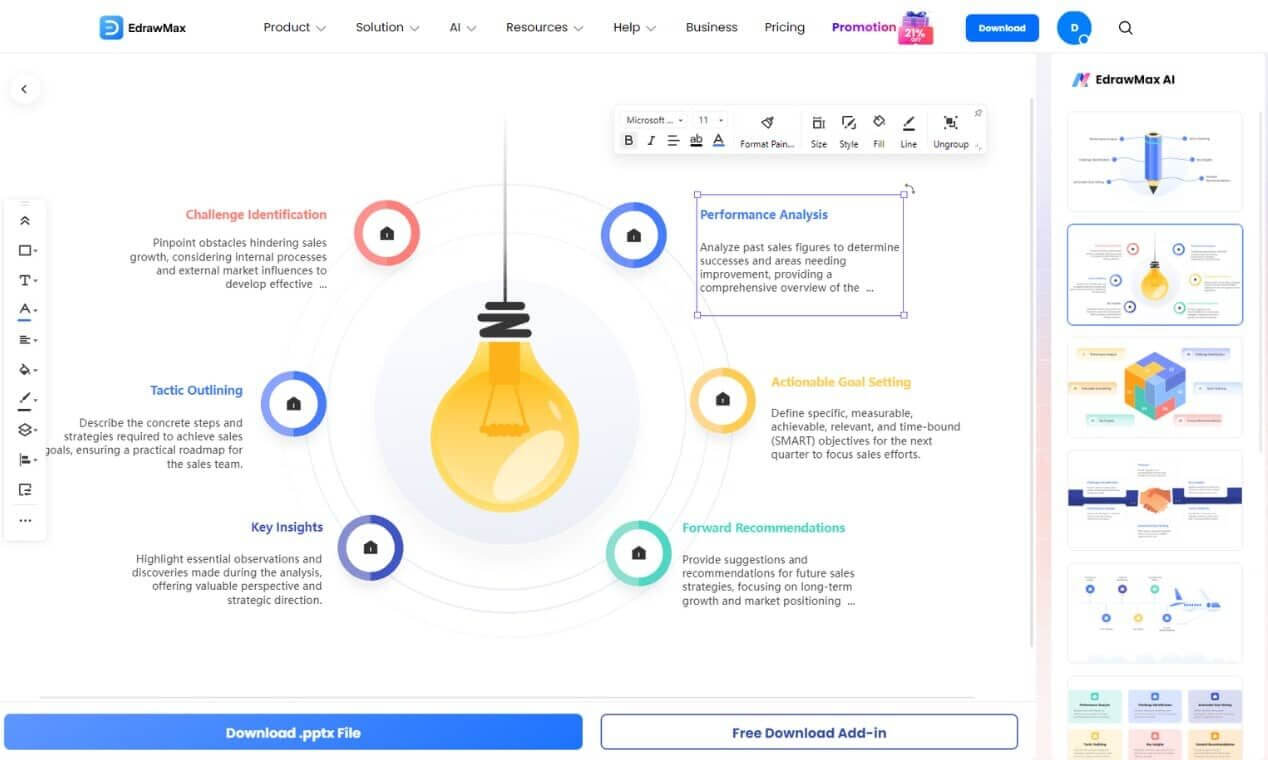
- It supports full customization—change fonts, adjust colors, reposition items, or apply your branding with just a few clicks.
Step 3: Download the Presentation for PowerPoint
- Once done personalizing your presentation, tap the Download .pptx File to save your deck.
- Open the downloaded file in Microsoft PowerPoint and click Enable Editing to personalize it further.
- After finalizing, hit CTRL + S to save it for future use.
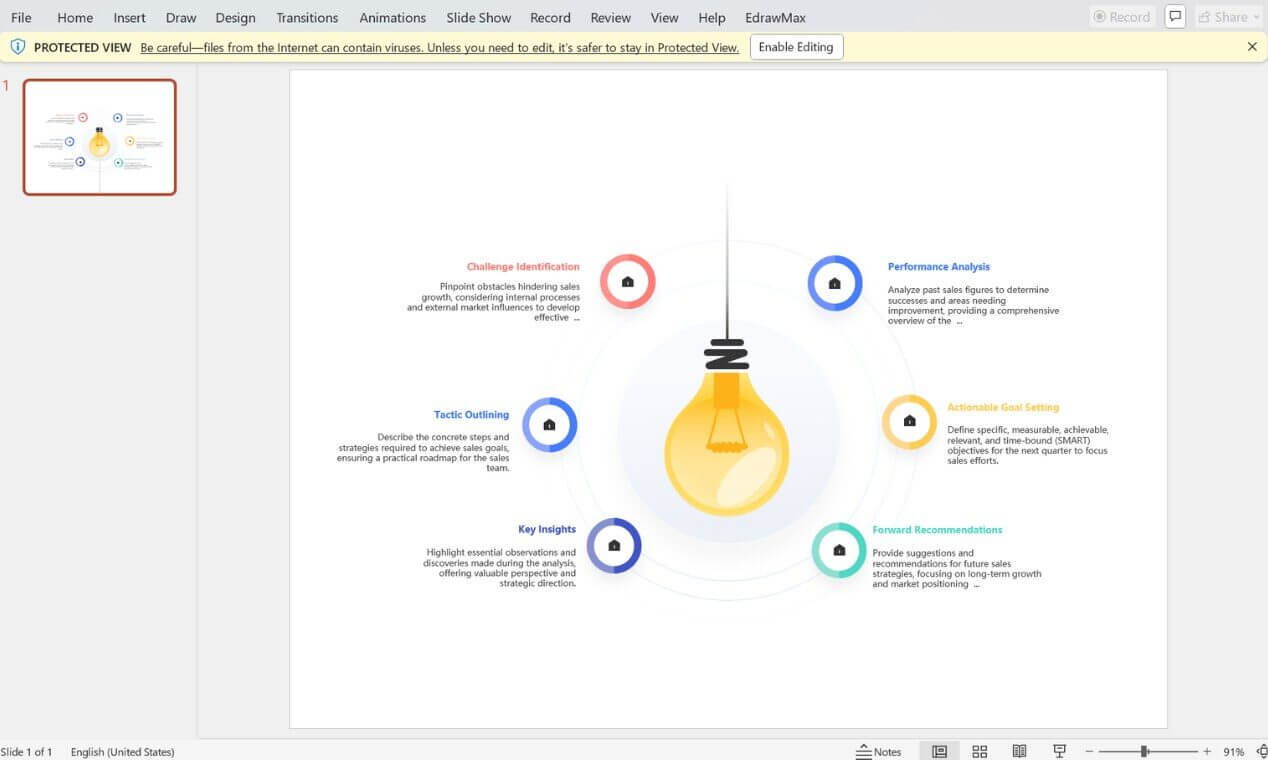
Why Does This Work?
- Speed: Slides appear far quicker than manual design in less than 10 seconds.
- Structure: Predefined frameworks ensure logical flow.
- Flexibility: You retain editing control in PowerPoint.
Give EdrawMax AI PPT a try if you are ready to leave slide-building drudgery behind and turn your next idea into a deck before your coffee cools.
Method 2: Create a PowerPoint Presentation Using Templates
If AI is not your thing, templates are a great alternative. They help you create a PowerPoint presentation quickly without starting from scratch. PowerPoint offers built-in templates with ready-made layouts, designs, and formatting. All you have to do is plug in your content—no design skills needed! Let us see how to create a PowerPoint presentation using templates.
Step 1: Open PowerPoint and Choose a Template
- Launch PowerPoint on your desktop and hit New to browse templates.
- With a wide range of built-in options, you can also search online for templates using keywords like “business,” “education,” “portfolio,” or “sales report.”
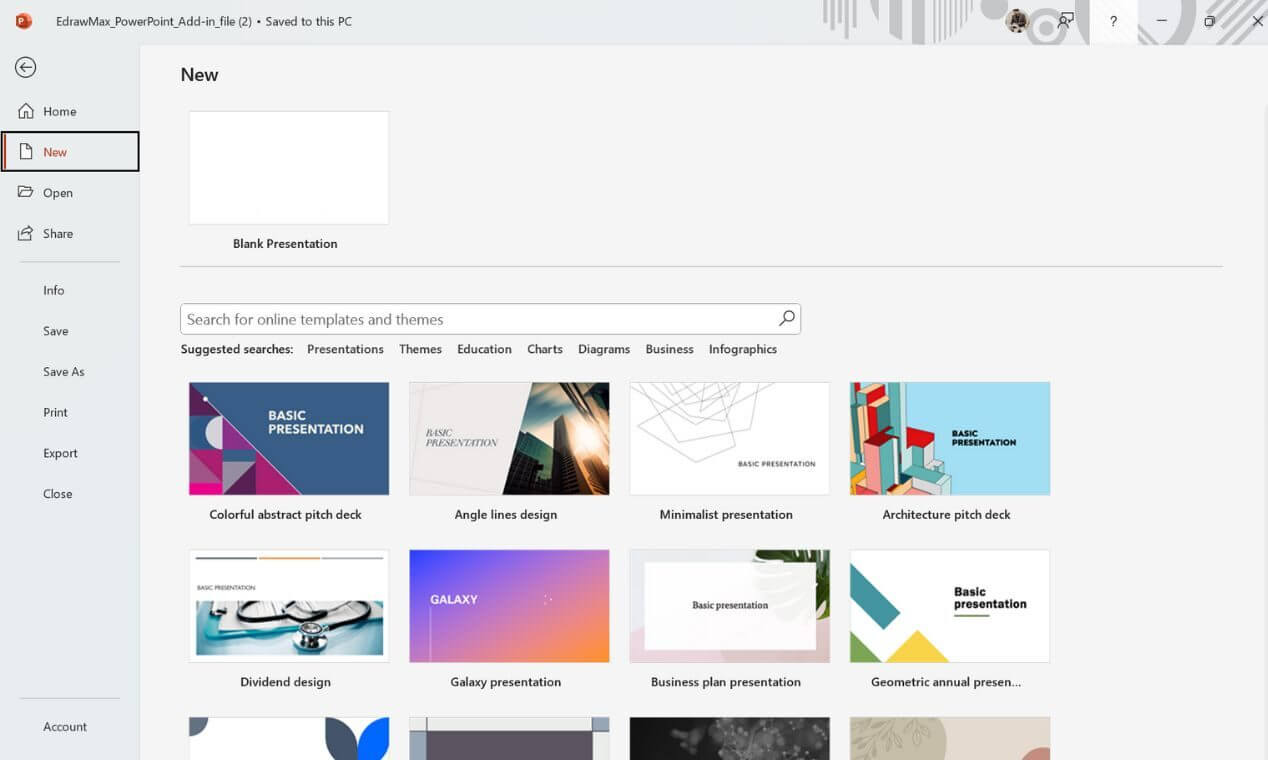
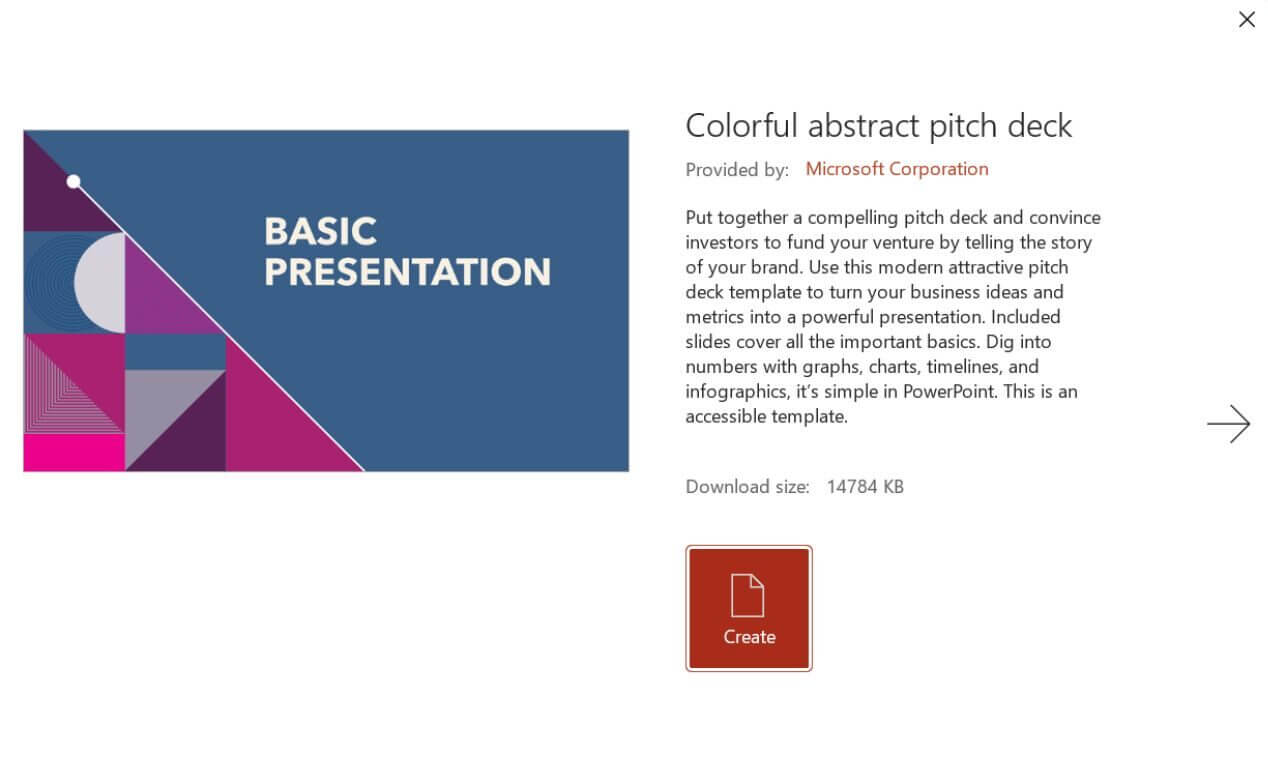
- Pick a template that fits your presentation style and click Create to load it.
Step 2: Customize the Slides
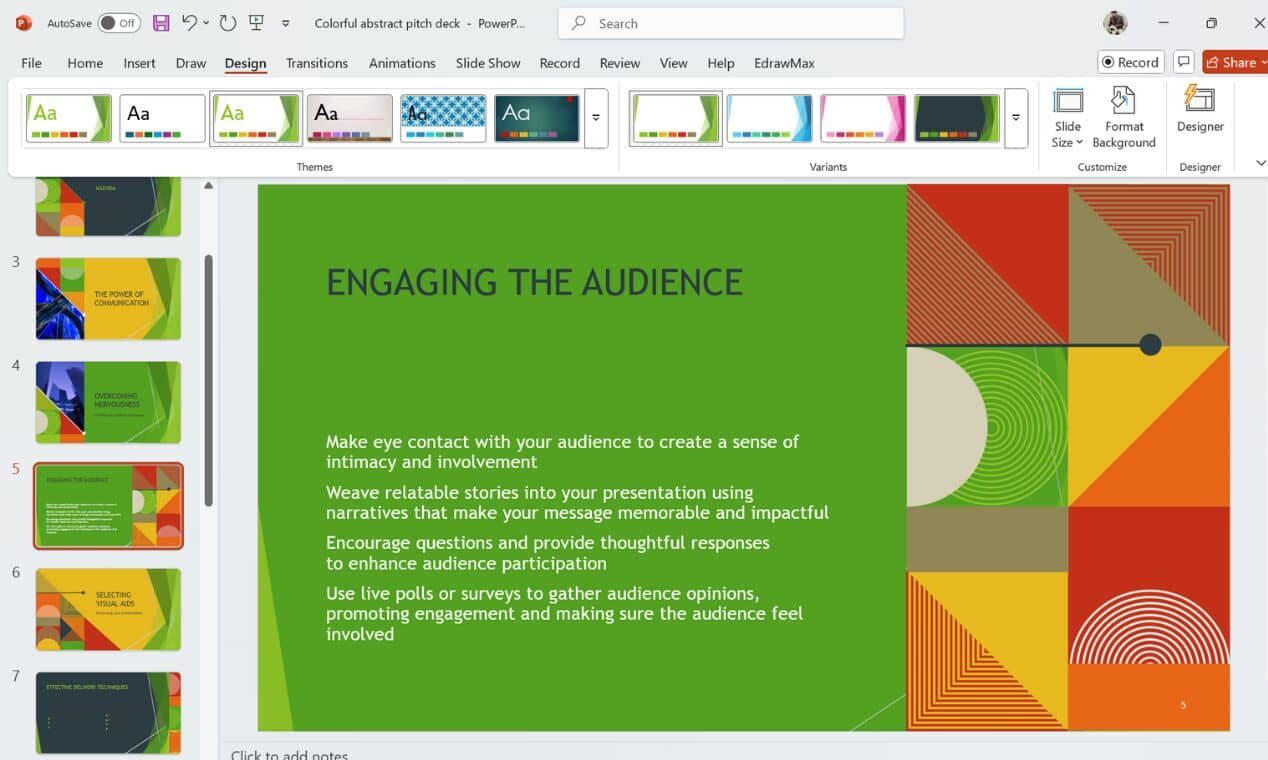
- Review the selected template’s structure. Most include title slides, agenda pages, content sections, charts, closing slides, etc.
- On any slide, double-click to replace the placeholder text with your content.
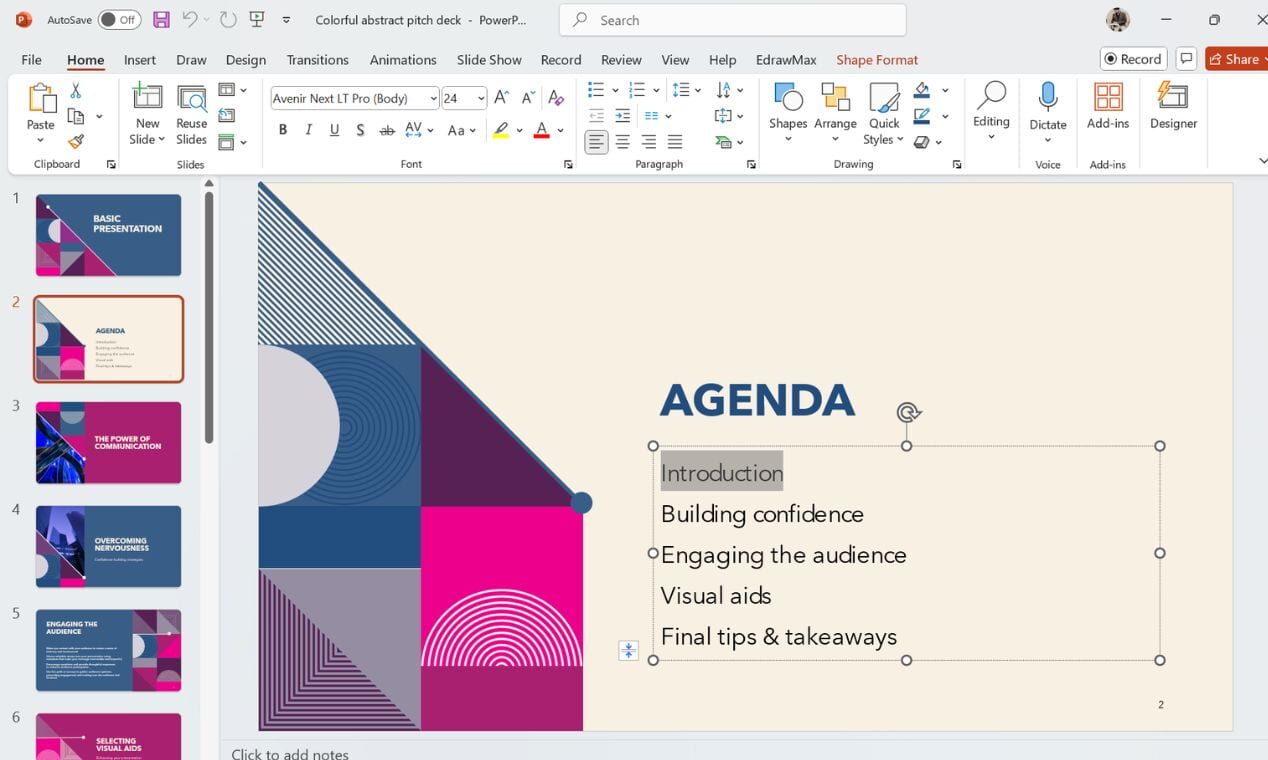
- Modify themes, swap icons or visuals as needed, and adjust brand colors or logos if required.
Step 3: Final Review and Save
- Go through the entire presentation to ensure everything is well aligned.
- Check spacing, font consistency, slide order, etc.
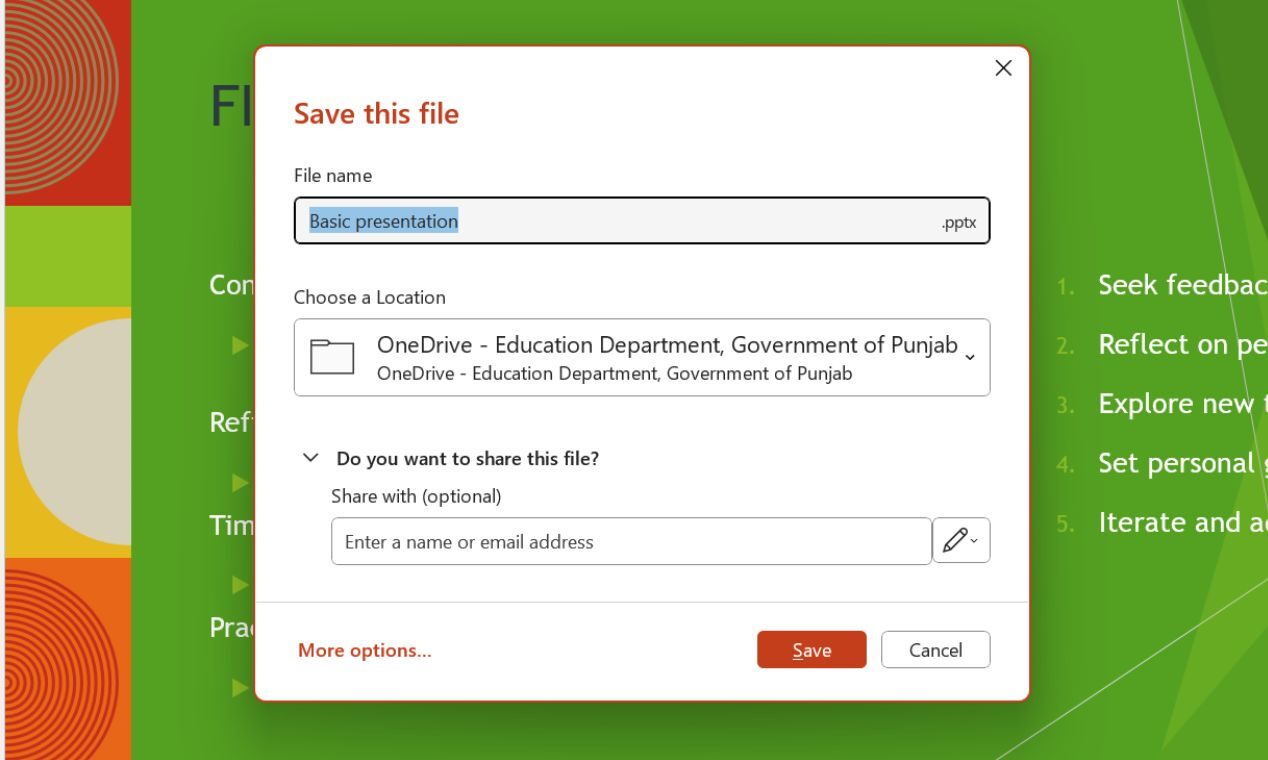
- Press CTRL + S to store your finished presentation in .pptx format when satisfied. You can now present or share your deck.
Why Does This Work?
- Time-saving: No need to create layouts from scratch.
- Structured: A pre-made slide order helps keep ideas organized.
- Simple edits: Just add your content—no design work is required.
If you want speed but prefer control over design, templates are reliable for making good minute presentations. But if you are ready to skip this part, EdrawMax AI PPT gets the job done even faster.
Where to Find Free PowerPoint Templates?
Here are some resourceful platforms you should choose:
- EdrawMax: Offers thousands of templates.
- SlidesCarnival: Clean, functional templates sorted by topic.
- Canva: Offers editable templates that you can download as .pptx files.
- PowerPoint School: Good for animation-heavy decks.
- Microsoft Office Templates: Reliable and free from Microsoft.
Method 3: Create a PowerPoint Presentation from Files
Do you have a Word document full of notes and no time to turn them into slides? Do not start from scratch to convert that mess directly into a presentation. Tools like EdrawMind, a mind-mapping tool, take your file and build a slide deck with just a few clicks. It is like copy-paste but way smarter and quicker.
You just need to upload your content file, organize it into a mind map, and convert it into a PowerPoint presentation. It is fast, logical, and exports directly into PowerPoint (.pptx).
Step 1: Open Your File and Start Parsing
- Go to EdrawMind in your browser.
- On your workspace, press + New File and then Import.
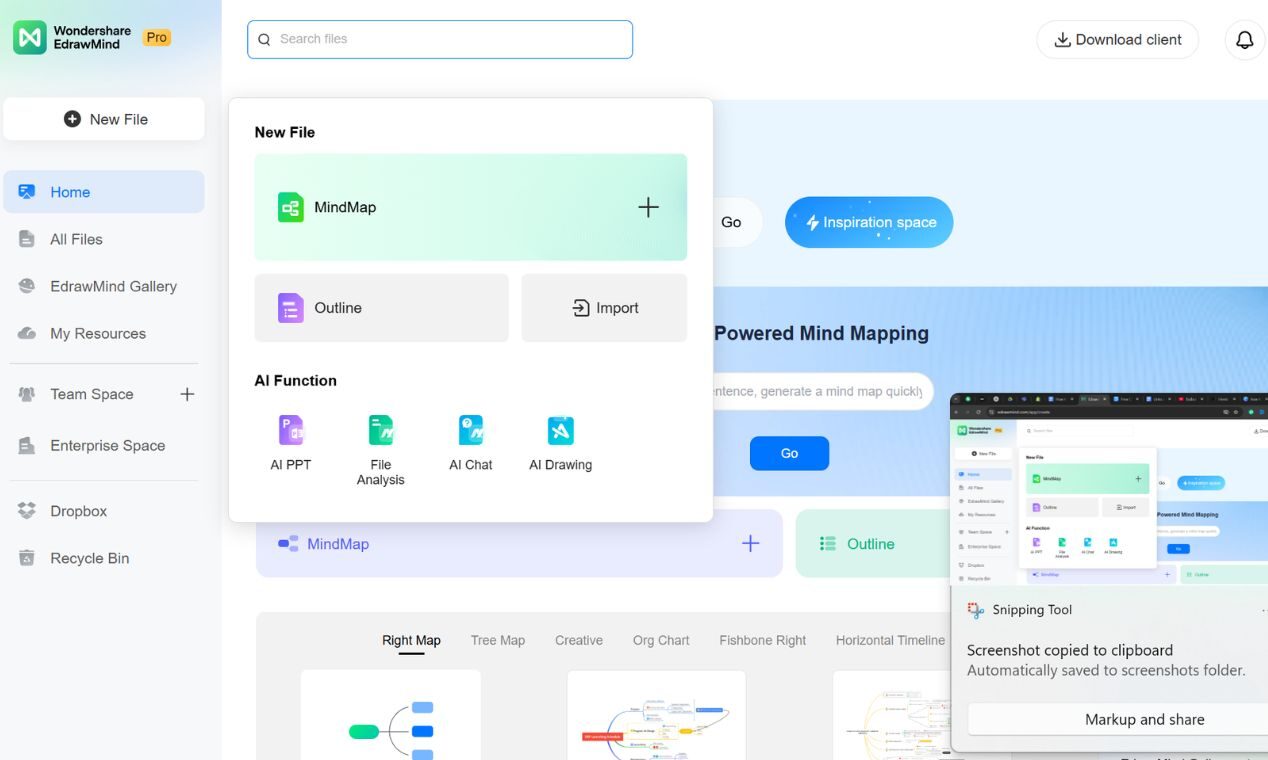
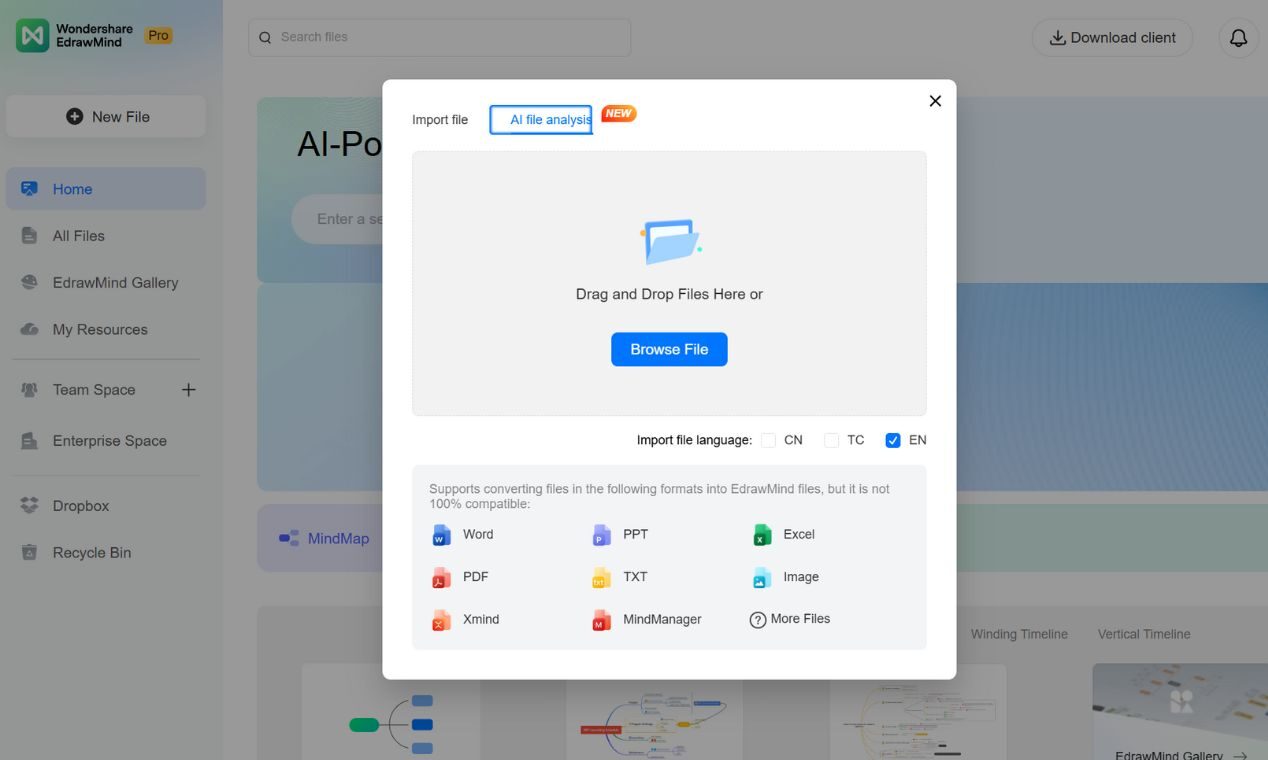
- Choose AI file analysis and upload your file. The program lets you choose multiple file formats, including Word, PDF, Excel, and TXT.
- After uploading your file, tap on Start Parsing. The tool will then read your content and organize your notes into a mind map you can view as a PPT.
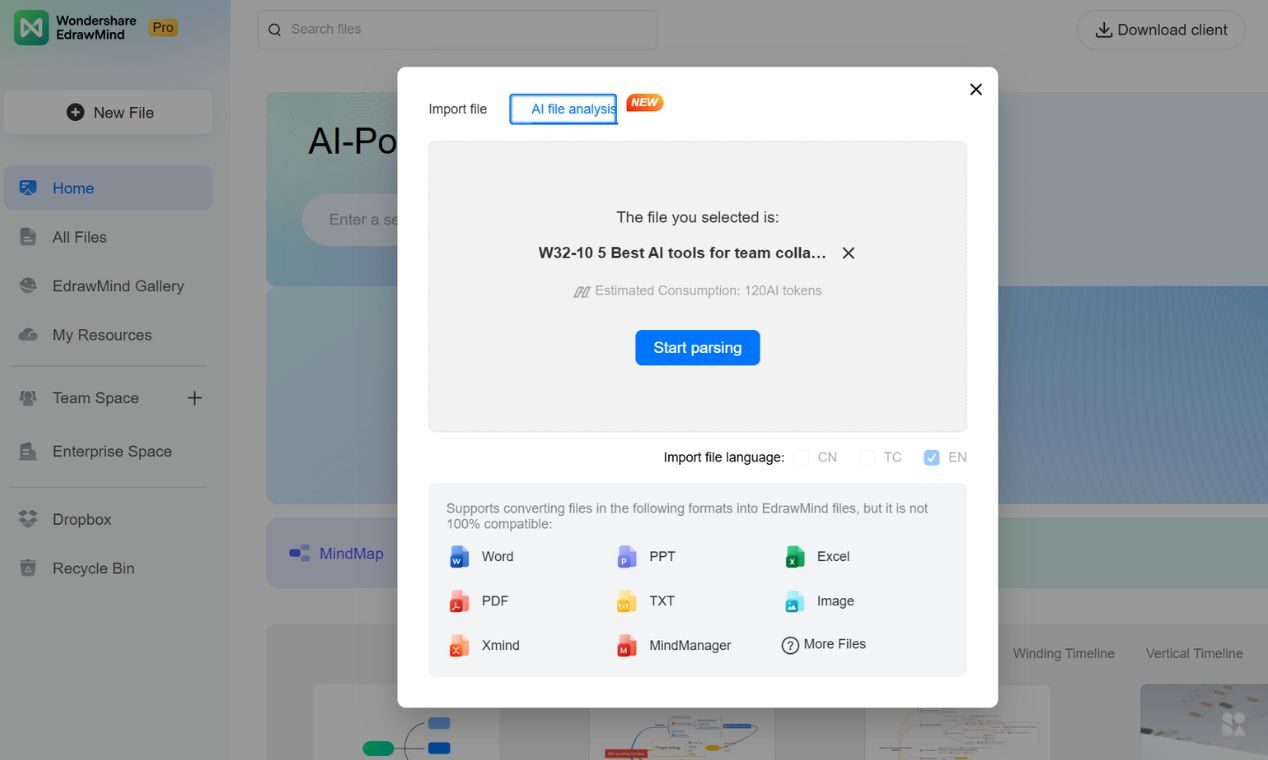
Step 2: Convert to PPT and Export File
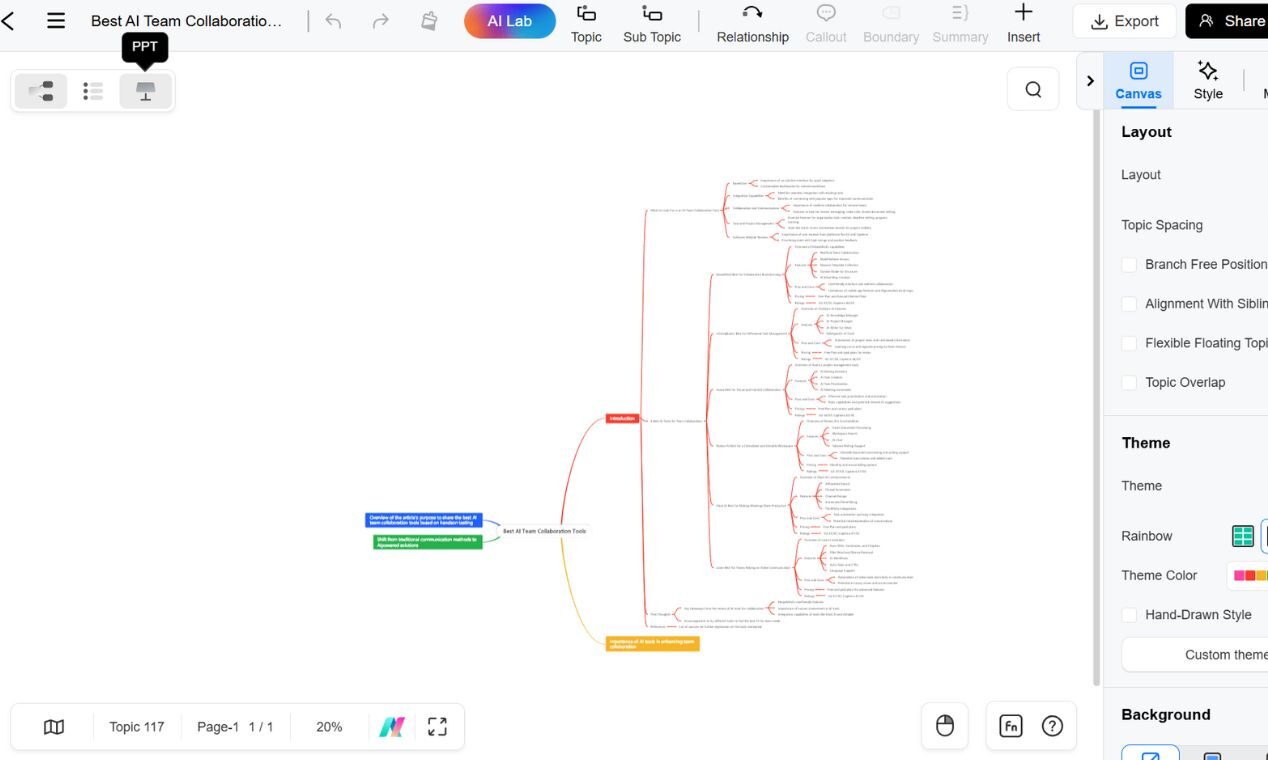
- After parsing is complete, click the PPT button at the top left.
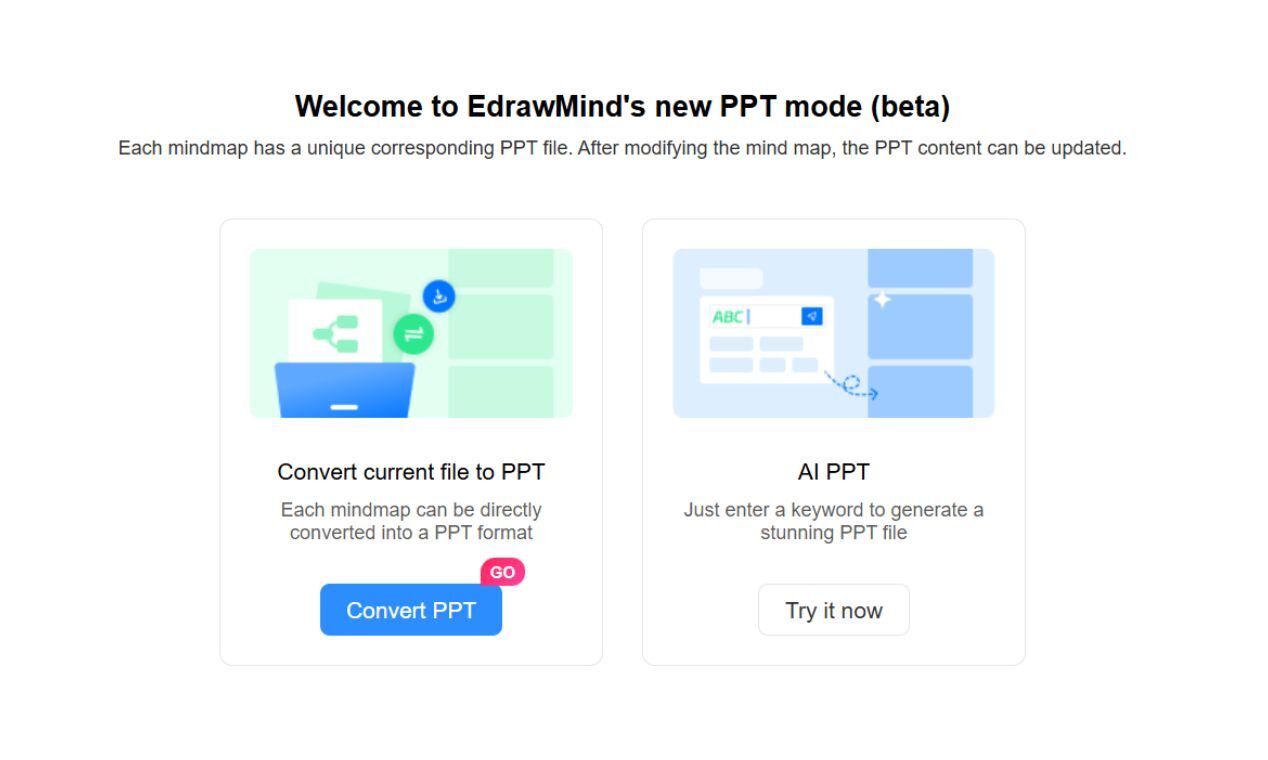
- Now, choose the Convert PPT option to instantly convert your file into a PowerPoint presentation.
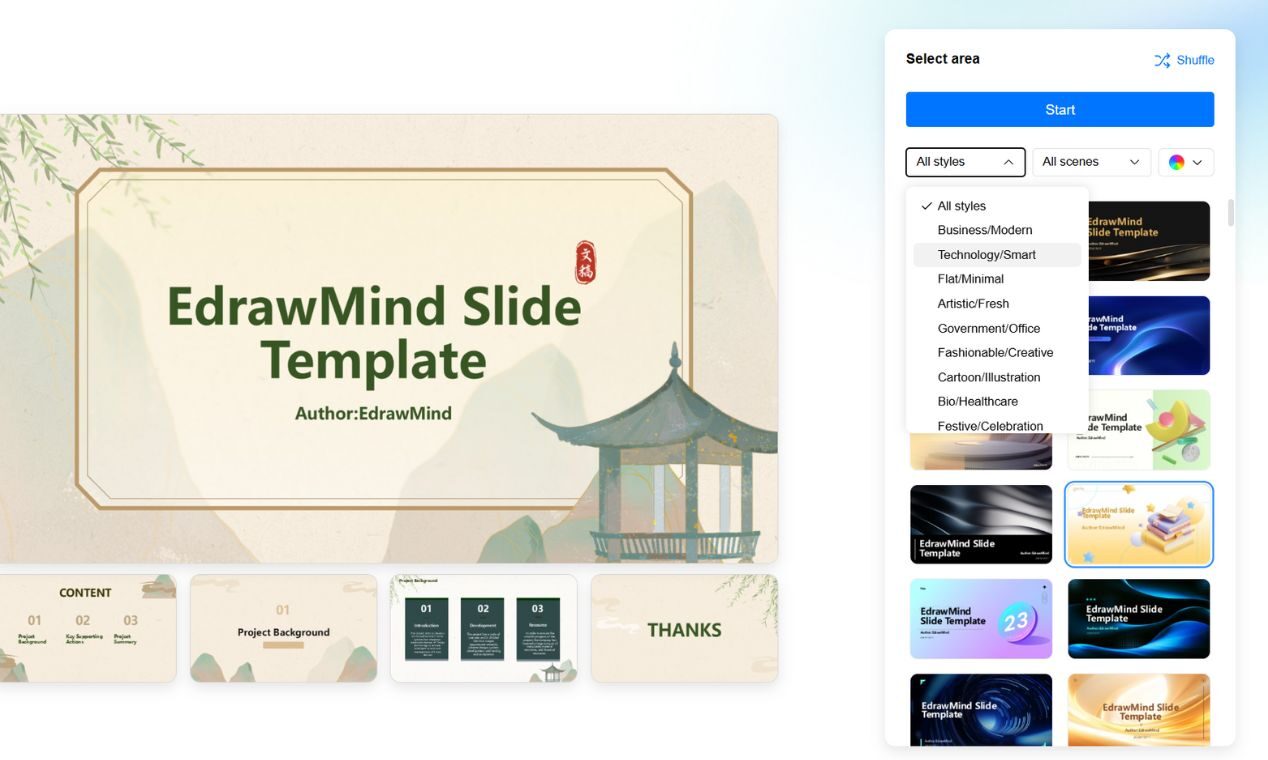
- After that, press the Select Slide Style button.

- Choose the required style from the drop-down menu and hit Start.
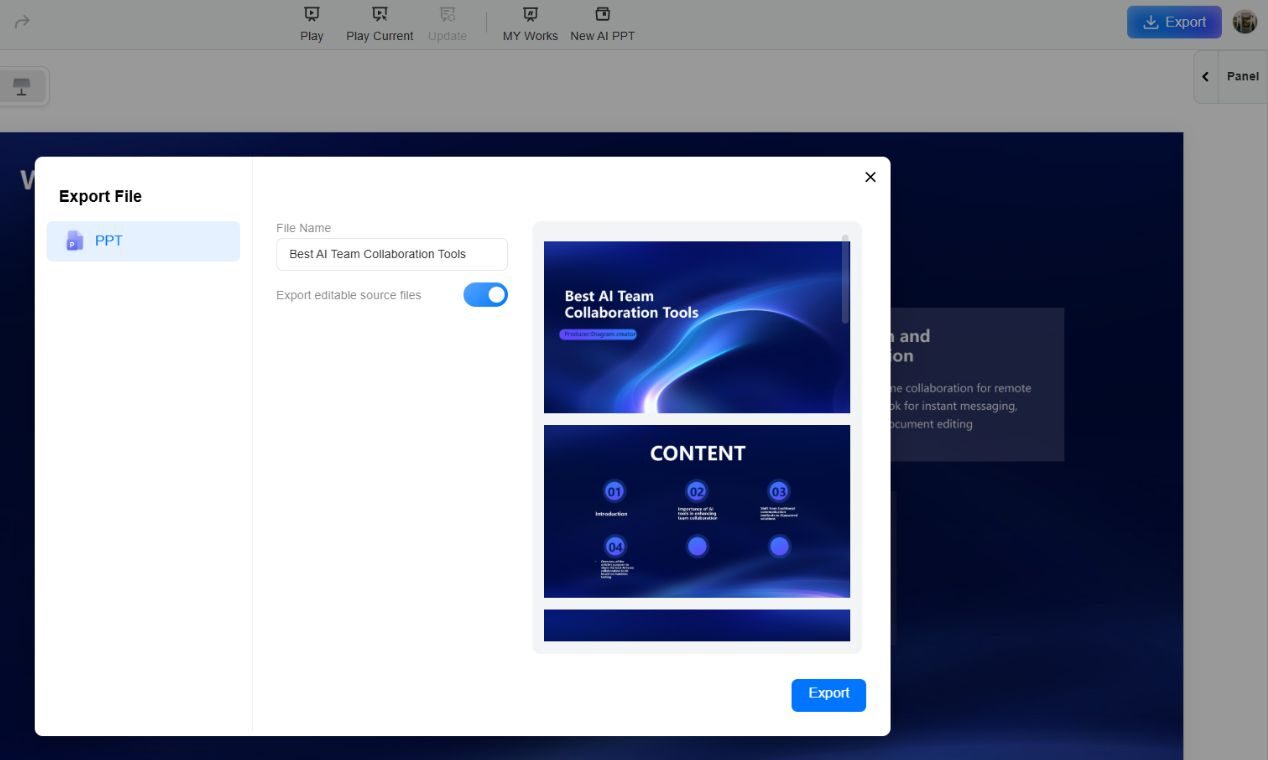
- After converting, click Export and enable the editable source file. You can download it easily in .pptx format.
Step 3: Customize in PowerPoint
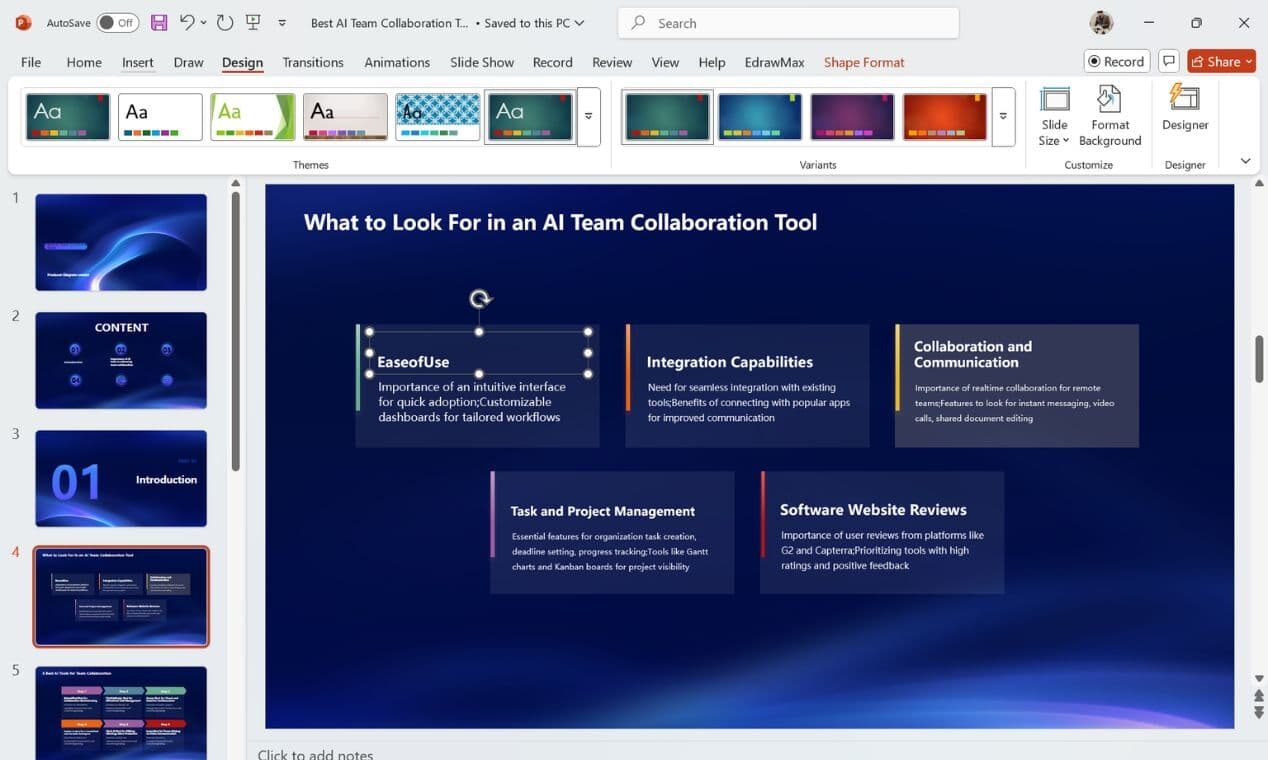
- Open the downloaded file in PowerPoint.
- Adjust colors, text, logos, and themes if required.
- Save your customized PPT for your presentation.
Other Converter Tools
While EdrawMind handles structure beautifully, here are a few other file-converting tools:
- Canva: Uploads PDF or DOCX into editable templates. More design flexibility, less automation.
- WPS Office: It converts DOC or PDF files into PowerPoint slides, preserving basic formatting—though it does not apply much AI logic.
- Microsoft Word (Office 365): It has a built-in Export to PowerPoint option, which is great in theory, but formatting often breaks.
Which Method Is Best for You?
First of all, speed is crucial when you are racing against a deadline. Then, ease of use and customization features let your presentation reflect your unique style in a few simple steps. Finally, price helps balance cost with functionality, and full PowerPoint compatibility ensures seamless editing. These factors guide you rationally in choosing the best tool. Here is a quick breakdown of the best methods based on your needs:
| Criteria | EdrawMax AI PPT | PowerPoint Templates | File Conversion (EdrawMind) |
| Time to Complete | Very fast; takes less than 10 seconds | Moderate manual setup and editing required | Fast conversion takes just a few clicks |
| Ease of Customization | Highly automated design with full editing control in PPT | High-built-in layouts; customize by replacing placeholder text | Moderate – may need further manual tweaks |
| AI & Automation | Integrated AI instantly generates a structured slide deck | None—relies on existing templates without AI enhancements | Limited—provides basic structure parsing |
| Final PPT Compatibility | Exports directly as an editable .pptx file | Native PowerPoint file, fully customizable | Exports as .pptx; some refinements might be necessary |
| Ideal For | Users racing deadlines for professional-quality decks without fuss | Those comfortable with traditional PowerPoint design and editing | Users with pre-written content who need a quick outline
|
Final Thoughts
Now you know three simple and efficient ways to create a PowerPoint presentation quickly. Whether you opt for AI generation, using templates, or converting existing files, you can save time and still create a polished, professional presentation.
If you need a fast, automated solution with complete editing control, try EdrawMax AI PPT. It is perfect for anyone looking to create a high-quality PowerPoint presentation in no time!
Recommended Articles
We hope this guide on how to create a PowerPoint presentation helps you deliver impactful and engaging slides. Explore these recommended articles for more tips, templates, and design strategies to enhance your presentations.

