
Updated August 28, 2023
Introduction to After Effects Templates
After Effects Templates are used if the subject and theme for the animation you are looking for already exist in the market and you do not want to put the efforts to make the entire design and animations with sound effects from scratch. In this scenario, templates become handy as there are many free templates as well as paid available which suits according to the requirement. The benefit of using templates is that it saves time and also exposes parameters for you to tweak like text, media, and color. So, let’s look at how to use templates in Adobe After Effects 2020
Getting Started with Templates
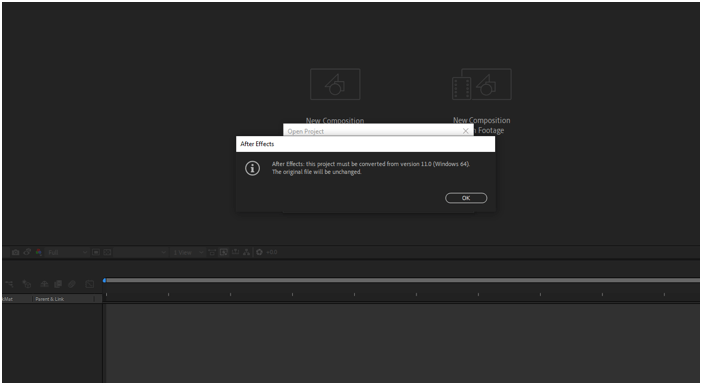
The first step is to download the template for which many sites are available, like graphic motion, motion array, motion elements, pond5, rocket stock, video blocks, and video hive. These are just some of them, but there are many others. Let’s start by locating the .aep file and double-clicking. You might get a warning, as shown, if you are using a newer version of after effects, then the current template will be converted into the latest version, and you have to save it in different locations. However, the original file will not be changed.
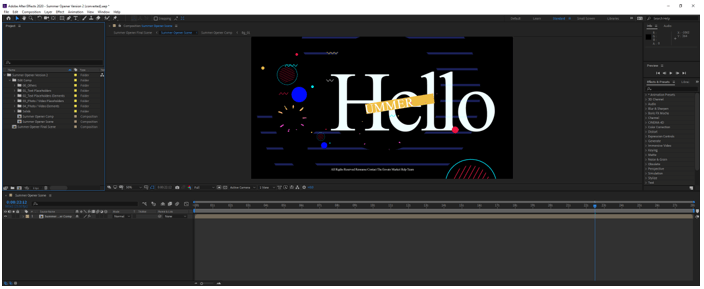
When you open most of the templates, it will be not as displayed on the website as the images and videos would most probably be replaced will placeholder elements. So, don’t get surprised if the templates do not look like the preview as it is intended to be customized according to the requirement. In the project panel, you will have an edit folder and the final scene. The edit folder will consist of the text, videos, and other elements that you will be able to customize.
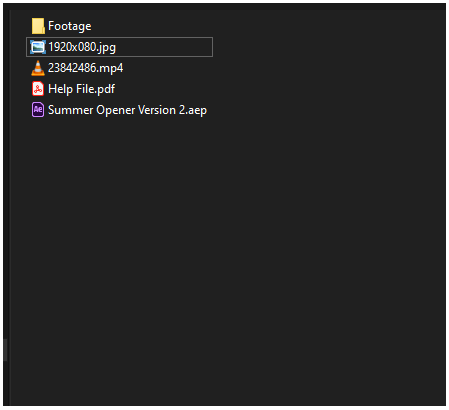
Along with the after-effects files, there are some other files which you will get in the template, as you can see, an image file which will give the preview, and a video file will show the animation with dummy images.
Also, a help file describes how to use the templates, like how to use text, image, and video placeholders. How many frames per second is the animation played at? Are there any plugins that you would require to download before using the template? What is the duration of the template? What resolution is the template created? What versions of After Effects support the template? What fonts are used in the template, as most probably you would need to download those as those fonts might not be installed on the computer? Apart from that, if there is any proprietary music used, then the link for the purchase and download is also provided.
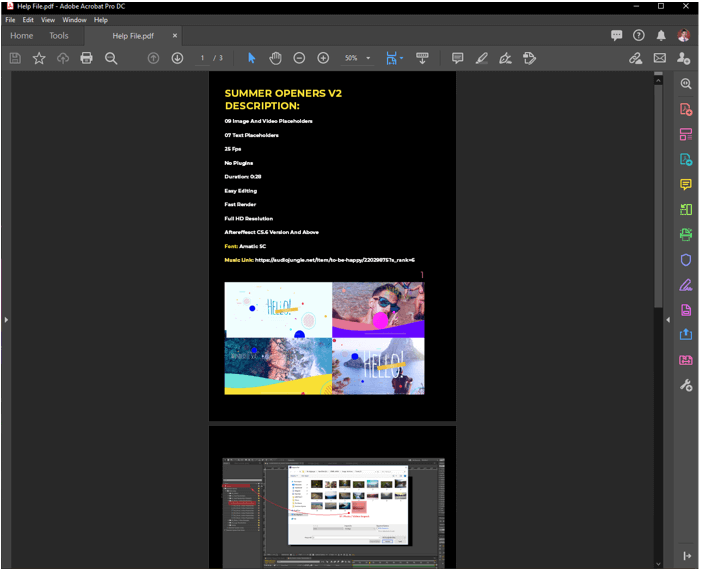
So, these are the factors you should look into before downloading or purchasing an After Effects Template.
Editing the After Effects Templates
Let’s start with editing a template. Before editing, let us keep our assets of images and videos ready for this; we will create a folder called MyAssets and import all the images and videos in that folder.
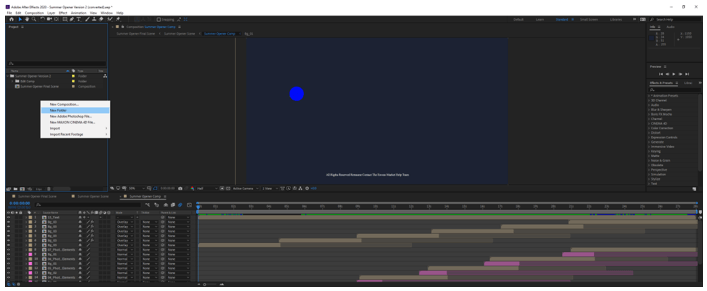
Double click in the project window and import the images and videos which you want to include in the template.
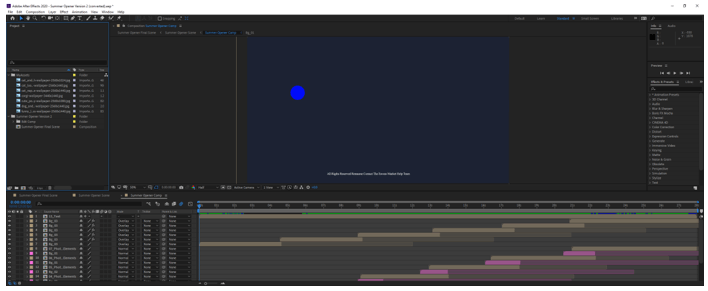
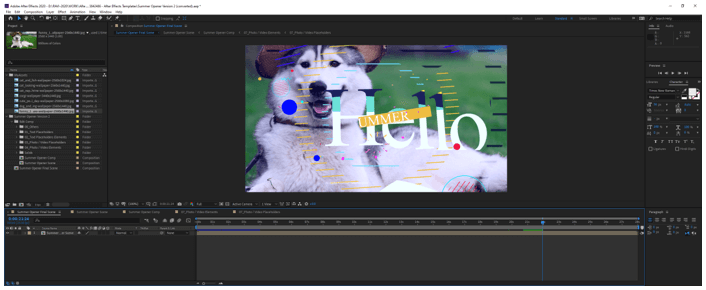
In the case of our template, we have first opened the final scene. Which consist of an opener scene. Double click on the opener scene to open opener comp. We will make edits to this composition as it consists of all the layers in the final animation.
Now double-clicking 13_Text layer, which opens a new comp that consists of a text layer.
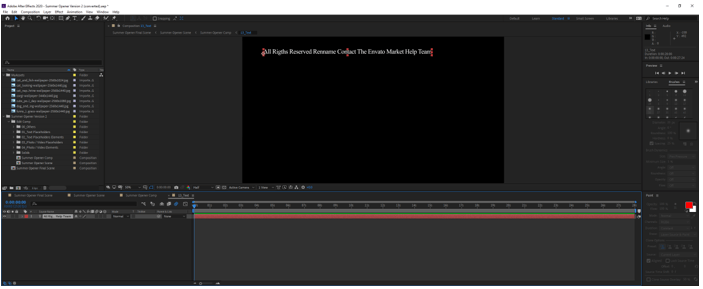
Double click inside the text box and make the changes, then click on the selection tool or Ctrl + enter to get the text’s editing mode.
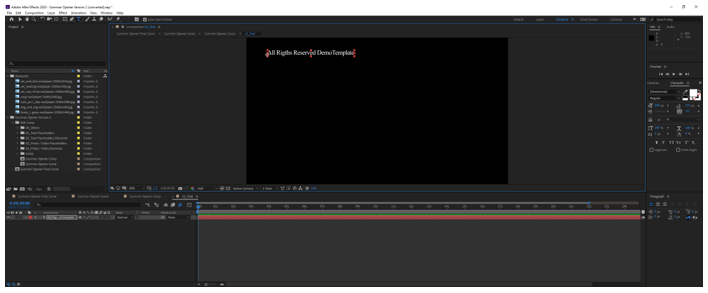
Now go back to the final scene composition to verify that the changes are reflected.
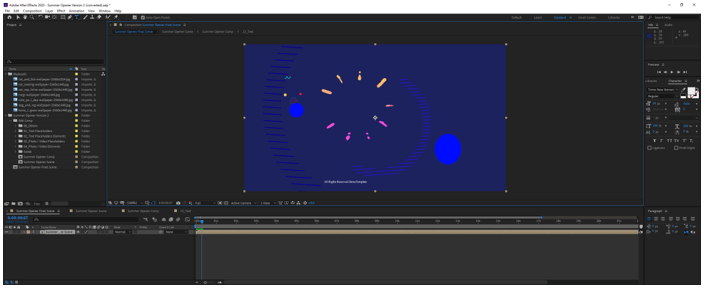
This is one way to make changes in the text layer by selecting the element from the timeline panel. Another way is to select the layer from the Project panel in the edit comp folder; you can select the text placeholder and edit it from there.
Now let us edit a photo or video; for this, we have to select a photo or video layer; in our case, let is select the 8th layer, “07_Photo / Video Elements”. Double click this layer in this you will find another layer, so select the “07_Photo / Video Placeholders” layer, and you will find that the layer is empty as shown.
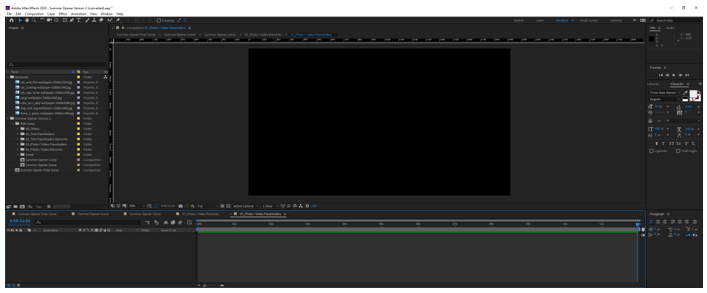
So I will drag an image from my assets folder, and if the image size is big than the size of the composition, then and drag a corner of the image while holding the shift key to resize proportionately.
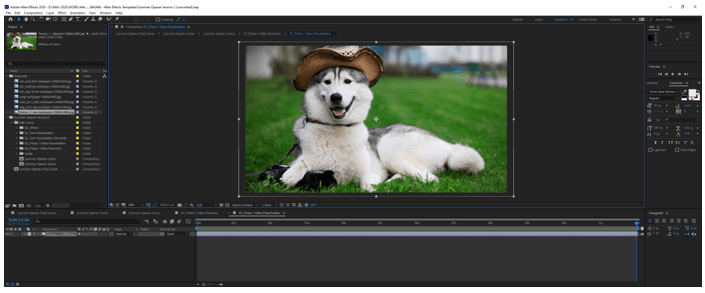
In the opener comp composition, we can see that this layer begins at around 21 seconds, so when you look at the final scene, you will find this image at around 21 seconds.
Using a Lower Third Template
This is a lower third template which we will edit, and it is mostly used an overlay over the videos to show information about the topic.
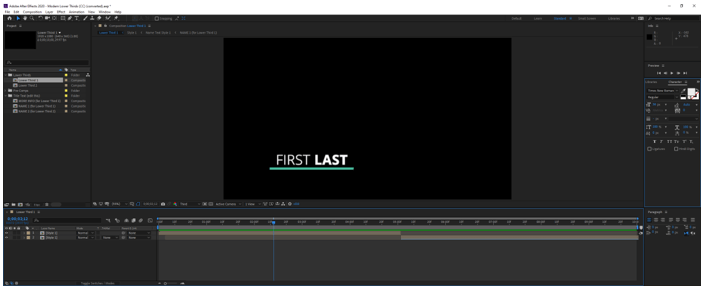
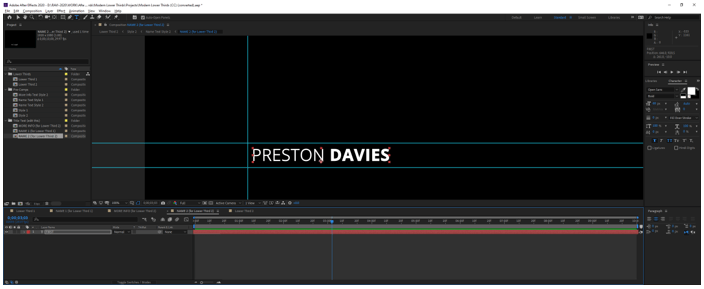
To change the name, we edit the title text layers NAME 1
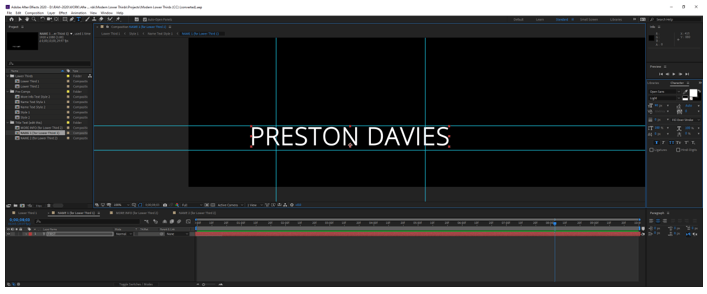
We have to make sure that the name lies within the guidelines, or else it will cut from the main comp as shown.
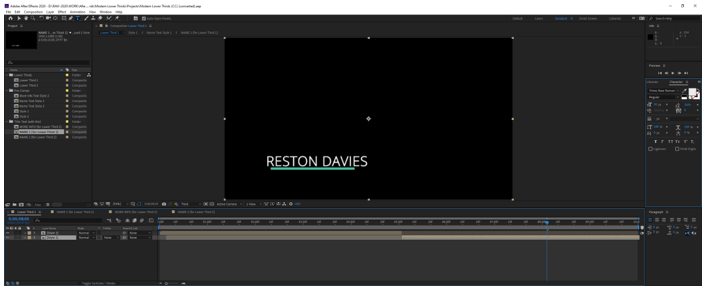
To change this, go to the Character panel on the right and change the font size to adjust the text inside the guidelines.
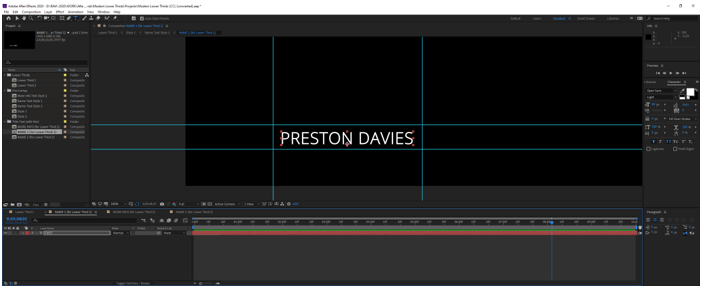
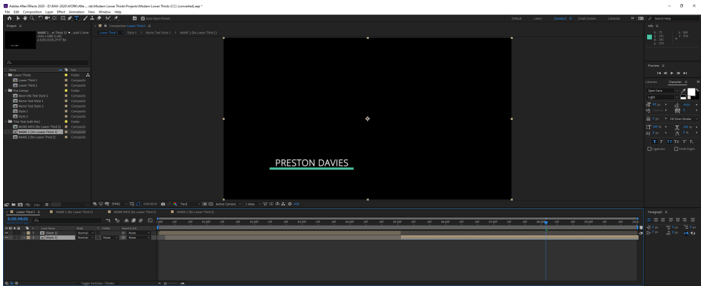
We have chosen open sans fonts and changed the last name style to bold, as shown.
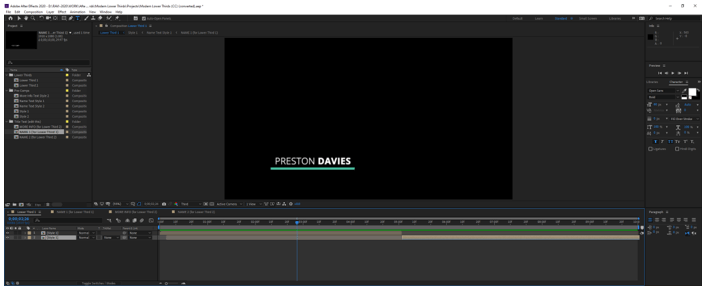
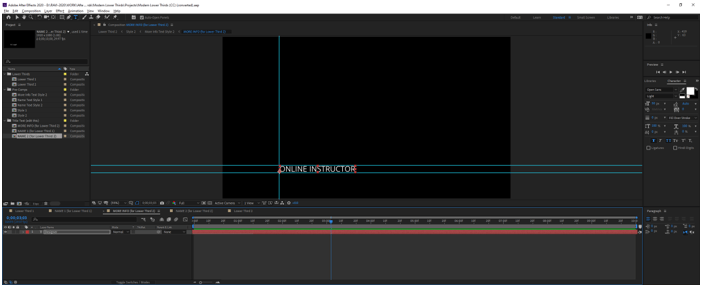
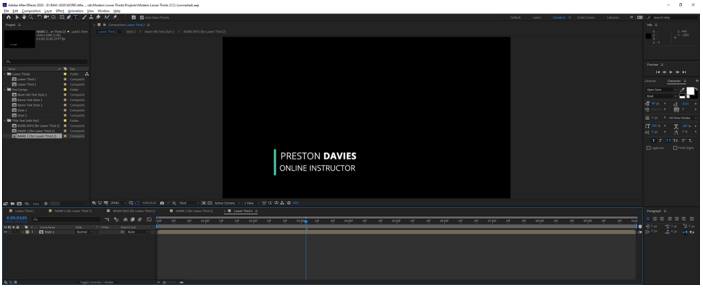
There is another template Lower Third 2, for which we can add extra information.
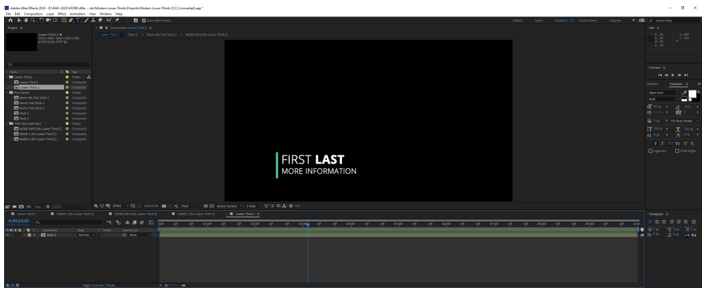
We have changed the first and last names as well as added more instruction.
Exporting the Lower Third
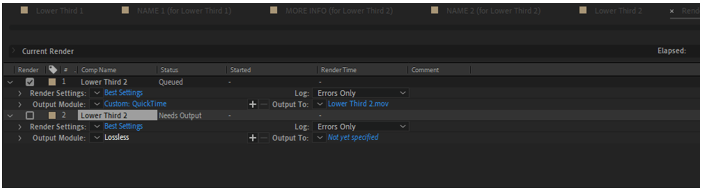
While exporting the lower thirds, we have to make sure that we do not include the black background. For this go-to composition and add to render queue.
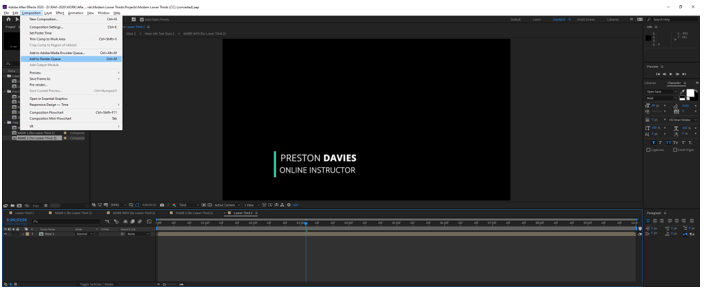
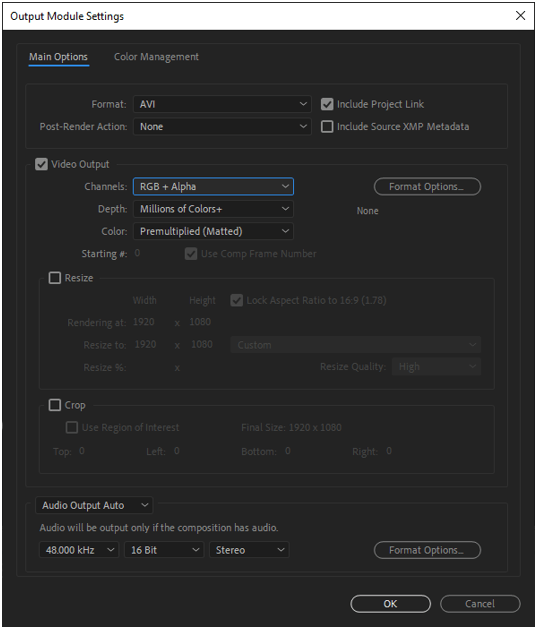
In the output module, lossless settings change the channel from RGB to RGB + Alpha, which makes sure that the output is transparent and then click render.
Conclusion – After Effects Templates
In this article, we have learned how to download the template in Adobe After Effects and learned the techniques of editing the template text and images. Apart from that, we have also seen how to edit and export lower third templates, which are useful to overlay information in videos.
Recommended Articles
This is a guide to After Effects Templates. Here we discuss How to use templates in Adobe After Effects step by step along with the editing and exporting. You may also have a look at the following articles to learn more –

