


A maintenance technician may use Wi-Fi to retrieve a work order, then connect a cable to configure a controller beside a production line. Both tasks belong to the same service visit, but they place different demands on the device.
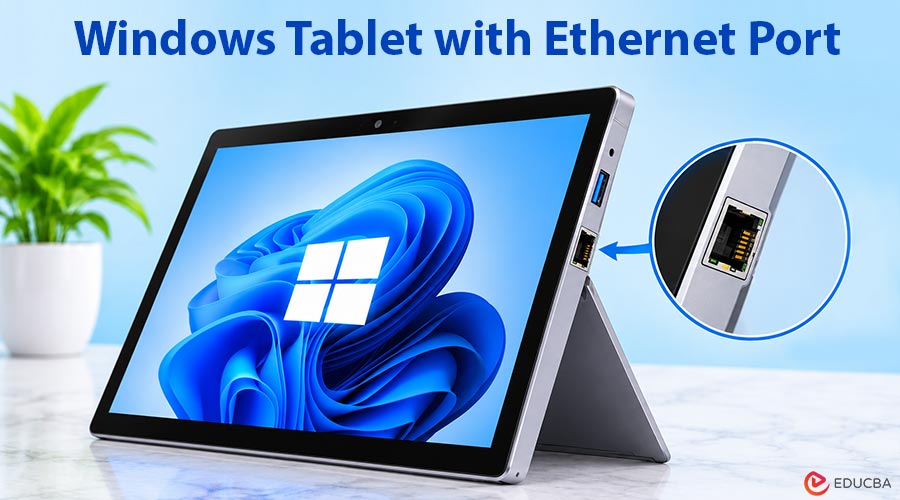
A Windows tablet with ethernet port can support this combination of mobile and wired work. Its value depends on how well the complete configuration fits the job: the connection method, software, other required interfaces, protection during use, and power arrangement.
Start with the Tablet’s Role in the System
Before comparing Ethernet specifications, define what the technician needs to do. Viewing a machine dashboard, downloading a configuration file, accessing a diagnostic application, and running a control task are different requirements.
For maintenance and commissioning, a Windows tablet with ethernet port may act as a temporary service terminal. It connects to a machine or an approved network access point, runs the required software, and lets the technician inspect settings or record findings close to the equipment.
That role should be distinguished from real-time machine control. Industrial networks such as EtherCAT have their own software, driver, and system architecture requirements. An Ethernet connector alone does not mean a tablet can deliver the timing behavior required by a motion-control application.
For many buyers, the practical question is therefore straightforward: can this device run the service tools and connect to the equipment used by the maintenance team?
Choose Between Built-In Ethernet, an Adapter, and a Dock
Built-in Ethernet is useful when technicians repeatedly connect to different machines. It reduces the accessories they need to carry and leaves a USB port available for another peripheral. An adapter remains a reasonable option when wired access is occasional, while a dock can suit a tablet that regularly returns to a fixed workstation.
| Connection Method | Where it Can Fit | Main Consideration |
| Built-in RJ45 | Frequent connections beside equipment | Port accessibility, cable clearance, and other required interfaces |
| USB-to-Ethernet adapter | Occasional service access | Driver support, USB availability, and accessory management |
| Dock Ethernet | Fixed stations or a defined docking workflow | Dock compatibility, mounting, power, and where wired access is needed |
Also establish whether Ethernet is permanently fitted or occupies a configurable interface position. Some rugged tablets let you choose between RJ45, a serial port, an additional USB port, or a barcode scanner in the same module location. A list of available options does not mean that all options can be installed together.
If a technician needs both Ethernet and a serial instrument connection, resolve that combination before selecting the device. Otherwise, a tablet chosen to eliminate adapters may still require one for an equally important task.
Match the Software and Network, Not Just the Connector
An RJ45 port provides a physical connection. Successful equipment access also depends on the application, supported protocol, drivers, authentication, and network configuration.
For a TCP/IP service connection, a technician may need an IP address and subnet configuration compatible with the machine. A machine on an isolated service network may have different settings from the company network. Document the intended configuration so technicians can use it consistently.
The software may also need to use a particular network adapter when Ethernet and Wi-Fi are active together. Confirm how the application selects its connection and whether the site’s IT and operational technology policies permit simultaneous network access.
Ethernet speed should follow the workload. A service application exchanging small amounts of configuration data has different needs from one transferring large image files. Gigabit Ethernet increases available link capacity, but actual transfer performance also depends on the connected equipment and the rest of the data path.
Power over Ethernet is a separate specification. If the project requires the tablet to receive power through Ethernet, or to supply power to another device, identify that requirement explicitly rather than inferring it from the connector.
Check Protection in the Connected State
A rugged tablet may spend much of its working day with a cable attached. That makes protection during connection more relevant than a rating considered only with every cover closed.
Ask whether the stated ingress protection applies with the Ethernet cover open and a standard cable inserted. If the rating depends on closed covers, you may need a different connection arrangement for dust or moisture exposure. SINSMART’s Ethernet-tablet guidance makes this distinction explicitly. SINSMART Ethernet guidance
Physical usability matters as well. Check whether you can reach the connector while holding or mounting the tablet, whether the cable bends sharply against a bracket, and whether cable movement strains the port. These details can affect daily handling even when the electrical specifications are correct.
For an industrial Windows tablet with ethernet port, these practical considerations help determine whether the device can withstand the conditions in which technicians will use it.
Select Windows and Power Arrangements for the Working Life
Windows can be valuable where maintenance teams depend on desktop diagnostic tools, device drivers, or existing enterprise applications. However, “Windows compatible” is only a starting point. Identify the supported edition and version, required drivers, and any licensing or administration requirements.
For new purchases, operating system support belongs in the selection decision. Windows 10 version 22H2 reached the end of regular support on October 14, 2025. LTSC editions and Extended Security Updates follow different arrangements, so buyers should confirm the lifecycle of the exact edition offered.
Power requirements should follow the service routine. A tablet used for short checks between charging opportunities differs from one that must remain available throughout a shift. A removable battery allows replacement; hot swapping additionally requires a design that maintains operation while the main battery is changed.
Compare runtime under relevant brightness, network, and software loads. For docked work, confirm the selected dock provides the required power and connections.
Turn the Requirements into a Complete Configuration
A useful supplier brief describes the work rather than simply requesting “a rugged tablet with LAN.” Include the service application, equipment connection, required Ethernet speed, other interfaces that must operate simultaneously, exposure during use, and charging or docking arrangements.
For buyers comparing a Windows tablet with Ethernet port, SINSMART’s range provides configurations to shortlist against these requirements. Focus on the quoted Windows configuration and its interface combination, since the wider range includes different operating systems and hardware options.
A representative sample evaluation can then follow the real service sequence: launch the application, establish the equipment connection, use the necessary peripherals, save the results, and return to the normal network or docking arrangement. This is more informative than checking the Ethernet port in isolation.
Choose a Windows Tablet with Ethernet Port for the Service Workflow
The strongest reason to choose a Windows tablet with ethernet port is a recurring need to combine mobile software access with wired equipment connections. A well-matched configuration makes that transition practical, with the right interfaces, usable cable access, appropriate protection, and a supported software platform.
The result is a service tool selected around the equipment and the technician’s routine, one that can move with the job and connect where the work requires it.
Recommended Articles
Explore how a Windows tablet with ethernet port supports industrial connectivity, equipment diagnostics, and field maintenance. Learn how to compare Ethernet options, rugged protection, Windows compatibility, and power requirements to choose the right device for your workflow.