
Updated October 22, 2026
Introduction
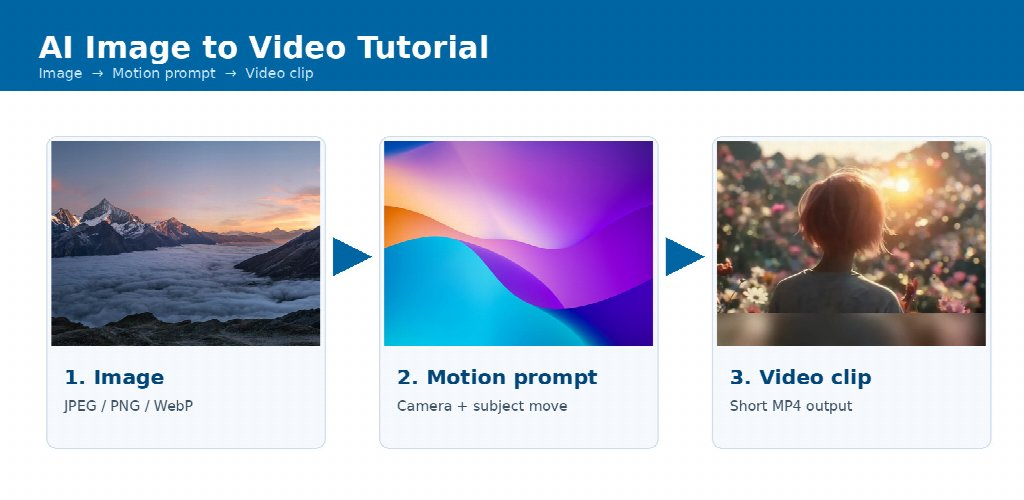
AI image-to-video is a technique in which a machine-learning model takes a still image and generates a short video clip, adding camera movement and motion to elements in the scene. The MixVio Image to Video Generator helps users explore this process by turning static images into dynamic videos.
Creators use this technology for social media clips, product visuals, film previsualization, animated artwork, and marketing. This tutorial explains each step, making it easy for beginners to get started without prior video editing experience.
Key Takeaways
- Image to Video needs two inputs: a reference image and a motion prompt.
- Good source images have a clear subject, visible depth, and decent resolution.
- Motion prompts should describe camera and subject movement, not the picture itself.
- Start with short clips, check the cost before you run, and change one thing at a time.
Image to Video vs. Text to Video vs. Reference to Video
Most AI video tools offer multiple input modes. Choosing the right one is your first decision.
| Mode | What You Provide | Best For |
| Text to Video | A written scene description | Brainstorming scenes that do not exist yet |
| Image to Video | One start image (sometimes an end image too) | Animating a photo, artwork, or product shot while keeping its look |
| Reference to Video | Several images, and on some models, video or audio | Keeping the same character, product, or place across a new scene |
For beginners, image-to-video is usually the easiest place to start, because the result stays close to a picture you already chose. It is also widely used. Kuaishou reported in April 2025 that image-generated video made up about 85% of video creation on its Kling AI platform.
What You Need?
- A desktop, laptop, or smartphone with internet access and a web browser.
- A source image (JPEG, PNG, or WebP is commonly accepted)
- An account on an AI video tool
- Optional: a basic video editor for trimming and adding sound
Step 1: Choose a Tool
Popular options include:
- Runway: a creative suite with video generation and editing tools.
- Pika: a beginner-friendly generator focused on short, stylized clips.
- Multi-Model Platforms: services that offer several AI video models in one interface.
This tutorial uses MixVio, a multi-model workspace whose image-to-video tool includes Seedance, Kling, Veo, MiniMax, and Gemini Omni Flash routes. It is convenient for learning because you can compare models on the same image and see the exact credit cost before each run. The steps below apply to most tools.
Step 2: Prepare a Good Source Image
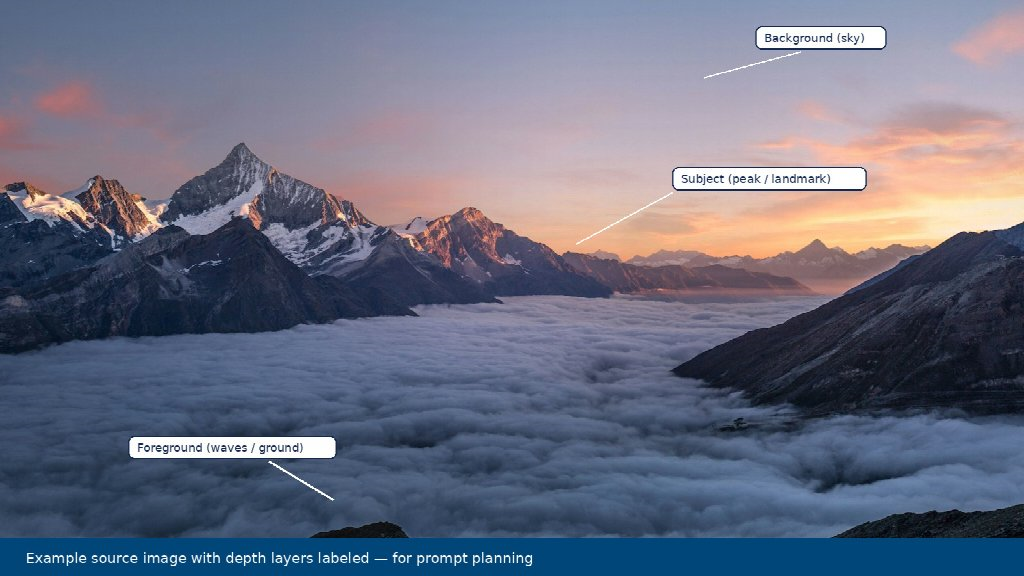
Annotated landscape (landmark + sky + ground) showing depth layers for a strong source image. Output quality depends heavily on the input.
Follow these guidelines:
- Use a clear subject. One main subject is easier to animate than a crowded scene.
- Show depth. A distinct foreground, subject, and background make camera movement more convincing.
- Use good resolution. Blurry or heavily compressed images produce blurry videos.
- Avoid small text and logos. They often distort during animation.
- Make sure you have the rights. Only upload images you created, licensed, or have permission to use, especially if a real person appears.
Example:
A photo of a lighthouse on a cliff, with waves in the foreground and clouds in the sky, is a good beginner image because it contains several elements that move naturally.
Step 3: Upload the Image
- Open the Image to Video mode in your tool.
- Upload the image.
- Check the accepted formats and size limits shown in the tool.
On MixVio, uploads, prompts, and finished videos stay in a private workspace.
Step 4: Write a Motion Prompt
This is the most important skill to learn. The model can already see the image, so the prompt should describe movement, not repeat what is in the picture.
A useful structure is:
Camera Movement + Subject Motion + Environmental Motion + Mood
| Weak Prompt | Better Prompt |
| “A Beautiful Lighthouse” | “Slow push-in toward the lighthouse, waves crash against the rocks, clouds drift left, soft evening light” |
| “Woman Portrait” | “Static camera, she blinks naturally and turns her head slightly right, hair moves in a light breeze” |
Tips:
- Keep it to one or two sentences.
- Use common camera terms: pan left, tilt up, dolly in, static shot, orbit.
- Ask for less motion for a more realistic result.
Step 5: Choose a Model and Settings
Typical settings include:
- Model: Different models produce different looks. Try two models with the same image and prompt and compare.
- Duration: Most image-to-video routes generate roughly 3 to 15 seconds. Start short, because short clips are cheaper and usually more stable.
- Aspect Ratio: Choose 9:16 for Reels and Shorts, 16:9 for YouTube, or 1:1 for square feeds.
- Resolution: Higher resolutions cost more. Use a low resolution while testing.
Step 6: Check the Cost and Generate
Most AI video tools use credits. Always check how many credits a run will use before you start. On MixVio, for example, a default 5-second, 480p Seedance 2.0 video costs 33 credits (from $0.55); the quote appears before you submit, and failed runs do not use credits. Click Generate and wait. Processing time depends on the model, duration, resolution, and queue.
Step 7: Review and Iterate
Review the clip for common problems:
| Problem | Likely Fix |
| Faces, Hands, or Buildings Warp | Simplify the prompt or reduce camera movement |
| Scene Feels Chaotic | Ask for fewer moving elements |
| Clip Looks almost Static | Add one clear camera move or subject action |
| Character Changes Between Clips | Reuse the same reference image, or try reference to video |
Change one thing at a time. Generating two or three versions and choosing the best is normal practice.
Step 8: Download, Edit and Use
Download the final clip. Then trim it or make a seamless loop, add music, sound effects, or a voiceover, and join several clips into a longer sequence. Before publishing, check the tool’s usage terms. On many platforms, free-tier outputs are for evaluation only. On MixVio, paid plans include commercial use, subject to its terms of service.
Practice Exercise
- Pick a landscape photo you took yourself.
- Write three prompts: one with a static camera, one with a slow push-in, and one with a pan.
- Generate all three with the same model.
- Compare the results and note which prompt produced the most natural motion.
Final Thoughts
The MixVio Image to Video Generator turns one still into a short clip using a reference image and a motion prompt. Start with a strong image, describe movement clearly, keep clips short while learning, and confirm that you have the rights to everything you upload. With these basics, you can create short videos from your own photos and artwork.
Frequently Asked Questions (FAQs)
Q1. How long can an AI image-to-video clip be?
Answer: Most routes produce clips of about 3 to 15 seconds. Longer videos are usually built by joining several clips.
Q2. Why does my video look different from my image?
Answer: The model predicts new frames and can drift on fine details such as faces, logos, and text. Use a sharper image and a simpler prompt.
Q3. Can I use the videos commercially?
Answer: It depends on the tool and plan. Read the terms of service before you publish anything commercially.
Q4. What is the MixVio Image to Video Generator?
Answer: The MixVio Image to Video Generator is an AI-powered tool that transforms still images into short video clips using motion prompts. It offers access to multiple video generation models, letting users experiment with different animation styles and compare results.
Recommended Articles
We hope this guide to the MixVio Image to Video Generator helps you turn still images into engaging video clips. Explore these recommended articles for more tips, tools, and techniques to enhance your AI video creation skills.