


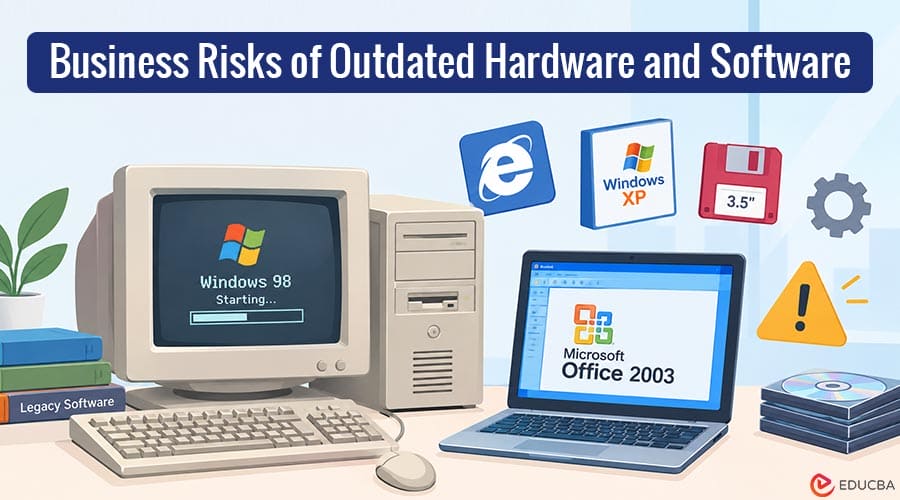
Older technology can remain useful when it is supported, secure, reliable, and suitable for its workload. Age alone does not make every computer or application a business risk. Problems grow when equipment fails repeatedly, software stops receiving updates, or systems cannot support current tools. Delaying action may then cost more than a planned upgrade. Understanding the risks of outdated hardware and software can help businesses make informed technology decisions.
How Can Businesses Identify Outdated Technology?
Businesses reviewing their IT environment should consider how one infected computer can spread malware across connected devices. Examining support status, performance, reliability, and security risks alongside a complete inventory provides a clear starting point.
The review should identify:
- Computers that freeze, restart, or slow down during normal work
- Servers approaching warranty or manufacturer support deadlines
- Systems that don’t get security updates anymore
- Applications that are no longer supported by their developers
- Network equipment that cannot handle current traffic or security needs
- Devices that cannot run required business software reliably
- Storage drives with repeated errors or limited remaining capacity
- Hardware that cannot support modern encryption or access controls
- Software that requires unsafe workarounds to remain usable
A device should not be replaced merely because a newer model exists. The decision should connect technical conditions with security, employee needs, support costs, and operational importance.
Which Risks Come From Outdated Hardware and Software?
Old technology can affect several areas at once. A slow workstation may reduce productivity, while unsupported software can create security, compatibility, and compliance concerns across the business.
1. Missing Security Updates
Software vendors release updates to correct defects and address known vulnerabilities. Once support ends, newly discovered weaknesses may remain unresolved on that version. Security tools cannot compensate for every unsupported product. Unpatched systems create avoidable exposure, especially when they access email, files, or customer data.
2. Unexpected Hardware Failure
Hard drives, power supplies, fans, batteries, and other components can deteriorate over time. Warning signs may include noise, overheating, crashes, or errors. Failure becomes more disruptive when replacement parts are scarce. Aging hardware can turn a single component issue into extended downtime and rushed purchasing.
3. Reduced Employee Productivity
Slow startup, frozen applications, delayed file access, and repeated restarts consume employee time. Each interruption may look small when viewed by itself. Across several workers and months, those delays add up. Poor performance creates a hidden labor cost while employees develop inefficient workarounds.
4. Software Compatibility Problems
New applications, file formats, browser features, and cloud services may stop supporting older operating systems. Updates can also break aging integrations. Employees may then use manual transfers or duplicate entries. Compatibility gaps weaken normal workflows and increase the chance of errors or lost information.
5. Limited Security Features
Older hardware and operating systems may lack support for newer encryption, secure boot, modern authentication, or current endpoint protection tools. This can prevent consistent security across the company. One weak device can complicate wider protection when it connects to shared data and network resources.
6. Rising Support Costs
Technicians may spend more time finding old drivers, repairing recurring faults, or maintaining custom workarounds. That effort does not improve the system. Businesses considering software and hardware upgrade services should compare ongoing support costs with planned modernization. Repeated repairs can exceed practical value.
7. Greater Recovery Difficulty
Older systems may use backup tools, storage formats, or applications that are hard to restore on current equipment. Recovery instructions may also be incomplete. A successful backup file does not guarantee a usable recovery. Unsupported dependencies can delay restoration when a failed system must be rebuilt quickly.
How Should Businesses Plan Safe Technology Upgrades?
An upgrade should solve a defined problem without creating unnecessary disruption. The strongest plans connect each change with security, reliability, capacity, or workflow needs.
A practical upgrade plan should:
- Build an inventory of hardware, software, licenses, and owners
- Record age, warranty, support status, faults, and business purpose
- Rank systems by operational importance and security exposure
- Identify dependencies between devices, applications, and vendors
- Confirm that reliable backups exist before any major change
- Schedule upgrades in phases with a documented rollback plan
Replacing everything at once may be unnecessary and difficult to manage. Some computers need only additional memory or storage, while others no longer justify further investment.
Final Thoughts
Outdated hardware and software become risky when they lose security updates, reliability, compatibility, or the capacity to support work. Age alone does not require replacement, but repeated failures and unsupported systems deserve action. An inventory, tested backups, assessment, and phased upgrade plan can reduce disruption while directing the budget toward equipment and software with a clear business purpose.
Recommended Articles
We hope this guide to outdated hardware and software helps you understand technology risks and plan timely upgrades. Check out these recommended articles for more insights and strategies to improve your business technology management.

