



Managing local storage on Windows operating systems frequently involves dealing with residual data left behind by standard software removals. When you delete an application through the default system settings panel, the process typically targets only the primary files registered by the original installer. Over time, repeated installations and removals can create orphaned folders, obsolete registry keys, and lingering startup entries that consume disk space and slow the system. This evaluation explores the Windows default uninstaller and one uninstaller for Windows popular in 2026, focusing on their effectiveness in identifying and cleaning leftover files, handling stubborn applications, and optimizing overall system storage.
Limitations of the Default Windows Uninstaller
The built-in Windows Apps & features interface serves a fundamental purpose by running the uninstaller routine provided by software developers. However, this mechanism exhibits distinct limitations:
- Incomplete File Removal: Standard removals often leave behind auxiliary directories, log files, and configuration data in directories such as AppData.
- Registry Residue: Obsolete registry entries and COM object references frequently remain active or orphaned after a program is uninstalled.
- Overlooked Bundled Components: Supplementary browser extensions or promotional applications installed alongside primary software are frequently missed by standard routines.
Testing across multiple Windows environments indicates that nearly all standard uninstalls leave behind varying amounts of residual data. This persistent gap in native operating system functionality drives the demand for dedicated third-party uninstaller utilities.
Evaluation Methodology
To maintain consistency, the testing team used a mid-range Windows laptop configured with standard productivity applications, web browsers, and historical system updates. The assessment criteria focused on four primary metrics:
- Cleanup Completeness: The ability to detect and purge primary application files alongside secondary residues, such as registry keys and cache fragments.
- Stubborn Program Handling: Performance when dealing with applications that lack functional uninstaller routines or fail to register in the system control panel.
- Extended System Maintenance: Inclusion of auxiliary tools designed to manage pre-installed system packages, updates, or application locations.
- Interface and Transparency: The clarity of information presented to the user, ensuring that all modifications and deletions are clearly reported before execution.
IObit Uninstaller 16 for Cleaning Leftover Files
Among the utilities evaluated, IObit Uninstaller 16 served as the primary tool for extended testing due to its comprehensive feature set and structured interface design.
Interface Organization and Categorization
The application dashboard lists installed software alongside file sizes, installation dates, and direct removal controls. Programs are automatically sorted into categories such as bundled software, large applications, and infrequently used utilities, enabling rapid identification of redundant programs.
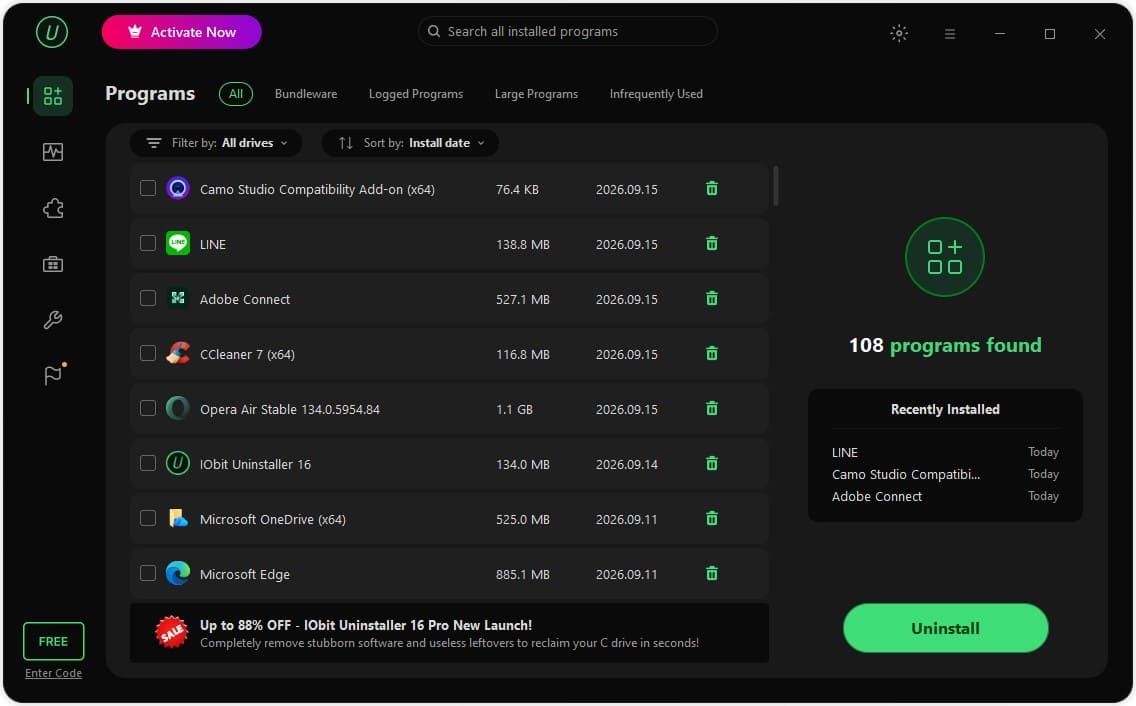
Image Source: IObit
Batch Uninstall and Residual Detection
When processing multiple programs simultaneously, the batch removal function executes sequential uninstalls followed by an automated residual scan. In testing environments, after these 3 programs finished uninstalling, it automatically scanned for leftovers and reported exactly what it found: 5 registry entries and more than 831 megabytes of residual files tied to the removed programs. That single step is the core reason I trust it over the default Windows tool.
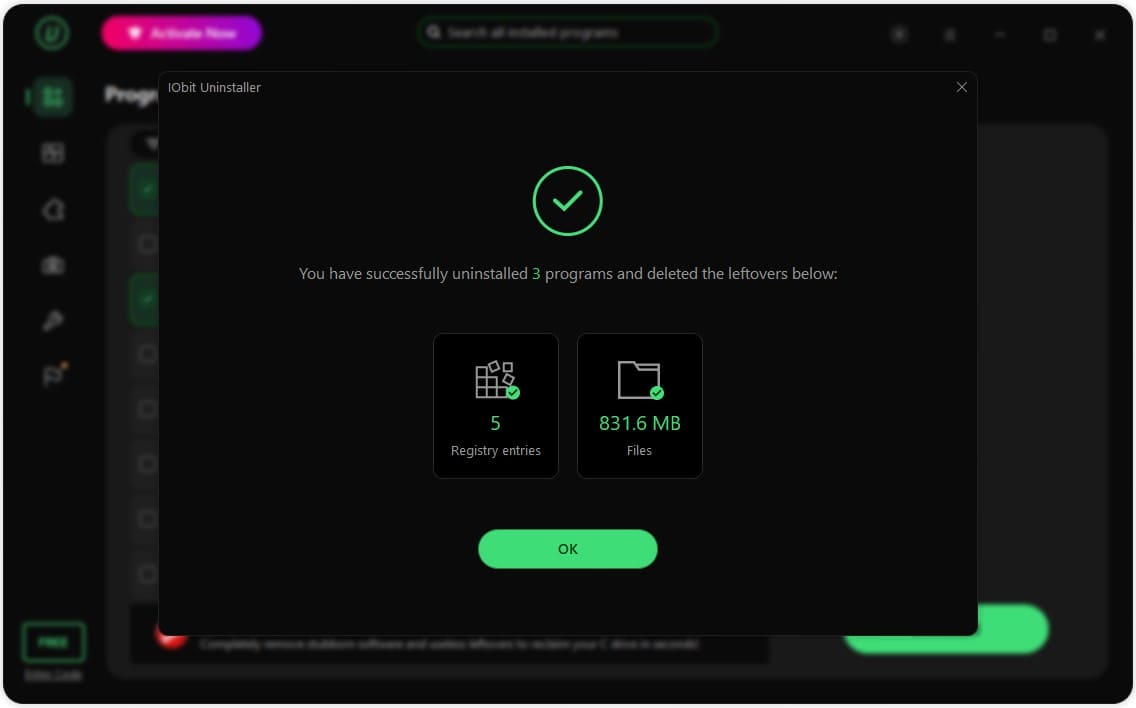
Image Source: IObit
Software Health and Deep Scanning
The integrated Software Health scanner analyzes the system for multiple maintenance categories in a single pass, including uninstallation leftovers, redundant files, notification permissions, and outdated installation packages. The scanner aggregates system findings into a consolidated report, allowing users to review specific items before authorizing automatic remediation. Redundant files, such as minor cache fragments and obsolete configuration logs, are systematically cataloged to help users understand how storage accumulates over time.
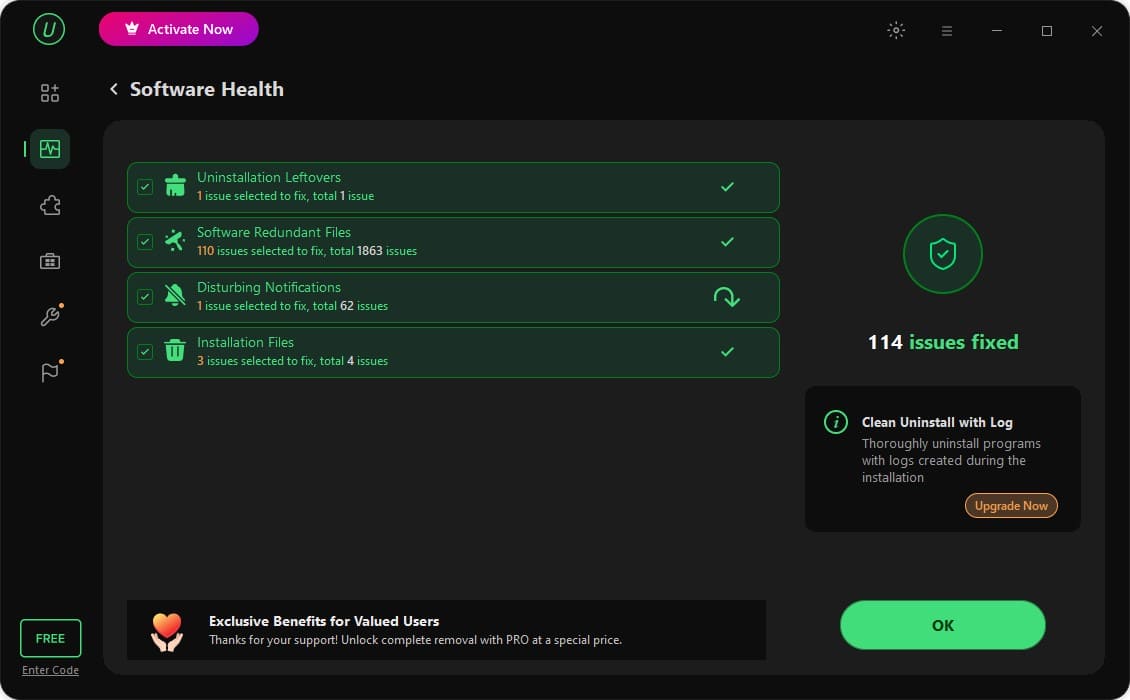
Image Source: IObit
Advanced Toolbox Utilities
Specialized tools are included within the application toolbox to address advanced maintenance scenarios:
- Force Uninstall: Designed for applications lacking standard registry entries, this tool scans designated file paths or folders to eliminate related components without manual registry editing.
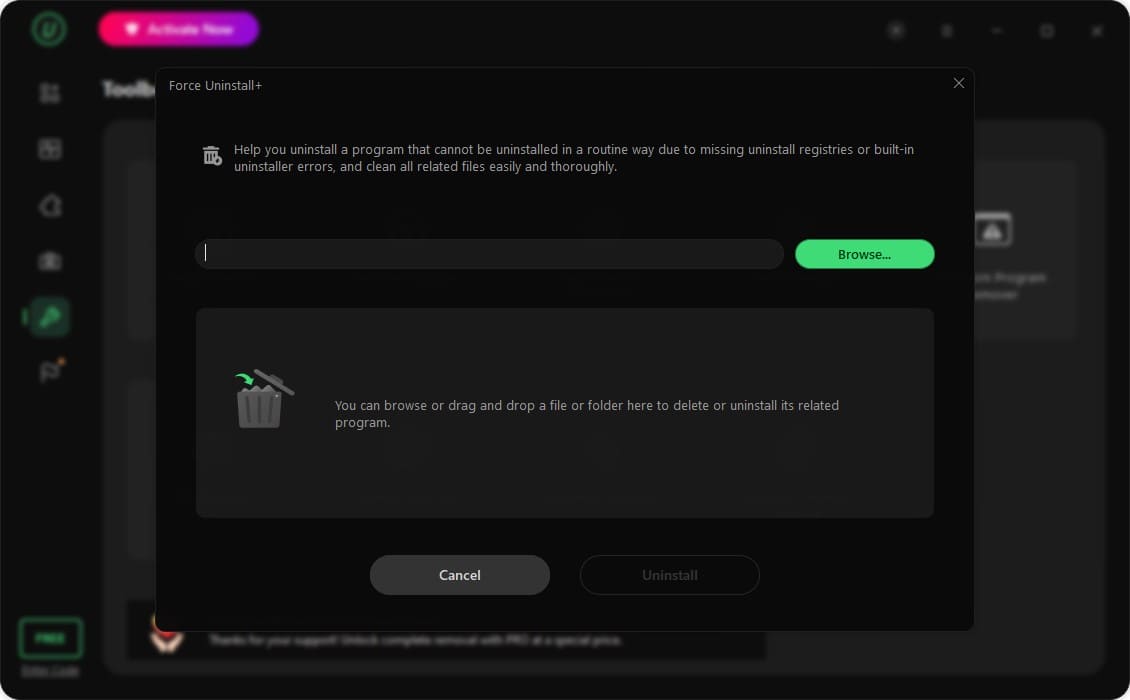
Image Source: IObit
- Stubborn Program Remover: Relies on a comprehensive database of known software removal patterns to match and clear complex or partially deleted applications.
- Software Relocator: Enables the migration of installed applications to alternative storage drives without requiring complete reinstallation. The utility automatically verifies destination drive capacity, updates environment paths, and preserves existing user settings, shortcuts, and login states to alleviate storage pressure on primary system drives.
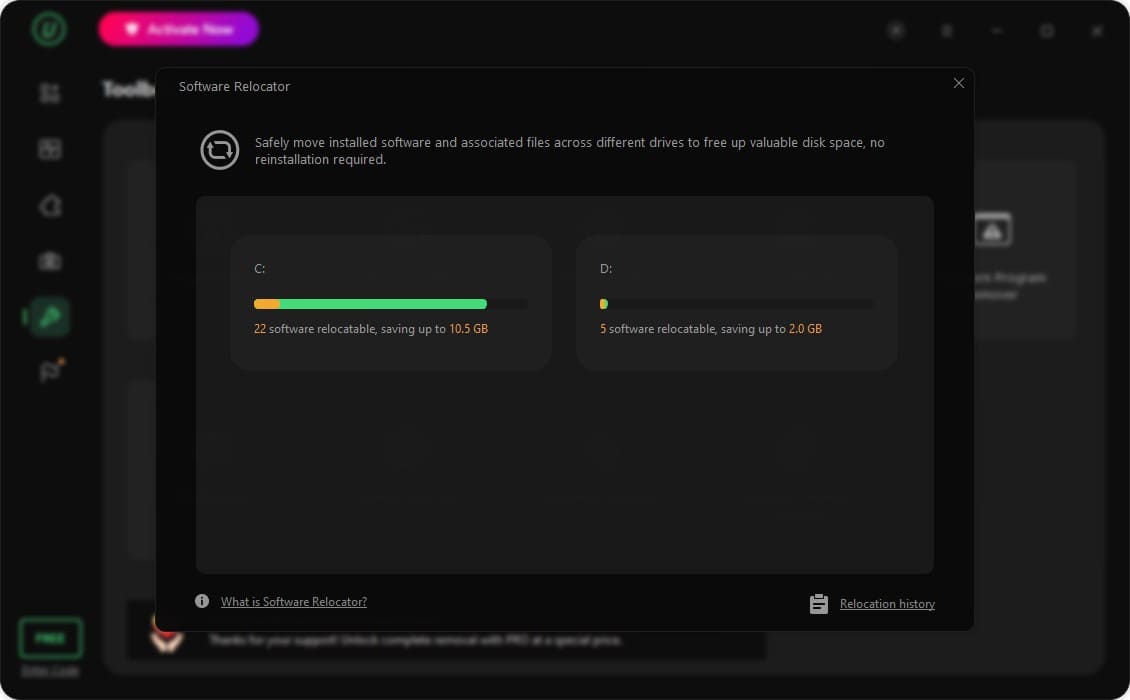
Image Source: IObit
- Bloatware Remover: Focuses on identifying and removing pre-installed Windows applications and system components to help maintain a streamlined system environment.
Comparative Assessment with Alternative Utilities
The team evaluated alternative software cleanup tools, including generic system optimizers and standalone registry cleaners, alongside specialized uninstallers. General-purpose optimizers frequently bundle unrelated functions, such as RAM boosters and driver updaters, which can obscure specific cleaning tasks and complicate the user workflow.
Broad-spectrum cleanup suites generally identified fewer leftover registry entries and lacked dedicated mechanisms for handling corrupted or missing uninstaller executables. Purpose-built uninstaller utilities showed higher precision in isolating application-specific remnants than generalized system-cleaning software.
Final Thoughts
System maintenance routines on Windows environments frequently require specialized tools to address the limitations of native uninstallation features. Dedicated utilities like IObit Uninstaller 16 provide more thorough identification of residual files, comprehensive management for stubborn software packages, and flexible storage optimization options. These capabilities can make cleaning leftover files more comprehensive and convenient. Choosing the right tool depends on your maintenance needs, application complexity, and reporting requirements during cleanup.
Recommended Articles
We hope this comprehensive guide to cleaning leftover files helps you keep your Windows system organized and free from unnecessary data. Check out these recommended articles for more practical tips and strategies to improve your system’s performance and maintenance.

