

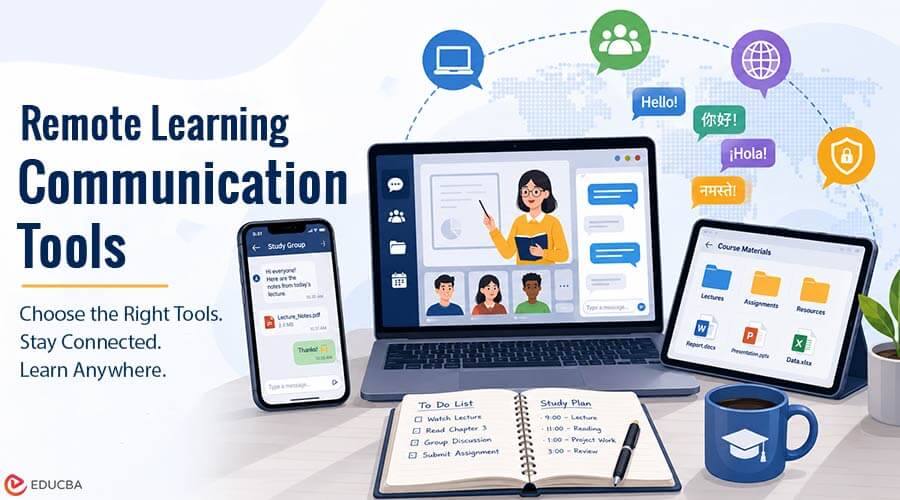
Online learning has made communication software part of the classroom. Remote learning communication tools help students join lectures on a laptop, reply to a study group from a phone, review a shared file on a tablet, and collaborate with classmates who use a different language. In these cases, the most suitable communication tool isn’t always the one with the most features. It is the one that fits the learner’s actual workflow.
That means looking beyond basic messaging. Device support, interface language, file handling, privacy controls, search, and notification settings all affect whether remote learning communication tools remain useful after the first few days. A short evaluation before adopting a platform can prevent a surprising amount of friction later.
Choose Remote Learning Communication Tools Based on Your Workflow
Different courses create different communication needs. A small project group may only need quick messages and file sharing, while a large online class may depend on announcements, topic-based discussions, and reliable search. International students may also need language support that a local study group does not.
Before choosing remote learning communication tools, map the communication tasks that happen during a typical week: receiving instructor updates, coordinating assignments, asking classmates questions, sharing documents, and checking messages away from a computer. This keeps the decision focused on real use rather than popularity or a single headline feature.
Check Device Compatibility in Remote Learning Communication Tools
Remote learners rarely stay on one screen. A laptop may be the main device for lectures and writing, but students often read urgent group messages on a phone. Tablets and web browsers can also help when students travel or use shared computers.
Start by checking whether the platform works with the devices and operating systems you use regularly, then verify that your messages, files, and settings stay accessible and consistent across devices. Pay attention to details such as where downloads are stored, whether notifications behave differently on desktop and mobile, and how easy it is to review active sessions.
For students considering Telegram, a Telegram cross-platform setup guide can provide a useful reference when comparing client options and basic setup across common devices.
Cross-platform availability should not be confused with identical behavior. An app can support Windows, macOS, Android, and iOS while still placing settings in different menus or offering slightly different controls. A quick test on two devices is usually more informative than reading a long specification list.
Treat Language Support as a Usability Feature
Language support matters most when students need to change settings, not when they are simply reading a familiar chat. Terms such as privacy, active sessions, storage, group permissions, and account recovery can be easy to misunderstand in an unfamiliar interface.
This is especially relevant in international courses, where the teaching language and the student’s preferred interface language may differ. Learners should check whether the app offers the language they need, whether terminology is consistent across mobile and desktop versions, and whether message translation is a separate feature from interface localization.
Chinese-speaking learners researching Telegram, for example, may find a Telegram Chinese language guide useful for understanding interface terminology and common settings.
A localized menu does not automatically translate conversations, documents, or external websites. Keeping that distinction clear helps students choose the right tool for each task instead of expecting one language setting to solve every communication problem.
Look Beyond File Sharing to File Retrieval
Most remote learning communication tools can send a PDF, image, presentation, or spreadsheet. The harder question is whether a student can find that material again three weeks later. In a busy class group, useful files can quickly disappear between hundreds of messages.
Search quality, pinned messages, saved items, folders, and clear download management often matter more over a semester than the maximum file size. Students should also check automatic-download controls, especially on mobile devices. Large videos and repeated media files can consume data and storage without adding much value to learning.
Important academic material should not live only inside a chat history. Final project decisions, assignment deadlines, and essential documents are safer in a learning management system, shared drive, project board, or notes app where you can organize them deliberately.
Review Privacy and Account Security Before Joining Groups
Study groups can feel private even when they are not. Depending on the platform and group settings, other members may be able to see a phone number, profile photo, username, activity status, or other account details. That matters more in large public communities, where not every participant is necessarily connected to the course.
Before joining, students should review profile visibility, group-invitation permissions, active sessions, and account-recovery options. Enable two-step verification where available, and remove old devices from the account when you no longer use them.
A simple rule matters most: Never share a login or verification code with anyone.
Messages that claim an account must be ‘verified,’ ‘upgraded,’ or ‘recovered’ through an unfamiliar link deserve extra scrutiny. A legitimate classmate, instructor, administrator, or support representative should not need a student’s private authentication code.
Set Communication Boundaries Early
Even the most useful remote learning communication tools can become distracting if every group, mention, file, and reaction triggers an alert. Remote learners often benefit from deciding which conversations deserve immediate attention before notification overload becomes a habit.
Instructor announcements and an active project group may justify alerts, while a large social study community can usually be muted and checked at scheduled times. The goal is not to eliminate communication; it is to keep messaging from interrupting reading, coding, writing, or other focused work.
How to Evaluate Remote Learning Communication Tools?
A short checklist can make comparisons more useful than simply counting features. When evaluating remote learning communication tools, students can use the following factors:
| Factor | Questions to Ask |
| Device support | Does it work well on the phone and computer I actually use? |
| Language | Can I understand important menus, warnings, and privacy settings? |
| Files and search | Can I send course materials and find them again later? |
| Privacy | What information can classmates or strangers see about my account? |
| Security | Does it support two-step verification and session management? |
| Notifications | Can I control interruptions by group or conversation? |
| Organization | Can I separate courses, projects, and saved information? |
One useful final test is to use the platform for a normal study day before moving an entire class or project group to it. Try sending a document, finding an older message, changing a privacy setting, muting a noisy group, and switching from phone to desktop. Small inconveniences become much easier to notice when you use the software in context.
Five Habits That Make Remote Communication Easier
1. Verify Software Sources
Install apps only from sources you can identify, and confirm the publisher before opening an installer or entering account credentials.
2. Protect Your Account
Enable additional authentication where available, keep recovery information up to date, and review logged-in devices periodically.
3. Separate Study From Personal Chat
Use folders, dedicated groups, or another organizational method to prevent deadlines and project messages from getting lost among unrelated conversations.
4. Control Downloads and Notifications
Choose when media files download automatically, and mute conversations that do not require immediate attention.
5. Keep Important Records Elsewhere
Move final decisions, deadlines, and essential files into a structured course or project system instead of relying solely on chat history.
Frequently Asked Questions (FAQ’s)
Q1. What are Remote Learning Communication Tools?
Answer: Remote learning communication tools are digital platforms that help students and instructors communicate, share files, coordinate assignments, and collaborate during online learning. The right tool depends on factors such as device compatibility, language support, privacy, security, and organization.
Q2. What communication tools are useful for online students?
Answer: The right mix depends on the course. Messaging apps work well for quick conversations, video platforms for live classes, learning management systems for formal assignments, and shared documents or project tools for structured collaboration.
Q3. Why does cross-device compatibility matter?
Answer: Students often move between phones, laptops, tablets, and browsers. Cross-device support makes it easier to continue conversations, review files, and manage account settings without being tied to one device.
Q4. How can multilingual students make communication tools easier to use?
Answer: They should check interface language options, learn the terminology used for privacy and security settings, and confirm whether translation features apply to messages, menus, or both.
Q5. What security settings should students review first?
Answer: Two-step verification, active sessions, recovery options, profile visibility, phone-number visibility, and group-invitation permissions are good starting points.
Final Thoughts
For remote learners, remote learning communication tools are part of the learning environment. The best choice is not simply the app with the most users or the longest list of features; it is the one that works reliably across the learner’s devices, supports the languages they need, keeps files and conversations manageable, and provides clear privacy and security controls.
A few minutes spent testing those details at the beginning of a course can prevent recurring technical problems later. More importantly, it helps students build communication habits that support learning instead of competing with it.
Recommended Articles
We hope this guide helps you understand how remote learning communication tools can support effective online learning across devices and languages. Explore these recommended articles for more insights into online learning, digital communication, collaboration tools, eLearning, and technology for students.