



Need to Recover Deleted iMessages on Mac?
If you open the Messages app on your Mac and find missing conversations, you may need to Recover Deleted iMessages on Mac due to accidental deletion, macOS updates, or iCloud sync issues.
The good news is that iMessages are stored locally on your Mac in a database file, which makes recovery possible in many cases. This guide explains where messages are stored and the best ways to recover deleted iMessages on Mac, including manual methods and data recovery tools.
Where Are iMessages Stored on Mac?
Most people think iMessages are only stored in the cloud, but macOS also keeps a local copy on your Mac in the “Library” folder. You can find it by going to “~/Library/Messages/” using Finder’s “Go to Folder” option (“Shift + Command + G”).
Inside this folder, there are three main parts:
- The db file stores your full message history, including texts, timestamps, contacts, and delivery info, but it needs a database viewer to read.
- The Attachments folder contains all shared photos, videos, and files from Messages.
- The Archive folder holds saved or closed conversations if archiving is enabled.
Knowing this location is essential when trying to recover deleted iMessages on Mac, especially using backups or recovery tools.
When do iMessages Get Deleted or Lost?
Understanding why you may need to recover deleted iMessages on Mac helps you choose the right solution:
- Accidental Deletion: This is the most frequent reason. Deleting a chat in the “Messages” app removes it right away.
- iCloud Sync Issues: If “Messages” in iCloud is on, deleting a chat on one device removes it from all devices. Sync problems can also make messages seem missing even though they still exist.
- macOS Updates or Crashes: System updates or sudden crashes can sometimes make the “Messages” database unstable or temporarily hide chats. In some cases, the “chat.db” file may become unreadable.
- Manual Cleanup: Some users or cleanup apps may delete “Messages” data from the “Library” folder, potentially removing chat history without an obvious warning.
- Database Corruption: If the “chat.db” file is damaged (due to storage issues, crashes, or failing drives), “Messages” may create a new, empty database, causing old conversations to disappear.
How to Recover Deleted iMessages on Mac (Step-by-Step Solutions)?
Before you start, a word on priority. If the lost messages are important, stop what you are doing and attempt recovery before running system updates, installing new software, or generating large files. Every write operation to your disk is a potential threat to recoverable data. Here are 5 ways to recover deleted iMessages on Mac:
Fix 1: Restore from Recently Deleted (If Available)
Apple offers a “Recently Deleted” folder that is the quickest place to retrieve erased iMessages. However, this feature is not available on macOS Monterey or earlier systems, and items deleted more than 30 days ago are automatically removed from the folder. If you cannot find your files here, you will need to try another recovery method. But if this folder is available, here is how to recover lost messages on Mac:
Step 1: Open the “Messages” app from your Dock. In the menu bar, click “View.”
Step 2: Select “Recently Deleted” (or use the shortcut “Control + Command + 5”).
Step 3: Browse the conversations listed. Select the messages you want back and click “Recover.”
Fix 2: Recover from iCloud Sync
If Messages in iCloud is enabled, you may still be able to recover deleted iMessages on Mac through sync restoration. However, if the messages were deleted on all devices at the same time or iCloud sync was off, this will not work.
In macOS, syncing issues can also stop messages from appearing, so turning Messages sync off and then back on in iCloud settings may help refresh them. Here is how to retrieve messages from iCloud sync:
Step 1: On your Mac, head to “System Settings.” Click your “Apple ID.” Select “iCloud.”
Step 2: Move down and make sure the toggle next to Messages is enabled.
Step 3: Wait for iCloud to sync. This can take several minutes, depending on message volume. Step 4: Open the “Messages” app and check if the missing conversations have reappeared.
Fix 3: Restore from Time Machine Backup
If you set up Time Machine before the messages were deleted, it is the most reliable built-in way to recover them. It can restore an older version of the Messages database (chat.db) back into your Messages folder, and the conversations should reappear when you open the app.
For safety, do not replace the current file directly. Rename it to “chat.db.bak” first so you can restore it if needed. Follow the instructions below to recover deleted iMessages on Mac with Time Machine:
Step 1: Connect your “Time Machine” backup drive to your computer. Then, open “Finder.”
Step 2: Move to “~/Library/Messages/.” With that folder open, click the “Time Machine” icon in the menu bar. Select “Enter Time Machine.”
Step 3: Use the timeline on the right edge of the screen to travel back to a date before the messages were deleted.
Step 4: Locate the “chat.db” file in the “Messages” folder. Select it and click “Restore.”
Fix 4: Recover Deleted iMessages Using Data Recovery Software (Best Method)
When you do not have a Time Machine backup, the Recently Deleted folder is empty, or iCloud sync does not help, employ data recovery software for Mac. 4DDiG Mac Data Recovery scans your Mac’s storage to find deleted files that have not been overwritten yet.
This works because deleting a message does not immediately erase the Messages database (chat.db). It only removes its reference, so the data can still stay on the drive until it is replaced. 4DDiG can locate and recover those leftover files with high success.
Main Features of 4DDiG:
- Recovers permanently deleted SQLite databases, not just standard documents.
- Supports Mac SSDs, external drives, SD cards, and USB drives.
- Deep scan mode finds files not visible in normal directory browsing.
- Free preview before purchase so you can confirm recovery is possible.
- No technical expertise is required as the interface is straightforward to move around and simple to use.
Step-By-Step Guide to Use 4DDiG:
Here is how to recover lost messages on Mac with 4DDiG:
Step 1: Install 4DDiG
Download and install 4DDiG Mac Data Recovery on your computer. Execute it.
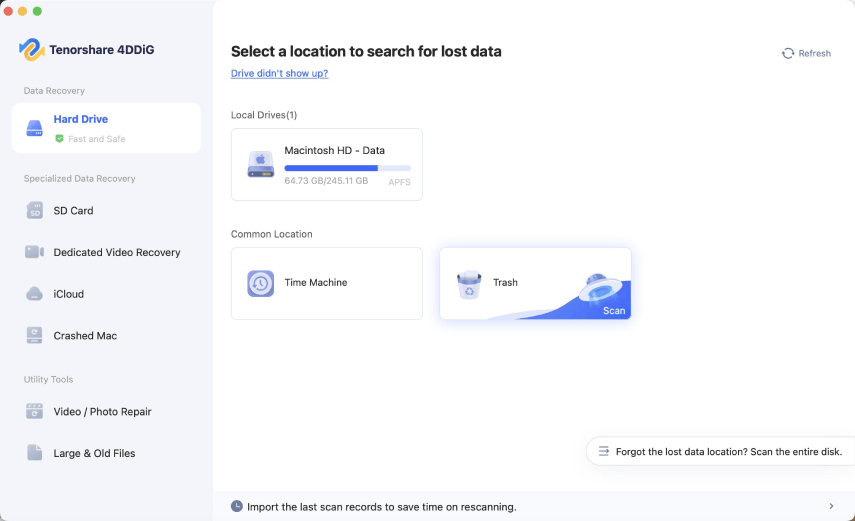
Step 2: Choose Your Drive
Select your Mac’s main drive (usually “Macintosh HD”), then start the scan.
(Image Source: Tenorshare)
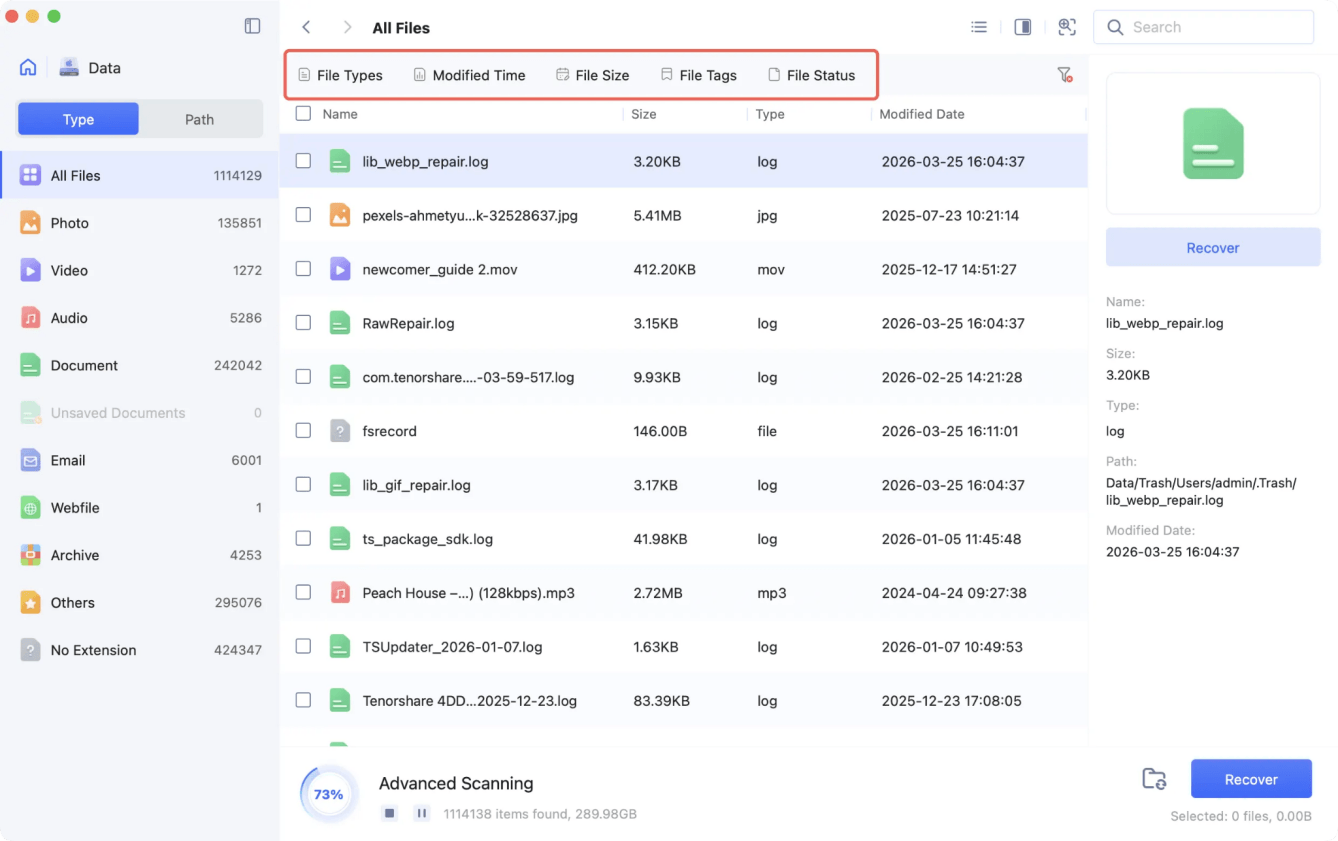
Step 3: Run Deep Scan
Let the quick scan finish, then choose “Deep Scan.” This is important for finding deleted “Messages” files like “chat.db” and attachments.
(Image Source: Tenorshare)
Step 4: Find Message Files
After scanning, filter results for “.db” files or search for “chat” to locate the Messages database in the “Library/Messages” folder.
Step 5: Recover Files
Preview the files, select “chat.db” (and attachments if needed), then recover them. Save the recovered files to an external drive or a different location, not the same drive you scanned.
Fix 5: Manually Access iMessage Database
In a situation where your messages are missing because of a display or sync issue (not actual deletion), you can check the “chat.db” file to see if the data is still there. Use a free tool like “DB Browser for SQLite” (sqlitebrowser.org) to open it and view tables like chat and message.
This will not recover deleted messages, but it helps you confirm whether your data still exists on your Mac before trying other recovery methods. Follow the steps below to manually access the iMessage database:
Step 1: Open “Finder.” In the menu bar, click “Go.” Choose “Go to Folder” (or press “Shift + Command + G”).
Step 2: Type the following. Hit “Return” afterward: ~/Library/Messages/
Step 3: You will see “chat.db,” the “Attachments” folder, and (if present) the “Archive” folder.
How to Prevent iMessage Data Loss on Mac?
Once you have recovered your messages, it is worth putting protections in place so you are never in this situation again. Here is what to do:
- Turn on Messages in iCloud: Head to System Settings → Apple ID → iCloud and enable Messages. If syncing is slow, turning it off and on can refresh it.
- Use Time Machine Backups: Set up Time Machine with an external drive to automatically back up your Mac.
- Back Up chat.db Manually: Occasionally, copy “~/Library/Messages/chat.db” to an external drive or cloud storage to create your own restore point.
- Be Careful with Cleaning Apps: Some cleanup tools delete files from the Library folder. Always check what they remove and avoid letting them auto-delete the Messages folder.
- Update macOS Carefully: Before major updates, back up your Messages data since updates can sometimes affect or reset the database.
- Export Important Chats: For very important conversations, export them as PDF or text using a Messages export tool so you always have a safe copy.
Final Thoughts
iMessages on a Mac are stored in the ~/Library/Messages/ folder, which is both where problems happen and where recovery starts. The most important thing is to act quickly after deletion to prevent permanent erasure of your data.
Next, you can try options like Recently Deleted or Time Machine. If you do not have a backup, use data recovery software for Mac, such as 4DDiG Mac Data Recovery. It offers high success in recovering permanently deleted messages without technical skills.
Recommended Articles
We hope this guide on how to Recover Deleted iMessages on Mac helps you restore lost conversations and understand iMessage storage in macOS. Explore our recommended articles below to learn more about Mac data recovery, iCloud sync issues, and protecting your important messages.

