


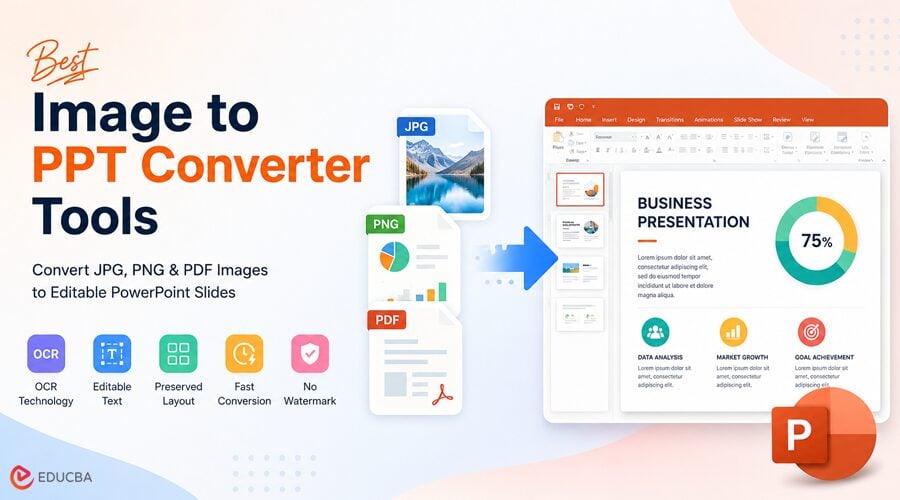
Imagine a marketing manager received a vendor pitch deck as 22 separate JPEG files, rather than a PowerPoint presentation or even a PDF. The files were uploaded into a shared Google Drive folder labeled “FinalDeck_USE_THIS,” and the team needed three slides updated, the pricing table revised, and the company logo replaced before an internal review scheduled for noon.
By 10:15 am, the search for a reliable solution had already become frustrating. Several Image to PPT Converter tools were tested, but most only converted the images into non-editable slides, with every text element remaining a locked image. Another tool added an aggressive watermark, making the presentation almost unusable. After nearly forty minutes of trial and error, a converter was finally found that could actually reconstruct editable PowerPoint slides. This article is essentially the guide that would have saved all that wasted time in the first place.
The Difference Nobody Explains Upfront
Search “image to PPT converter,” and you will get a list of tools. What you will not usually get is any explanation of why half of these Image to PPT Converter tools are useless for actual editing work, even when they technically do what they advertise.
Two different things are happening under the label “image to PPT conversion.”
Version One: Basic Image Insertion
The tool takes your image file and places it on a PowerPoint slide as a picture object. One image, one slide. Done in three seconds.
The output is a .pptx file that appears to be a presentation. Click on any text in it, and nothing happens because there is no text, just pixels arranged to look like letters. This is what Insert > Photo Album does in PowerPoint for free. Most online Image to PPT Converter tools do exactly this and charge you for it.
Version Two: Actual Editable Reconstruction
The tool scans the image, detects text and layout elements, and rebuilds the slide into editable PowerPoint components.
Text boxes with real text. Repositionable images. A layout you can change without deleting everything and starting over.
This is the hard version. This is what people actually need when they are staring at 22 numbered JPEGs and a noon deadline.
Most Image to PPT Converter tools do not tell you which version they are using until you have already uploaded your files and downloaded the output.
Best Image to PPT Converter Tools
Here are some of the best Image to PPT Converter tools for turning JPG, PNG, and PDF files into PowerPoint presentations with editable text, preserved layouts, and faster slide reconstruction.
AiPPT — The One That Handled My Actual Problem
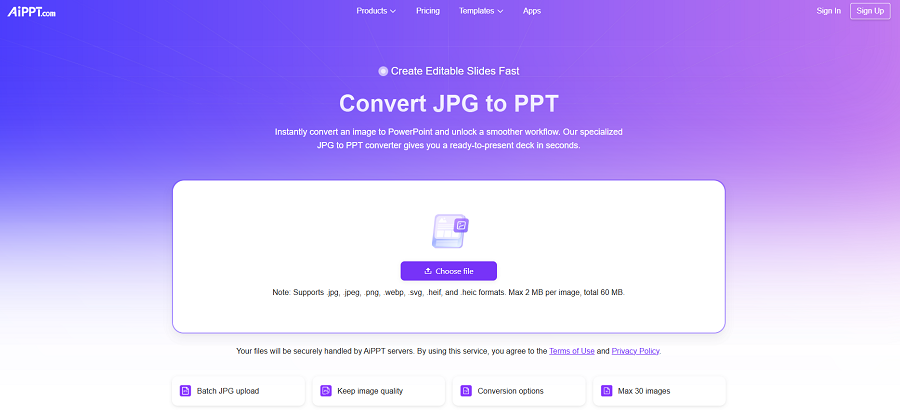
(Image Source: AiPPT)
AiPPT is an image to PPT converter designed for converting JPG and PNG files into editable PowerPoint slides rather than simply placing images onto blank slides. It uses OCR and layout detection to rebuild text elements as editable text boxes while preserving the original slide’s overall structure.
Text-heavy slides, pricing tables, and diagram-based layouts are generally handled by partially reconstructing them, separating editable text from image-based elements. Tables are usually recreated as positioned text fields rather than native PowerPoint tables, which still makes content updates significantly easier than rebuilding slides manually.
The tool supports common image formats, processes multiple slides quickly, and exports standard .pptx files compatible with both PowerPoint and Google Slides. No account is required for basic conversions.
Adobe Acrobat — Right Tool for the Wrong Input Type
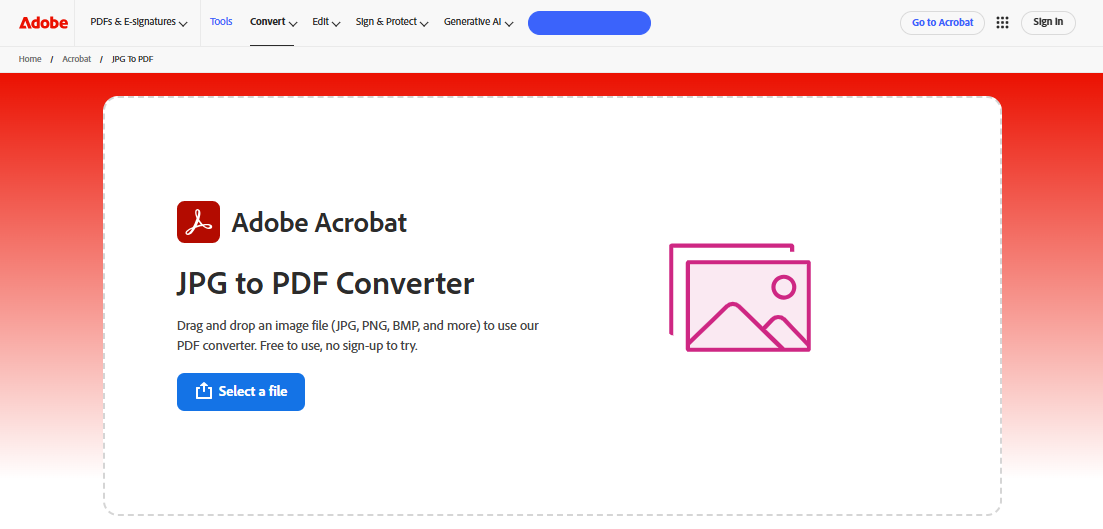
(Image Source: Adobe Acrobat)
If your images come from a PDF rather than standalone JPEGs, Acrobat’s export-to-PowerPoint pipeline is genuinely solid. Text extraction accuracy on PDF-based slides is high, layout preservation is better than most alternatives, and the output actually edits well.
The problem: Acrobat is a PDF tool. Hand it a folder of JPEGs, and it shrugs. You would need to compile those images into a PDF first, which adds steps and often degrades the quality of the source material before Acrobat even sees it.
Also, it is not free. If you are already on a Creative Cloud subscription, sure, use it. If you are paying $23/month specifically to convert image files to PowerPoint occasionally, there are better options.
Smallpdf — Fine for Simple PDFs, Breaks on Complex Ones
(Image Source: SmallPDF)
Smallpdf’s UI is clean, and the conversion workflow takes about thirty seconds per file. For a straightforward PDF with mostly body text and standard layouts, the PowerPoint output is usable. You will do some cleanup, but not a lot.
Complex slide layouts are where it falls apart. Anything with overlapping elements, multi-column text, or custom graphic arrangements tends to result in elements drifting from their original positions. On one test deck, a client proposal with many designed layouts: about 40% of the slides needed significant repositioning before they were presentable.
The free tier limits you to 2 file conversions per hour. Hit that ceiling, and you are either waiting or paying. For batch jobs, that math does not work.
ILovePDF — Batch Processing Is the Actual Selling Point
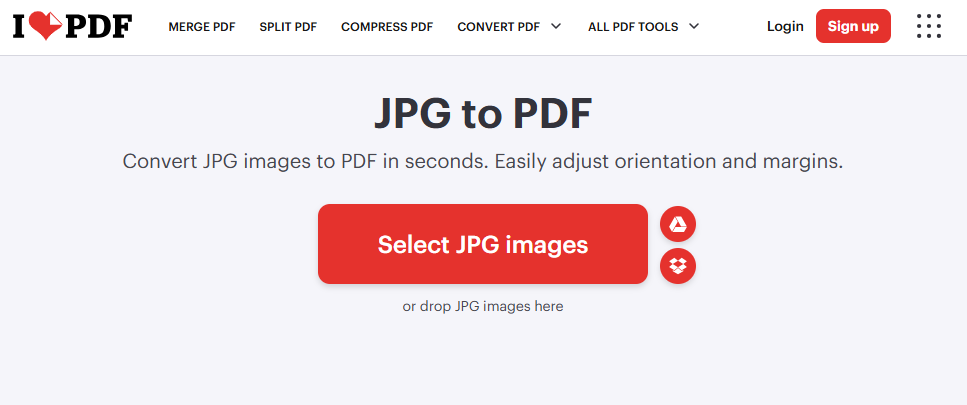
(Image Source: ILovePDF)
ILovePDF handles multiple files at once, which Smallpdf’s free tier does not. If you are converting five or six PDF-based decks and have time to babysit the quality review, ILovePDF is a reasonable free option for getting through the volume.
Output quality is roughly comparable to Smallpdf on complex layouts, meaning it degrades. On simple, text-forward documents, it is fine. On designed decks, cleanup is needed. Batch processing does not make the output better; it just means you can generate mediocre output at scale, which is occasionally exactly what you need.
PowerPoint’s Photo Album Feature — Genuinely Useful, Completely Misunderstood
Insert > Photo Album in PowerPoint gets a bad reputation as a placeholder tool. However, it is actually the right solution for one specific scenario: you want to show images in a slideshow format and have zero intention of editing the content.
Keynote exports, conference photos, product screenshots for a visual walkthrough, archived reference material, anything where the goal is “display this visually” rather than “edit this later.” Select your image folder, it builds a complete deck in under a minute, every image gets its own slide, done.
The moment you need to touch the content, it fails. There is no OCR, no reconstruction, no text extraction. What goes in as an image comes out as an image. However, if “display-only” is your actual requirement, it is faster than any other option and costs exactly nothing.
Why Source Image Quality Matters More Than Tool Choice?
One of the biggest misconceptions about using an Image to PPT Converter is the assumption that the tool alone determines the final output quality. In reality, the quality of the source image often matters even more.
A high-resolution PNG screenshot provides OCR engines with much cleaner data, resulting in sharper text edges, better contrast, and fewer compression artifacts. On the other hand, low-quality JPEGs that have been resized multiple times, compressed through messaging apps, or captured with phone cameras under poor lighting can significantly reduce reconstruction accuracy.
Best Practices for Better Conversion Results
If possible, use:
- PNG files instead of JPEGs
- Full-resolution images instead of compressed versions
- Direct screenshots instead of phone photos
- Clean exports from presentation tools whenever available.
Even with the same Image to PPT Converter tool, the difference between a clean PNG and a degraded JPEG can be substantial. Higher-quality images typically produce more accurate text extraction, cleaner layouts, and less manual editing afterward.
When Manual Cleanup Is Still Necessary?
For conference photos, whiteboard captures, or older scanned slides, some cleanup is usually unavoidable, regardless of the converter used. In these cases, the goal is often to use the converter as a starting point, rebuild the general layout, and extract as much editable text as possible before refining the slides manually.
Even partial reconstruction can save considerable time compared to recreating every slide entirely from scratch.
The Quick Test Before You Commit to a Batch Job
Before committing to a large batch conversion, it helps to test a single representative file first. This simple step can quickly reveal whether an Image to PPT Converter tool is actually reconstructing editable content or simply inserting static images into slides.
A good test file should include both text and visual elements. After conversion, open the exported .pptx file and click on one of the larger text areas.
What to Check?
- Does a text cursor appear?
- Can individual words be highlighted or edited?
- Are text elements separated into editable text boxes?
- Is the layout reasonably preserved?
If the answer is yes, the tool is performing actual text and layout reconstruction.
If clicking selects the entire slide element as a single image object, the converter only embeds the image in PowerPoint rather than rebuilding editable content.
Always Check for Watermarks
Another important step is reviewing the downloaded file locally before processing multiple slides. Some Image to PPT Converter tools apply watermarks only to exported files, even if the online preview appears clean.
A quick workflow check usually looks like this:
- Upload one sample image
- Download the converted PPT file
- Open it locally in PowerPoint or Google Slides
- Test text editability
- Check for watermarks or formatting issues
- Proceed with batch conversion only after verification.
This small test can prevent unnecessary cleanup work and save significant time during large conversion jobs.
Final Thoughts
Different tools work better for different types of conversion tasks. Some are better suited for PDF-based presentations, while others are more useful for turning image files into editable slides. Built-in options like PowerPoint’s Photo Album are still perfectly practical when the goal is to display images in presentation format without later editing.
The biggest takeaway is that not all Image to PPT Converter tools handle reconstruction the same way. Some only place images onto slides, while others attempt to rebuild editable text and layouts using OCR and layout detection. Running a quick test on a single file before processing an entire batch can save significant time.
For workflows involving JPG or PNG slides that need editing afterward, it usually makes sense to prioritize tools that preserve editable text and basic layout structure rather than simple image insertion. Even partial reconstruction can reduce manual cleanup considerably when working under tight deadlines.
Recommended Articles
We hope this guide on Image to PPT Converter tools helps you understand how to convert JPG, PNG, and PDF files into editable PowerPoint presentations more efficiently. Explore the recommended articles below for more insights on presentation tools, OCR conversion, document editing, and productivity workflows.

