
What is Caret Browsing?
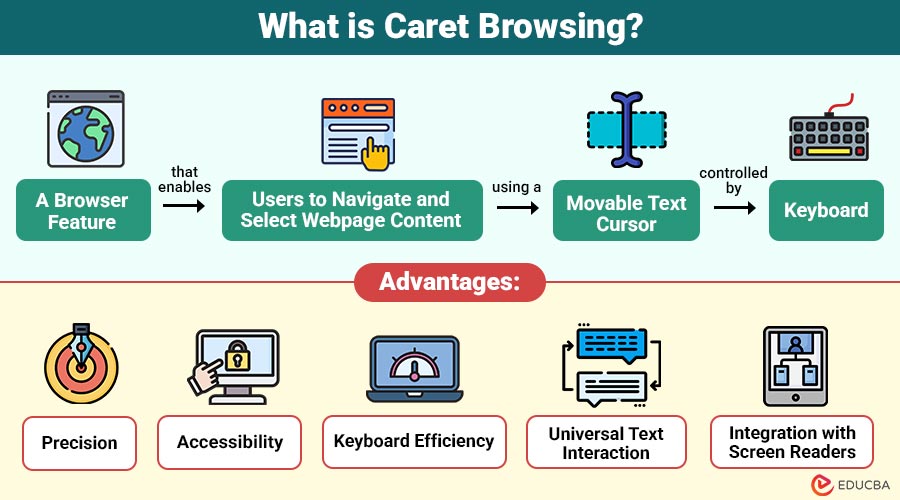
Caret Browsing is a browser feature that enables users to navigate and select webpage content using a movable text cursor controlled by the keyboard.
Instead of clicking with a mouse, users move the caret using arrow keys to highlight text, click links, and interact with web content. It transforms the browsing experience into something similar to editing a document in Microsoft Word or Google Docs.
Table of Contents:
- Meaning
- Working
- Enabling Caret Browsing in Different Browsers
- Practical Uses
- Advantages
- Limitations
- Tips
- Difference
- Real-World Examples
Key Takeaways:
- Caret Browsing enables keyboard-based navigation of webpages using a movable, blinking text cursor.
- It improves accessibility by effectively supporting users with motor or visual impairments.
- Users can select text, open links, and navigate forms without using a mouse.
- Pressing F7 in supported browsers quickly toggles Caret Browsing mode.
How Does Caret Browsing Work?
When Caret Browsing is enabled, the browser displays a blinking cursor on the web page. Users can then navigate through the content using the arrow keys:
1. Arrow Keys (Up, Down, Left, Right)
Move the caret across lines, paragraphs, and sections to easily navigate webpage text with precise keyboard-based navigation.
2. Shift + Arrow Keys
You may easily highlight words, sentences, or entire paragraphs by selecting text from the current caret point.
3. Enter/Return Key
Open hyperlinks when the caret is placed over a link, allowing keyboard users to navigate pages seamlessly.
4. Tab Key
Jump between interactive elements such as buttons and forms, efficiently supporting structured navigation across different webpage components.
5. Ctrl + Arrow Keys (Windows/Linux) or Option + Arrow Keys (Mac)
Move the caret word by word or paragraph by paragraph to speed up navigation through lengthy content sections.
Enabling Caret Browsing in Different Browsers
Caret browsing is available in most modern web browsers, though the method for enabling it can vary. Here is a guide for popular browsers:
1. Google Chrome
- Press F7 on your keyboard.
- You will be prompted to enable Caret Browsing in a dialog window.
- Click Yes, and a caret will appear on the page.
2. Mozilla Firefox
- Press F7 on your keyboard.
- A prompt will ask if you want to enable Caret Browsing.
- Confirm, and the caret becomes active for navigation.
3. Microsoft Edge
- Press F7 to activate Caret Browsing.
- Edge will display a prompt; select Yes to enable.
4. Internet Explorer
- Press F7 to enable Caret Browsing (similar to Edge).
- Once activated, the cursor can move through text and links.
5. Safari (Mac)
- Safari does not support Caret Browsing natively, as Chrome or Firefox do.
- Users can rely on accessibility features like VoiceOver for keyboard-based navigation.
Practical Uses of Caret Browsing
Caret browsing is more than a niche feature—it has many practical applications, especially for certain user groups and scenarios:
1. Keyboard-Centric Navigation
Offers a precise way to navigate webpages for people who prefer a keyboard to a mouse. It allows efficient movement through text, links, and interactive elements.
2. Accessibility for Individuals with Disabilities
People with motor impairments or vision issues benefit significantly. Caret Browsing reduces dependence on fine mouse movements and integrates with screen readers, making text selection and reading easier.
3. Text Selection and Copying
When you need to copy specific sections of web pages, Caret Browsing allows accurate selection line by line, paragraph by paragraph, or word by word.
4. Form Navigation
Web forms can be tricky using only a mouse. Caret Browsing lets users move directly to input fields and checkboxes with the arrow keys, improving data entry efficiency.
5. Web Research and Editing
For content writers, researchers, and editors, Caret Browsing makes it easy to select text, highlight key sections, and copy snippets without accidental misclicks.
Advantages of Caret Browsing
Offers several advantages over traditional mouse-based navigation:
1. Precision
Allows users to navigate and select text accurately with keyboard controls, eliminating the need for mouse movement.
2. Accessibility
Supports individuals with physical disabilities by enabling full keyboard navigation and improving inclusive access to digital content.
3. Keyboard Efficiency
Reduces reliance on mouse usage, helping users complete repetitive browsing and text selection tasks much faster.
4. Universal Text Interaction
Works consistently across webpage text, hyperlinks, and form fields, ensuring smooth keyboard-based interaction everywhere online.
5. Integration with Screen Readers
Enhances compatibility with screen readers, providing visually impaired users a more seamless browsing experience.
Limitations of Caret Browsing
Despite its usefulness, it has some limitations:
1. Not Always Intuitive
Users familiar with mouse navigation may initially find caret browsing slower and less intuitive to operate efficiently.
2. Limited Browser Support
Some browsers, such as Safari, do not provide native support, limiting availability across platforms.
3. Complex Layouts
Websites with heavy graphics or dynamic content can make caret movement inconsistent and difficult to control precisely.
4. Mouse Still Needed Sometimes
Certain actions, like dragging items, adjusting sliders, or interacting with advanced elements, still require mouse input.
Tips for Effective Caret Browsing
To get the most out of it, consider the following tips:
1. Practice Keyboard Shortcuts
Learn arrow keys, Shift, Ctrl, and modifier combinations to improve navigation speed and overall browsing efficiency significantly.
2. Combine with Screen Readers
Pair with screen readers to enhance accessibility and create a smoother experience for visually impaired users.
3. Use on Text-Heavy Pages
Works best on articles, blogs, research papers, and other websites with extensive textual content.
4. Toggle On/Off
Press F7 to quickly enable or disable caret browsing, switching easily between keyboard and standard navigation modes.
Difference Between Caret Browsing and Traditional Browsing
The table below highlights the key differences for better understanding.
| Feature | Caret Browsing | Traditional Browsing |
| Navigation | Keyboard-based with a cursor | Mouse-based click navigation |
| Text Selection | Precise, like a word processor | Requires drag-and-select with the mouse |
| Accessibility | Ideal for users with disabilities | Less accessible without assistive tools |
| Speed for Experts | Faster for keyboard-savvy users | Can be slower for repetitive tasks |
| Interaction | Works with links, text, forms | Works primarily with links and buttons |
Real-World Examples
Here are some practical situations where it proves especially useful:
1. Researchers
Select quotes and references from multiple webpages efficiently without switching to the mouse, maintaining focus and productivity throughout research.
2. Students
Highlight important sections from online textbooks or lecture notes quickly while studying using only keyboard navigation.
3. Writers and Editors
Copy, review, and edit online content efficiently for blogs, articles, or reports without depending on mouse controls.
4. Visually Impaired Users
Read webpage text sequentially using keyboard navigation alongside screen readers for smoother, more accessible browsing experiences.
5. Data Entry Professionals
Navigate online forms quickly with keyboard shortcuts, reducing time spent switching between the mouse and keyboard.
Final Thoughts
Caret browsing is a useful yet often overlooked feature that improves web navigation efficiency, accessibility, and precision. It allows users to browse, select, and interact with content using keyboard controls instead of a mouse. By enabling it and learning essential shortcuts, users can enhance productivity, improve accessibility, and navigate online content more effectively and comfortably.
Frequently Asked Questions (FAQs)
Q1. Is Caret Browsing available on mobile devices?
Answer: Generally, no. Caret Browsing is designed for desktop browsers where a physical keyboard is used. Mobile devices rely on touch-based selection.
Q2. Can I use Caret Browsing for PDFs in browsers?
Answer: Yes, in browsers that support PDF viewing, the caret can often navigate text within PDF documents.
Q3. How do I know Caret Browsing is active?
Answer: A blinking cursor appears on the web page, similar to the one in a text editor.
Q4. Can Caret Browsing be combined with other accessibility tools?
Answer: Absolutely. It works well with screen readers and keyboard shortcuts for enhanced web accessibility.
Recommended Articles
We hope that this EDUCBA information on “Caret Browsing” was beneficial to you. You can view EDUCBA’s recommended articles for more information.

