


Excel VBA Format Date
In general, we have different types of Date formats that are used in all around the world but we mostly use the data in the DDMMYYYY format. For this, in VBA we have Format function which is quite popular for converting Format Date. The date or number which we feed in using the Format function converts that into the required format which we choose. Below we have the syntax of the FORMAT Function in VBA.
Syntax of FORMAT Function:

Where, Format = It is the type by which we want to see the format of a date.
We know and probably have used many types of Date formats in our life and most of the formats are so commonly used such as DDMMYYYY and MMDDYYYY. Where we have seen DDMMYYYY used mostly in India and MMDDYYYY is used globally. Also, there are different separators that are used in creating a date format such as hyphen, slash, dot, brackets, etc. In this article, we will see the ways to use format the date in upcoming examples.
How to Change Date Format in VBA Excel?
Below are the examples of the excel VBA date format:
Example #1
In this example, we will see a simple VBA code to format the date. We have a date in cell A1 as 25-Jun-20 as shown below.
Now we will be using the Format Date function to change the format of date in cell A1.
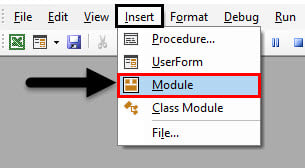
Step 1: Insert a new module inside Visual Basic Editor (VBE). Click on Insert tab > select Module.
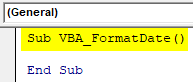
Step 2: Write the subprocedure for VBA Format Date or choose anything to define the module.
Code:
Sub VBA_FormatDate()

End Sub
Step 3: Choose the range cell first as A1.
Code:
Sub VBA_FormatDate()

Range("A1").

End Sub
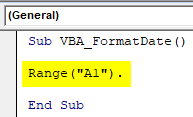
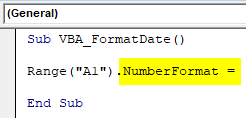
Step 4: Then use the Number Format function as shown below.
Code:
Sub VBA_FormatDate()

Range("A1").NumberFormat =

End Sub
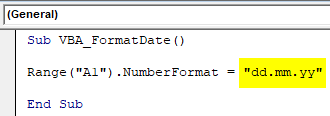
Step 5: As per the syntax of the Format function, choose the format by which we want to change the Date of the selected cell.
Code:
Sub VBA_FormatDate()

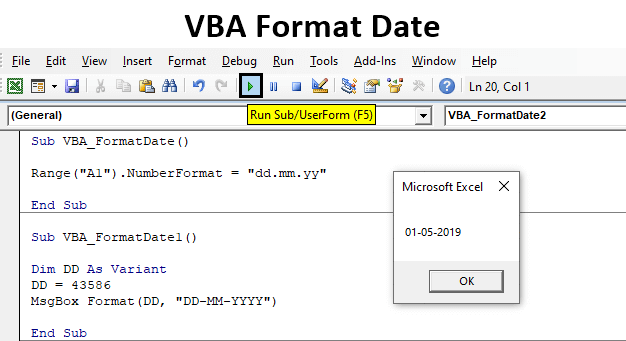
Range("A1").NumberFormat = "dd.mm.yy"

End Sub
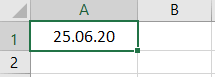
Step 6: Run the code by pressing F5 or Play Button is mentioned below the menu bar. We will see the Date at cell A1 is now changed to DD.MM.YY and visible as 25.06.20.
Example #2
There is another way to change the Format of Date in VBA.
Step 1: For this again we would need a module and in that write the subprocedure for VBA Format Date.
Code:
Sub VBA_FormatDate1()

End Sub
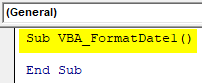
Step 2: Now using DIM declare a variable choosing the data type as a Variant. We have chosen Variant as it would allow most of the characters in it.
Code:
Sub VBA_FormatDate1()

Dim DD As Variant

End Sub
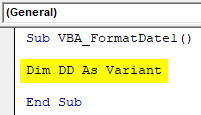
Step 3: Put any number which we would like to see that converting into a date. Here we have chosen 43586 as shown below.
Code:
Sub VBA_FormatDate1()

Dim DD As Variant
DD = 43586

End Sub
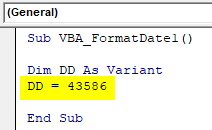
Step 4: To see the output, here we will use the message box as shown below with the FORMAT function.
Code:
Sub VBA_FormatDate1()

Dim DD As Variant
DD = 43586
MsgBox Format(

End Sub
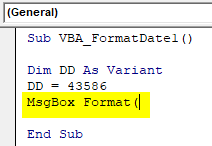
Step 5: As per the syntax of the Format function, we will now use the DD variable and the format in which we want to convert the mentioned number into a date as shown below.
Code:
Sub VBA_FormatDate1()

Dim DD As Variant
DD = 43586
MsgBox Format(DD, "DD-MM-YYYY")

End Sub
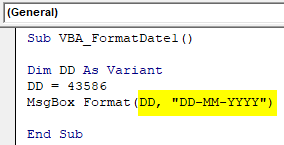
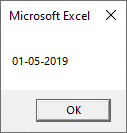
Step 6: We will see in the message box, the Format function has converted it into 01-05-2019 as shown below.
Example #3
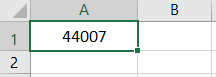
There is another way to convert a date’s format into another format as needed. For this, we will be using the same number which we have seen in the above example-1 as 44007 in cell A1.
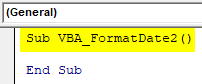
Step 1: Open a module and in that write the subprocedure of VBA Format Date.
Code:
Sub VBA_FormatDate2()

End Sub
Step 2: Define a variable using DIM as Worksheet as shown below.
Code:
Sub VBA_FormatDate2()

Dim DD As Worksheet

End Sub
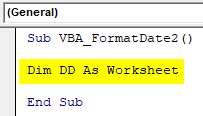
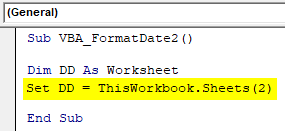
Step 3: Now using SET, choose the worksheet which we want to assign in the defined variable DD. Here, that worksheet is Sheet2.
Code:
Sub VBA_FormatDate2()

Dim DD As Worksheet
Set DD = ThisWorkbook.Sheets(2)

End Sub
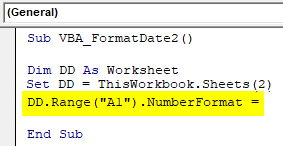
Step 4: In a similar way as shown in example-1, we will Range cell A1 with defined variable DD and then insert the Number Format function as shown below.
Code:
Sub VBA_FormatDate2()

Dim DD As Worksheet
Set DD = ThisWorkbook.Sheets(2)
DD.Range("A1").NumberFormat =

End Sub
Step 5: Now as needed, we will choose the Date format we want to see in the number at cell A1 as shown below.
Code:
Sub VBA_FormatDate2()

Dim DD As Worksheet
Set DD = ThisWorkbook.Sheets(2)
DD.Range("A1").NumberFormat = "dddd, mmmmdd, yyyy"

End Sub
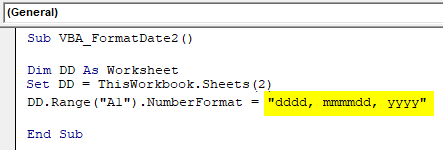
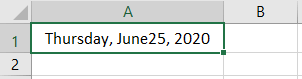
Step 6: Once done, run the code to see the output in cell A1. We will see, as per chosen date format, cell A1 has the date as Thursday, June25, 2020.
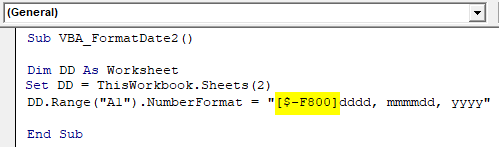
Step 7: We are seeing the weekday name because as per the format we need to exclude that manually. We would insert the value as $-F800 to skip weekday.
Code:
Sub VBA_FormatDate2()

Dim DD As Worksheet
Set DD = ThisWorkbook.Sheets(2)
DD.Range("A1").NumberFormat = "[$-F800]dddd, mmmmdd, yyyy"

End Sub
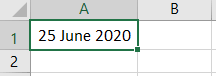
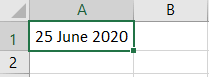
Step 8: Now again run the code to see the required Date format. The new date format is now shown as 25 June 2020.
Pros of VBA Format Date
- VBA Format Date is quite useful which helps us to see any kind of date format.
- We can test and choose a variety of separators in VBA Format Date without any limit.
Things to Remember
- We try to enter a date using any number, then we would get the default format which is there as per Operating System setting.
- To see the number hidden in any date, we can first convert the date into number format and then try to use that number into the Format Date function.
- We can only change the date format using the FORMAT function in any format we want.
- We need to save the excel file after writing up the VBA Code in macro-enabled excel format to avoid losing the VBA code in the future.
Recommended Articles
This is a guide to the VBA Format Date. Here we discuss how to change the Date Format in VBA Excel along with practical examples and a downloadable excel template. You can also go through our other suggested articles –

