
VLOOKUP with Different Sheets
Till now, we all have applied to Vlookup, and we all know the application of that. Some know how to execute the vlookup function when different worksheets and workbooks are involved. When we apply Vlookup using another workbook or worksheet, then, in the syntax, we will get the name of reference sheets and workbooks from where the data is being looked up. By that, anyone will know the location, reference sheet, or table name (if we have named any) in the vlookup syntax. We will see the application and use of Vlookup with different sheets in the examples below.
How to Use VLOOKUP with Different Sheets?
We all know the basic syntax of the Vlookup function, where we need to select the Lookup cell and then choose the lookup range (or column/table) from which we need to get the value, followed by the Column index number. Below is the syntax of the Vlookup function.

Where,
- Lookup_value = cell whose value we need to find,
- Table_array = lookup range or table from where we want to lookup,
- Col_index_num = column number from the select range,
- Range_lookup = put 0 for the exact match and 1 for the approximate match.
To use vlookup with different sheets, when we select the range, if the source table is in a different path or file, it will carry the name of that sheet or workbook into the applied vlookup function. We will see the below examples.
Examples of VLOOKUP with Different Sheets
Lets us discuss the examples of Vlookup Different Sheets.
Example #1
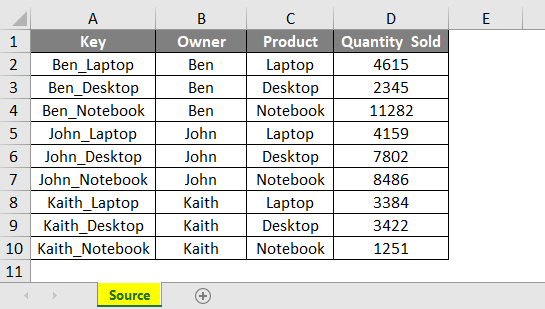
This example shows how to apply vlookup when the source and destination data are in the same file or workbook but on different sheets. We have sales data for electronics products, as shown below. And we have named the sheet as Source.
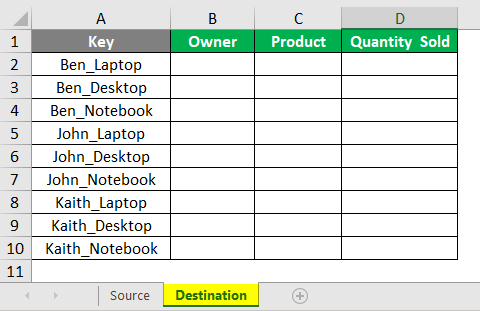
In the other worksheet, Destination, we have kept the blank table where we will use Vlookup to get the values from the source table to the destination location.
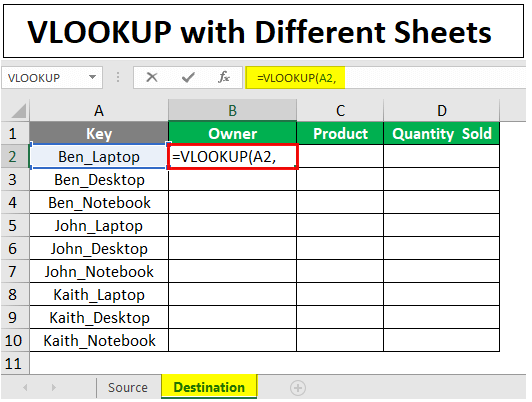
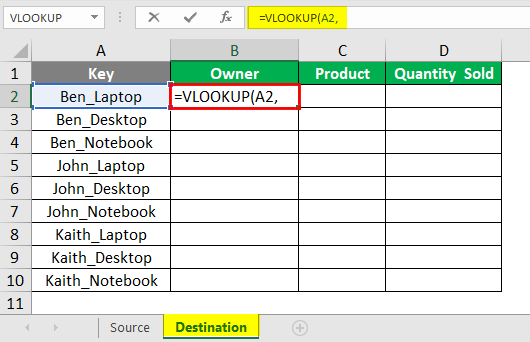
For that, go to the Destination sheet, and in cell B2, insert the Vlookup formula as shown below. We have also selected the lookup cell as A2 of the same Destination sheet, whose value we need to find.
As per the syntax, now select the lookup range from the Source table as shown below and consider the column index number to get the Owner’s names.
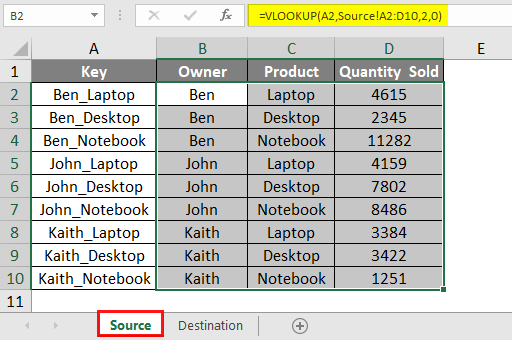
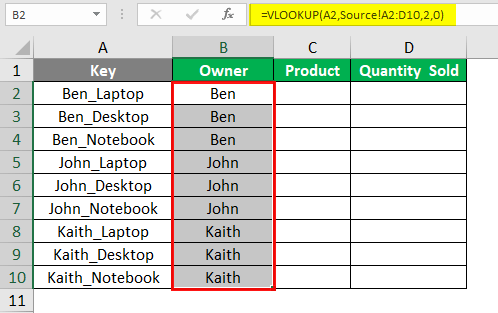
To complete the formula, press Enter and drag the formula till the end to get values as shown below.
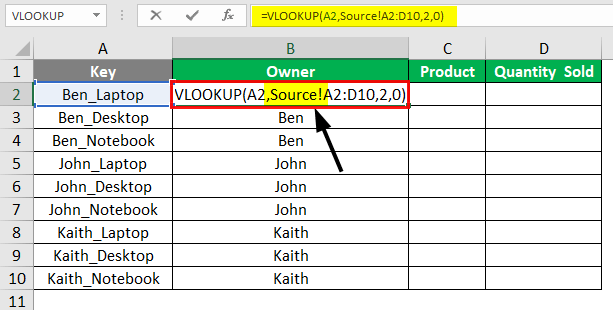
Now if we press F2 and see the syntax of the applied Vlookup function, we will see them as the lookup table was there in a different sheet so that the Vlookup function now carries the source sheet name as well.
Similarly, we can also look up the values for the Product and Quantity Sold column from the Source sheet to the Destination sheet.
Example #2
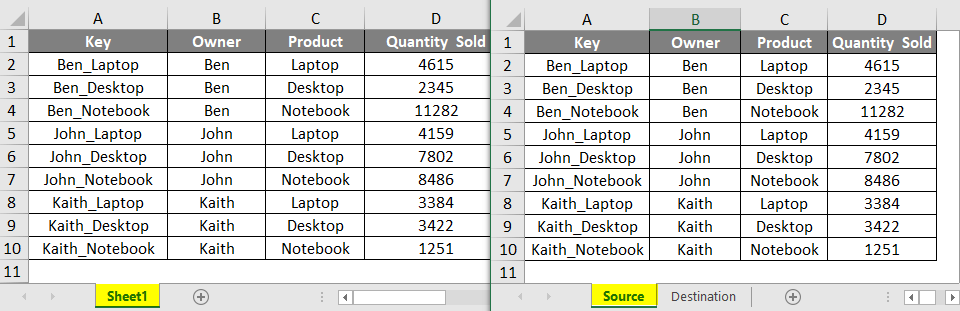
There is another way to look up the value from different sources. We have seen the vlookup with different worksheets, and now we will see the vlookup with the different workbooks. We will continue from example 1. There we looked up the value from the source worksheet. We will use a different workbook for the rest of the columns. For that, press Ctrl + N to insert a new workbook and copy the data from the Source sheet to Sheet 1, highlighted below.
- Now go to the destination sheet of the first workbook and insert the Vlookup function in cell C1 and select the lookup cell and A1 of the same table.
- From the Book1 workbook, select the lookup range as shown below from sheet1.
- Now press enters to exit from the syntax and drag the formula below. If we go to the Destination sheet and press F2 to see the syntax, we will notice that in place of the lookup range, Vlookup carries the name of the workbook and worksheet from where we have looked up the values.
- Similarly, we will apply the vlookup in the Quantity sold column of the Destination sheet, as shown below.
- If we save the Book1 workbook with a certain name in any location, we will see the relevant changes in the applied Vlookup function. Here we are saving book1 as Workbook1 in the source folder Desktop, as shown below.
- Again if we go to the Destination sheet and press F2 on any of the looked up values, we will find the name of the source lookup range has been changed with the name of the file name from Book1 to Workbook1.
- And if we change the sheet name from the Workbook1 file, it would also reflect here.
Pros of Vlookup with Different Sheets
- Through this, we will get to know the different sources and locations from where we are mapping or looking up the data.
- Vlookup with different sheets is also applicable for workbooks as well.
Things to Remember
- When you save and close the source file, the destination cell with the Vlookup formula will display the file path where the source file is located.
- Any changes to the source data will affect the output in the destination cell where we applied the Vlookup function.
- If the source file or data is moved without changing the reference cells, the destination location will also reflect the change in value, or sometimes it will give #N/A.
- Once we fetched the data, removing the formula by using paste special is recommended.
- It is better to lock or fix the lookup range table or column, to avoid a mismatch in the data.
Recommended Articles
This has been a guide to VLOOKUP with Different Sheets. Here we discuss How to Use VLOOKUP with Different Sheets, practical examples, and a downloadable Excel template. You can also go through our other suggested articles –

