

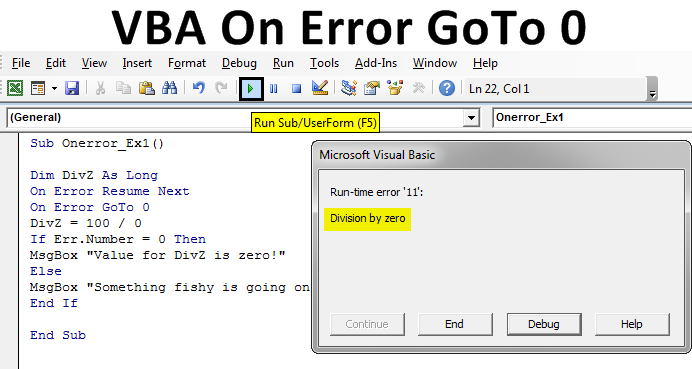
Excel VBA On Error Goto 0
In this article, we will see an outline on VBA On Error GoTo 0. Error handling is something that has the utmost importance under any programming language and the programmer is expected to know different rules that can be used for error handling. Every programming language has certain rules defined for error handling. In VBA as well we have certain rules which are defined to handle the errors. We ideally use two error handling methods in VBA. “On Error Resume Next” is an error-handling method which neglects the error and then moves to the next line of code execution (this is one sort of error handling rule defined in VBA). On the other side, “On Error GoTo 0” will disable this effect caused by Resume Next and again enable the error window to pop-up as soon as there is an error at the time of debugging.
In general laymen terms, we can say that, On Error Resume Next enables the error handler and On Error GoTo 0 disables the error handler under VBA. Both of these are contrary to each other. In this article, we are going to work with On Error GoTo 0. It helps to display the error message again on under the given procedure. Otherwise, errors will always be ignored and you’ll never know which part of your code is producing an error. Let’s have an example of Excel VBA On Error GoTo 0. We’ll see how it affects the code and it’s a compilation as well as debugging.
Examples of Excel VBA On Error Goto 0
Below are the different example of On Error Resume Next in Excel VBA:
Step 1: Open a new excel file and open the Visual Basic Editor (VBE) in it by hitting Alt+F11 keys. You can also navigate to the Developers tab and then click on the Visual Basic button to open VBE.
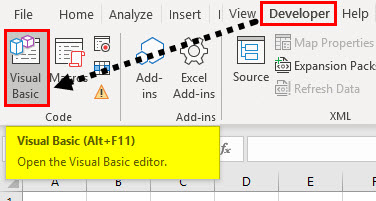
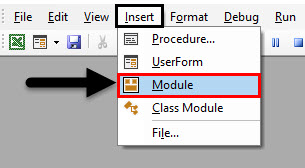
Step 2: Insert a new module in Visual Basic Editor. Click on Insert placed at the uppermost ribbon of VBE and then select Module in it to be able to add a new module under VBE.
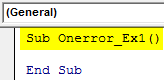
Step 3: Within the newly inserted module, define a new sub-procedure that can hold your macro for the code.
Code:
Sub Onerror_Ex1()

End Sub
Step 4: Now, define a new variable named DivZ with data type as Long which can be used to evaluate an expression through assignment operator.
Code:
Sub Onerror_Ex1()

Dim DivZ As Long

End Sub
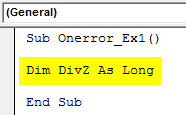
We are going to use an expression that produces an error under VBA.
Step 5: Use an assignment operator (‘=’) to assign an expression 100 / 0 towards the newly defined variable DivZ.
Code:
Sub Onerror_Ex1()

Dim DivZ As Long
DivZ = 100 / 0

End Sub
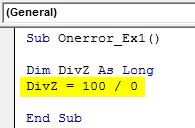
Well, this is an expression that will produce an error under VBA. Since we are trying to divide a number by zero which results in an undefined number. VBA will throw Division by Zero error in this case. Let’s run this code until here and validate if there is an error.
Step 6: Hit F5 or Run button to run this code and see the output. You should get the following error message after running this code.
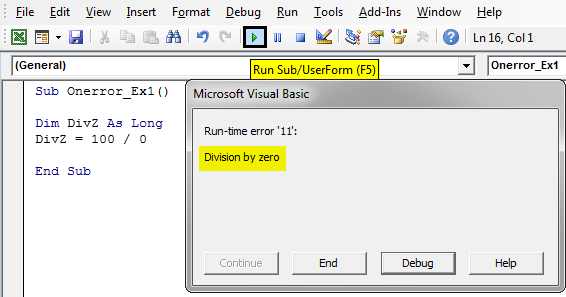
If you click on the End button, the system will end this code and if you hit the Debug button, the system will navigate you towards the line where error encountered (It colors the line as yellow).
Now, being a VBA programmer you’ll always be in search of an error handling methodology. Therefore, you’ll use On Error Resume Next in this case.
Step 7: Use the On Error Resume Next error handling method exactly before the line of code that produces an error (i.e. before DivZ = 100/0).
Code:
Sub Onerror_Ex1()

Dim DivZ As Long
On Error Resume Next
DivZ = 100 / 0

End Sub
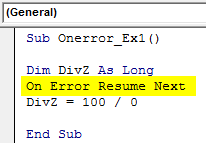
This statement will enable the error handling in this case and you will be able to proceed further with the code.
Step 8: Use the If-Else clause to add a logical condition for the DivZ variable. Use the code as If Err.Number = 0 Then
Code:
Sub Onerror_Ex1()

Dim DivZ As Long
On Error Resume Next
DivZ = 100 / 0
If Err.Number = 0 Then

End Sub
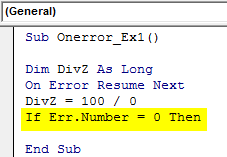
Err.Number property checks If the value for the variable is meeting certain conditions or not. If it meets then it executes the block of code associated with that condition.
Step 9: Now, add a code to be executed if the condition is true. i.e. if the value of DivZ is zero. I will use VBA MsgBox property to get an output if the DivZ has zero Value.
Code:
Sub Onerror_Ex1()

Dim DivZ As Long
On Error Resume Next
DivZ = 100 / 0
If Err.Number = 0 Then
MsgBox "Value for DivZ is zero!"

End Sub
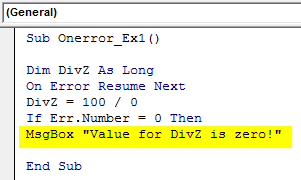
This statement emphasizes that if the DivZ has Zero-value then text under MsgBox will be displayed.
Step 10: Use the Else clause and MsgBox function to add another message when the DivZ is not equaled to zero. Use the code as shown in the screenshot below:
Code:
Sub Onerror_Ex1()

Dim DivZ As Long
On Error Resume Next
DivZ = 100 / 0
If Err.Number = 0 Then
MsgBox "Value for DivZ is zero!"
Else
MsgBox "Something fishy is going on"

End Sub
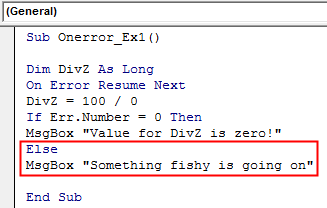
Step 11: Now end the If-Else loop by setting End If clause at the end of the loop so that the system knows when to end this loop and return to the start.
Code:
Sub Onerror_Ex1()

Dim DivZ As Long
On Error Resume Next
DivZ = 100 / 0
If Err.Number = 0 Then
MsgBox "Value for DivZ is zero!"
Else
MsgBox "Something fishy is going on"
End If

End Sub
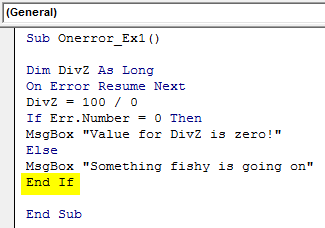
Step 12: If you run this code, the system will neglect the error at the assignment of 100/0 to variable DivZ and execute the loop.
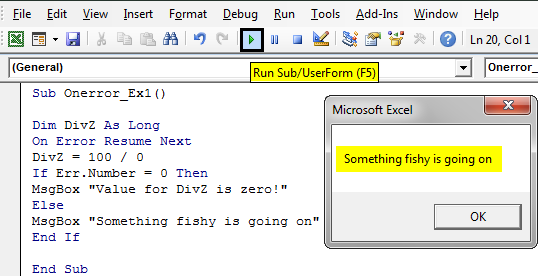
However, this seems to be adding ambiguity to the code. We are directly neglecting the error and moving further towards the execution. This may mislead the user though you have an error, your program doesn’t show it instead of running the code as it is. In order to get rid of this ‘On Error Resume Next’, we can use ‘On Error GoTo 0’. In this code. That will remove the error handling and you’ll be again able to get the error message at the time of execution of code.
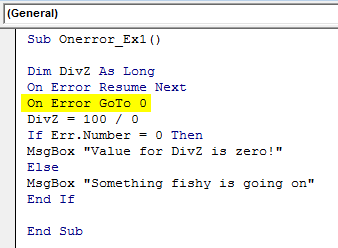
Step 13: Add On Error GoTo 0 before the line on which we assigned expression to the variable.
Code:
Sub Onerror_Ex1()

Dim DivZ As Long
On Error Resume Next
On Error GoTo 0
DivZ = 100 / 0
If Err.Number = 0 Then
MsgBox "Value for DivZ is zero!"
Else
MsgBox "Something fishy is going on"
End If

End Sub
Step 14: If you run this code, you’ll be able to see the error message again for this code.
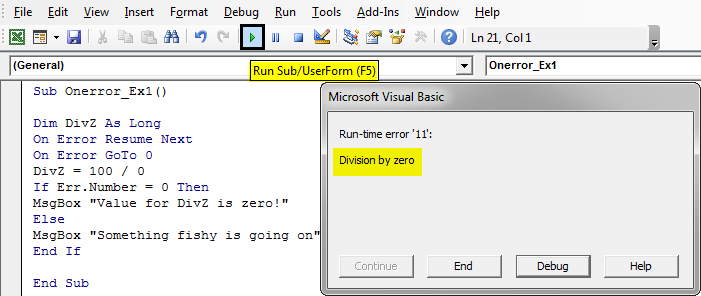
Ideally, On Error GoTo 0 helps us to go to the default error settings or we can say that it helps us remove the error handling if any in the code. This is it from this article. Let’s wrap the things up with some points to be remembered
Things to Remember
- On Error GoTo 0 is not an error handler method. Instead, it is considered as Error Handler Disabler which disables any Error Handling provided in your code and returns to the default code settings where you see an error message as soon as there is an ambiguity.
- On Error GoTo 0 is a default behavior under VBA as long as you haven’t provided any error handling method (ex. On Error Resume Next) to neglect the errors.
Recommended Articles
This is a guide to VBA On Error GoTo 0. Here we discuss some useful Example of Excel VBA On Error Goto 0 in Excel along with downloadable excel template. You can also go through our other suggested articles –

