

Updated August 22, 2023
Checklist in Excel (Table of Contents)
Introduction to Checklist in Excel
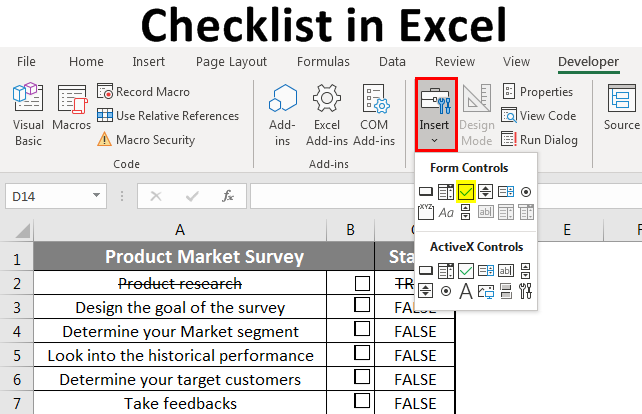
In Excel, we use a checklist as a type of control to determine if the assigned task is completed. It also serves as a tool for selecting multiple options among the fields in question-answer forms. To create a Checklist in Excel, find a situation where we can mark the condition of choosing multiple options or the completed task. Then from the Insert option drop-down menu list, select Checkbox from the Form Controls section and draw this anywhere we want. We can also assign the macro codes using the ActiveX Form Control section.
Examples of Checklist in Excel
There are multiple ways of using a checklist; you can create Interactive Lists or charts in Excel. This helps in quickly analyzing the percentage of tasks completed or pending etc. Let us see some Excel checklist examples and how to generate one differently.
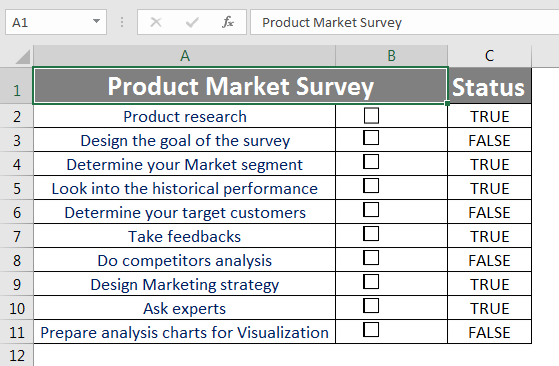
1. This is a Product Market survey checklist depicting the status of listed task completion. True status shows the task has been finished, whereas False shows that the work is pending or needs to be completed.
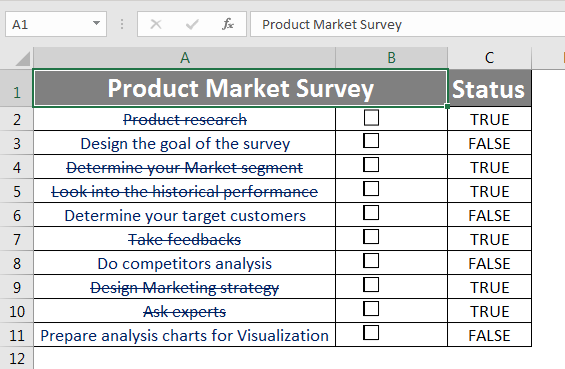
2. Using the same checklist, you can apply various conditional formatting to strike out the completed task in your to-do list.
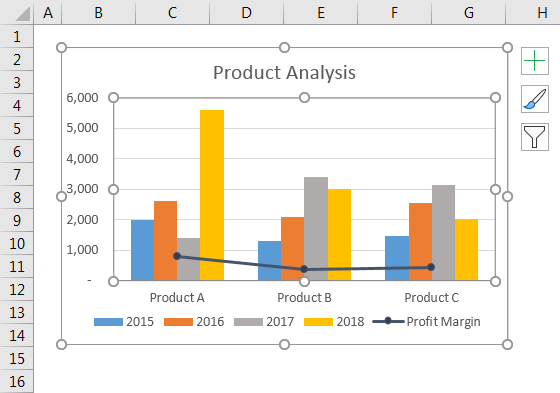
3. We can create interactive charts using the checkbox option. Using cell reference, we can create logic to link the checkbox with chart tables.
How to Create a Checklist in Excel?
Here we will see how to build a checklist with steps in excellence.
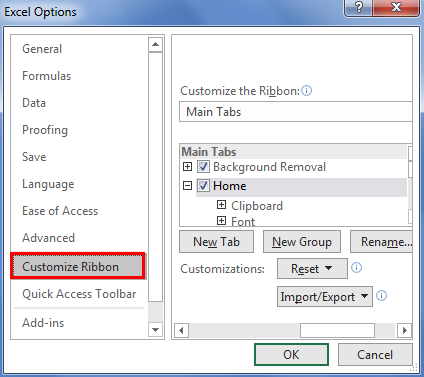
Enable the Developer tab on the ribbon before you start creating a checklist. Go to the Excel Options menu, and select Customized Ribbon.
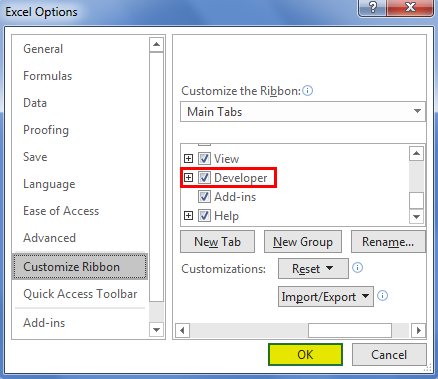
Make sure that the developer box is checked in the Main Tabs list.
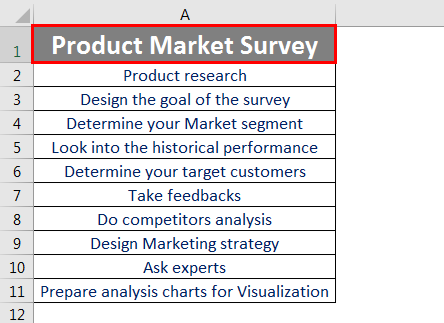
Prepare the list of activities for your assignment. In this example, I have used the Product market survey checklist that lists all the activities I will do for the assigned project.
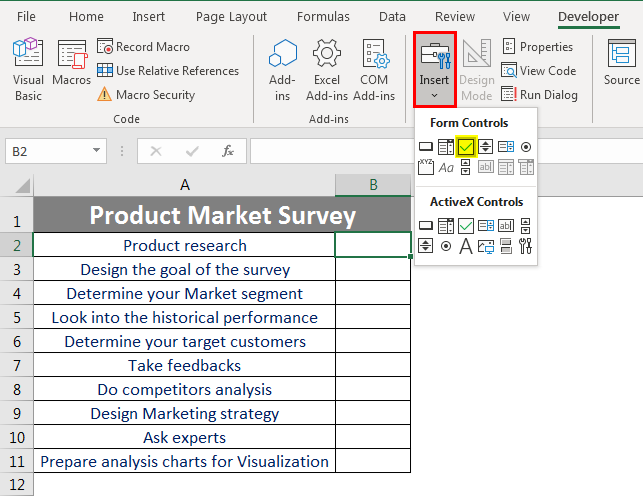
Now, click on cell B2 to Insert the Checkboxes, go to the Insert menu under the Developer tab ribbon, and select the Check Box (Form Control) option. The checkbox will be created in cell reference B2.
Right-click on cell B2, where the checkbox is created, and go to the edit text option to edit the checkbox’s text.
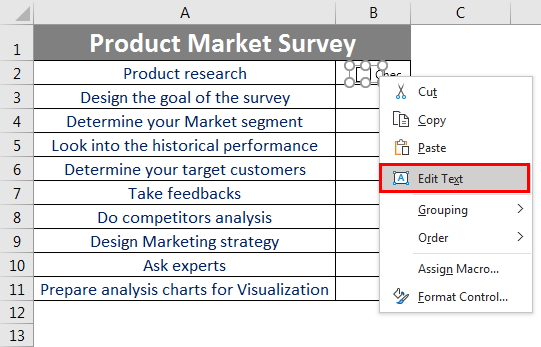
Now copy or drag the checkbox for all the other listed tasks. You can copy, apply to the group, and even set the order preference of these checkboxes per your requirement. Using Assign Macro, you can click the checkbox, and a macro will start running.
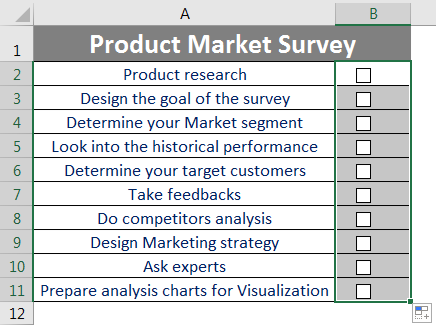
Now we will see how to make the checkboxes interactive with Lists or Charts:
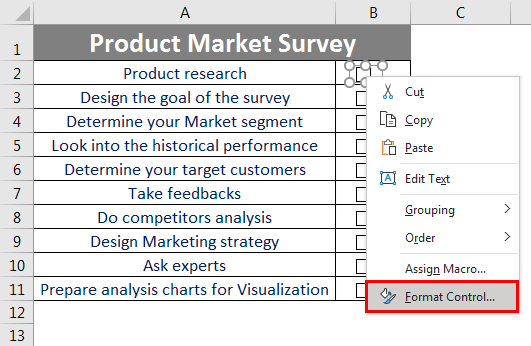
a. Right-click on the first “Product research” checkbox and select Format Control.
b. In the Control tab option of the Format Control dialog box, select a cell in an Excel sheet where you want to link this checkbox. In this example, I have selected cell “c2” to create a link.
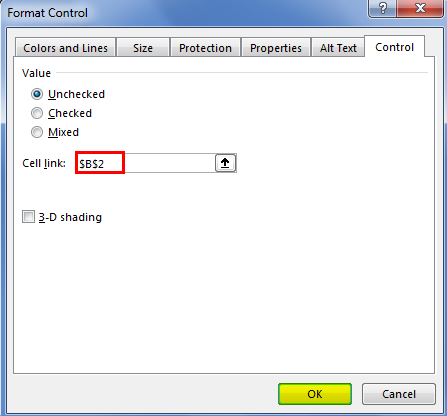
c. Repeat the above steps to link all the other checkboxes.
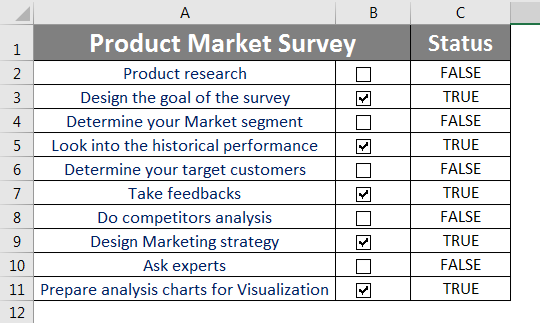
d. In Status (Column C) appears to have a True/False value; checkboxes that are selected are “True”, depicting that the checkbox is selected, whereas “False” is for the unselected checkbox.
How to Use Checklist in Excel?
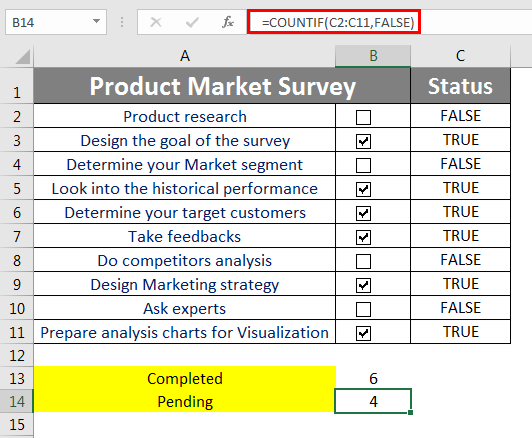
A checklist can use in Several Ways. To keep track of the number of tasks Completed/Pending:- Using the countif formula, you can see how many tasks have been completed or are pending.
One can strike out an option from a checklist when completing our task. Below is an example where task such as Product research, designing market strategy & asking for expert opinion has been completed and longer needs to be considered in the future. You can accomplish this by using the conditional formatting feature in the checklist.
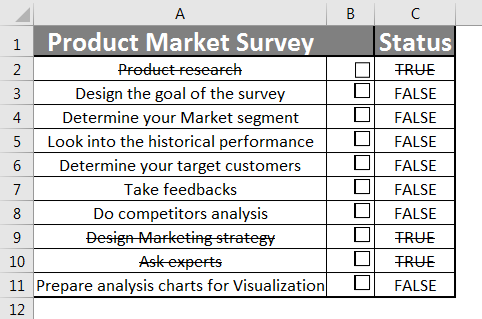
Based on your preference, we can apply conditional formatting by distinguishing the list based on a different background or font color to the checked items (TRUE values) or by strike format. To use below the strike-through option.
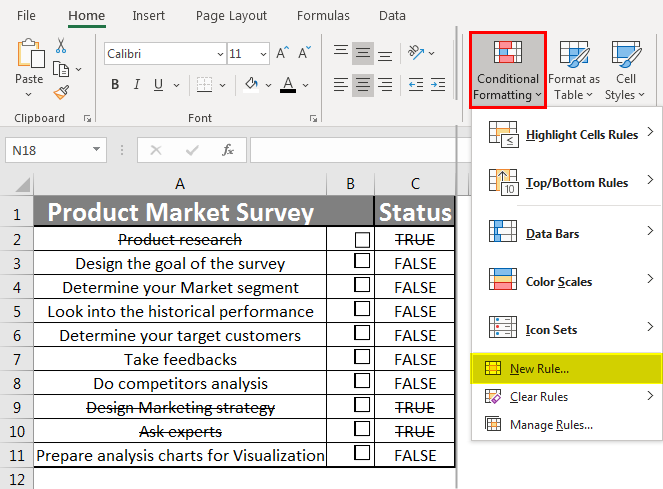
First, select the listed Product market survey. Go to the conditional formatting option available in the Home tab. Then go to the New Rule option. In the New Rule dialog box, select a rule type, and select the last option, “Use a formula to determine which cells to format”.
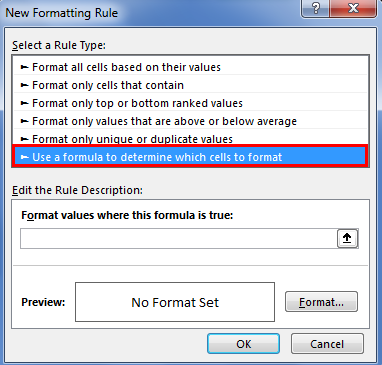
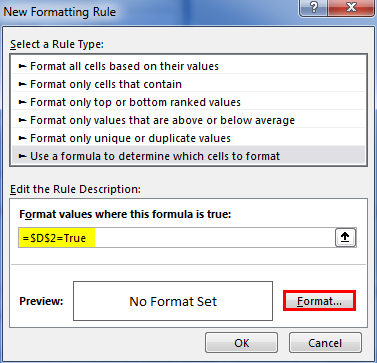
In the Edit, the Rule Description portion, enter the formula: =$D3=TRUE. And Click on the Format button.
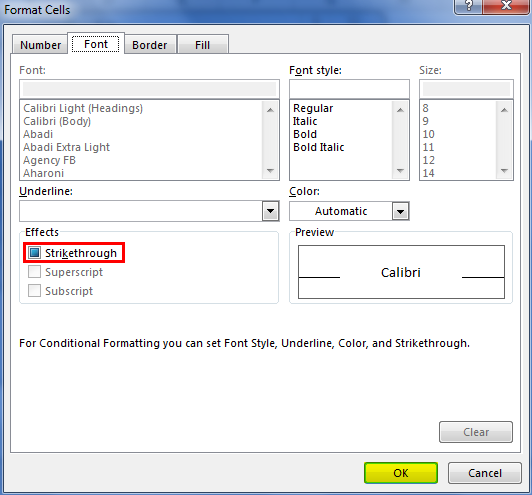
In format cells, the dialog box selects the Strikethrough option. Note you can also choose font style & background color as per your choice.
Checkboxes or checklists can also be used with charts or tables to make it more interactive. In the example below, I have shown products A, B & C comparison with respect to the profit margin.
Choose a table for which you want to create a chart.
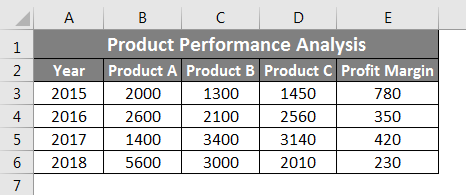
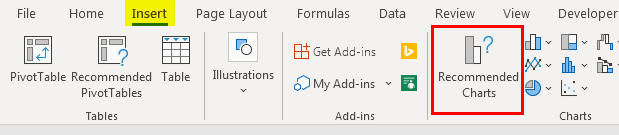
Select the data. Selecting the Insert Chart option available in the Insert toolbar.
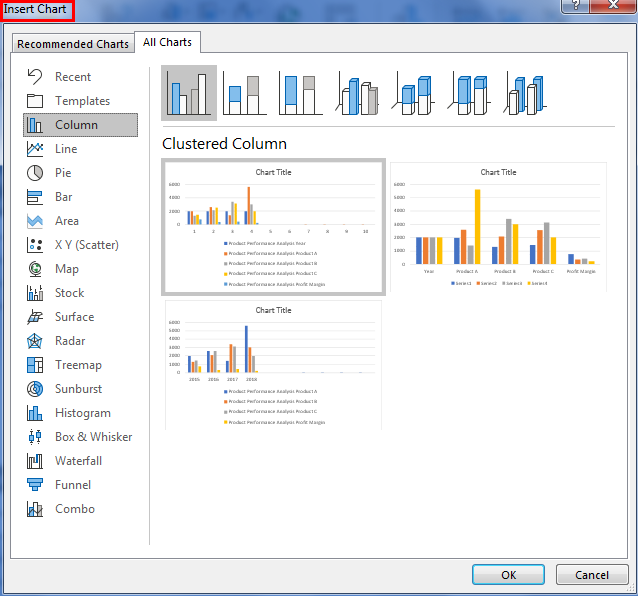
Choose the chart type.
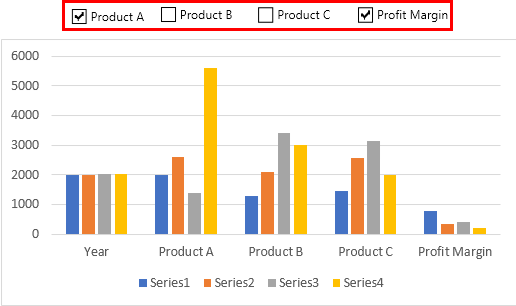
Create checkboxes and make their respective cell reference. I created 4 checkboxes for Product A, Product B, Product C, and Profit margin in this example.
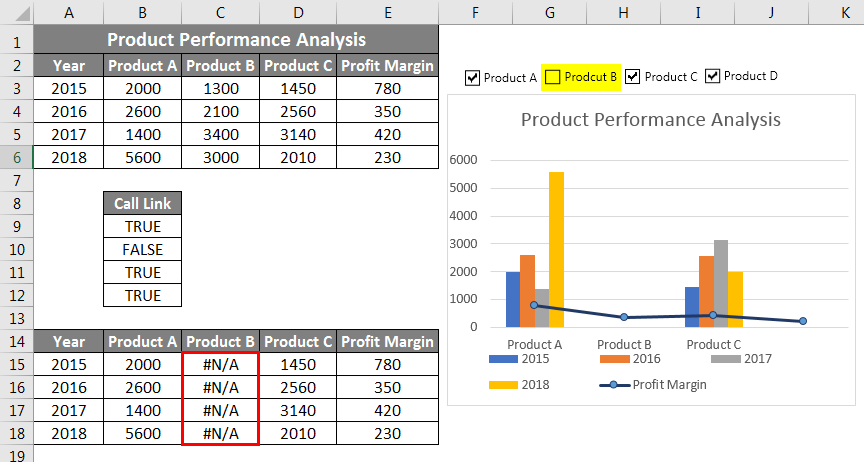
Now make a copy of the table (columns P to T) and write the formula =IF($C$10,$C4, NA()). This means that if Cell C10 is true, the table will contain a C4 value, i.e., 2000 for Product A in 2015, or it will return NA. Whenever the checkboxes are checked, they will have values associated, which will be reflected in a chart. When checkboxes are unchecked, the chart won’t show any values. This condition will make or chart interactive.
When all the checkboxes are checked:
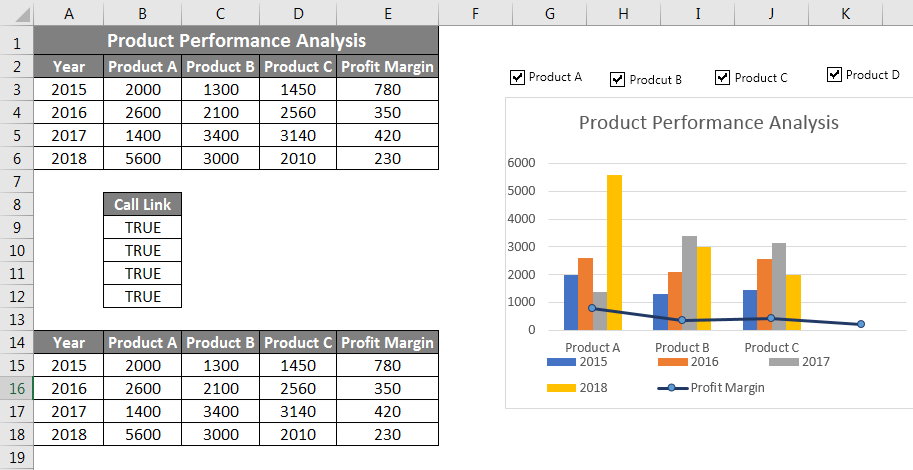
When product B is unchecked, no value is seen in the graph; this shows the movement of product A compared to the Profit margin. Likewise, you can choose the measuring paraments using a combination of Checkboxes to make your report more interactive.
Things to Remember
- Ensure the Developer tab is enabled before using the checklist option.
- A checkbox will be inactive use until it has a cell reference associated with it.
- It is best to create cell reference in the adjacent cell to make identifying, hiding, or unhiding easier.
- When the checkbox/checklist is selected, it returns TRUE values, else FALSE.
- Using conditional formatting in Checklist, you can incorporate data validation, strikethrough, highlight duplicate values, and distinguish between various parameters based on a font or background color in your activities.
- Using various Excel formulas, one can make the dataset report more interactive.
Recommended Article
This is a guide to the Checklist in Excel. Here we discuss how to create a Checklist in Excel, practical uses, and a downloadable Excel template. You can also go through our other suggested articles –

