

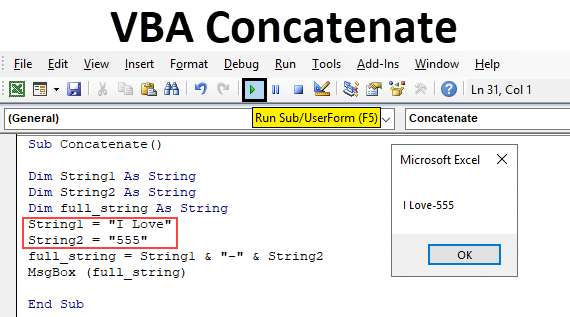
Excel VBA Concatenate
Concatenation can be defined as joining or adding two strings or data items to get a single string or data item is called concatenation. In simple words, if we have a list of first names in one column and last name in another column with the help of concatenation operation we can combine both and place in a single cell within a fraction of seconds. In Excel, to achieve this concatenation we have a worksheet function called Concat(). But, this kind of function is not available in VBA. We cannot use concatenate() in VBA coding as it will not work. So, there are no functions available in VBA and cannot access the worksheet functions too, then how we will concatenate two or more strings in VBA.
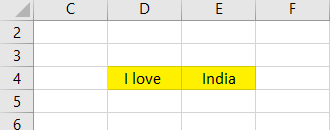
First, we will see how we will do with worksheet function then we will see the same in VBA. Consider two strings in excel as shown in below screenshot.
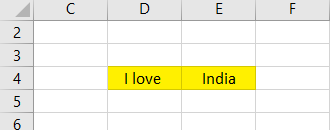
Now use concatenate function to combine both the strings.
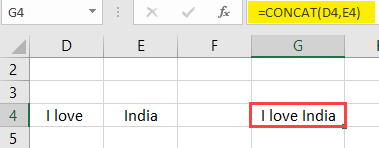
Observe the formula, D4 and E4 are the address of the cells that we want to combine. Like above we can concatenate multiple numbers of strings from different cells.
How to Use Excel VBA Concatenate Function?
We will learn how to use a VBA Concatenate with few examples in Excel.
VBA Concatenate – Example #1
As we do not have any built-in functions in VBA, concatenation in VBA can be achieved by using ampersand (&) operator.
We will take the same example which is already we took for the worksheet function. We have “I love” in cell D4 and “India” in cell E4. Now we will combine those two strings in VBA. Go to the VBA editor tab.
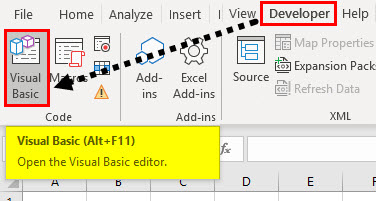
Step 1: Go to the Developer tab and then select the “visual basic” tab on the left-hand side. Then it will take to the below screen.
Step 2: First, we need to create a subprocess with any name like concatenation. To initiate subprocess, use keyword Sub and process name “concatenation”.
Code:
Sub Concatenate()

End Sub
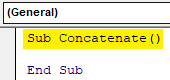
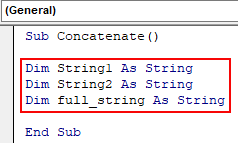
Step 3: In Subprocess we need to define strings like string1, string2, and full_string using the keyword dim.
Code:
Sub Concatenate()

Dim String1 As String
Dim String2 As String
Dim full_string As String

End Sub
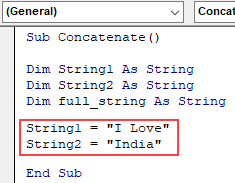
Step 4: Now, we need to assign the string “I love” to string1 and “India” to string2 using “=” assignment operator as below.
Code:
Sub Concatenate()

Dim String1 As String
Dim String2 As String
Dim full_string As String

String1 = "I Love"
String2 = "India"

End Sub
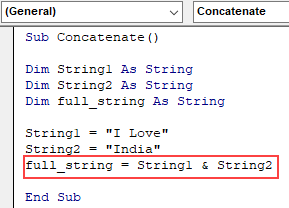
Step 5: Now, combine the string1 and string2 using ampersand operator and assign that combination to full_string as below. Keep a space between string variables and ampersand operator to avoid error message.
Code:
Sub Concatenate()

Dim String1 As String
Dim String2 As String
Dim full_string As String

String1 = "I Love"
String2 = "India"
full_string = String1 & String2

End Sub
Step 6: Now, concatenation of both string1 and string2 is stored in full_string. Display this string using a message box as below.
Code:
Sub Concatenate()

Dim String1 As String
Dim String2 As String
Dim full_string As String

String1 = "I Love"
String2 = "India"
full_string = String1 & String2

MsgBox (full_string)

End Sub
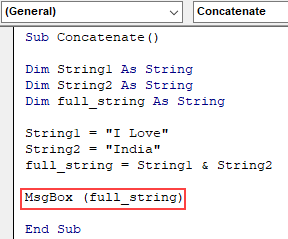
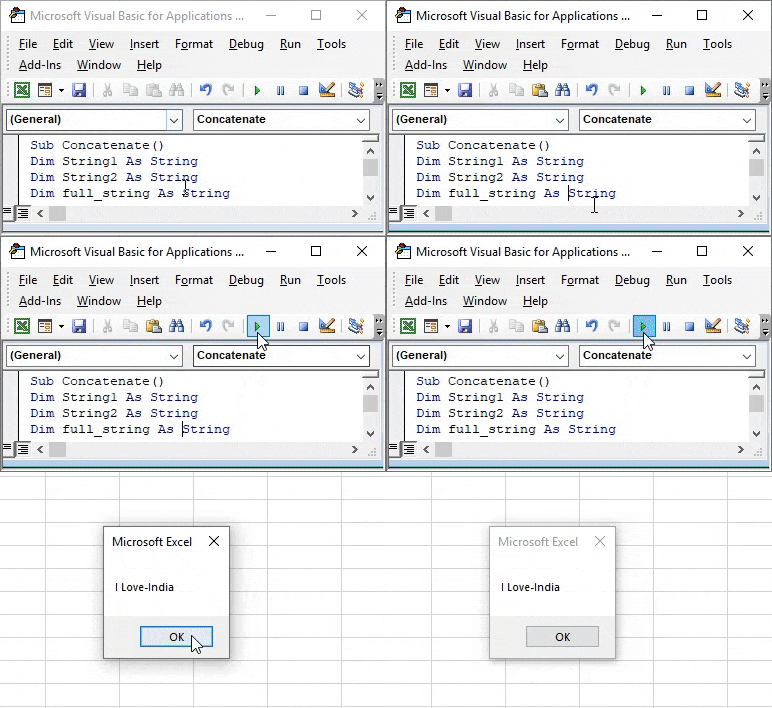
Step 7: Now, it’s time to execute the process. Click on the play button which is marked with red color box. The result will appear in the message box as below.
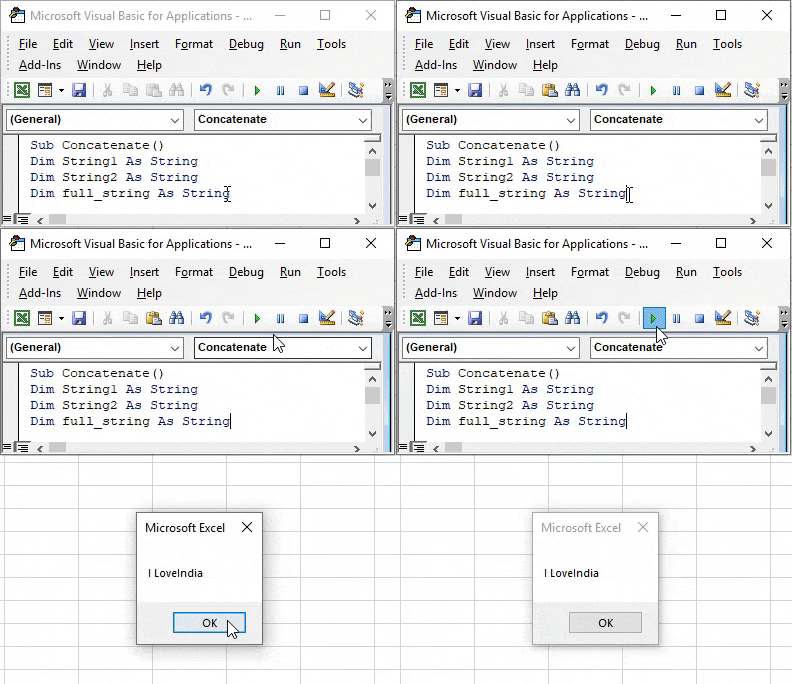
Step 8: In the above example we took the two strings directly in the program and there is no space between the first string and second string. How to add space then? Very simple while concatenating, concatenate space also.
Code:
Sub Concatenate()

Dim String1 As String
Dim String2 As String
Dim full_string As String
String1 = "I Love"
String2 = "India"
full_string = String1 & " " & String2

MsgBox (full_string)

End Sub
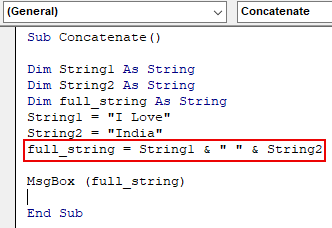
Step 9: Observe the above image we added the space between string1 and string2 with the help of double-quotes. In case if we want to add ‘-‘ we can do that also.
Code:
Sub Concatenate()

Dim String1 As String
Dim String2 As String
Dim full_string As String
String1 = "I Love"
String2 = "India"
full_string = String1 & "-" & String2

MsgBox (full_string)

End Sub
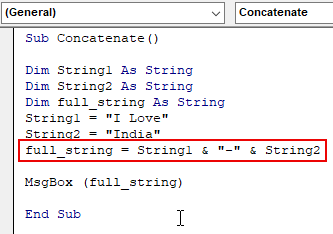
Step 10: The result will be as below.
VBA Concatenate – Example #2
Step 1: Now we will take the data from the excel sheet and concatenate and then display results. For that assign the data in the cells to string1 and string2 as shown below.
Code:
Sub Concatenate2()
Dim String1 As String
Dim String2 As String
Dim full_string As String

String1 = Cells(4, 4).Value
String2 = Cells(4, 5).Value

MsgBox (full_string)

End Sub
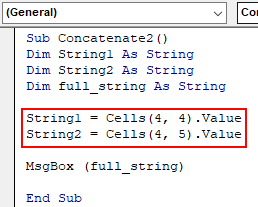
Step 2: Observe the above image, we assigned the value in cells(4,4) to stirng1 and cells(4,5) in string2. As usual, concatenate both strings using the ampersand operator.
Code:
Sub Concatenate2()
Dim String1 As String
Dim String2 As String
Dim full_string As String

String1 = Cells(4, 4).Value
String2 = Cells(4, 5).Value
full_string = String1 & "  " &  String2

MsgBox (full_string)

End Sub
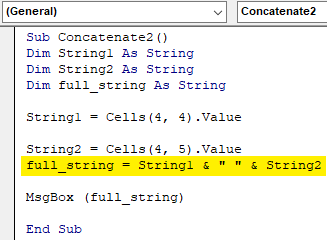
Step 3: Because of this whatever the data in cells(4,4) and Cells(4,5) will combine and store in full_string. Now execute the process by clicking on play symbol.
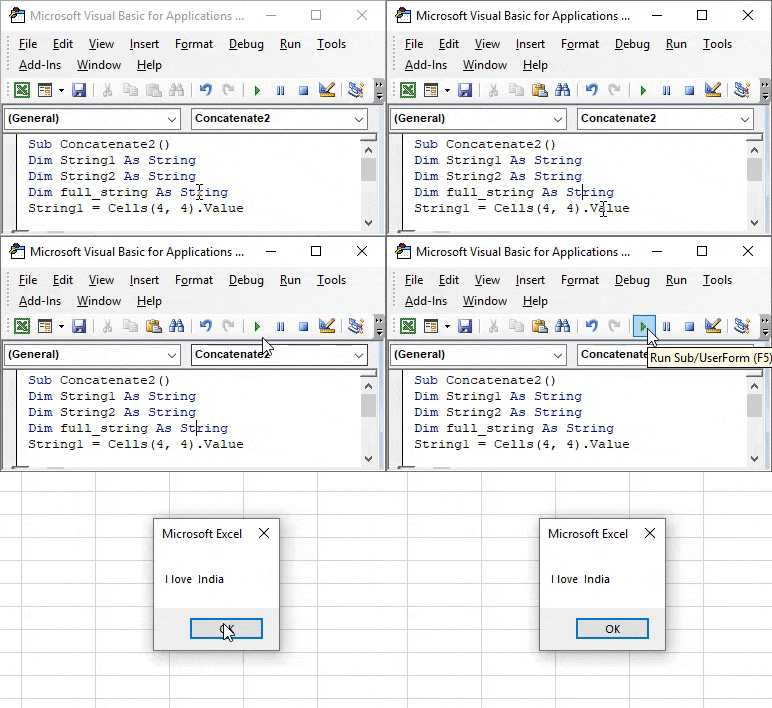
Step 4: The data is taking from excel shown below.
Step 5: If we change the data in the excel and re-run the program results will change as per the excel data. Instead of India, I changed to sweets now we will run and check.
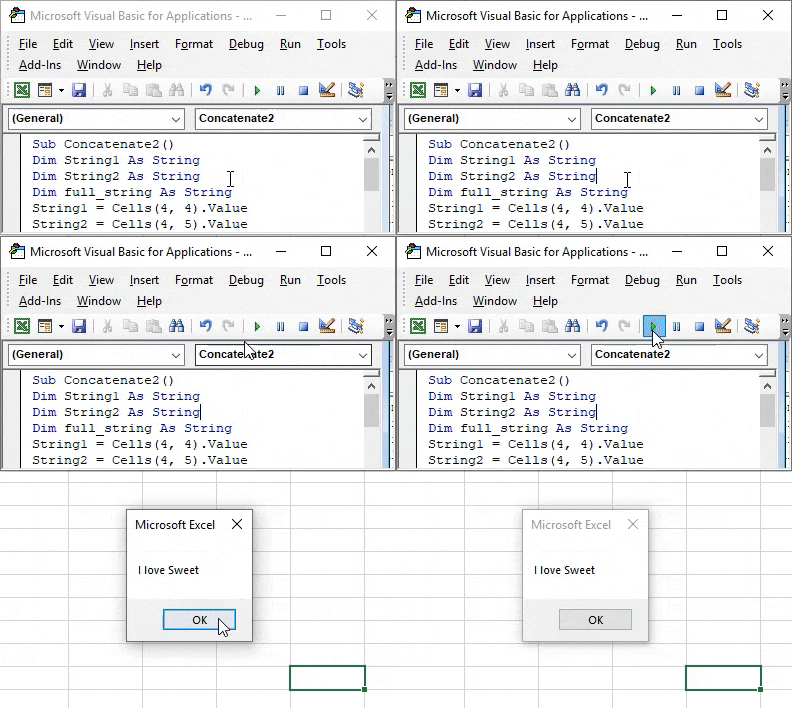
Step 6: Now the result is coming in the message box. Instead of a message box if we want in excel itself we can do that.
Code:
Sub Concatenate2()
Dim String1 As String
Dim String2 As String
Dim full_string As String
String1 = Cells(4, 4).Value
String2 = Cells(4, 5).Value
Cells(4, 7).Value = String1 & String2

MsgBox (full_string)

End Sub
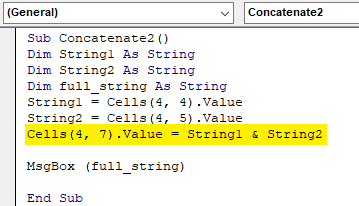
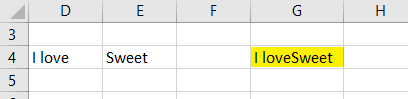
Step 7: Assign the concatenation in cell address cell(4,7) and remove msgbox as we no more need of message box. Press the play button and go to you excel and check will get the result in cell(4,7) (row 4 and column 7).
Step 8: As we are adding two strings we can use “+” symbol also as below.
Code:
Sub Concatenate2()
Dim String1 As String
Dim String2 As String
Dim full_string As String
String1 = Cells(4, 4).Value
String2 = Cells(4, 5).Value
Cells(4, 7).Value = String1 + String2

End Sub
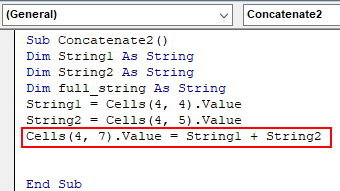
Step 9: Result will be as below. There will be no difference.
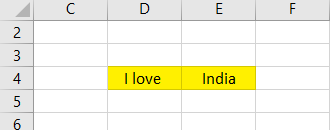
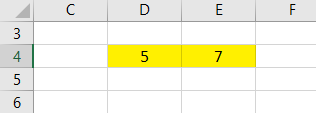
Step 10: But if we use numbers instead of strings to concatenate using “+” symbol it will perform concatenation only not addition because we took the data type as a string, not an integer.
Step 11: Result will be as below.
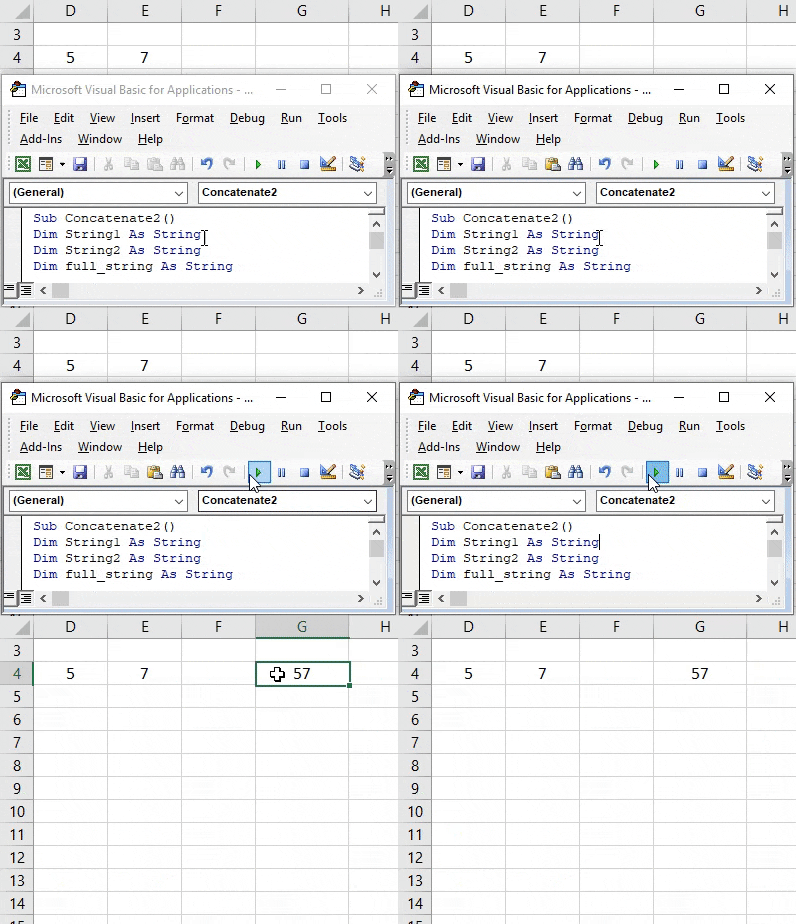
In case if we are taking the data type as integer then we should use ampersand operator only for concatenation. If we use “+” while taking integer data type, then it will not concatenate but perform addition.
VBA Concatenate – Example #3
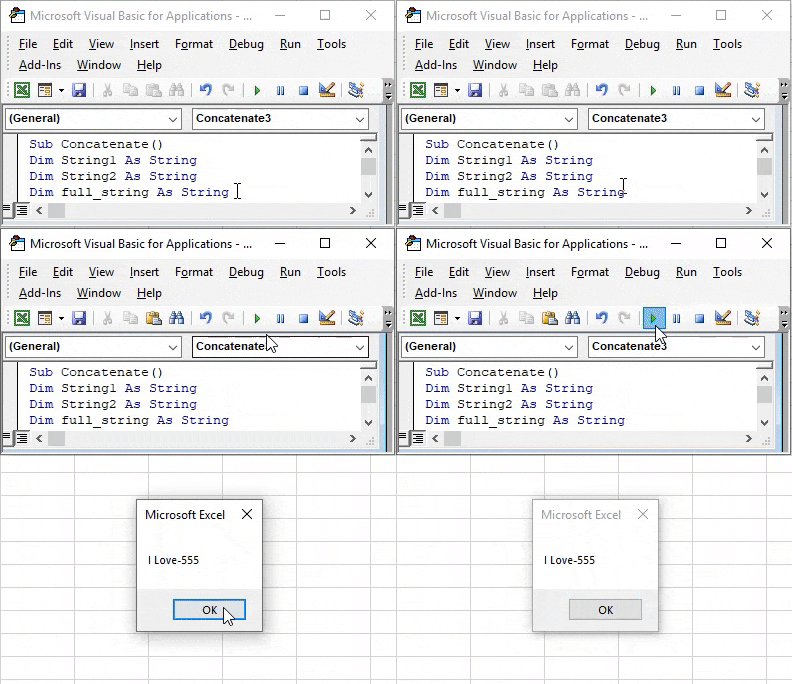
Step 1: If we want to combine a string and number also we can apply the same technique. For that keep number value in one cell and string value in another cell and click on the run option.
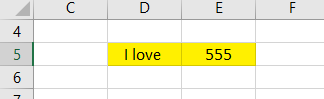
Step 2: The result will not have an impact it will be the same string result as earlier with the only change is number instead of a string.
Things to Remember
- Concatenation is to combine the strings of two or more multiple strings of different cells. To perform this in Excel, we have inbuilt worksheet function that is CONCAT.
- Worksheet function concat is not accessible in VBA to concatenate.
- Concatenation will be achieved with the help of operator ampersand (&) and plus (+). If you are taking integer data type, then “+” symbol will perform addition operation instead of concatenation hence ensure on that.
- Use space before and after the & and + symbols otherwise it will throw an error message.
- When defining string variables, do not keep any space in a variable name. If any space provided in string variable name it will not allow as it will throw error message as below.
Recommended Articles
This is a guide to VBA Concatenate. Here we discuss how to use Excel VBA Concatenate Function along with practical examples and downloadable excel template. You can also go through our other suggested articles –

