


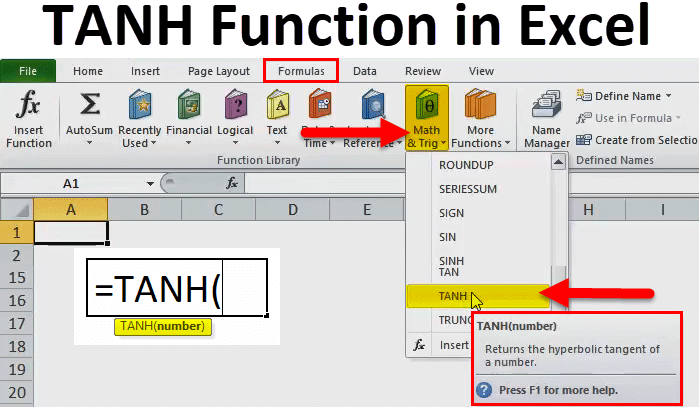
TANH in Excel (Table of Contents)
TANH Function in Excel
TanH function in Excel is a mathematical trigonometry function used to calculate the Hyperbolic tangent of any number.
We can choose any positive, negative, integer, or decimal number here; TanH will calculate the hyperbolic tangent value of all of it. We can use the TanH function directly by selecting any number we want to convert into a hyperbolic tangent figure, irrespective of the number we use.
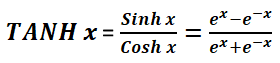
Hyperbolic Functions are Sinh, Cosh, Tanh, Coth, Sech, and Cosech. All are related to each other one or the other way around. In this article, we are discussing TANH. Let us concentrate on this only as of now. The formula to find the hyperbolic tangent function is.
In a scientific calculator, also we can easily find the tangent of a given number. For example, the below image shows the tangent of the number 30.
TANH Formula in Excel:
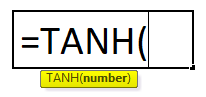
It includes only one parameter, though, and that is the number you want to find the tangent.
- Number: The number you want to get is the hyperbolic tangent number. The number is considered as the angle to radians.
How to Use TANH Function in Excel?
TANH in Excel is very simple and easy to use. Let us understand the working of its function by some examples.
Before we head into this example, let’s understand some of the basic formulas in Excel, and those are PI & Radians.
PI (π): We all must have studied PI in our school classrooms. The value of pi is 3.14159 or 22/7. In Excel, there is an inbuilt function called PI, which returns exactly the same value.
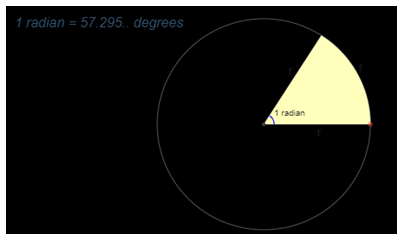
Radians: It is the SI unit for measuring any angles of the circle. One radian is any created from the center of the circle by an arc where the length is equal to the radius of the circle. One Radian is equal to 57.2957795 degrees.
Look at the below table; you have a degree in column A, and you need to get the tangent of the below list.
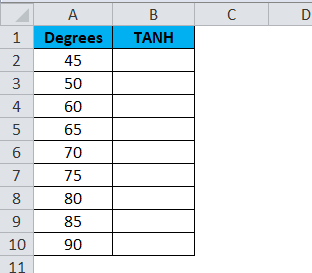
Apply the formula to get the tangent of an angle.
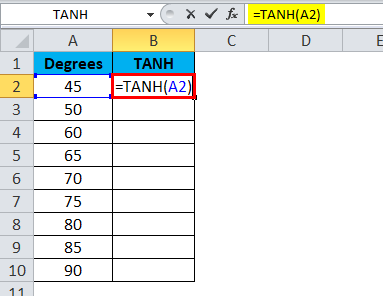
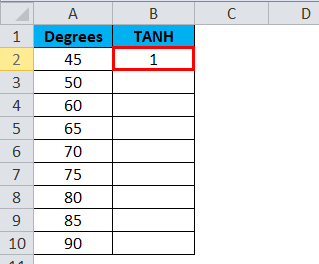
The Output will be:
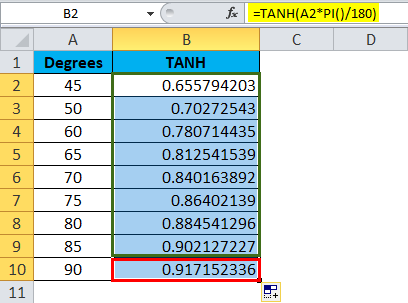
We can drag the formula by using Ctrl + D or double-click on the right corner of the cell. So the result would be:
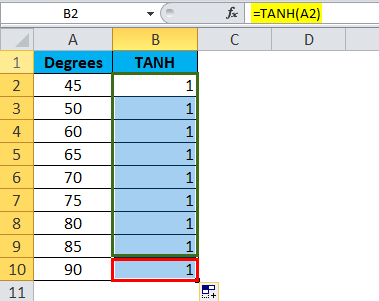
Look at the result; it is not the correct value it is showing. If the supplied number is in degrees, we need to multiply it by PI ()/180 which converts the result into radians.
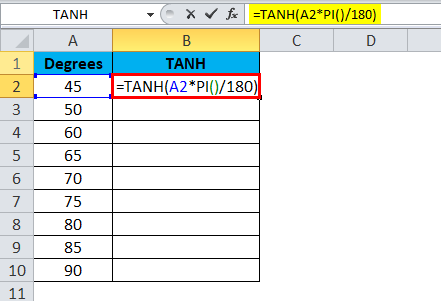
Result is :
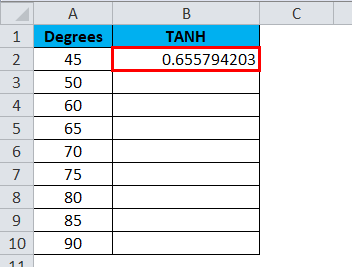
We can drag the formula by using Ctrl + D or double click on the right corner of the cell. So the result would be:
Instead of using PI () / 180, we can use the Radian formula inside the TANH formula. Here is an example of that.
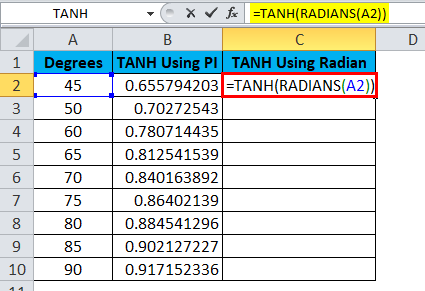
Result is :
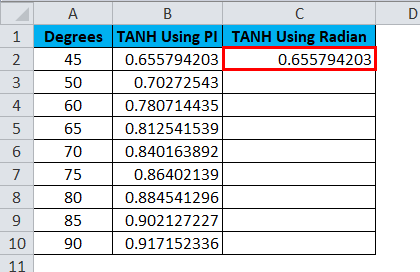
We can drag the formula by using Ctrl + D or double click on the right corner of the cell. So the result would be:
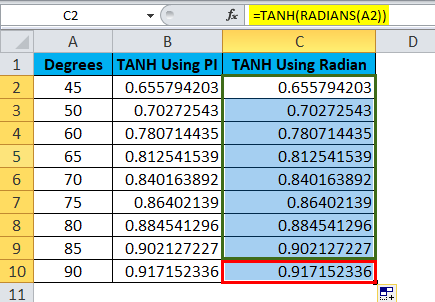
Wow! We got the same result as the previous one. Therefore, PI () /180 is equal to the value of Radians in Excel.
Radian = Degree Number * [PI ()/180]
Things to Remember
- Firstly, understand the basics of a hyperbola and other trigonometry concepts. Without understanding those functions, it is very difficult to understand any trigonometry functions in Excel. So you should be strong in these concepts.
- Try to solve the problems manually and then learn this function in Excel.
- Along with these concepts of radius, radians, PI, etc… are very important in trigonometry.
- If the supplied number is not numeric, then we will get the error type as #VALUE!
- If you want the degree number to radians to multiply the result with PI()/180, but if you want the radian to be in degrees, then do the reversal of that, i.e. 180/PI()
- If we want to convert the radians into degrees, then we can use the Excel built-in function called Degrees.
- An important thing in this function is we wish to get the results as tangents.
Recommended Articles
This has been a guide to TANH Function. Here we discuss the TANH Formula and how to use TANH Function along with an example and downloadable Excel templates. You may also look at these useful functions in Excel –

