

Updated June 12, 2023
VBA Sleep Function
The sleep function in VBA is a Windows function. It is similar to the wait function in VBA. It is used to slow down or pause or we can say halt the running of a specific code by some specified time. Sleep function needs to be called in VBA while declaring it in the code. How we do that is what we will learn in today’s topic.
As explained above, VBA Sleep is a Windows function and is present in the kernel database of Windows. The method of declaring and calling sleep functions in VBA differs for both 32-bit and 64-bit operating systems. It is a Windows API function.
The syntax to use the VBA Sleep function is as follows:
Sleep (Time in Mili Seconds)
So if we need to slow down or halt the code for 1 sec, we need to write the code as:
Sleep 1000
1000 is the mili seconds equal to 1 second and will slow down the code for 1 sec. If we want to slow down the code for 5 seconds, the code will be:
Sleep 5000
The declaration for sleep function is as follows:
#If VBA7 Then ' Excel 2010 or later
Public Declare PtrSafe Sub Sleep Lib "kernel32" (ByVal Milliseconds As LongPtr)
#Else ' Excel 2007 or earlier
Public Declare Sub Sleep Lib "kernel32" (ByVal Milliseconds As Long)
#End If
How to Use Excel VBA Sleep Function?
We will learn how to use a VBA Sleep function with a few examples in Excel.
VBA Sleep Function – Example #1
What we are going to do in this example is we will pop up a message to the user that the macro will stop for five seconds. And exactly after five seconds, we want a second message to pop up which says macro resumed.
Follow the below steps to use Sleep Function in Excel VBA:
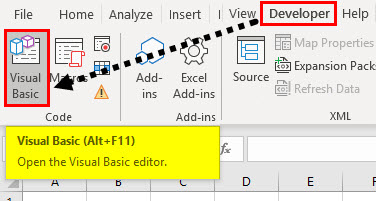
Step 1: Go to the Developer tab and click on Visual Basic to open VB Editor.
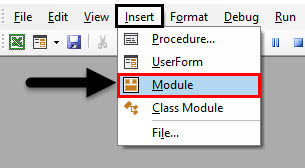
Step 2: Once the VB Editor is open, click on Insert Tab and then click on Modules to insert a new module.
Step 3: Use the declaration statement to use the sleep function. As I am using Windows 64-bit operating system, I will use the declaration statement for the same.
Code:
Public Declare PtrSafe Sub Sleep Lib "kernel32" (ByVal dwMilliseconds As LongPtr)

Step 4: Now declare the sub-function to start writing the code.
Code:
Public Declare PtrSafe Sub Sleep Lib "kernel32" (ByVal dwMilliseconds As LongPtr)

Sub Sample()

End Sub

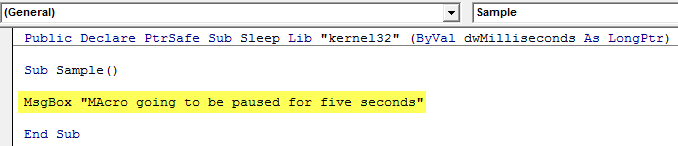
Step 5: Use the Mgsbox function to display the message that the macro will be paused for five seconds.
Code:
Public Declare PtrSafe Sub Sleep Lib "kernel32" (ByVal dwMilliseconds As LongPtr)

Sub Sample()

MsgBox "MAcro going to be paused for five seconds"

End Sub
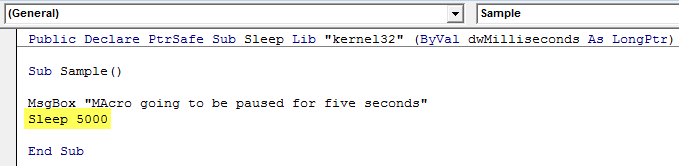
Step 6: Use the Sleep function to pause the macro for five seconds.
Code:
Public Declare PtrSafe Sub Sleep Lib "kernel32" (ByVal dwMilliseconds As LongPtr)

Sub Sample()

MsgBox "MAcro going to be paused for five seconds"
Sleep 5000

End Sub
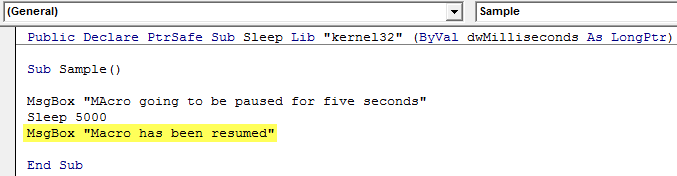
Step 7: Now, use the msgbox function to display the message that the macro has been resumed.
Code:
Public Declare PtrSafe Sub Sleep Lib "kernel32" (ByVal dwMilliseconds As LongPtr)

Sub Sample()

MsgBox "MAcro going to be paused for five seconds"
Sleep 5000
MsgBox "Macro has been resumed"

End Sub
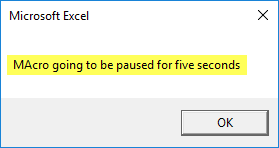
Step 8: Run the code from the run button provided or press F5 to see the result. We see the first message is displayed.
Step 9: Once we click on Ok and wait for five seconds, we see another message.
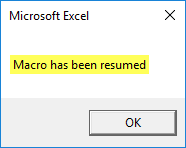
There was a pause for five seconds between both messages.
VBA Sleep Function – Example #2
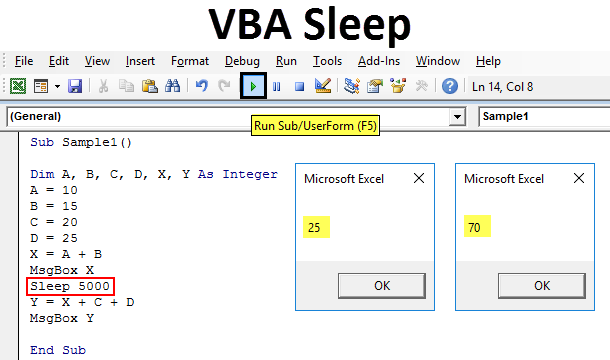
Now what we are going to do in another example is that I have four variables A, B, C, and D. First, I want to add the value of A and B and display it, and after 5 seconds, I want to display the value of the addition of A, B, C, and D.
Follow the below steps to use Sleep Function in Excel VBA:
Step 1: Go to the Developer tab and click on Visual Basic to open VB Editor.
Step 2: Once the VB Editor is open, click on Insert Tab and then click on Modules to insert a new module.
Step 3: Now, use the declaration statement to use the sleep function. As I am using Windows 64-bit operating system, I will use the declaration statement for the same.
Code:
Public Declare PtrSafe Sub Sleep Lib "kernel32" (ByVal dwMilliseconds As LongPtr)

Step 4: Now declare the sub-function to start writing the code.
Code:
Public Declare PtrSafe Sub Sleep Lib "kernel32" (ByVal dwMilliseconds As LongPtr)

Sub Sample1()

End Sub

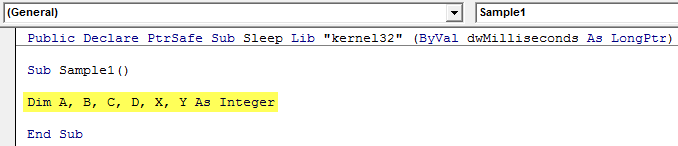
Step 5: Declare six variables A, B, C, D, X, and Y to store values.
Code:
Public Declare PtrSafe Sub Sleep Lib "kernel32" (ByVal dwMilliseconds As LongPtr)

Sub Sample1()

Dim A, B, C, D, X, Y As Integer

End Sub
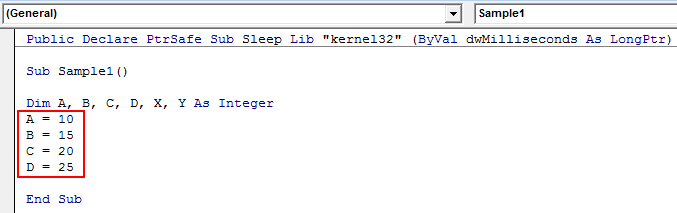
Step 6: Give Random Values to A, B, C, and D.
Code:
Public Declare PtrSafe Sub Sleep Lib "kernel32" (ByVal dwMilliseconds As LongPtr)

Sub Sample1()

Dim A, B, C, D, X, Y As Integer
A = 10
B = 15
C = 20
D = 25

End Sub
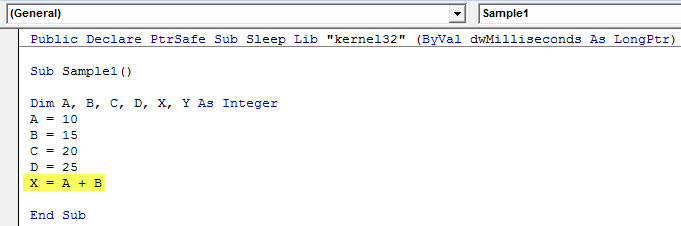
Step 7: Store the value of A + B in X.
Code:
Public Declare PtrSafe Sub Sleep Lib "kernel32" (ByVal dwMilliseconds As LongPtr)

Sub Sample1()

Dim A, B, C, D, X, Y As Integer
A = 10
B = 15
C = 20
D = 25
X = A + B

End Sub
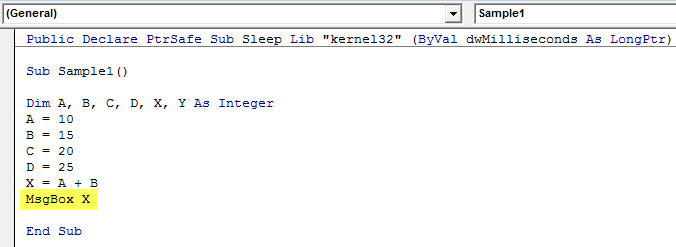
Step 8: Display the value of X.
Code:
Public Declare PtrSafe Sub Sleep Lib "kernel32" (ByVal dwMilliseconds As LongPtr)

Sub Sample1()

Dim A, B, C, D, X, Y As Integer
A = 10
B = 15
C = 20
D = 25
X = A + B
MsgBox X

End Sub
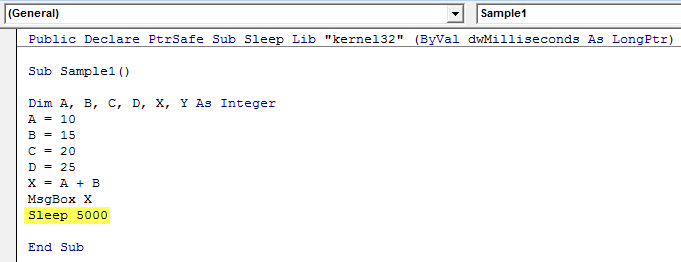
Step 9: Now, use the sleep function to pause for five seconds.
Code:
Public Declare PtrSafe Sub Sleep Lib "kernel32" (ByVal dwMilliseconds As LongPtr)

Sub Sample1()

Dim A, B, C, D, X, Y As Integer
A = 10
B = 15
C = 20
D = 25
X = A + B
MsgBox X
Sleep 5000

End Sub
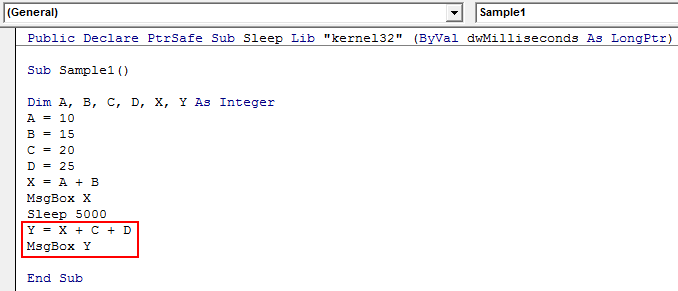
Step 10: Now, in variable Y, store the value of X +C + D and display it.
Code:
Public Declare PtrSafe Sub Sleep Lib "kernel32" (ByVal dwMilliseconds As LongPtr)

Sub Sample1()

Dim A, B, C, D, X, Y As Integer
A = 10
B = 15
C = 20
D = 25
X = A + B
MsgBox X
Sleep 5000
Y = X + C + D
MsgBox Y

End Sub
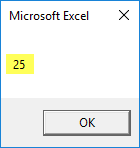
Step 11: Run the above code from the provided run button or by pressing the F5 key to see the result. We see the first message is displayed as.
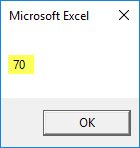
Step 12: Press OK and the macro waits for five seconds and displays the next result.
VBA Sleep Function – Example #3
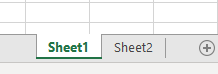
In this example, we want to rename two worksheets, sheet 1 and sheet 2, as Anand and Aran, respectively. But the time duration between both should be five seconds. We want the macro to pause after renaming sheet 1 and then rename sheet 2. Currently, both sheets are named as follows:
Follow the below steps to use Sleep Function in Excel VBA:
Step 1: Go to the Developer tab and click on Visual Basic to open VB Editor.
Step 2: Once the VB Editor is open, click on Insert Tab and then click on Modules to insert a new module.
Step 3: Now, use the declaration statement to use the sleep function. As I am using the Windows 64-bit operating system, I will use the declaration statement for the same.
Code:
Public Declare PtrSafe Sub Sleep Lib "kernel32" (ByVal dwMilliseconds As LongPtr)

Step 4: Now declare the sub-function to start writing the code.
Code:
Public Declare PtrSafe Sub Sleep Lib "kernel32" (ByVal dwMilliseconds As LongPtr)

Sub Sample2()

End Sub

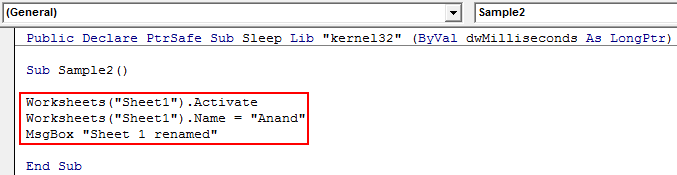
Step 5: Activate worksheet 1 and rename it by the following code:
Code:
Public Declare PtrSafe Sub Sleep Lib "kernel32" (ByVal dwMilliseconds As LongPtr)

Sub Sample2()

Worksheets("Sheet1").Activate
Worksheets("Sheet1").Name = "Anand"
MsgBox "Sheet 1 renamed"

End Sub
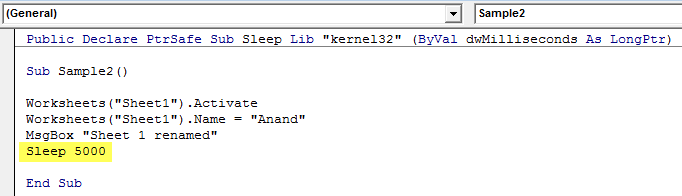
Step 6: Use the sleep function to use delay for five seconds.
Code:
Public Declare PtrSafe Sub Sleep Lib "kernel32" (ByVal dwMilliseconds As LongPtr)

Sub Sample2()

Worksheets("Sheet1").Activate
Worksheets("Sheet1").Name = "Anand"
MsgBox "Sheet 1 renamed"
Sleep 5000

End Sub
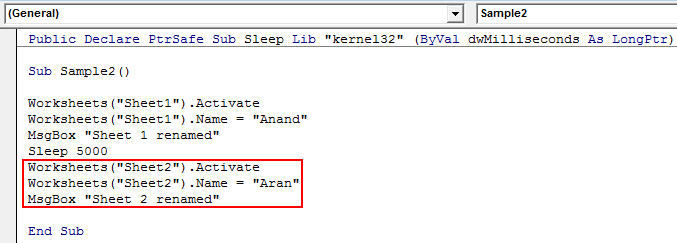
Step 7: Now rename sheet 2 with the following code.
Code:
Public Declare PtrSafe Sub Sleep Lib "kernel32" (ByVal dwMilliseconds As LongPtr)

Sub Sample2()

Worksheets("Sheet1").Activate
Worksheets("Sheet1").Name = "Anand"
MsgBox "Sheet 1 renamed"
Sleep 5000
Worksheets("Sheet2").Activate
Worksheets("Sheet2").Name = "Aran"
MsgBox "Sheet 2 renamed"

End Sub
Step 8: Now run the code and see the first message displayed.
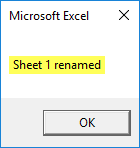
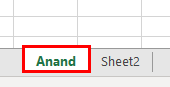
Also, we can check that sheet 1 is renamed.
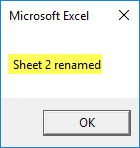
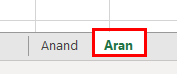
Step 9: Press ok and wait five seconds for the next message and second sheet to be renamed.
The second sheet is also renamed.
Things to Remember
- VBA Sleep is a window function, so to use it, we need to use declaration statements.
- There are different declaration statements for different types of operating systems.
- Simply using VBA Sleep freezes the macro for the time duration provided.
- The time parameter given to the VBA sleep function is in milliseconds.
Recommended Articles
This is a guide to VBA Sleep Function. Here we discuss using Excel VBA Sleep Function, practical examples, and a downloadable Excel template. You can also go through our other suggested articles –

