


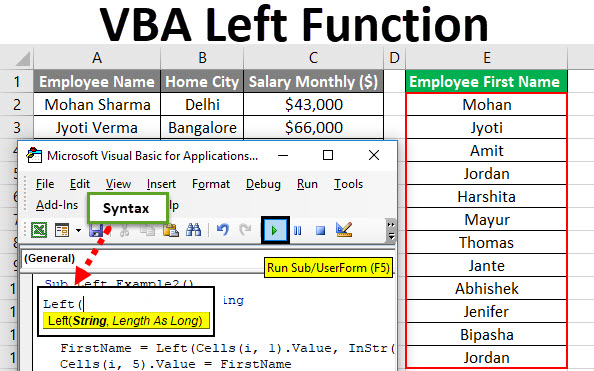
VBA Left Function
Left Function is used to extract N number of characters from a string from the left side. Left function is one of the VBA inbuilt functions that MS Excel provides. N is the number of characters which a user wants to extract from the string.
In other words, we use the Left VBA function to extract the leftmost substring from a string given by the user in excel. It can be used as a VBA function as well as a worksheet function in the excel. It can be used as the as a part of the formula in the cell.
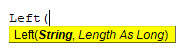
Syntax of Left Function in Excel VBA
VBA Left function has the following syntax:
How to Use Excel VBA Left Function?
We will learn how to use a VBA Left function with few examples in Excel.
VBA Left Function – Example #1
Let’s assume, there is a text_1 string which value is ‘Microsoft Excel’. If a user wants to display only the first word of the string. So, how a user will be able to display the first word only.
Here the Left function can solve his problem, So follow the below steps to use Left function in Excel VBA.
Step 1: Open the MS Excel, go to Example #1 Sheet where the user wants to display the first word from the string ‘Microsoft Excel’.
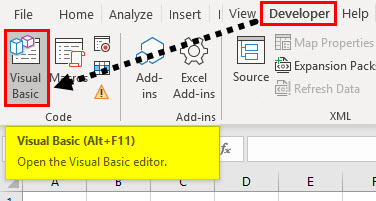
Step 2: Go to the Developer tab >> Click on the Visual Basic.
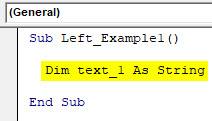
Step 3: Create one Left_Example1() micro and inside declare a string as the text_1.
Code:
Sub Left_Example1()

  Dim text_1 As String

End Sub
Step 4: Assign text_1 the result of the left function output.
Code:
Sub Left_Example1()

  Dim text_1 As String

  text_1 = Left("Microsoft Excel", 9)

End Sub
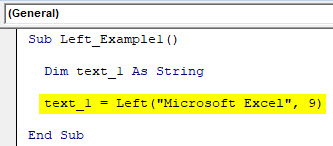
Step 5: For display the result a user needs to add MsgBox.
Code:
Sub Left_Example1()

  Dim text_1 As String

  text_1 = Left("Microsoft Excel", 9)

  MsgBox ("First string is the: " & text_1)

End Sub
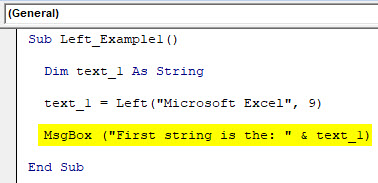
Step 6: Click on the F8 button to run step by step or just click on the F5 button.
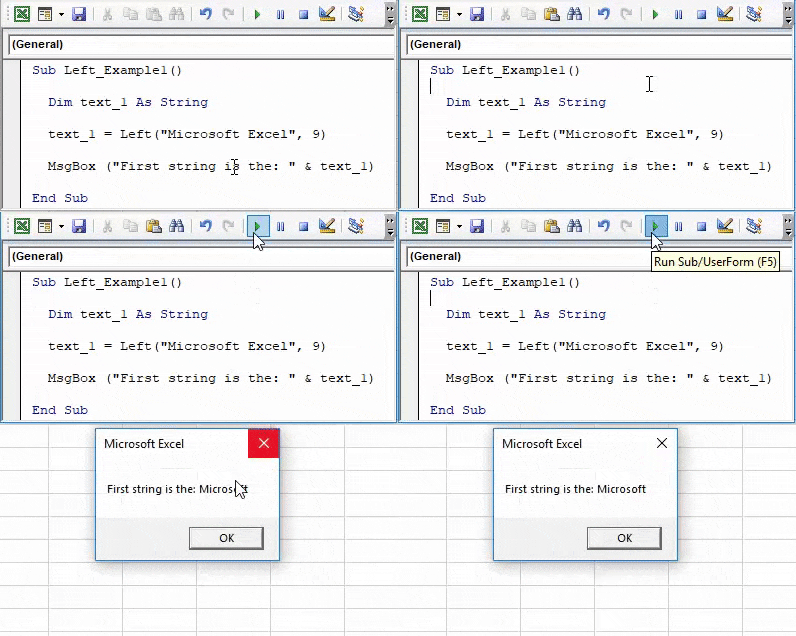
Summary of Example #1:
As the user wants to display the first word from the string by using the left function we have achieved the output.
VBA Left Function – Example #2
Let’s find out how to use the Left Function in MS Excel for getting the first name of the employee from the employee table.
Let’s assume, there is an employee table in which some strings are available like ‘Employee Name’, ‘Home City’ and a monthly salary of each employee. If a user wants to display only the first Name of each employee of his office. So, how a user will be able to display the first name only.
Here the Left function can solve this problem, So follow the below steps to use Left function in Excel VBA.
Step 1: Open MS Excel, go to Example #2 Sheet where the user wants to display the first Name from the Employee data table.
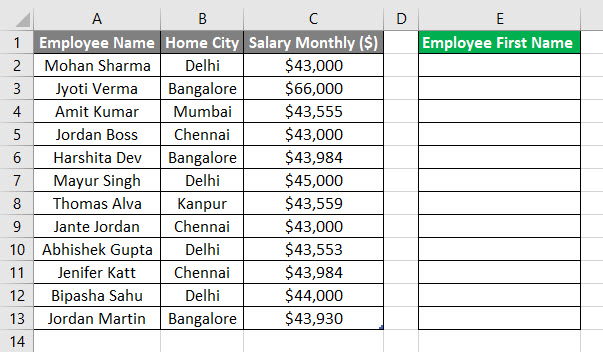
Step 2: Go to the developer tab >> Click on the Visual Basic.
Step 3: Create one Left_Example2() micro and inside declare a string as the FirstName and ‘i’ as an integer for a loop.
Code:
Sub Left_Example2()

  Dim FirstName As String
  Dim i As Integer

End Sub
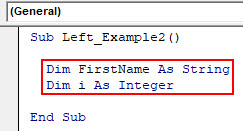
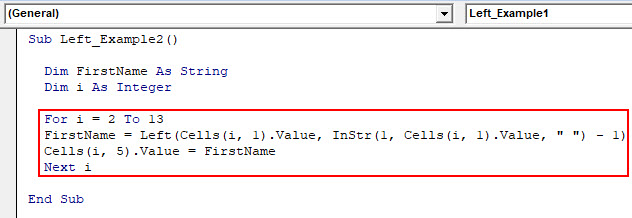
Step 4: Start loop and assign FirstName the result of the left function output.
Code:
Sub Left_Example2()

  Dim FirstName As String
  Dim i As Integer

  For i = 2 To 13
  FirstName = Left(Cells(i, 1).Value, InStr(1, Cells(i, 1).Value, " ") - 1)
  Cells(i, 5).Value = FirstName
  Next i

End Sub
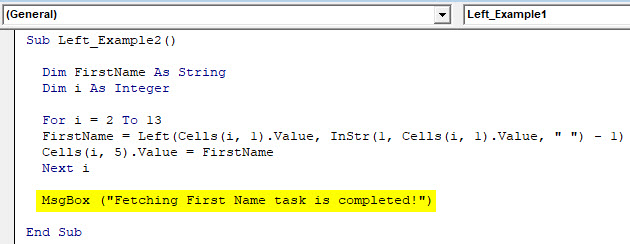
Step 5: For display, the completion of a task just add a MsgBox.
Code:
Sub Left_Example2()

  Dim FirstName As String
  Dim i As Integer

  For i = 2 To 13
  FirstName = Left(Cells(i, 1).Value, InStr(1, Cells(i, 1).Value, " ") - 1)
  Cells(i, 5).Value = FirstName
  Next i

  MsgBox ("Fetching First Name task is completed!")

End Sub
Step 6: Click on the F8 button to run step by step or just click on the F5 button.
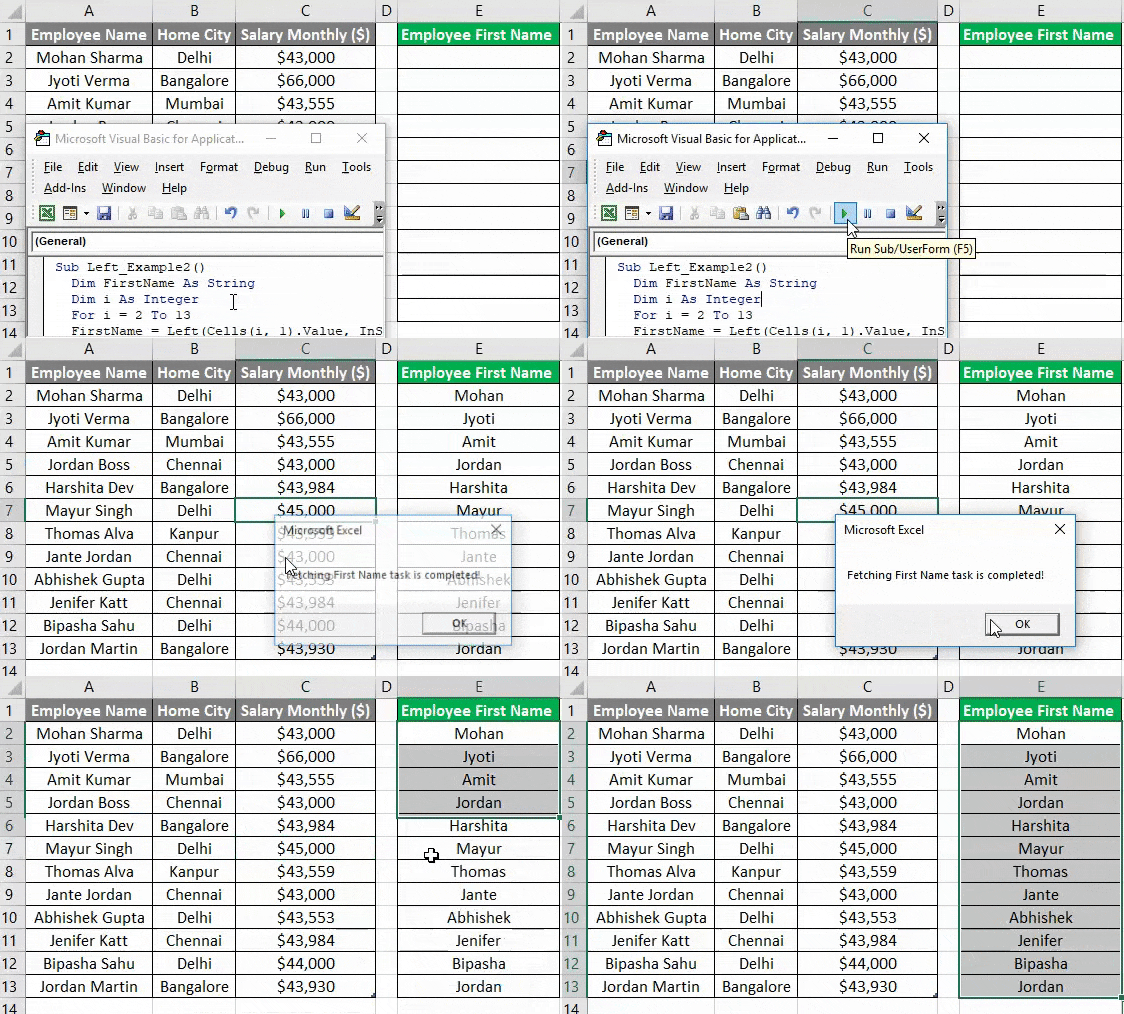
Summary of Example #2:
As the user wants to display the first name from the employee table by using the left function we have achieved the output.
VBA Left Function – Example #3
Let’s see how to use the Left Function in the MS Excel for getting salary in thousands of employees from the employee table.
Let’s assume, there is an employee table in which some strings are available like ‘Employee Name’, ‘Home City’ and a monthly salary of each employee. If a user wants to display only the salary in thousands of each employee of his office. So, how a user will be able to display the first name only.
Here the Left function can solve this problem, So follow the below steps to use Left function in Excel VBA.
Step 1: Open MS Excel, go to Example #3 Sheet where the user wants to display the salary in thousands from the Employee data table.
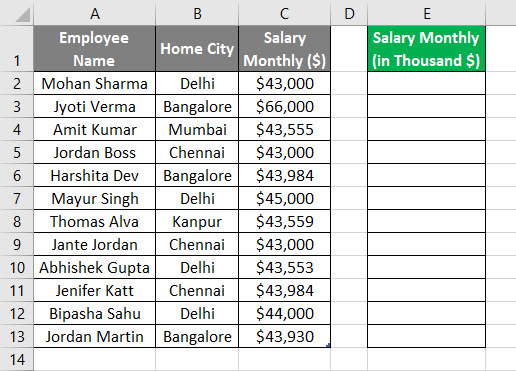
Step 2: Go to the developer tab >> Click on the Visual Basic.
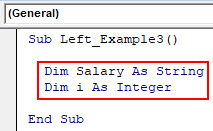
Step 3: Create one Left_Example3() micro and inside declare a string as the Salary and ‘i’ as an integer for loop
Code:
Sub Left_Example3()

  Dim Salary As String
  Dim i As Integer

End Sub
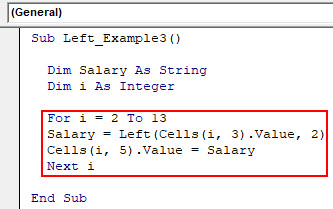
Step 4: Start loop and assign FirstName the result of the left function output.
Code:
Sub Left_Example3()
  Dim Salary As String
  Dim i As Integer

  For i = 2 To 13
  Salary = Left(Cells(i, 3).Value, 2)
  Cells(i, 5).Value = Salary
  Next i

End Sub
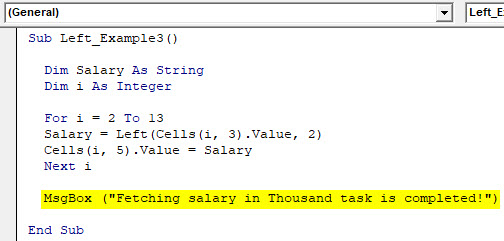
Step 5: For display, the completion of a task just adds a MsgBox.
Code:
Sub Left_Example3()

  Dim Salary As String
  Dim i As Integer

  For i = 2 To 13
  Salary = Left(Cells(i, 3).Value, 2)
  Cells(i, 5).Value = Salary
  Next i

  MsgBox ("Fetching salary in Thousand task is completed!")

End Sub
Step 6: Click on the F8 button to run step by step or just click on the F5 button.
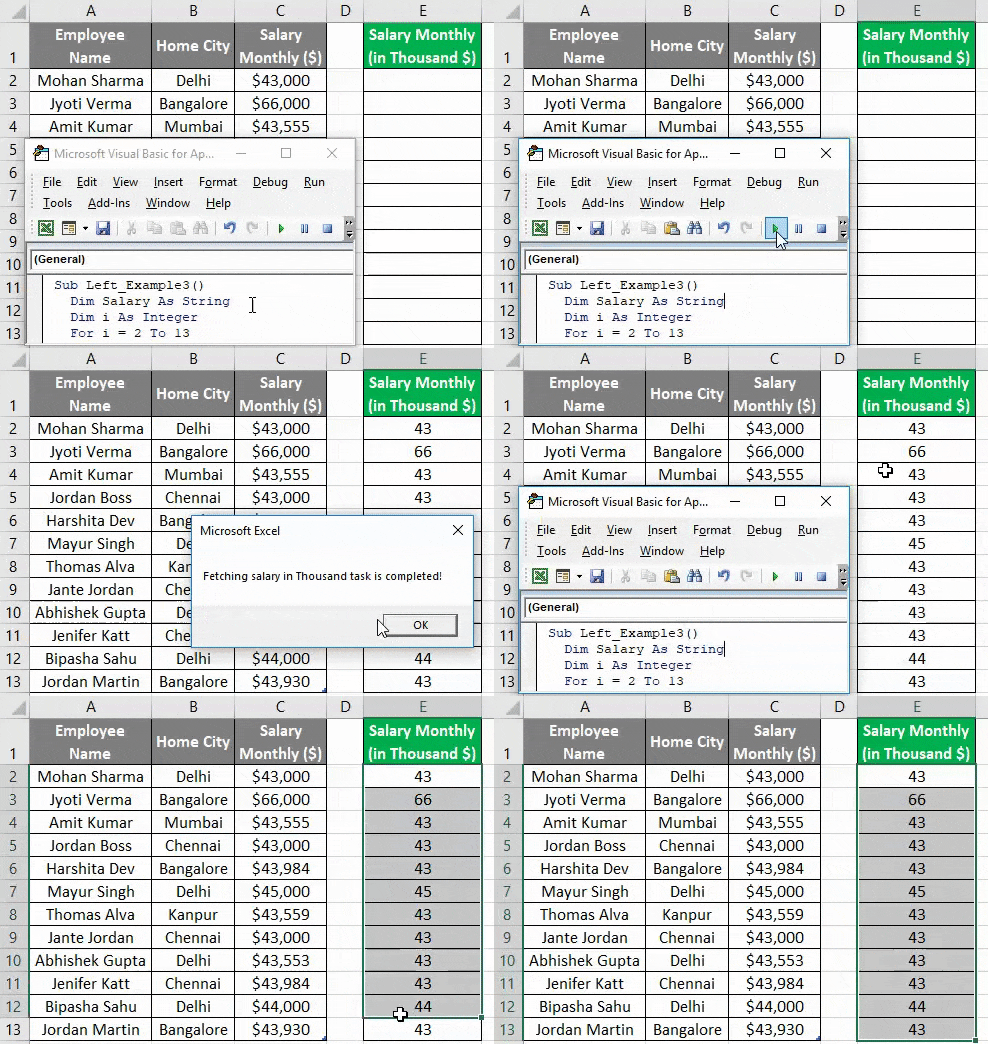
Summary of Example #3:
As the user wants to display the salary in Thousands from the employee table by using the left function we have achieved the output.
Things to Remember
- The Left function always returns string/text as the output in excel VBA.
- If the Text value is Null, then it will return Null as the output.
- The Left function can extract characters from the left side only.
- We can use InStr function to find the space in VBA, by this a user can easily differentiate the word in the sentence.
- Whenever a user needs a substring from the left side in the provided string they need to use the Left function to get it.
Recommended Articles
This has been a guide to VBA Left Function. Here we discussed on how to use Excel VBA Left Function along with practical examples and downloadable excel template. You can also go through our other suggested articles –

