

Updated June 9, 2023
VBA Copy Paste
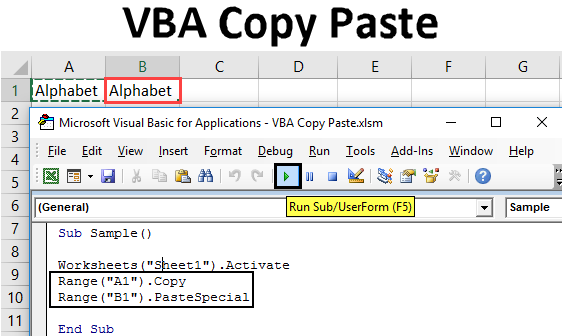
Similar to the worksheet function in Excel, we can copy paste data or a set of values in VBA. In normal data, we use either CTRL + C to copy a selection of data and then use CTRL + V to paste the selected data into the target cell. But the same in VBA is done by certain codes, which we will learn in this article.
How do we use copy and paste in Excel VBA? To do this, first, we need to activate the target worksheet or workbook from where we want to copy any range of data, and a specific code copies that selection; when that selection is successfully copied, we can paste the data into the target cell range.
The syntax to copy the data in VBA is as follows:
Range ( “ Original Cell “).Copy
Now the syntax to paste the data in other worksheets or any other cell range is as follows:
Range ( “ Destination Cell “ ).Paste
We use the Dot (.) operator to copy and paste methods in VBA.
We can copy an entire column and paste it to another column, and similarly, we can copy an entire row and paste it to another row. We will learn all these things in this article.
How to Use Excel VBA Copy Paste?
We will learn how to use VBA Copy Paste with a few examples in Excel.
VBA Copy Paste – Example #1
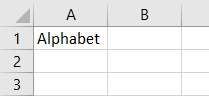
For demonstration purposes, I have a random value in cell A1 which I want to copy and paste to cell B1 Using VBA Code. See below what the data is in cell A1 and cell B1 is blank.
Follow the below steps to use Excel VBA Copy Paste:
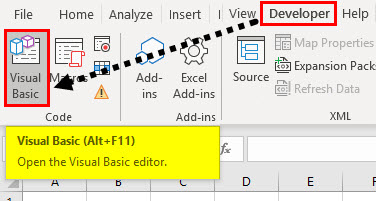
Step 1: Go to the developer’s tab and click on Visual Basic to open VB Editor.
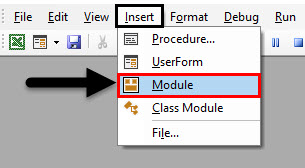
Step 2: Once the VB Editor opens up, click on Insert and then click on Insert module to insert a code window.
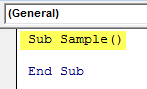
Step 3: Declare a sub-function to start writing the code.
Code:
Sub Sample()

End Sub
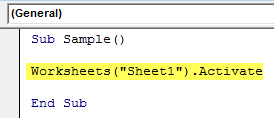
Step 4: Activate the worksheet first to use the properties of the worksheet by the following code.
Code:
Sub Sample()

Worksheets("Sheet1").Activate

End Sub
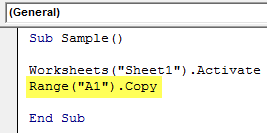
Step 5: Copy the data in cell A1 by the following code.
Code:
Sub Sample()

Worksheets("Sheet1").Activate
Range("A1").Copy

End Sub
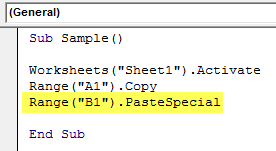
Step 6: Now paste the copied data into the target cell, which is cell B1 by the following code.
Code:
Sub Sample()

Worksheets("Sheet1").Activate
Range("A1").Copy
Range("B1").PasteSpecial

End Sub
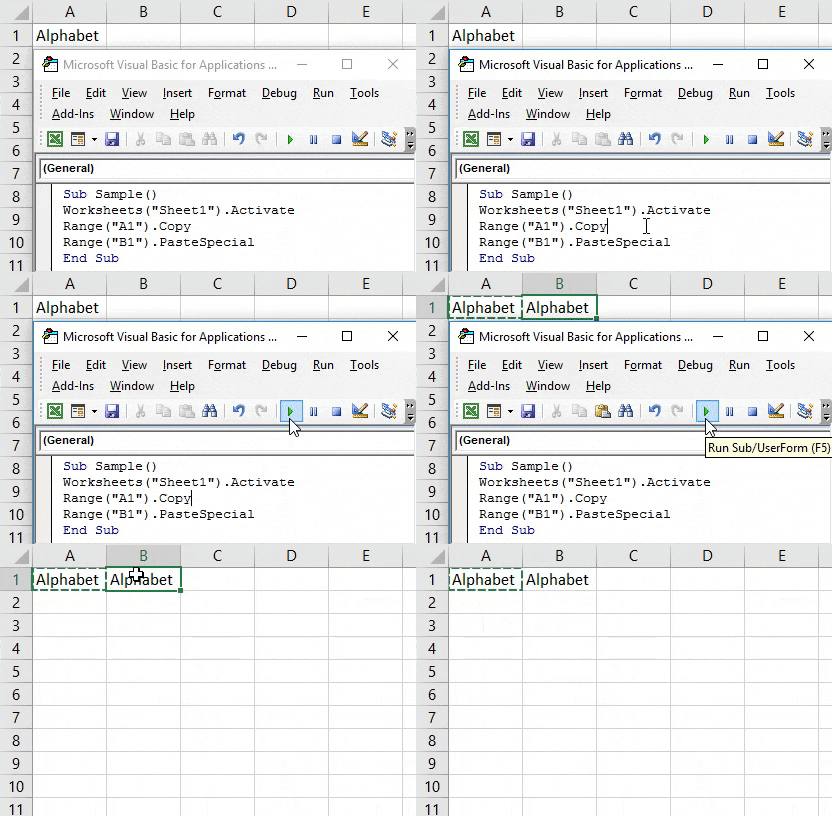
Step 7: Run the above code from the run button provided and see the result in cell B1.
VBA Copy Paste – Example #2
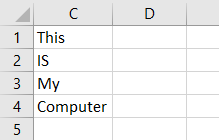
I have data in column C, and I want to copy the entire data or values and paste it into column D using VBA code. Look below at the data in Column C and that Column D is empty.
Follow the below steps to use Excel VBA Copy Paste:
Step 1: Go to the developer’s tab and click on Visual Basic to open VB Editor.
Step 2: Click on the module inserted to open up the code window,
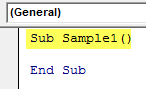
Step 3: Declare a sub-function to start writing the code.
Code:
Sub Sample1()

End Sub
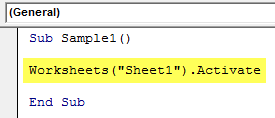
Step 4: Activate the worksheet first with the following code.
Code:
Sub Sample1()

Worksheets("Sheet1").Activate

End Sub
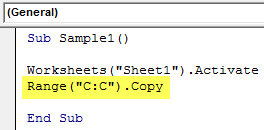
Step 5: Copy the data in column C by the following code.
Code:
Sub Sample1()

Worksheets("Sheet1").Activate
Range("C:C").Copy

End Sub
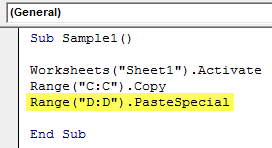
Step 6: To paste the data in column D, use the following code.
Code:
Sub Sample1()

Worksheets("Sheet1").Activate
Range("C:C").Copy
Range("D:D").PasteSpecial

End Sub
Step 7: Run the following code from the run button provided or press F5.
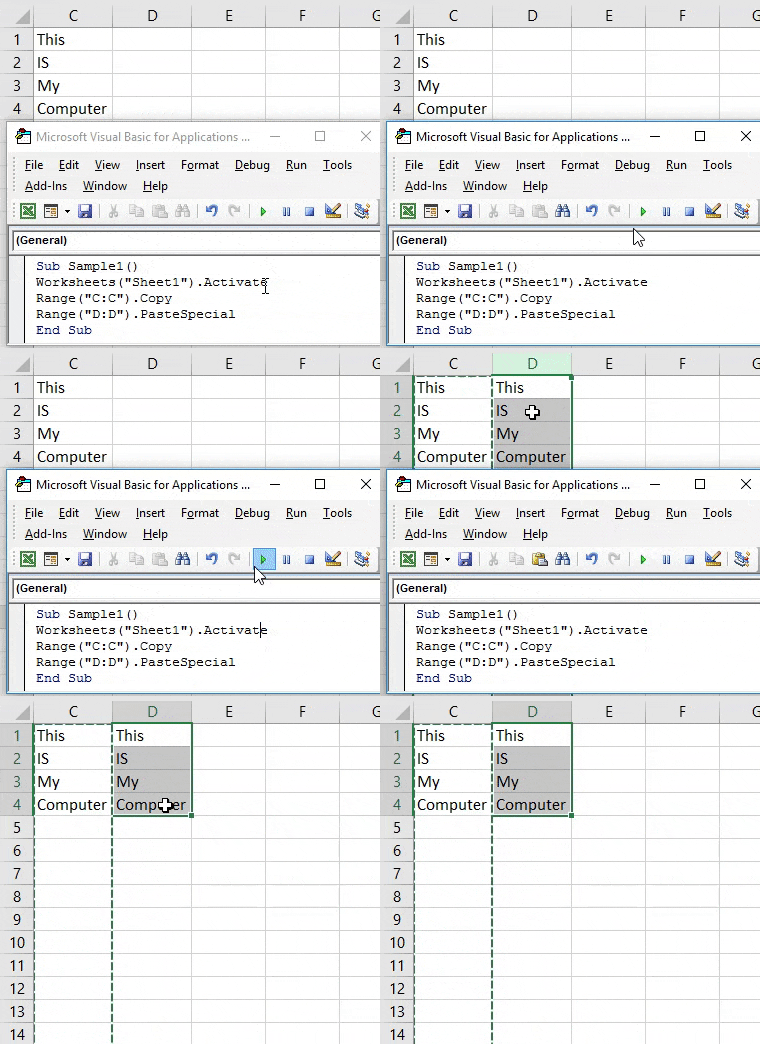
Run the code to see the following result.
VBA Copy Paste – Example #3
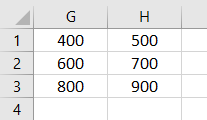
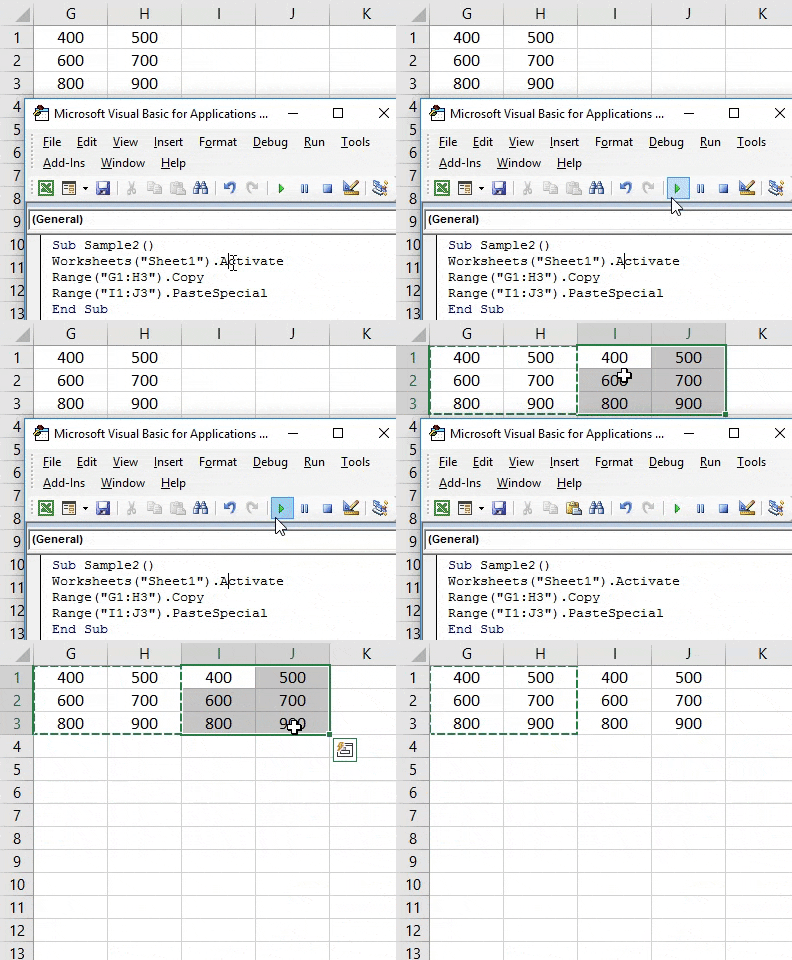
Now for this example, I have a whole bunch of range of Data in cell range G1:H3, and I want to copy the data in the cell range I1:J3. Look below at the data I have in the cell range G1:H3; the cell range I1:J3 is blank.
Follow the below steps to use Excel VBA Copy Paste:
Step 1: Go to the developer’s tab and click on Visual Basic to open VB Editor.
Step 2: Click on the module inserted to open up the code window,
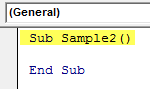
Step 3: Declare a sub-function to start writing the code.
Code:
Sub Sample2()

End Sub
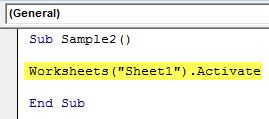
Step 4: Activate the worksheet first to use its properties by the following code.
Code:
Sub Sample2()

Worksheets("Sheet1").Activate

End Sub
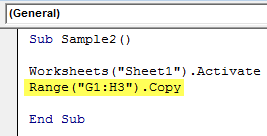
Step 5: Copy the data in the target cell range with the following code.
Code:
Sub Sample2()

Worksheets("Sheet1").Activate
Range("G1:H3").Copy

End Sub
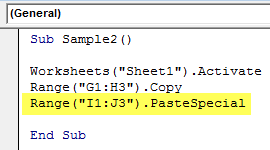
Step 6: To paste the data in the destination cell, use the following code.
Code:
Sub Sample2()

Worksheets("Sheet1").Activate
Range("G1:H3").Copy
Range("I1:J3").PasteSpecial

End Sub
Step 7: Run the above code from the run button provided or press F5 to see the following result.
VBA Copy Paste – Example #4
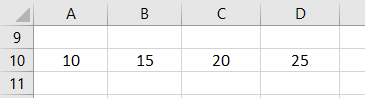
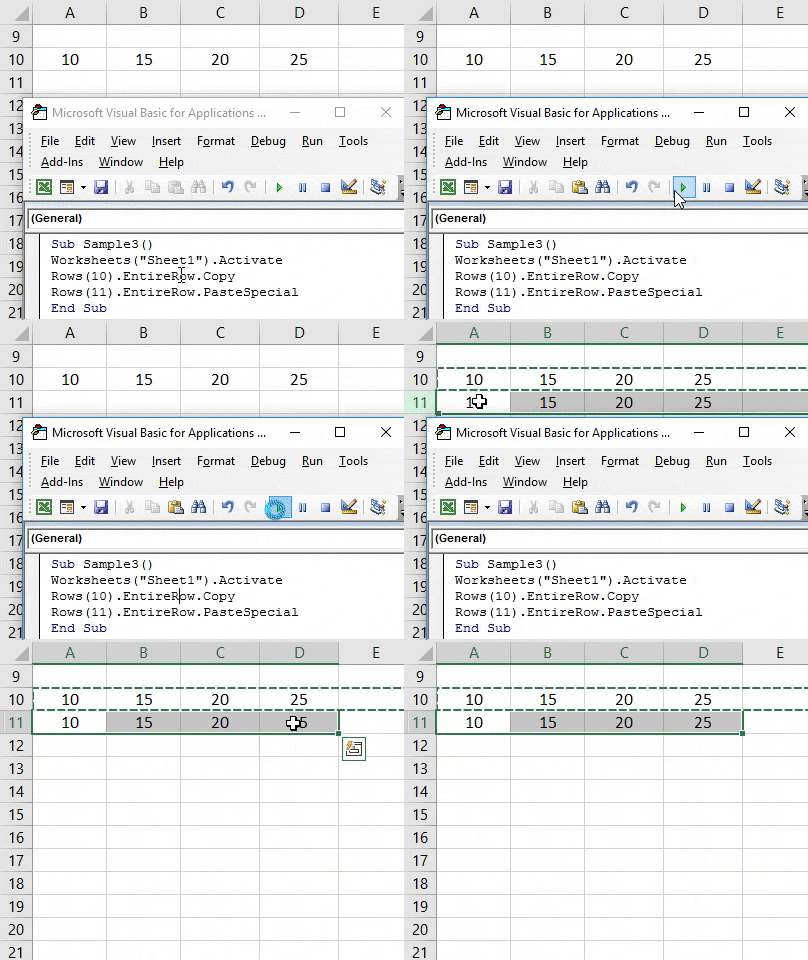
For this example, I have data in row 10, and I want to paste the data in row 11. Look below to see the data in row 10 and row 11 is vacant.
Follow the below steps to use Excel VBA Copy Paste:
Step 1: Go to the developer’s tab and click on Visual Basic to open VB Editor.
Step 2: Click on the module inserted to open up the code window,
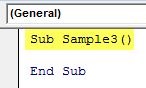
Step 3: Declare a sub-function to start writing the code.
Code:
Sub Sample3()

End Sub
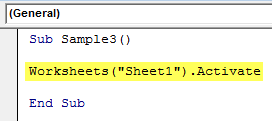
Step 4: Activate the worksheet to use the properties of the worksheet.
Code:
Sub Sample3()

Worksheets("Sheet1").Activate

End Sub
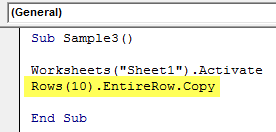
Step 5: Copy row 10 with the following code.
Code:
Sub Sample3()

Worksheets("Sheet1").Activate
Rows(10).EntireRow.Copy

End Sub
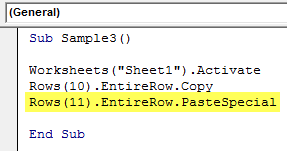
Step 6: Paste the data of row 10 in row 11 with the following code.
Code:
Sub Sample3()

Worksheets("Sheet1").Activate
Rows(10).EntireRow.Copy
Rows(11).EntireRow.PasteSpecial

End Sub
Step 7: Run the above code by pressing F5 to see the following result.
Things to Remember
- To use data from any worksheet to copy it, we need to activate the worksheet first.
- Similarly, when we need to paste the data into any other worksheet in VBA, we need to activate the destination worksheet first.
- If we copy the whole column or row and paste the data into any other column, data anywhere in the row or column in the target cells gets copied and pasted to the destination cells. This may cause to have specific unwanted data.
- The best way to copy the data is by copying a specific range and pasting the data into the target cells.
Recommended Articles
This has been a guide to VBA Copy Paste. Here we discussed how to use Excel VBA Copy paste, some practical examples, and a downloadable Excel template. You can also go through our other suggested articles –

