

Updated October 7, 2026
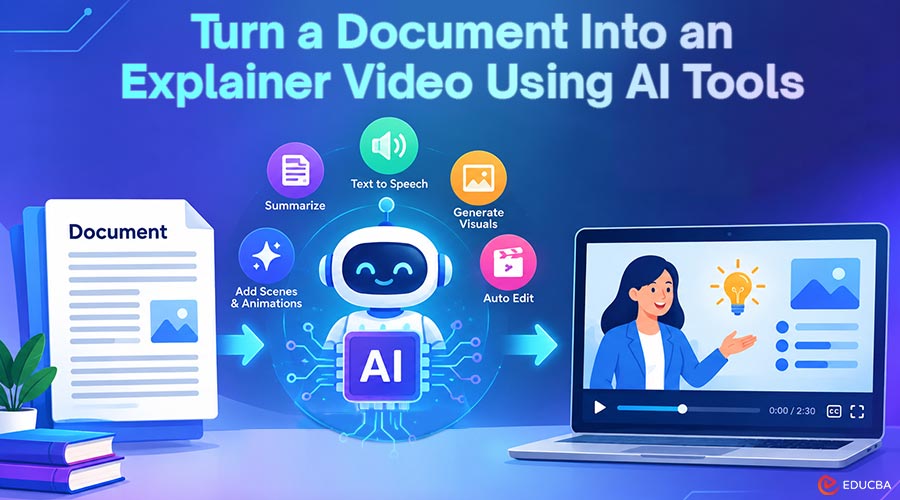
Turning a detailed document into an explainer video traditionally requires several steps. Someone must read the content, write a script, create a storyboard, find visuals, record narration, and edit everything together. AI video tools can now handle much of this process automatically. Several AI video platforms can convert documents or written content into videos, but they do not all work in the same way. Some focus on AI-generated footage, some use digital presenters, and others create presentation-style videos. This guide explains how to turn a document into an explainer video with AI and compares six useful tools: NotebookLM Video Overviews, Canva, Pictory, Synthesia, Lumen5, and openCanviz.
What is a Document-to-Video AI Tool?
A document-to-video AI tool takes written content such as a PDF, presentation, article, report, or script and converts it into a video.
Depending on the platform, the AI may:
- Summarize the document
- Create a video script
- Divide information into scenes
- Select visuals
- Generate narration
- Add captions
- Create animations
- Add an AI presenter
- Produce a complete video for editing and export
For example, Pictory can process PDFs and automatically create scenes, voiceover, and a storyboard. Lumen5 can import PDFs, PowerPoint files, text, and URLs, then turn the content into a video. Synthesia can import a document or presentation and create a video around the resulting script.
The important difference is how the information is presented. A training document may work better as a narrated whiteboard explanation, while a corporate announcement may benefit from an AI presenter. A blog post may be more suitable for a stock-footage video.
Best AI Tools to Turn a Document Into an Explainer Video
The following tools are arranged using available review ratings where comparable ratings are available. Ratings can change as review platforms receive new submissions.
1. NotebookLM Video Overviews
Best for: Turning research documents and source material into educational video overviews.
NotebookLM is particularly useful when the document itself is the main source of information. Its Video Overviews feature uses uploaded sources to create a video explanation rather than requiring users to build a video manually.
Google has expanded NotebookLM’s Video Overviews with Cinematic Video Overviews, which can generate more immersive visuals and animations based on the supplied sources. The biggest advantage is its source-focused approach. It works well for research papers, reports, study materials, notes, and collections of reference documents.
Pros:
- Strong document and source understanding
- Useful for learning and research
- Minimal video-production work
- Can turn complex source material into an accessible overview
- High user rating
Cons:
- Less suitable when detailed scene-by-scene editing is required
- Branding and creative control are more limited than in dedicated video editors
- The generated format may not match a company’s preferred visual identity
NotebookLM is a strong choice when the priority is understanding and explaining source material, rather than creating a heavily branded marketing video.
2. Canva
Best for: Users who want AI video creation combined with extensive manual design control.
Canva is better known as a visual design platform, but its AI video capabilities make it useful for creating explainers from scripts and written material.
Its AI tools can generate video clips from text prompts, while the editor provides templates, graphics, animations, stock media, audio, and other design elements. Canva also supports AI avatars and script-to-video workflows. This makes Canva particularly useful when the document needs to become a visually branded presentation or educational video.
Pros:
- Easy-to-use visual editor
- Large template and media library
- Strong branding capabilities
- AI video and avatar features
- Extensive manual editing options
Cons:
- Requires more hands-on design work than fully automated document-to-video tools
- AI-generated clips work better for individual scenes than long-form explanations.
- Users may need to restructure a document into a video script first
Canva is a good option when design flexibility and brand control matter as much as automation.
3. Pictory
Best for: Converting documents, articles, and written content into conventional narrated videos.
Pictory has one of the more direct document-to-video workflows in this comparison. Its current Doc to Video feature can process a PDF, summarize it, build a storyboard, add visuals and voiceover, and open the result in an editor for refinement.
The platform also offers tools to change scenes, edit narration, replace visuals, add captions, apply brand styles, and adjust the final video.
Pros:
- Direct document-to-video workflow
- Automatic storyboard creation
- AI voiceovers and captions
- Editable scenes
- Branding options
- Multiple output formats
Cons:
- Current dedicated Doc-to-Video workflow has PDF limitations
- Long documents may require additional editing
- The output is more conventional than a hand-drawn explainer
Pictory is a practical choice when the goal is to turn existing written content into a polished video without building every scene manually.
4. Synthesia
Best for: Business training, onboarding, internal communication, and presenter-led explainers.
Synthesia takes a different approach from tools that rely primarily on stock footage or animations. It allows users to create videos with AI presenters who deliver the supplied script.
The platform can start with a prompt, script, file, PowerPoint presentation, template, or blank canvas. Its document workflow can turn a file into a script and video. This approach works particularly well when the document contains instructions, policies, training material, or information that would benefit from a presenter.
Pros:
- AI presenters and voices
- Suitable for corporate communication
- Supports documents and presentations
- Useful for training and onboarding
- Large range of video creation options
Cons:
- Presenter-based videos may feel less natural for highly visual concepts
- Not ideal when the goal is a hand-drawn or diagram-led explanation
- Avatar videos may not suit every brand or audience
Synthesia is most useful when you want a virtual presenter explaining the information directly to viewers.
5. Lumen5
Best for: Repurposing written content into marketing and social videos.
Lumen5 is designed around converting written content into visual videos. Users can upload a PDF, paste text, import a URL, or provide an outline. Its AI script composer then helps summarize and structure the material.
This makes it particularly useful for organizations that already publish articles, reports, whitepapers, or other written content and want to reuse that material as video. The platform focuses heavily on combining text with media, captions, and optional voiceover.
Pros:
- Easy content repurposing
- Supports PDF uploads
- AI-assisted script creation
- Useful templates and media
- Good for social and marketing content
Cons:
- Less focused on detailed educational explanations
- Visual storytelling can require manual adjustments
- Not designed specifically for whiteboard-style explainers
Lumen5 works well when you repurpose a document into short, visually engaging marketing or social content.
6. openCanviz
Best for: Turning a document into a drawn, narrated explanation.
openCanviz fills a different role from the other tools in this list. Instead of focusing on AI-generated footage or an AI presenter, it takes the document and turns its ideas into a drawn, narrated explainer. Users can paste a document, link, or short explanation, after which openCanviz creates a scene-by-scene visual explanation. Its formats include Whiteboard, Drawn, Painted, Poster, and Cartoon skit.
For example, a technical document could become a sequence of drawings showing how a system works. A lesson plan could become a visual explanation in which each idea appears as the narration explains it. openCanviz also lets you edit individual scenes rather than treating the generated video as a fixed output.
Pros:
- Designed around document-first explainers
- Creates drawn and whiteboard-style visuals
- Narration accompanies the visual explanation
- Useful for educational and technical subjects
- Allows scene-level refinement
- Different visual styles are available
Cons:
- Not the best choice for cinematic footage
- Not focused on AI avatar presenters
- The drawn style may not suit every marketing campaign
openCanviz is designed to explain an idea visually, rather than simply overlaying a document on stock footage or placing an avatar in front of it.
Comparison: Which Tool Should You Choose?
Choosing the right platform depends on what the final explainer needs to accomplish.
| Requirement | Best Option |
| Explain research documents | NotebookLM |
| Create a branded visual video | Canva |
| Convert PDFs into narrated videos | Pictory |
| Use an AI presenter | Synthesia |
| Repurpose articles for social media | Lumen5 |
| Create a drawn or whiteboard explanation | openCanviz |
| Make training and onboarding videos | Synthesia or Pictory |
| Explain technical concepts visually | openCanviz |
| Create highly customizable designs | Canva |
No single document-to-video tool fits every situation. The right choice depends on whether the document needs to become a research overview, marketing video, training presentation, avatar-led lesson, or visual explanation.
Tips for Getting Better Results
The quality of the source document can significantly affect the resulting video. A well-structured document gives the AI clearer information to work with.
- Keep the Source Document Focused: AI tools work better when the source has a clear purpose. Remove duplicate information, unrelated sections, and outdated content before uploading it.
- Write Clear Headings: Descriptive headings make it easier for AI to understand how the document is organized. They can also provide a natural structure for scenes.
- Highlight Important Information: If certain statistics, examples, definitions, or instructions must appear in the video, make them clear in the original document or review the generated script carefully.
- Avoid Treating the First Draft as Final: AI can create the initial video quickly, but human review remains important. Check the narration, visuals, pronunciation, pacing, and factual accuracy before publishing.
- Match the Tool to the Subject: A software tutorial may benefit from a drawn explanation. A company policy may work better with an AI presenter. A research report may be better suited to NotebookLM.
The visual format should support the subject, not be chosen simply because it is available.
Final Thoughts
Learning how to turn a document into an explainer video with AI no longer requires advanced video skills. AI tools can create scripts, scenes, narration, and visuals within minutes. NotebookLM suits research, Canva offers design flexibility, Pictory supports document-to-video creation, Synthesia focuses on AI presenters, and Lumen5 helps repurpose content. For a drawn, narrated explanation, openCanviz offers a different approach. The best choice depends on whether you need footage, an avatar, a designed video, or a visual explanation of a concept.
Frequently Asked Questions (FAQs)
Q1. Can AI turn a PDF into an explainer video?
Answer: Yes. Several AI video platforms can use PDFs as source material. Pictory, Lumen5, NotebookLM, and other tools can process written documents and use the information to create different types of video content. Pictory’s current dedicated Doc to Video workflow specifically supports PDF uploads.
Q2. Which AI tool is best for educational documents?
Answer: NotebookLM is useful for source-based learning and research material, while openCanviz is a strong choice when the goal is to explain concepts visually through drawings. The better option depends on whether source synthesis or visual explanation is the main requirement.
Q3. Can a document become an AI avatar video?
Answer: Yes. Platforms such as Synthesia can take an uploaded file and create a video with an AI presenter. This format is particularly useful for training, onboarding, and corporate communication.
Q4. Is a whiteboard explainer different from a regular AI video?
Answer: Yes. A whiteboard explainer visually builds an explanation as the narration progresses. Instead of relying mainly on generated footage or an avatar, the video uses drawings, diagrams, icons, and other visual elements to illustrate the subject.
Q5. Does every AI-generated explainer need manual editing?
Answer: Not necessarily, but reviewing the output is recommended. AI can generate the initial script, scenes, narration, and visuals, but manual adjustments can improve accuracy, pacing, branding, and clarity.
Recommended Articles
We hope this guide on how to turn a document into an explainer video helps you create engaging visual content. Check out these recommended articles for more useful tips and strategies.