


Updated August 23, 2023
MAX in Excel
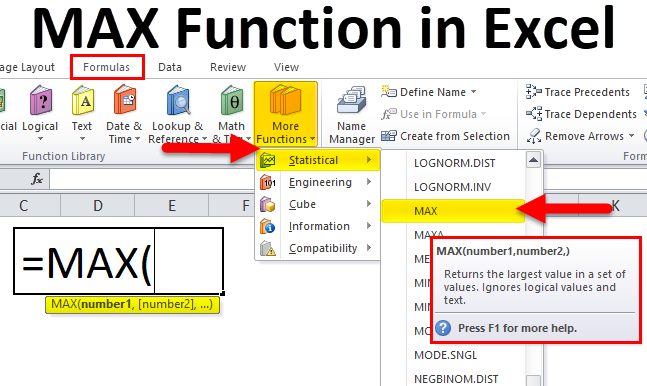
The max function in Excel is the simplest form of a mathematical function, which just returns the maximum values out of the selected values or array. We can select values one by one, or in one go, we can select a complete range of numbers if available in a sequence. It also neglects the blank cells, logical values, and text if any of these comes in a selected range.
MAX Formula in Excel:
Below is the MAX Formula in Excel:
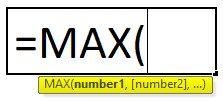
The MAX Formula in Excel has the parameter below :
- number1, [number2]: The number or cell reference or range arguments can be one or more numeric values from which you want to find the maximum value in Excel.
number1 is a compulsory parameter or argument, whereas the remaining subsequent numbers are optional arguments. From Excel 2007 & later versions, it can take up to 255 arguments. The Formula for the ‘MAX’ function is exactly similar or the same as that for the ‘MIN’ function. We can mix literal values and cell references to find the maximum value.
e.g. =MAX(D8:D19,100); here literal value in the function is 100.
How to Use MAX Function in Excel?
MAX Function in Excel is very simple and easy to use. Let us understand the working of the MAX Function in Excel by some MAX Formula in Excel examples.
MAX Function can be used as a worksheet and VBA functions.
Example #1
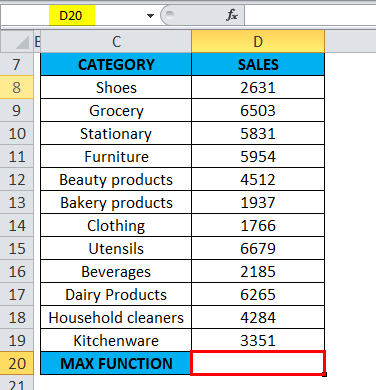
The below-mentioned table contains a category of items in column C (C8 to C19) & sale value in column D (D8 to D19). I need to find out which category has the maximum sales in the supermarket. MAX Function in Excel is used on the range of values representing sales by category to extract the highest value.
Let’s apply Max Function in cell “D20”. Select the cell “D20”, where Max Function needs to be applied.
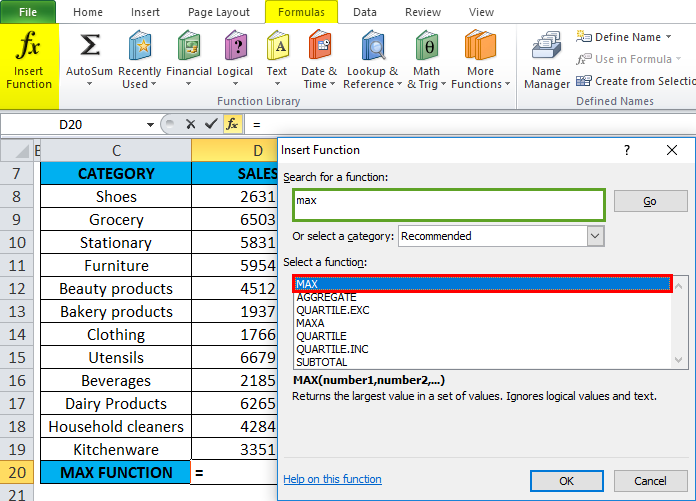
Click the insert function button (fx) under the formula toolbar; a dialog box will appear, type the keyword “MAX” in the search for a function box; MAX Function will appear in select a function box. Double click on MAX Function.
A dialog box appears where arguments for MAX Function need to be filled or entered i.e. =MAX(number1, [number2], … )
=MAX(D8: D19) Here, the sales data is in the range (D8: D19). To enter the Number 1 argument, click inside cell D8 to see the cell selected, then Select the cells till D19. So that column range will get selected, i.e. D8: D19. Click ok after entering the number 1 argument.
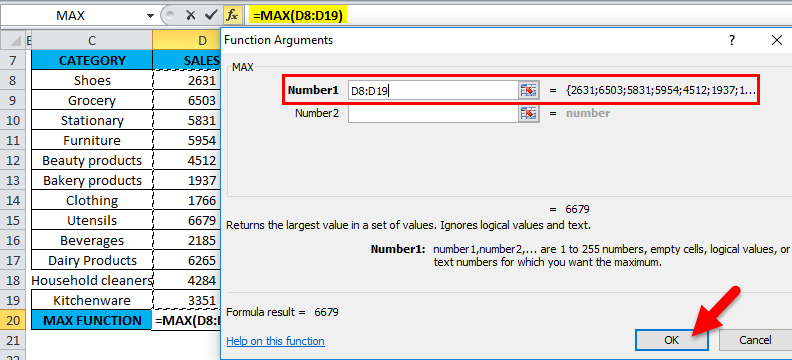
=MAX(D8: D19), i.e. returns the maximum sales value of 6679 as a result.
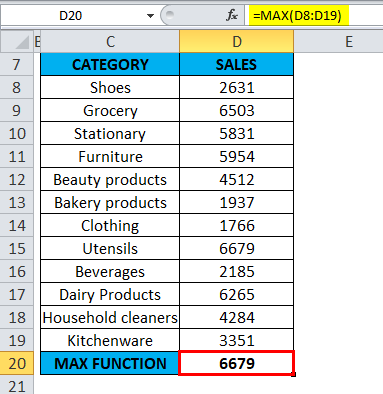
MAX Function has returned the maximum available sales value within a defined range, i.e. 6679 under the utensil’s category.
Example #2
To calculate the maximum or highest score in academics for a specific subject (Mathematics).
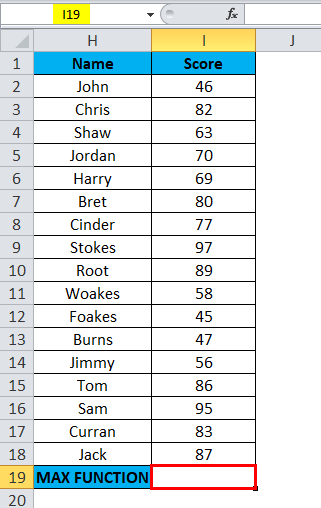
The below-mentioned table below contains the student’s Name in column H (H2 to H18) & each student’s score (I2 to I18). I need to find out which student has scored a maximum or highest score in mathematics subject. Here, MAX Function in Excel is used on the range of values representing the score to extract the highest value.
Let’s apply Max Function in cell “I19”. Select the cell “I19”, where Max Function needs to be applied.
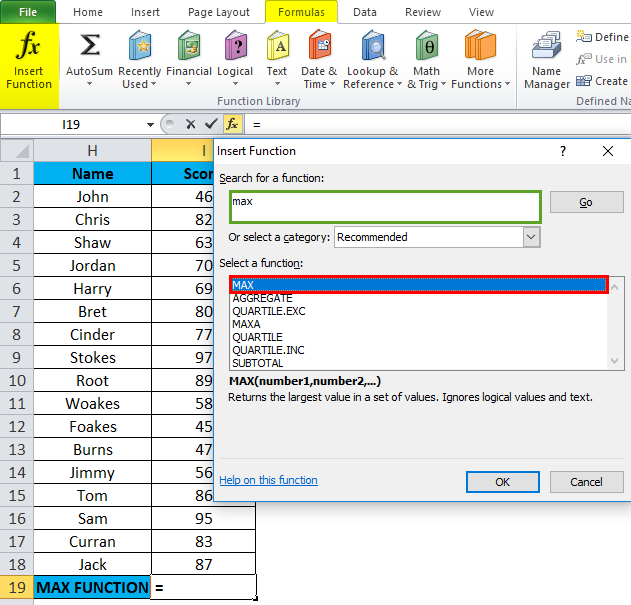
Click the insert function button (fx) under the formula toolbar; a dialog box will appear, type the keyword “MAX” in the search for a function box; MAX Function will appear in select a function box. Double click on MAX Function.
A dialog box appears where arguments for MAX Function need to be filled or entered i.e. =MAX(number1, [number2], … )
=MAX(I2: I18) Here, the score data is in the range (I2: I18). To enter the Number 1 argument, click inside cell I2 to see the cell selected, then Select the cells until I18. So that column range will get selected, i.e.I2: I18. Click ok after entering the number 1 argument.
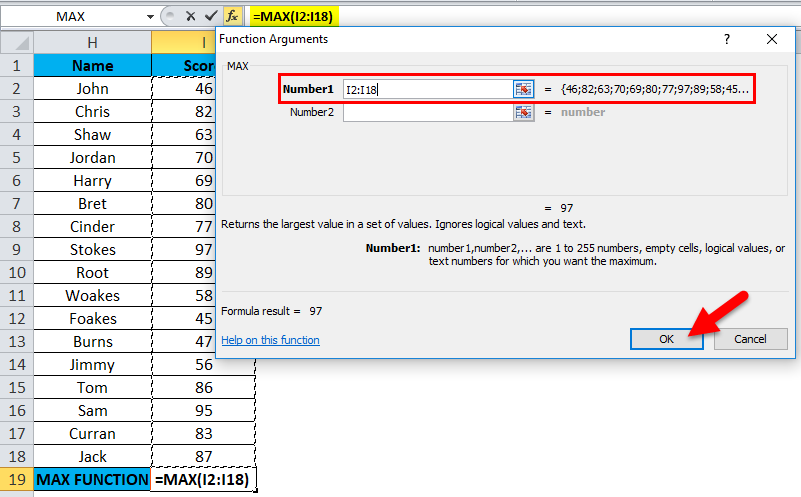
=MAX(I2: I18), i.e. returns the maximum score value of 97 as a result.
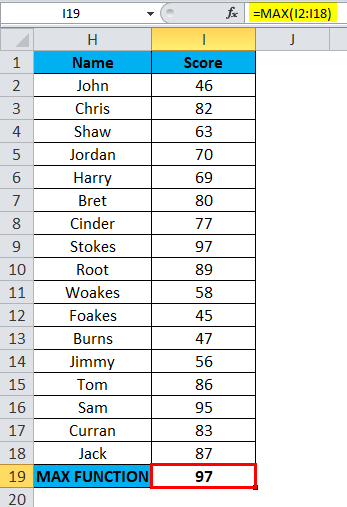
Here, MAX Function has returned the maximum score value within the defined range, i.e. 97, under the score category.
Example #3
To calculate the maximum or highest Salary for an employee in the company.
The below-mentioned table below contains the Name of the employee in column C (C27 to C43) & the Salary of an employee (D27 to D43). I need to find out which employee is getting the highest or maximum salary in the company. Here, MAX Function in Excel is used on the range of values representing an employee’s salary to extract the highest or maximum value.
Let’s apply Max Function in cell “D44”. Select the cell “D44”, where Max Function needs to be applied.
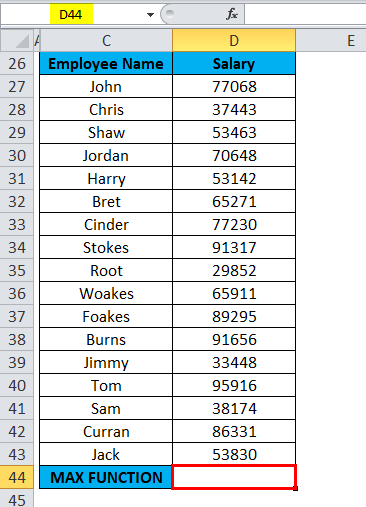
Click the insert function button (fx) under the formula toolbar; a dialog box will appear, type the keyword “MAX” in the search for a function box; MAX Function will appear in select a function box. Double click on MAX Function.
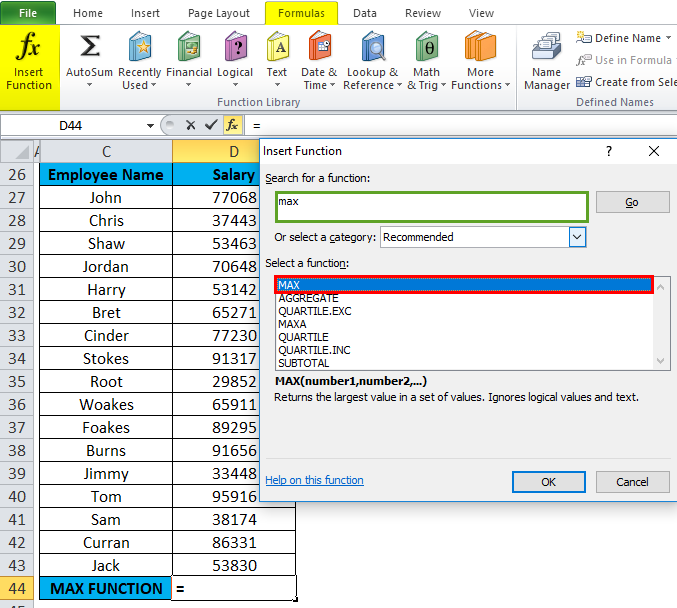
A dialog box appears where arguments for MAX Function need to be filled or entered i.e. =MAX(number1, [number2], … )
=MAX(D27: D43) Here, the salary data is in the range (D27: D43). To enter the Number 1 argument, click inside cell D27 to see the cell selected, then Select the cells till D43. So that column range will get selected, i.e. D27: D43. Click ok after entering the number 1 argument.
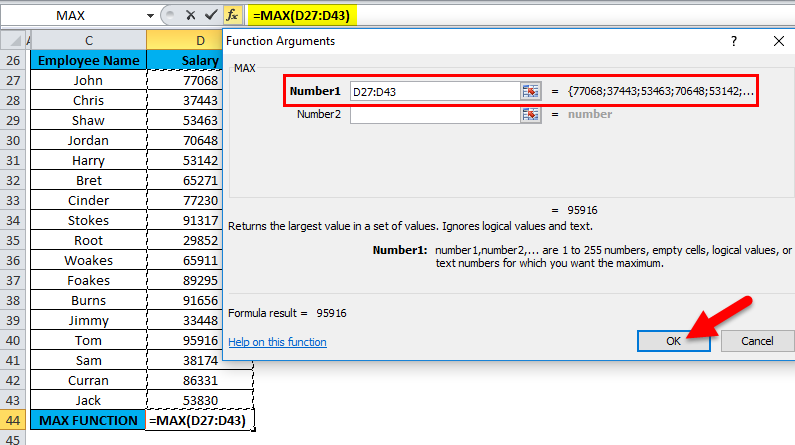
=MAX(D27: D43), i.e. returns the maximum salary of the employee, i.e. 95,916 as a result.
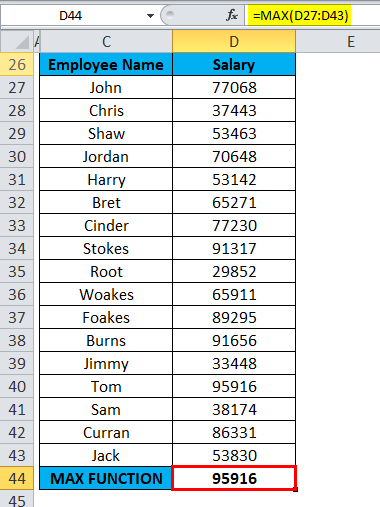
Here, MAX Function has returned an employee’s maximum or highest salary within a defined range, i.e. 95,916.
Things to Remember
- Argument type can be a cell reference, range reference, column reference, row reference, numbers, multiple columns/rows & cell, and range names.
- Max Function in Excel ignores numbers entered as text values, empty cells & the logical values TRUE and FALSE & it should not have any error value (#N/A, VALUE, DIV).
- If there are no numbers in a specified range or arguments, it will return 0.
- If there is an error value in the argument or text, it will return #N/A.
- MAX Function in Excel is the same as the LARGE function; both return the biggest number.
- #VALUE! error: It Occurs if non-numeric values are supplied directly to the Max Function.
Recommended Articles
This has been a guide to MAX in Excel. Here we discuss the MAX Formula in Excel and how to use MAX Function in Excel along with practical examples and downloadable Excel templates. You can also go through our other suggested articles –

