


How to Format Scientific and Math Presentations in Google Slides?
Suppose you are a teacher presenting a Chemistry project, a scientist explaining complicated calculations, or a professor making a lesson about physics. In that case, one thing is certain- the format of your presentation is important..
Moreover, if you have ever attempted to create H₂O or E = Mc² on Google Slides, you have likely noticed that it is not as easy as it ought to be.
Do not fret — we are here to help! This guide will walk you through Google Slides scientific formatting, explain why it matters, when to use superscripts and subscripts, and introduce an AI tool called Smallppt that can make the entire process faster and easier.
Why Google Slides Scientific Formatting Matters?
We all had to rush through a class or presentation, and then typed in formulas such as “H2O” or “m/s2” without even noticing that the formatting did not work.
However, the truth is that in math and science, details matter.
Formulas that are poorly written are not only unattractive, but they can also yield unclear or inaccurate results. Imagine presenting a formula during your defense for your thesis, and one person questions its validity simply because there was a “2” that was not in subscript. Ouch.
That is why Google Slides scientific formatting — including superscripts, subscripts, and correct notation — is essential when working on math or science presentations.
When Will You Need Superscript and Subscript in Google Slides?
Here are some common examples where Google Slides scientific formatting is essential:
Chemical Formulas:
- H₂O = water
- CO₂ = carbon dioxide
Math & Physics Notations:
- E = mc² (Einstein’s famous equation)
- a = m/s² (acceleration)
- x⁴ and y⁻¹ (exponents)
Academic Citations & References:
- Superscript numbers like ¹²³ to cite sources
They are not just fancy formats; they are normal technical conventions. If you do not use them, the presentation will appear amateurish (or simply incorrect).
How to Add Subscript and Superscript in Google Slides?
Let us face it — Google Slides scientific formatting is not as intuitive as in Microsoft Word. There is no direct toolbar button for subscript or superscript. However, it is possible.
This is an easy step-by-step tutorial on how to include superscript and subscripts in Google Slides.
In the case of the Superscript (like the “2” in E = mc²):
- Accentuate the personality
- Windows: Press Ctrl + .
- Mac: Press Command +.
- Or go to Format > Text > Superscript
For Subscript (like the “2” in H₂O):
- Mark the text in bold
- Windows: Press Ctrl + ,
- Mac: Press Command +,
- Or go to Format > Text > Subscript
Pro suggestion: You can also cut or paste Unicode superscripts as well as subscripts on the internet when you are on the run.
These small tricks can save time and keep your Google Slides scientific formatting consistent and professional.
Improve Speed by Using AI Tools, Like smallppt
If this all sounds like too much work (we know that), there is a simpler approach.
Smallppt is an AI-powered slide design platform that simplifies the entire formatting process, and it works particularly well for Google Slides’ scientific formatting.
Smallppt allows you to:
- Quickly apply subscript or superscript formatting
- Utilize smart slide templates for educational and scientific presentations.
- Make it easy to organize your information using AI
- Do not suffer from the frustrations of cumbersome Google Slides menus.
If you are creating a slide for a chemistry class or a university lecture, Smallppt can speed up the process and help your slides appear more impressive.
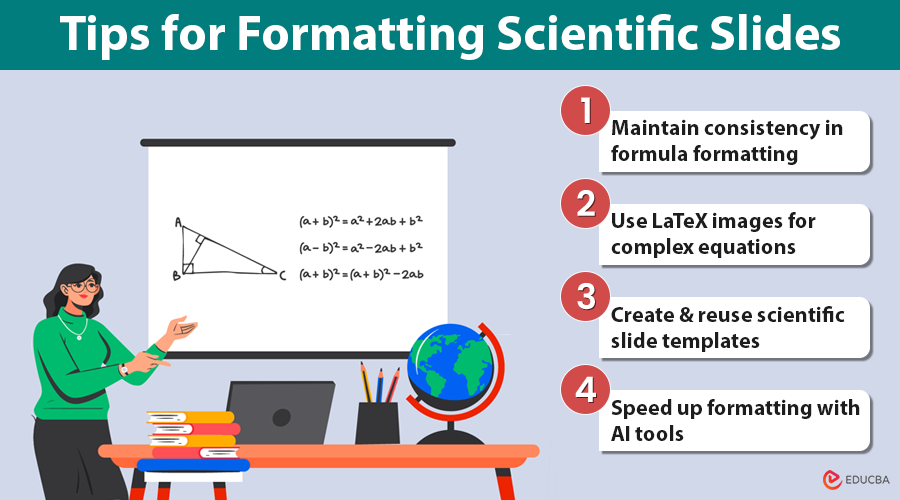
Helpful Tips for Formatting Scientific Slides
Are you looking to make your presentations superior? Use these tricks:
- Maintain consistency in formula formatting: Ensure that each formula follows the same format. Do not blend plain text and subscripts.
- Use LaTeX images for complex equations: Utilize the LaTeX editor or mathematical equation tool. Then upload images to the slide.
- Create and reuse scientific slide templates: When you frequently present, create a “scientific slide” template using predefined templates.
- Speed up formatting with AI tools like Smallppt: In all seriousness, if you are spending too much time formatting rather than creating content, tools such as Smallppt will save your life.
Final Thoughts
A good presentation is not just about the data — it is about how that data is displayed. In math and science, clarity and accuracy are everything. So, whether you are typing E = mc² or H₂O, getting the formatting right with Google Slides scientific formatting is non-negotiable. Learning a few shortcuts helps, but using smart tools like Smallppt can elevate your workflow and give your presentation a clean, professional look.
Frequently Asked Questions (FAQ)
Q1. Do I have the ability to insert equations similar to LaTeX directly into Google Slides?
Answer: No, not directly. However, you can utilize online software to make LaTeX formulas, and then insert them in the form of images.
Q2. Do Google Slides have a built-in equation editor?
Answer: No, it does not. There are add-ons and additional tools that can help in this.
Q3. What is the reason to use an AI tool, such as smallppt, for the formatting?
Answer: Because it is quicker, more intelligent, and takes away the drama of formatting. SmallPPT is particularly helpful for technical or heavy-data presentations.

