

Updated May 15, 2023
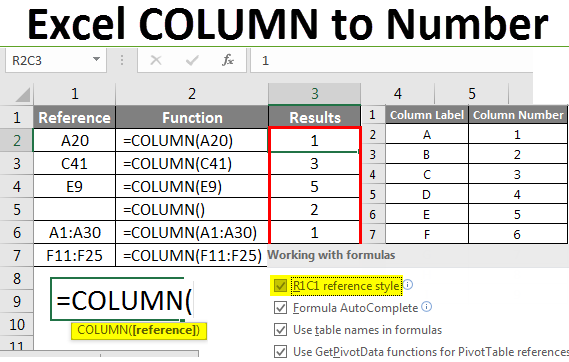
Excel COLUMN to Number (Table of Content)
- Convert Column Heading to a Number
- How to use the COLUMN function in Excel?
- How to Change the Excel Reference Style?
- What is the R1C1 Reference Style?
Excel COLUMN to Number
In Excel, column headings or labels are numbers instead of alphabets. This feature is called Excel reference style.
Convert Column Heading to a Number
Excel provides a built-in COLUMN function under the Lookup/Reference category. This function returns the column number for a given cell reference.
For Example: To find the column number of Cell A10, we will use the formula below:
=COLUMN (A10)
This gives 1 as a result because column A is the first column.
Formula:
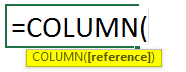
Where the passing argument reference is optional.
This function accepts only one argument, which is optional. It takes cell reference or a range of cells we want to find the column number. It returns the numeric value.
How to Use COLUMN Function in Excel?
Let’s take some examples to understand the usage of this function.
Example #1
We have a list of some cell addresses and a range of cells.
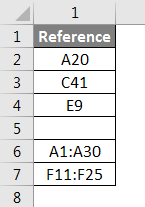
Now we will apply the COLUMN function here on the above cell address, and the result is given below:
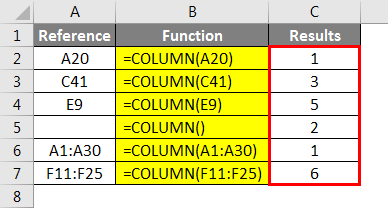
Explanation:
As we can see above, in cell B7, we have passed a blank argument inside the COLUMN function; hence it returns the number 2 as the COLUMN function exists in Column B.
Example #2
We have given below a list of references.
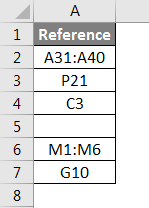
Now, after applying the COLUMN function, the final result is given below:
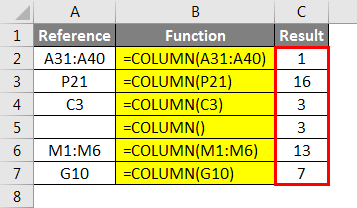
In the same way, we can find out the list of all column labels in Excel. Below is the list from Column A: Column Z for your reference:
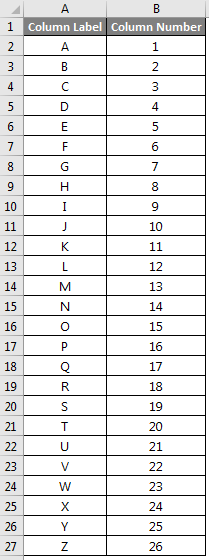
In an Excel spreadsheet named “Column A to Column ZZ”, we have provided you with the Column numbers from Column A to Column ZZ.
How to Change the Excel Reference Style?
Excel displays the column labels alphabetically, but we can change them with column numbers. This whole thing is called Excel R1C1 reference style.
To change this reference style, please follow the below steps:
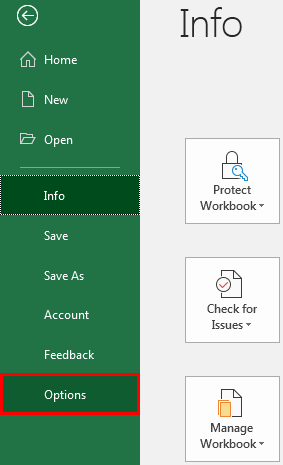
- Open a Microsoft Excel spreadsheet, then go to the FILE tab and click on the Options tab in the left pane window, as shown in the below screenshot.
- It will open an Excel options dialog box, and click on the Formulas tab in the left pane window, as shown in the below screenshot.
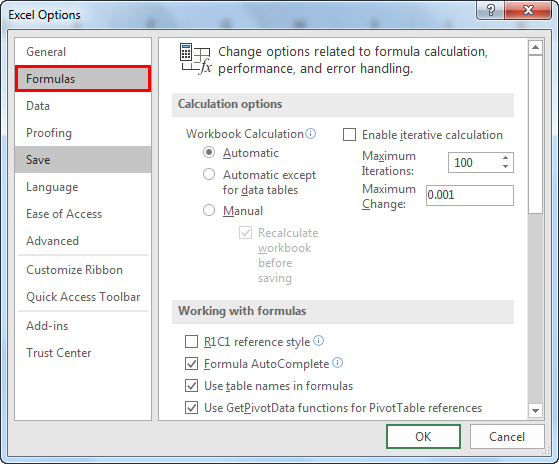
- This will display some options in the right side window, as seen in the above image. Tick on checkbox R1C1 reference style under the Working with formulas section. Refer to the below screenshot.
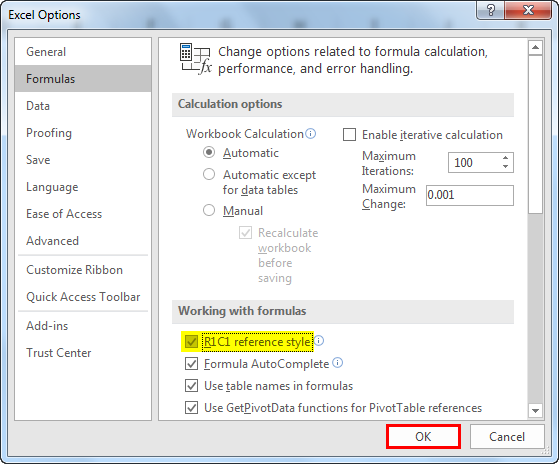
- By clicking on this option, we enable the style of using numbers for both rows and columns. By default, Excel will display Column headings as Column alphabets. With this option, cells are referred to in this format: R1C1; click OK.
As a result, Excel will convert the column labels into numbers. Refer to the below screenshot.
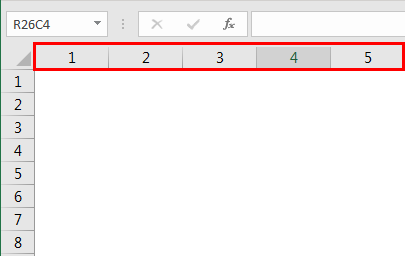
This R1C1 reference style option is disabled by default due to this Excel displays column headings as alphabets.
What is the R1C1 Reference Style?
Excel, by default, uses the A1 reference style, which refers to Columns as letters. A is the column, and 1 is the row. Excel has a total of 256 columns and 65,536 rows.
i.e. 256 are the column headings, and 65,536 are the row numbers. We always start with a Column label followed by a Row number for any cell address.
For Example, E65 refers to the cell where Column E and Row No. 65 intersect.
We can convert the Column Labels into Column numbers by enabling the R1C1 reference style option under the FILE tab. This style is very useful when using rows and columns positions in macros.
In this R1C1 style, Excel refers to a cell position with “R” followed by a row number and “C” followed by a column number.
Things to Remember About Excel Column to Number
- Reference argument can be a single cell address or a range of cells.
- It is an optional argument, which means if we don’t pass any argument, it returns the column number of the cell where the column function exists.
- This R1C1 reference style option is useful when using row and column positions in macros.
Recommended Articles
This has been a guide to Excel Column to Number. Here we discussed How to use the COLUMN function in Excel with examples and a downloadable Excel template. You may also look at these useful functions in Excel –

