

Updated August 28, 2026
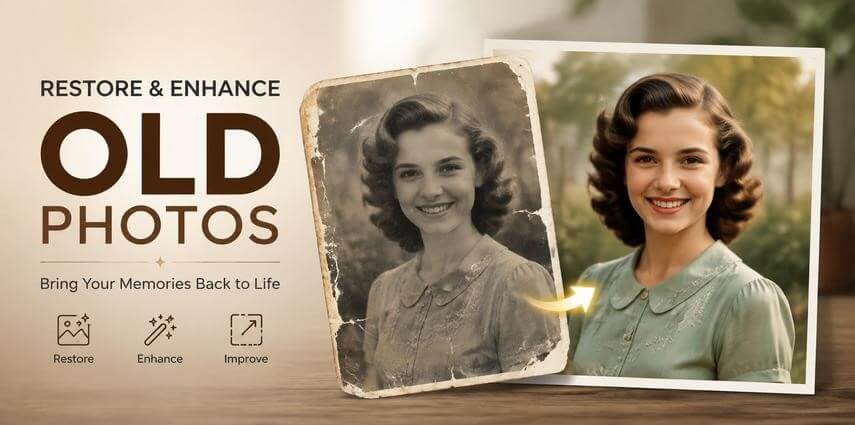
Finding an old family photo with faded colors, scratches, dust spots, or blurry details can make a happy memory look destroyed and impossible to preserve. Image quality can degrade over time from light exposure, humidity, improper storage, and physical wear, affecting colors, contrast, and fine details. With AI-based photo restoration software, you can restore old photos by sharpening them, reducing damage, enhancing faces, and improving their overall appearance without manually editing every part of the picture.
Why Do Old Photos Lose Quality Over Time?
Old photographs often lose quality because of natural deterioration, poor storage, and environmental factors. Over time, photos may fade, develop scratches, dust, and discoloration, become blurred, and lose resolution, making memories appear less vivid.
Faded or Discolored Colors
Photo colors may fade or change because of aging, sunlight exposure, humidity, and poor storage conditions. The original colors can become gray, yellow, brown, or uneven as the chemicals in photographic materials degrade over time. When you restore old photos with AI, AI-based color enhancement can help correct these changes and create a more balanced appearance.
Scratches, Dust, and Other Damage
Scratches, stains, cracks, and dust marks are physical damage that can occur on old printed photos and scanned images. These imperfections usually result from handling, storage, or damage during scanning.
Indistinct Faces and Lacking Details
Photos can also lose focus and crucial information over time. Fading, poor-quality cameras, or repeated copying and scanning can cause lost faces, clothing patterns, and background details.
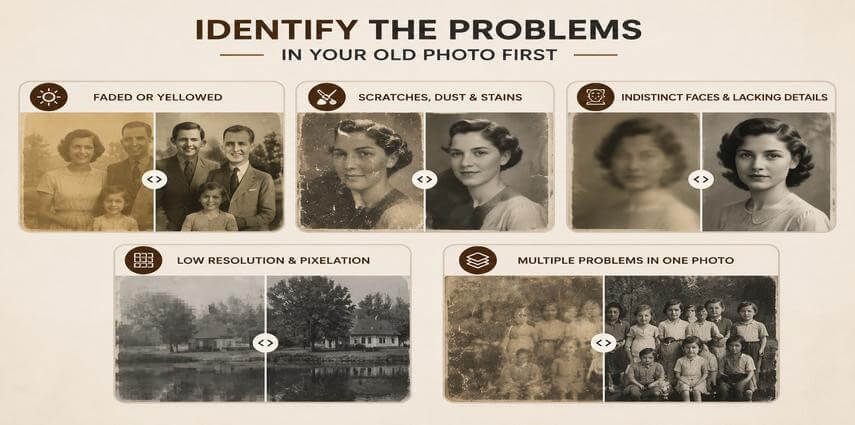
Identify Common Old Photo Problems Before Restoration
When you want to restore old photos with AI, first determine the type of damage affecting the photo. Each issue may require a different restoration or enhancement approach. An image with low resolution, scratches, or blur may need different adjustments than a faded image that mainly needs color correction.
Identifying the key problems helps you choose the appropriate restoration approach and avoid excessive editing that could make the photo look unnatural.
Faded or Yellowed Photos
Older or dark photos tend to have less contrast, muted colors, and a warm or brown hue. This happens because photographic dyes can break down over time due to sun, moisture, heat, and poor storage conditions. To restore these images, you can correct color balance and contrast to bring back a more natural look.
Scratches, Dust and Stains
Old prints often have scratches, dust spots, stains, and surface scars from handling or improper storage. When scanned, these flaws become digital artifacts that show up as lines, spots, or unwanted textures. Restoration aims to eliminate these damages while preserving important details.
Indistinct Faces and Lacking Details
Faces are often the hardest to restore because they include tiny yet significant details like eyes, hair, and facial features. Old prints, damaged prints, and poor-quality scans can reduce sharpness and erase information that is hard to recover.
Low Resolution and Pixelation
Old photos have limited resolution because of older cameras, small print sizes, or poor scans. Enlarging them makes pixels more noticeable and creates blurry or blocky details. AI can enhance clarity through upscaling and refining visible details.
Multiple Problems in One Photo
One old photo can have multiple problems at once, such as fading, scratches, blur, and low resolution. In these cases, you need to blend recovery techniques to improve quality while retaining the image’s original appearance.
AI Photo Restoration with HitPaw FotorPea
Restoring old photographs can be labor-intensive, involving tasks such as color correction, scratch removal, sharpening, noise reduction, and detail enhancement. HitPaw FotorPea offers an AI-based approach that streamlines the process by combining photo enhancement, noise reduction, facial enhancement, color restoration, and image upscaling.
If you want to restore old photos with AI, FotorPea can help repair faded, blurred, damaged, and low-resolution images with fewer manual adjustments.
Image Name: hitpaw-fotorpea-old-photo-restoration.jpg
Alt Tag: HitPaw FotorPea AI tool restoring old photo quality
Key Features of HitPaw FotorPea
- AI Old Photo Restoration: Helps fix old photos by sharpening them, minimizing damage, and improving overall image quality.
- Face Enhancement: Enhances faces in old portraits that are blurred or unclear.
- AI Upscaling: Improves image quality so old, low-quality images work better on modern displays and in print.
- Color Restoration and Colorization: Removes washed-out colors and can add natural-looking color to black-and-white photos.
- Noise Reduction and Sharpening: Minimizes unwanted noise and enhances edges and areas of interest for a cleaner look.
Pros and Cons of HitPaw FotorPea
Pros
- Restores Faded and Damaged Old Photos
- Enhances Blurry Facial Details
- Colorizes Black-and-White Photos
- Reduces Noise and Scratches
- Upscales Low-Resolution Photos
Cons
- Cannot Recover Completely Lost Details
- Restoration Results Vary by Photo Quality
- Colorization May Not Always Match Original Colors.
Steps to Restore Your Old Photo with FotorPea
Step 1: Upload Your Old Photo
Open HitPaw FotorPea and import the old photo that you want to restore. For better results when restoring old photos with AI, use the highest-quality scan or original image available. AI enhancement generally works more effectively when the source image retains more visual information.

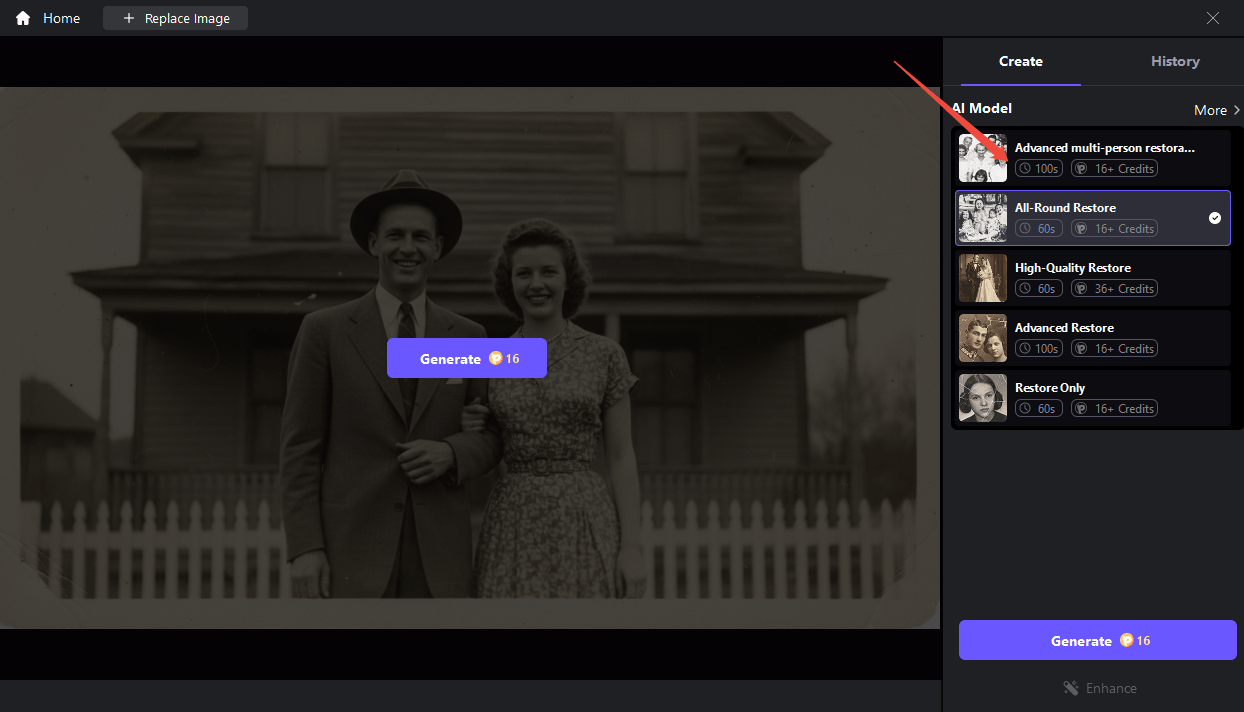
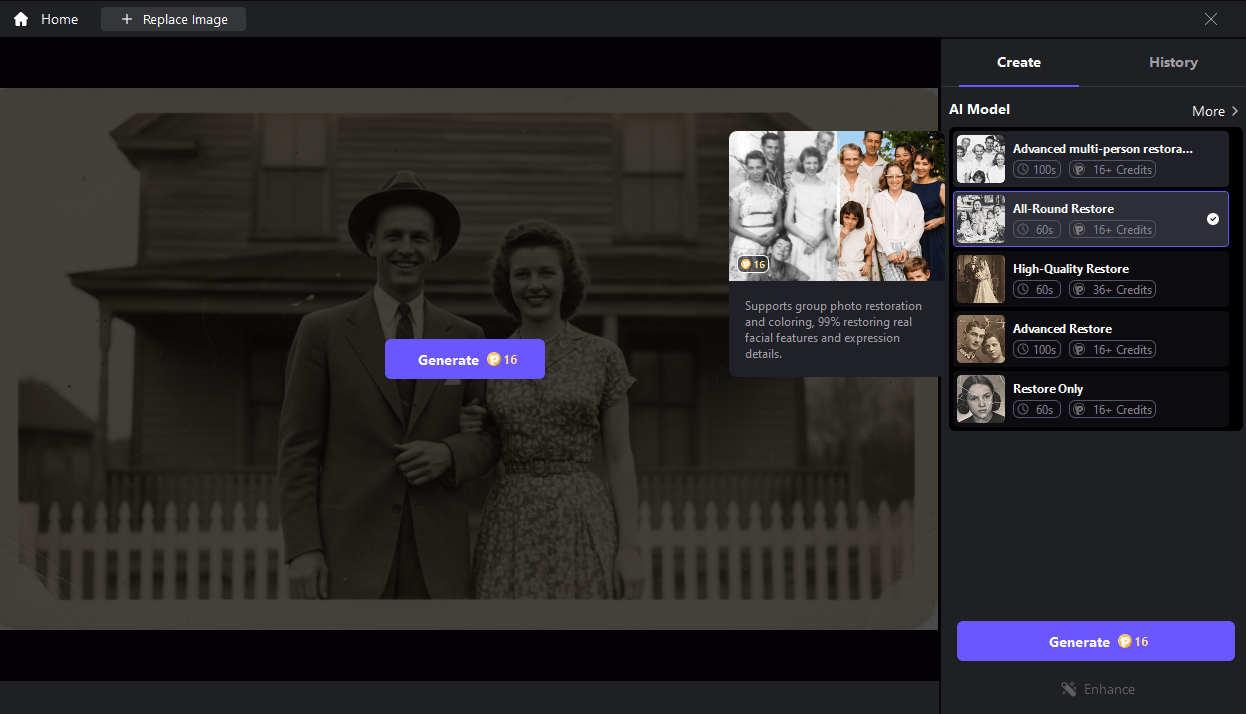
Step 2: Select the AI Restoration Model
Choose a suitable AI model based on your photo condition. For damaged vintage photos, use the restoration or enhancement models to sharpen details, reduce flaws, and balance overall image quality. Different models address different issues, such as faces, blur, or noise.
Step 3: Apply AI Enhancement and Restore Details
Allow FotorPea to sharpen the image, reduce noise, enhance facial features, and clean up the overall appearance. The AI analyzes the photo and applies adjustments automatically, reducing the need for extensive manual editing.
This step is particularly useful when you want to restore old photos with AI while keeping the restoration process simple.
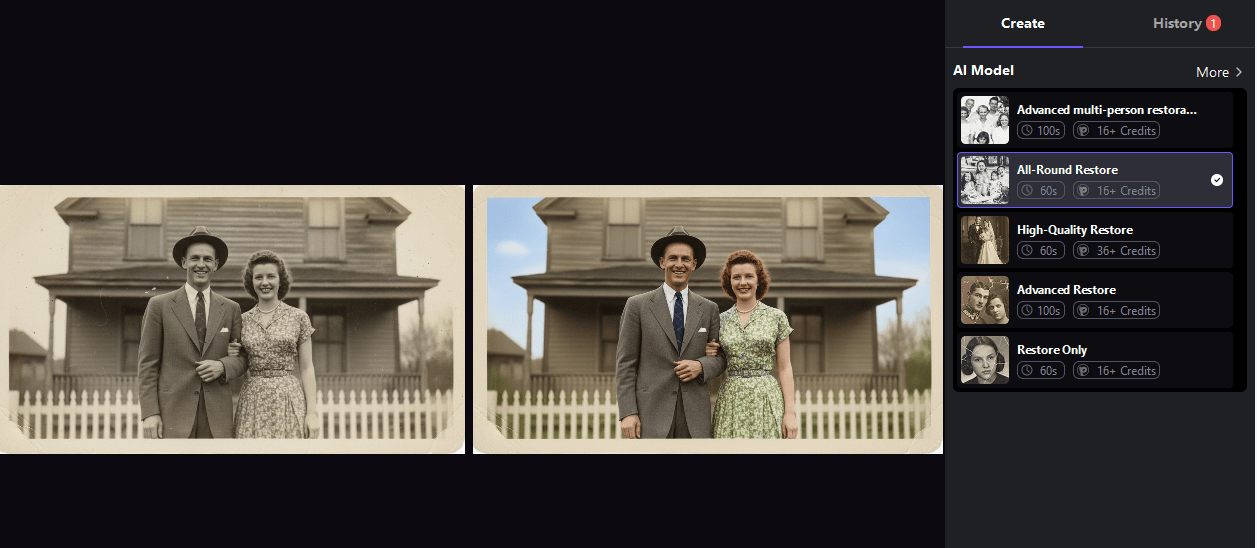
Step 4: Preview the Restored Result
Compare the improved photo with the original and save it. Pay attention to details such as faces, clothing details, background texture, and color harmony to make the restoration look natural.
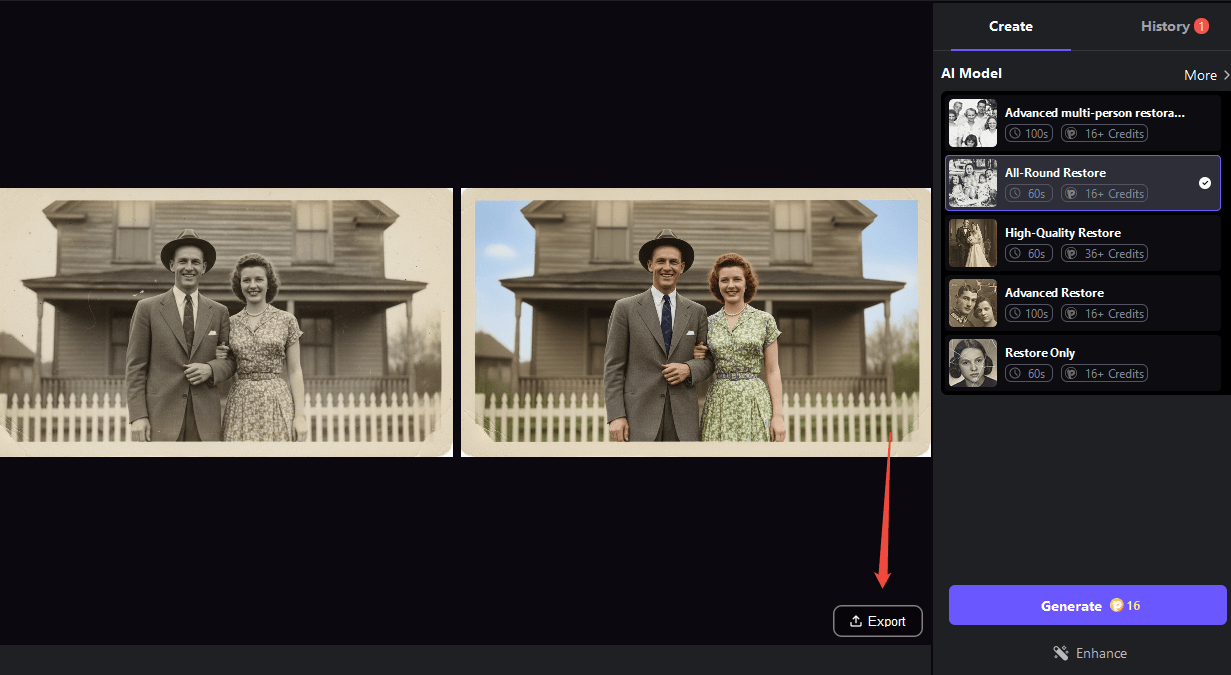
Step 5: Export and Save the Enhanced Photo
Export the restored image in a proper format when you are satisfied with the outcome. Keep a copy of the original photo as a backup to compare against later edits or to use alternative restoration methods if needed.
Tips for Better Old Photo Restoration Results
Getting good results when you restore old photos with AI depends not only on the restoration software but also on the source image quality and how much enhancement you apply. Following a few simple practices can help preserve the original character of your memories while improving their quality.
- Use the highest-quality original or scan: Begin with the best original or scan of the photo. A high-resolution scan has more detail, and restoration tools can enhance the image more effectively.
- Restore critical details without over-sharpening: Excessive sharpening can create unnatural edges and make the image look artificial. Focus on increasing clarity while preserving face textures and features.
- Compare the enhanced version with the original before saving: Review carefully to ensure the colors, details, and face additions look natural, not over-processed.
- Store the original file as a backup: Always keep the original photo on hand before restoring it.
Final Thoughts
You can restore old photos with AI to fix fading, scratches, blur, noise, and poor image quality. Appropriate scanning, color correction, damage repair, sharpening, and upscaling can improve image quality while retaining as many natural details as possible.
AI photo enhancers such as HitPaw FotorPea bring several of these restoration capabilities into a single workflow. By using AI carefully and comparing the enhanced image with the original, you can improve old photographs while keeping the memories and character of the original image intact.
Frequently Asked Questions (FAQs)
Q1. Can old photos be restored to improve their quality?
Answer: Yes, you can restore old photos with AI to fix fading, scratches, noise, blur, and low resolution. AI tools can improve colors, remove visible damage, and sharpen photos. However, they cannot recover details that are completely lost.
Q2. How can I restore faded or damaged old photos?
Answer: You can restore old photos by fixing colors, removing scratches and dust, reducing noise, and improving contrast. AI photo restoration tools can handle many of these tasks automatically. For better results, use a high-quality scan of the original photo.
Q3. Can AI restore blurry faces in old photos?
Answer: Yes, AI can make blurry faces clearer by improving visible facial details. However, if the face is badly damaged or the details are missing, AI can only estimate them and cannot fully restore the original details.
Q4. Can I enhance the resolution of an old photo?
Answer: Yes, AI upscaling can increase the resolution and make old photos look clearer. It can also reduce pixelation and improve fine details. However, it cannot recreate details that were never present in the original photo.
Q5. What is the best way to restore old photos without losing details?
Answer: Start with the best-quality original photo or scan. Use AI tools to improve colors, remove damage, and sharpen details without over-editing. Always compare the restored photo with the original to keep the result natural.
Recommended Articles
We hope this guide helps you understand how AI can restore old photos, improve image quality, and preserve precious memories. Explore these recommended articles for more insights into AI photo editing, image enhancement, photo restoration, creative tools, and AI-powered design.