

Updated September 28, 2026
You take a fantastic picture or record a video that you thought would look amazing on your phone, only to open it on a larger screen and realize the content has become blocky, blurry, and pixelated. This usually happens because of low resolution, heavy compression, low bitrate, or scaling up a small video to a larger size than it originally was. Fortunately, several ways to fix pixelated videos and improve their overall appearance. This guide explains why videos become pixelated and how to improve video quality, starting with simple tricks and ending with AI-enhancing software like AI video enhancer that can help restore details and reduce visible artifacts.
What Is a Pixelated Video?
A pixelated video is one where the pixels that make up the picture are visible, making the image look rough, blocky, or even blurry instead of smooth and fine. This normally occurs when the video is low resolution, highly compressed,d or lacks sufficient data to capture fine visual details. Unlike ordinary blur, which blurs details, pixelation creates patterns, sharp blocks, and unnatural distortions that make objects, faces, and text look broken. Another way to compress file sizes is through video compression, which removes some visual data; however, excessive compression can create artifacts such as blocking and loss of detail
- Blocky or square artifacts: Small square patches may appear in the video, particularly where there is action, shadows, or a solid color. These blocks appear when compression cannot accurately preserve the original image information.
- Missing fine details: Smaller details such as hair strands, textures, background objects, or even patterns on clothing can be lost, making the video look like a 2-dimensional image.
- No sharp edges: Objects cannot be sharp, and the boundary between one part and another part of the frame can be blurred.
- Skewed faces or text: Losing important information can make facial features look unnatural and make subtitles, signs, or small-font text hard to read.
- Patterns of visible compression: Repeated exports, low-bitrate choices, or severely compressed copies can create visible patterns, including blockiness, noisiness, or shimmering edges.
Why Do Videos Become Pixelated?
Videos become pixelated when the source footage lacks sufficient detail, has low resolution, or loses data through compression. Several common factors can reduce video quality and make individual pixels more noticeable.
- Low-resolution source video: Videos stored or recorded at low resolution have fewer pixels, so they look blurry when displayed on a larger screen or resized.
- Heavy compression: Excess compression reduces file size by removing image data, but it can also cause blocky artifacts and blurry areas.
- Low bitrate: A low bitrate means less data is available to describe each video frame, which can affect sharpness, textures, and moving objects.
- Repeated exporting or compression: Each time a video is saved and compressed, it can slowly become blurrier and less detailed, and introduce other artifacts.
- Poor-quality downloaded or shared copies: Videos sent via messaging apps or social media, or of lower quality, may already be compressed, so before you start editing or watching, that reduces the video’s quality.
5 Ways to Fix and Unpixelate a Video
To improve a pixelated video, first determine whether the quality loss comes from recording, compression, resizing, or editing. Instead of randomly applying filters, use methods that do not distort visible details and cause minimal visible damage.
1. Start with the Highest-Quality Original Video
If possible, always use the original recording. Social media and messaging apps often compress videos to reduce file size, which can lose essential details and create artifacts.
2. Reduce Compression to Prevent Video Pixelation
Any export or conversion can further degrade quality, especially at low bitrate settings. To preserve detail, color, and motion, choose an appropriate bitrate and avoid re-encoding.
3. Increase Video Resolution to Fix Pixelation
Upscaling can convert low-resolution images into viewable displays, unlike conventional resizing, which merely magnifies existing pixels. It cannot fully reconstruct information that was erased during recording or compression.
4. Sharpen Video and Reduce Noise
It can be sharpened to clarify edges and noise reduced to eliminate grain and compression distractions. But over-sharpening can create unnatural edges or make artifacts more noticeable. A balanced adjustment provides a more realistic look.
5. Use an AI Video Enhancer to Fix Pixelation
AI video enhancement combines upscaling, detail enhancement, sharpening, and artifact reduction in one process. Unlike simple enlargement, AI models analyze video frames to restore details and reduce compression artifacts. If you prefer an all-in-one solution rather than adjusting these settings manually, an AI video enhancer can simplify the process.
How to Fix Pixelated Videos with HitPaw VikPea?
Traditional editing tools can only sharpen or enlarge a heavily pixelated video without reconstructing the lost information. HitPaw VikPea is a more advanced tool that uses AI-powered video enhancement technology to upgrade low-quality video by improving image quality, adding pixels, reducing noise, and sharpening details. VikPea is a dedicated desktop AI video enhancer that helps users improve blurry, compressed, old, and low-quality videos using specialized AI models for each type of footage. It helps upscale videos to 4K and 8K, plus enhance detail, reduce noise, and improve faces.

Key Features of HitPaw VikPea
- AI Video Upscaling: VikPea can upscale low-resolution videos, improve sharpness and clarity, and bring old footage up to date for HD and 4K displays.
- Multiple AI Enhancement Models: The software includes various models adapted to specific needs, including general video improvement, portrait, animation restoration, and noise reduction. This lets users choose a model that fits their footage rather than using a one-size-fits-all adjustment.
- Detail and Artifact Improvement: AI processing refines ambiguous textures, minimizes compression artifacts, and produces a more refined look than the simplest resizing algorithms.
- Video Restoration: VikPea can revive old, damaged, and blurry videos, improving detail and overall quality.
Pros
- Reduces Pixelation and Compression Artifacts
- Upscales Low-Resolution Videos
- Multiple AI Enhancement Models
- Supports 4K and 8K Upscaling
- Improves Blurry and Compressed Footage
Cons
- Cannot Fully Restore Lost Details
- Results Depend on Source Quality
- High-Resolution Processing Takes Time
Steps to Fix Pixelated Videos with HitPaw VikPea
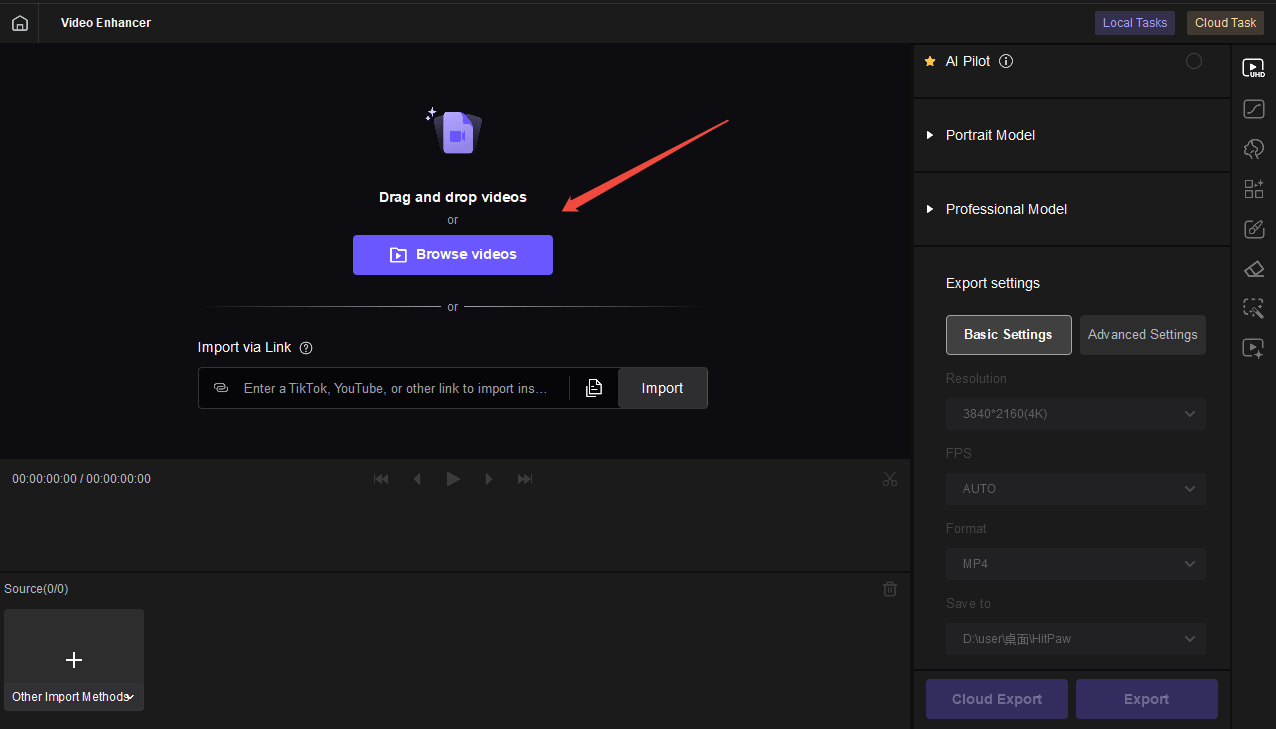
Step 1: Download and Import Your Video
Install HitPaw VikPea on your desktop and launch the program. Upload the pixelated video that you would like to enhance. Use the original, highest-quality file, since AI enhancement works best when the source information is clear.
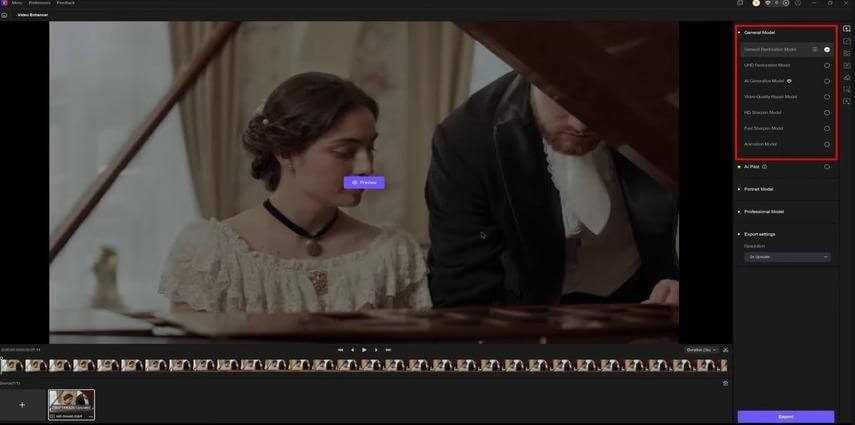
Step 2: Select the Suitable AI Enhancement Model
After you import the video, select an AI model that matches your footage. The General Enhancement model can improve clarity in pixelated videos, while the Face or Portrait model can help with portrait-centered footage.
Step 3: Preview the Enhanced Result
When exporting, preview to compare the original footage and the new enhanced version. Test that the details, faces, edges, and textures appear more natural. Change the model settings if the outcome is not as expected.

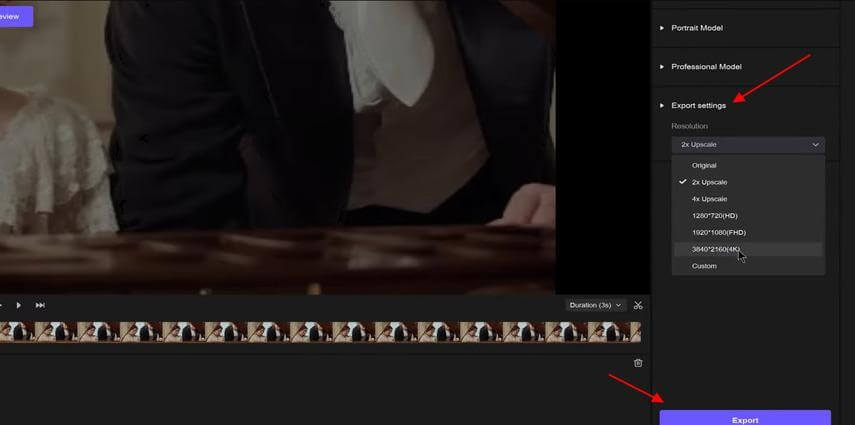
Step 4: Export the Improved Video
When you are ready, export the optimized video in the desired resolution and format. When exporting, avoid unnecessary compression to maintain the improved quality.
Tips for Getting Better Results When Fixing Pixelated Videos
To get the best results, choose the right tool and prepare and process your video. Several tips can help maintain quality and make the final video look more natural.
- Use the original video whenever possible: Start with the highest-quality original video. Video files on social media or messaging apps may already be compressed, so the enhancement tools have less data to work with.
- Avoid repeatedly compressing the footage: Several exports will lose even more information and introduce new artifacts. Store your improved video in the right format and avoid unnecessary conversions.
- Do not over-sharpen the video: Excessively sharp edges may look unnatural, and noise or compression artifacts may become visible instead of being smoothed by sharpening.
- Choose an AI model that matches the footage: Use a model suited to the video type (e.g., portraits, animations, or general footage) to enhance it more effectively.
- Preview the result before exporting the full video: Check critical areas like faces, text, and moving images before processing the entire file to ensure the quality meets expectations.
How to Prevent Video Pixelation in the Future?
Avoiding video pixelation is easier than fixing low-quality footage after it has lost detail. Users can preserve clearer, sharper videos by adopting better recording and editing habits.
- Record at a higher resolution: Record at the highest resolution possible (1080p or 4K) so you have more detail to work with in editing.
- Use a sufficient bitrate: A good bitrate means each frame contains enough information to maintain sharpness, especially in fast motion or with complex textures.
- Avoid excessive compression: Over-compressing videos can remove valuable visual information and create blocky artifacts. Whenever possible, use quality-oriented export settings.
- Do not enlarge footage excessively during editing: Scaling up a low-resolution video makes the pixels more prominent and less sharp.
- Keep a high-quality master copy: Keep a copy that has not been edited and has not been compressed, or has only been minimally compressed, for future edits and exports.
Frequently Asked Questions (FAQs)
Q1. Can a pixelated video be restored?
Answer: You can improve a pixelated video, although you may not always be able to fully restore it to its original quality if much detail is already lost. Video-improving software may reduce artifacts and sharpen and clarify the video.
Q2. Can I fix a pixelated video without losing quality?
Answer: You may reduce further quality loss by using the original video file, avoiding re-compression, and exporting correctly. But with conventional editing, it is typically impossible to fully recover data lost to low resolution or compression.
Q3. Can AI fix a heavily pixelated video?
Answer: AI video enhancers can also improve low-quality video with high pixelation, enhance the image, reduce the noise, and make the images higher quality. Although AI can produce a cleaner output, it cannot create information that was not originally recorded.
Q4. How can I fix a pixelated video online?
Answer: Basic pixelation can be enhanced using online video enhancement tools, and videos can be sharpened, upscaled, or compressed. Desktop AI enhancers may offer more processing options and control for larger files or more advanced restoration.
Q5. What is the best way to fix a pixelated video?
Answer: The best approach depends on the source of the pixelation. For minor issues, changing export settings or compressing videos may help, while badly damaged videos typically respond to AI-based upscaling, detail enhancement, and artifact-removal tools.
Final Thoughts
Video pixelation commonly results from low resolution, excessive compression, low bitrate, or aggressive resizing. To fix pixelated videos, start with the highest-quality source and use appropriate export settings to prevent further quality loss. When the video is already blurred, compressed, or has a high pixel count, AI video enhancement can improve clarity, reduce artifacts, and enhance details. HitPaw VikPea provides an effective desktop-based system to improve and scale low-quality video content with AI-based models that restore a smoother, clearer viewing experience.
Recommended Articles
We hope this guide on how to fix pixelated videos helps you improve video quality and restore greater clarity. Check out these recommended articles for more insights and practical video enhancement tips.