


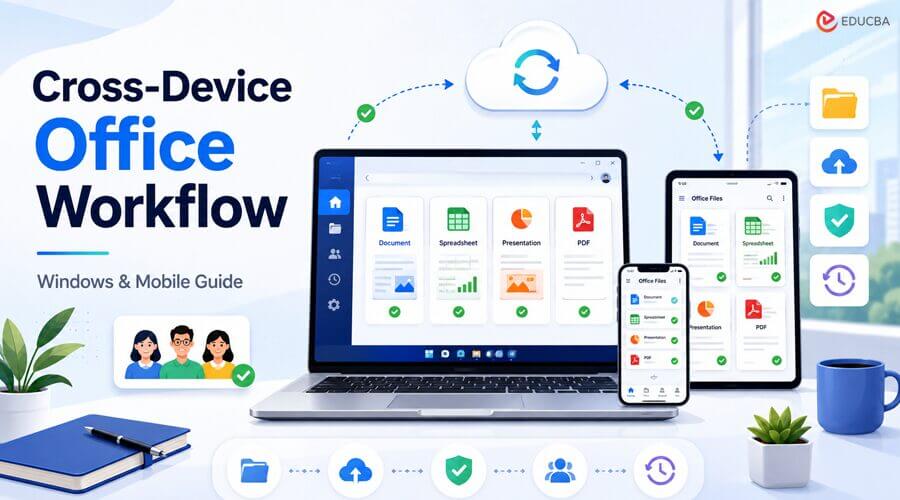
Modern work rarely happens on a single device. A report may begin on a Windows laptop, receive comments on a smartphone, and be reviewed again on a tablet before it is shared. This flexibility improves productivity, but it can also create formatting changes, duplicate files, synchronization conflicts, and security risks.
A reliable cross-device office workflow combines compatible software, organized storage, controlled synchronization, version management, backups, and secure sharing. The goal is not simply to make files available everywhere, but to ensure that users can open, edit, review, and share them without losing information or control.
Key Takeaways
- Use compatible office software across Windows and mobile devices.
- Organize folders and filenames before enabling cloud synchronization.
- Keep one authoritative working copy and separate drafts from approved files.
- Use cloud sync for access, but maintain independent backups.
- Test real DOCX, XLSX, PPTX, and PDF files across every device in the workflow.
- Protect accounts, devices, and sharing links with appropriate security controls.
1. Identify Your Devices and File Types
Start by listing the files and devices involved in normal work. Common formats include DOCX, XLSX, PPTX, PDF, CSV, JPG, and PNG. Devices may include a Windows desktop, a laptop, an Android phone, an iPhone, a tablet, or a browser-based workstation.
Define the role of each device. A Windows computer may be the main editing device, while a phone is used mainly for review and approval. Also determine which devices need offline access and whether several people will edit the same files.
This step helps clarify how much compatibility, storage, synchronization, and security your Cross-Device Office Workflow requires.
2. Choose a Consistent Office Environment
Using a consistent office environment reduces unnecessary file conversion and formatting problems. The selected software should support the file types and functions used most often, including:
- DOCX, XLSX, PPTX, and PDF
- Windows and mobile access
- Offline editing
- Comments and collaboration
- PDF export
- Version history and recovery
- Fonts, formulas, charts, and page layouts.
Users who regularly manage documents, spreadsheets, presentations, and PDFs may consider an integrated suite such as WPS Office, provided that it meets their compatibility, synchronization, and security requirements.
Do not rely only on a list of supported formats. Test real working files. Desktop and mobile versions of the same office suite may support different features, especially in complex spreadsheets and presentations.
3. Test Compatibility With Real Files
A file opening successfully does not guarantee full compatibility. Compatibility testing is an important part of building a reliable Cross-Device Office Workflow.
For DOCX files, check fonts, page breaks, tables, comments, tracked changes, images, headers, and automatic tables of contents.
For XLSX files, verify formulas, charts, conditional formatting, data validation, pivot tables, dates, currencies, and protected sheets. Important totals and financial calculations should be reviewed after opening the file in another application.
For PPTX files, check themes, images, animations, transitions, media, notes, hyperlinks, and embedded objects. Test the final presentation on the device that will actually be used.
For PDFs, confirm font rendering, image clarity, page size, searchable text, hyperlinks, forms, signatures, and print output.
4. Organize Files Before Cloud Sync
Cloud synchronization replicates your folder structure across devices, so a disorganized system becomes a synchronized one. A well-organized folder structure is therefore essential for an effective Cross-Device Office Workflow.
Create a predictable structure, for example:
Projects/
– Client-A/
– Documents/
– Spreadsheets/
– Presentations/
– PDF-Exports/
– Archive/
Use a consistent naming convention such as:
ProjectName_DocumentType_YYYY-MM-DD_v01.docx
For example:
WebsiteLaunch_ContentPlan_2026-07-30_v03.docx
Before enabling sync, remove unnecessary duplicates, archive old versions, rename unclear files, separate editable files from final exports, and exclude sensitive files that should remain local.
5. Configure Synchronization Gradually
Do not move the entire workflow into cloud synchronization at once. Start with a small, non-critical test folder. This allows you to verify your Cross-Device Office Workflow before important files depend on it.
A practical test is:
- Create the working folder on Windows.
- Enable synchronization.
- Install the corresponding mobile application.
- Sign in with the authorized account.
- Open a test file on mobile.
- Make a small change and save it.
- Confirm that the change appears on Windows.
- Repeat the process in the opposite direction.
- Test offline access if required.
Avoid editing the same file offline on multiple devices. Wait for the synchronization to finish before opening the file elsewhere, and use collaborative editing when several users must work simultaneously.
For travel, mark important files for offline use in advance and confirm they have fully downloaded.
6. Remember That Sync Is Not Backup
Synchronization and backup serve different purposes.
Sync keeps copies aligned across devices. If a synchronized file is deleted or corrupted, that change may spread everywhere.
A backup stores an independent copy that can be restored after accidental deletion, ransomware, hardware failure, account problems, or synchronization errors.
Important business files should have both synchronization and backup protection. Backups should also be tested periodically by restoring a small number of files.
This distinction is essential for any reliable Cross-Device Office Workflow because access to files across devices does not automatically provide data recovery.
7. Create a Clear PDF Workflow
PDF is useful for reports, invoices, contracts, manuals, forms, and finalized presentations because it preserves layout more reliably than editable office files.
Keep both the editable source and the approved PDF, for example:
QuarterlyReport_Source_v05.docx
QuarterlyReport_Approved_2026-07-30.pdf
Before sharing a PDF, remove comments and unresolved tracked changes, export the file, review every page, check fonts and hyperlinks, confirm that confidential information is not included, and apply password or permission controls when necessary.
Avoid repeatedly editing converted PDFs when the source file is available.
8. Control Versions and Collaboration
Version control is a key part of a reliable Cross-Device Office Workflow. Each project should define:
- The file owner
- The authoritative working copy
- Who can edit
- Who can comment
- Who can approve
- Where approved files are stored.
Useful statuses include Draft, Review, Revised, Approved, Published, and Archived.
Where possible, share a single controlled file or link instead of sending multiple attachments via email or chat. Downloaded copies should be treated as reference copies unless they are intentionally promoted to the new master version.
When a document is approved, restrict editing where appropriate and archive obsolete versions rather than leaving several “final” files active.
9. Protect Accounts, Devices, and Shared Files
Cross-device access increases the number of possible access points, so security must cover the account, device, and sharing process.
For accounts, use a strong, unique password, enable two-factor authentication, maintain recovery information, set login alerts, and conduct regular reviews of connected devices.
For devices, use screen locks, automatic locking, operating-system updates, encryption, and remote lock or erase features where available.
Before sharing a document, confirm who should have access, whether they need viewing or editing rights, whether the link should expire, and whether downloading should be allowed.
Avoid installing office software from untrusted sources. Check the publisher, permissions, bundled applications, and update settings before installation.
10. Troubleshoot Common Problems
Common cross-device problems usually fall into a few categories:
- Layout changes: often caused by missing fonts or different page settings.
- Missing edits: usually caused by incomplete synchronization.
- Conflict copies: created when the same file is edited on multiple devices.
- Mobile opening failures: often caused by unsupported features or large file size.
- Spreadsheet changes: may result from formula or function differences.
- Missing presentation media: may occur when video or audio was linked rather than embedded.
- Offline file failures: usually mean the file was not downloaded before disconnecting.
- Wrong-version edits: often caused by circulating attachments instead of one controlled shared file.
When troubleshooting, first determine whether the issue affects a single file, format, device, account, network, or the entire synchronized folder. That makes the underlying cause easier to isolate.
Final Thoughts
A reliable cross-device office workflow requires more than installing the same application on several devices. It depends on file compatibility, organized storage, controlled synchronization, independent backups, version management, and secure sharing.
Begin with a small set of representative documents, spreadsheets, presentations, and PDFs. Test them on every device involved in the workflow. Confirm that edits synchronize correctly, formatting remains intact, and important files are available offline when required.
Once the tests are successful, gradually expand and document the folder structure, naming conventions, approval process, backup routine, and security requirements.
A well-designed Cross-Device Office Workflow reduces duplicate files, formatting problems, lost edits, and unauthorized access while allowing users to move between Windows computers and mobile devices without losing control of their work.
Frequently Asked Questions (FAQs)
Q1. What file formats should a Cross-Device Office Workflow support?
Answer: At a minimum, it should support DOCX, XLSX, PPTX, PDF, CSV, and common image formats. Specialized features such as macros, embedded media, and complex formulas should be tested separately.
Q2. Is cloud synchronization the same as backup?
Answer: No. Synchronization keeps files consistent across devices, while a backup preserves an independent recoverable copy.
Q3. Why does formatting change between devices?
Answer: Common causes include missing fonts, different page settings, unsupported features, application-version differences, and differences between desktop and mobile software.
Q4. Should team members edit the same file on multiple devices?
Answer: Yes, if the workflow uses shared editing, comments, version history, and access controls. Separate downloaded copies should be avoided because they can quickly become inconsistent.
Recommended Articles
We hope this guide helps you build a reliable Cross-Device Office Workflow for seamless productivity across Windows and mobile devices. Explore these recommended articles for more insights into office software, cloud synchronization, file management, productivity, collaboration, and digital security.

