

Updated July 8, 2026
Not every image task calls for the same tool. A quick social graphic, a polished product shot, and a stylized illustration often need different strengths from an AI image model, and sticking with just one option can leave some of those needs unmet. An AI Video Maker platform that also offers a range of image models means creators are not limited to a single style or capability. SuperMaker AI gives access to multiple AI image models within the same platform used for video creation, so image generation for a project does not require a separate tool. This guide covers what that image model lineup looks like and how to use it.
(Image Source: SuperMaker AI)
What are Multi AI Image Models in One Platform?
Rather than relying on a single image model, SuperMaker AI provides access to several image generation models side by side, which can be used both for standalone image creation and as the starting point for image-to-video projects. This means the images that feed into a video, or that stand on their own for other uses, can be generated with the model best suited to the task. For creators who handle varied visual needs, this eliminates the need for a separate image-generation subscription. Whether users need a fast draft, a specific artistic style, or a newly released model, they can choose it within the same workspace they use for the rest of the project.
Traditional Challenges of Working with a Single Image Model
Depending on just one AI image model tends to create a few recurring limitations:
- No easy way to switch styles when a single model does not fit a specific project
- Missing access to newer models without signing up elsewhere
- Managing separate accounts or subscriptions just to compare model output
- Re-uploading images between platforms to move from image generation into video
- Inconsistent results when one model is not well-suited to a particular visual style
These limitations are a common reason creators look for platforms that bundle multiple image models together. Being able to compare models within the same workspace, especially one already connected to video generation, removes a layer of friction from projects that need both formats.
How SuperMaker AI Handles Multiple Image Models?
A Broad Lineup of Image Models
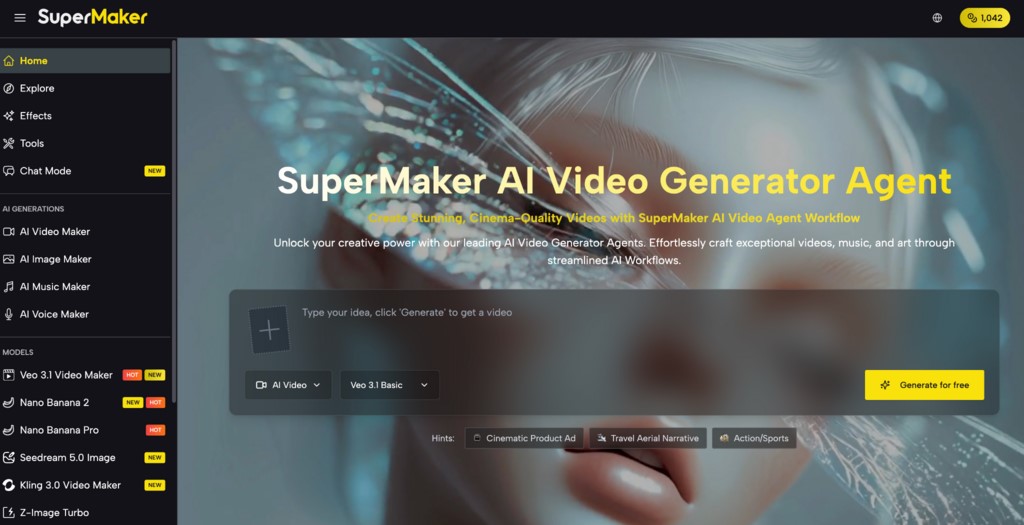
The platform’s image model lineup includes Nano Banana Pro, Nano Banana 2, GPT Image 2, Seedream 5.0, and Z-Image Turbo, giving creators a range of options rather than a single fixed model. New models join the lineup over time, expanding the available options.
Images That Feed Directly Into Video
Generated images are not limited to standalone use, they can also serve as the starting frame for image-to-video generation, connecting image creation directly to the platform’s video tools instead of requiring a separate export and re-upload step.
One Platform, Multiple Model Access
All of these image models are accessible from within the same account and workspace used for video creation, so switching between models for different projects does not mean switching platforms or managing separate logins.
Output & Usage – Ready for Real Content
Users can generate images with any of the available models for marketing visuals, social content, product graphics, and illustrations, and they can also use those images in video projects on the same platform. Paid subscription plans generally include commercial usage rights, while providers design free-tier access mainly for exploration. Users should review the terms of their specific plan before publishing commercial work.
How to Use SuperMaker AI?
Step 1: Prepare Input
Start with a description of the image you want, or a reference image if you are aiming to refine or adapt an existing visual. Think about the style you are after, realistic, illustrated, or something more stylized, since that will guide which model fits best.
Step 2: Configure Settings
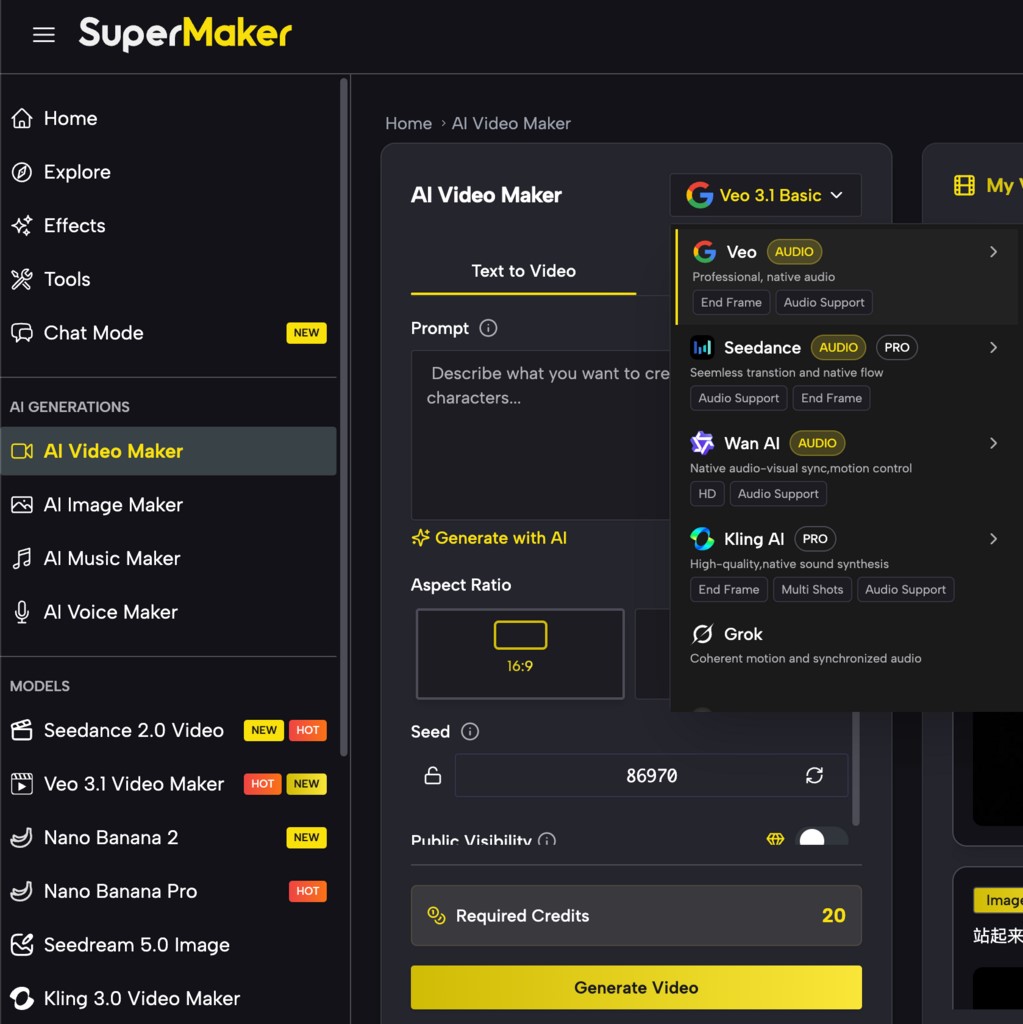
Select a model from the available lineup and adjust settings like aspect ratio or resolution as needed. Compare a few of the available AI image models before choosing one, especially if you plan to use the image to generate a video afterward.
Step 3: Generate & Export
Generate your image using the selected model, and preview the result before deciding whether to keep it, try a different model, or use it as the basis for a video. Once you are satisfied, download the image for use in your project in accordance with your plan’s terms.
(Image Source: SuperMaker AI)
Use Cases for Creators
- Brand and Campaign Marketers: Compare models to find the right visual style for campaign graphics before building out video content.
- Social Media Managers: Generate a variety of styles for different platforms without switching between separate image tools.
- Product Photographers: Test multiple models to see which best suits a specific product’s look before generating final visuals.
- Indie Game and App Teams: Use different models for concept art, marketing assets, and in-app graphics in a single workspace.
Final Thoughts
A single platform gives creators access to multiple AI image models, allowing them to use different styles and capabilities in their visual work instead of limiting them to just one. When paired with the platform’s video tools, it also means that an image generated for one purpose can move directly into a video project without extra steps. If a single AI image model has not given you the range you need, it is worth trying SuperMaker AI to compare a few options in the same workspace.
Frequently Asked Questions (FAQs)
Q1. How does choosing between image models actually work?
Answer: You select a model from the available lineup before generating an image, and can switch to a different one if the first result does not match what you had in mind. Users can also use images generated this way to start a video project.
Q2. Can I use images made with any of these models commercially?
Answer: Paid subscription plans generally include commercial usage rights, regardless of which model produced the image. It is worth reviewing the terms of your specific plan before publishing commercial work.
Q3. Are new image models added to the platform over time?
Answer: Yes. The platform updates the image model lineup as new options become available, allowing the range of available styles and capabilities to grow instead of remaining limited to the original selection.
Recommended Articles
We hope this guide to SuperMaker AI helps you understand how multiple AI image models can simplify your creative workflow. Check out these recommended articles for more insights on AI-powered image generation, video creation, and content production.