

Updated December 4, 2025
AI Video Expand: Overview
Extending a video without losing quality used to require advanced editing skills and powerful software. But, AI video expand tools make it possible to lengthen any video adding extra frames, smooth transitions, slow motion, or additional scenes while keeping the original resolution sharp and clear. Whether you are a digital marketer, editor, content creator, or someone working on social media clips, AI expansion helps you stretch videos to fit platform requirements, storytelling needs, or creative ideas. This article explains how AI can extend videos, the best ways to preserve quality, and the top tools for enhancing HD and 4K video.
What is AI Video Expand?
AI video expand refers to technology that uses artificial intelligence to:
- Add new frames between existing ones
- Increase video duration smoothly
- Extend backgrounds or scenes
- Create slow-motion effects without stutter
- Fill missing footage using generative AI
These tools analyze motion, textures, colors, and transitions to generate new frames that look natural and consistent with the original video.
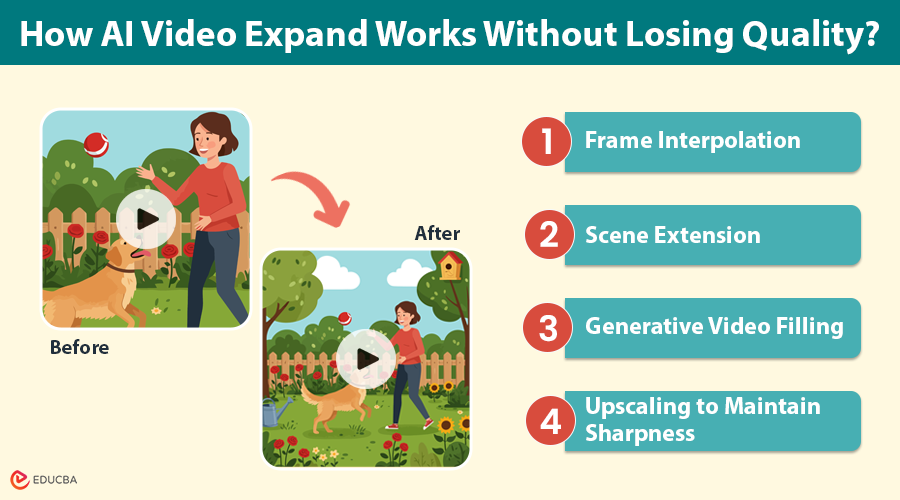
How AI Video Expand Works Without Losing Quality?
AI video expand tools use several advanced methods to ensure the extended video remains clear:
1. Frame Interpolation
AI analyzes consecutive frames and generates extra frames to make the video longer, smoother, and more fluid. This is especially useful for:
- Slow motion
- Cinematic effects
- Sports footage
- Reels and TikTok slow edits
Modern AI interpolation keeps edges sharp, stabilizes motion, and reduces blurriness.
2. Scene Extension
Some AI tools can generate:
- Wider backgrounds
- Extended scenery
- More sky, walls, or foreground elements
This helps expand videos horizontally or vertically without stretching or pixelation.
3. Generative Video Filling
If the original clip is too short, AI can create entirely new footage that matches:
- Style
- Lighting
- Camera movement
- Subject appearance
This technology is similar to AI image outpainting, but for videos.
4. Upscaling to Maintain Sharpness
Even if the video is extended, AI upscalers improve details automatically by:
- Enhancing texture
- Restoring clarity
- Reducing noise
- Improving color depth
This ensures no quality loss, even in 4K.
Best AI Tools for Video Expansion Without Quality Loss
Here are some of the top AI tools that make it easy to expand your videos while keeping every frame sharp and clear.
1. Runway Gen-2 (AI Scene Expansion): Runway adds new scenes, generates backgrounds, and expands video frames using generative AI. Great for creative projects and cinematic clips.
2. Topaz Video AI (Best for HD & 4K Preservation): Topaz specializes in preserving quality and upscaling. Perfect for slow motion, detail recovery, and high-end video extension. It is one of the most accurate tools for professional use.
3. Adobe Premiere Pro with AI Auto Extend: Premiere’s AI features automatically generate extended segments or smooth motion. Good for editors already in Adobe’s ecosystem.
4. Kapwing AI Video Expander (Fast Online Tool): A simple web-based tool for lengthening videos for social media formats.
5. io AI Video Extender: Great for beginners. It instantly expands the video background and duration without requiring editing knowledge.
How to Extend a Video Using AI?
Here is a straightforward workflow you can use with most AI tools:
1. Upload Your Video
Select the clip you want to extend. Most tools support MP4, MOV, and WebM.
2. Choose the Type of Expansion
You can pick from:
- Slow motion
- Background extension
- Frame interpolation
- Full generative expansion
Choose what fits your needs.
3. Set Duration
Enter how many seconds or minutes you want to add.
4. Select Quality Output
Choose HD, Full HD, or 4K. Always use the same or higher resolution to avoid quality loss.
5. Let the AI Process the Video
The tool analyzes your clip and generates new frames based on:
- Movement
- Lighting
- Texture
- Colors
- Background patterns
6. Download and Review
Once generated, export your extended video and check for:
- Motion smoothness
- Sharpness
- Artifact-free frames
Tips to Avoid Quality Loss When Expanding Videos
Follow these simple guidelines to ensure your extended videos stay crisp, smooth, and visually consistent.
- Always export in the highest resolution available.
- Use AI upscaling after expansion for maximum sharpness.
- Avoid over-extending beyond what feels natural.
- Use tools designed for HD and 4K processing.
- Convert your video to a high-bitrate format, such as MP4 (H.264 or H.265).
Final Thoughts
With the help of AI video expand tools, anyone can extend a video without losing clarity, detail, or motion quality. Whether you are creating longer content, matching platform requirements, or enhancing video storytelling, AI makes the entire process effortless and professional. From smooth frame interpolation to full generative scene expansion, the possibilities are endless.
Recommended Articles
We hope this guide to AI video expand helps you enhance your video projects. Check out these recommended articles for more tips and strategies to elevate your video editing skills.