

Updated May 13, 2026
Introduction to AI Video Upscaler
Video quality is crucial for popularizing a brand or business on fast-paced social networks like Instagram, TikTok, and YouTube. Viewers are unlikely to be as engaged or shareable when low resolutions are used. CapCut PC AI video upscaler is the answer to this since it upscales video quality, turning grainy footage into smooth, high-resolution images that can make one a star on social media. Whether you are a content creator sharing travel snippets or a marketer promoting products, this tool helps your videos meet contemporary standards. This tutorial will explore how to use CapCut PC’s AI video upscaler to enhance picture quality, helping your social media presence shine.
The Role of an AI Video Upscaler to Enhance Social Media Content
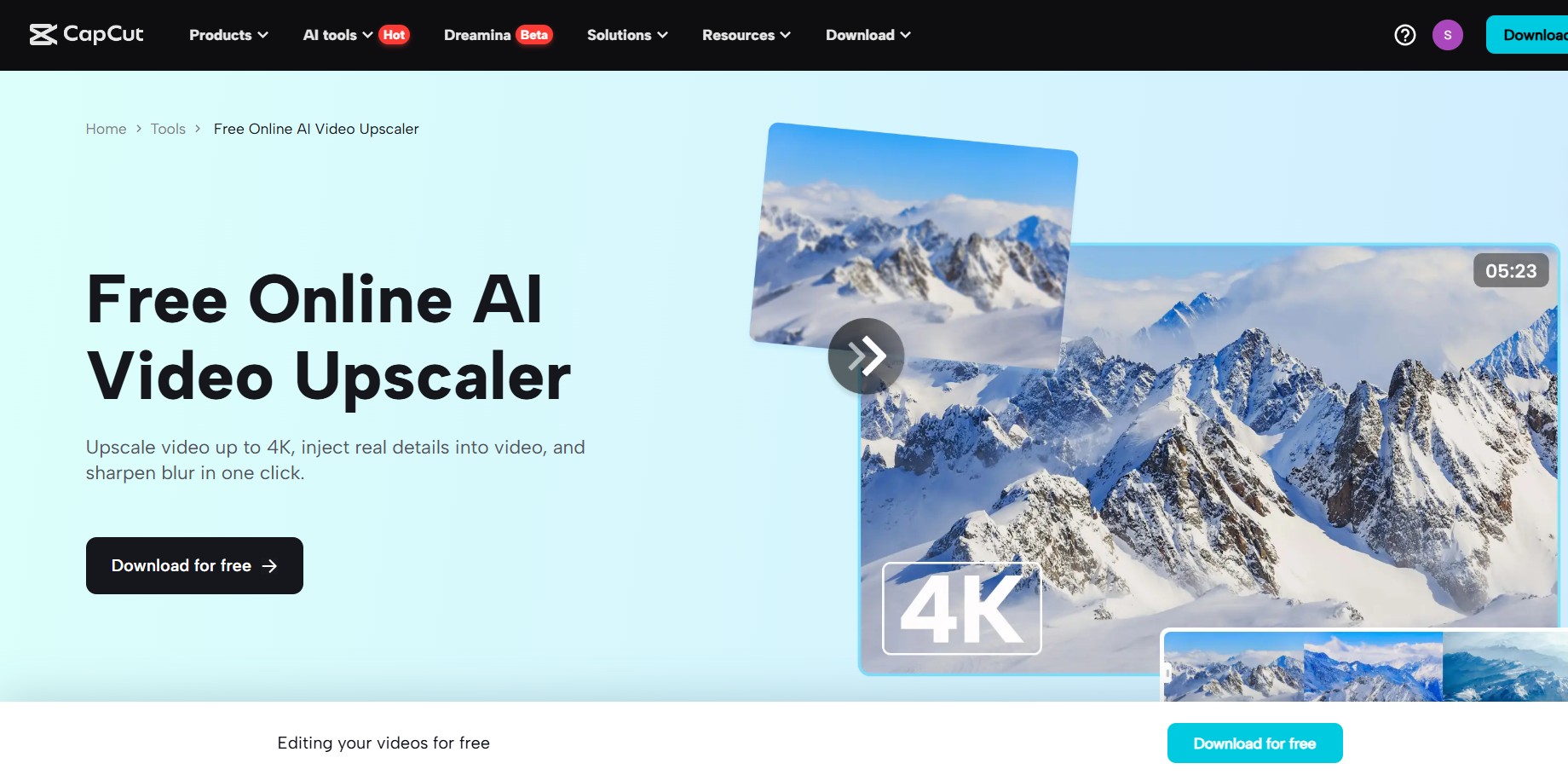
The video upscaler is a crucial tool in social media content creation, as CapCut PC enhances video quality by converting non-HD formats to HD or 4K. The feature is perfect for upgrading old clips, such as vlogs or event recordings, making them more attractive for posting on platforms that place a high emphasis on upload quality. It can bring back old-looking footage, which would otherwise be lost by automatically tuning the many settings, including sharpness and color. There is no need to buy costly gear or use tricky editing programs because it provides a simple piece of work for creators. For social media enthusiasts with limited resources, an AI video upscaler offers a streamlined method to produce high-quality videos, enabling them to thrive in the visual online landscape. Text to Speech AI further enhances this by incorporating clear narrations that guide viewers through enhanced content.
Why Resolution Matters for Social Media?
Better resolution can make social media successful because videos will be clean and interesting on all devices, including smartphones and big monitors. The enhanced visuals enable content to generate more video views and shares due to the high-speed scrolling nature of applications like TikTok, and also save time by allowing users to skip re-shooting unacceptable footage. The AI video upscaler facilitates this by presenting sharp images and accounting for every frame. Also, the combination of upscaled videos with voiceovers, obtained through Text-to-Speech to achieve uniform narration, is beneficial in the case of audio-oriented audiences. With its AI voice generator, you can incorporate dynamic commentary, enhancing interest in your work and guaranteeing that it reaches an international audience, as well as having the greatest effects on social media.
What Makes CapCut’s AI Video Upscaler Special?
CapCut can solve the issue through its AI video upscaling tool, which is ideal for social media creators and allows adjusting the resolution to either 720p, 1080p, 2K, or 4K, depending on the specific social media platform. The tool features a live preview option, allowing users to instantly assess the quality and adjust settings like brightness and contrast for optimal results.
It seamlessly integrates into CapCut’s timeline, allowing for smooth editing alongside other features, and performs well on albums of low-resolution uploads, including phone-recorded videos. It offers an intuitive interface that is ideal for both beginners and seasoned contributors who want to make extensive edits. Additionally, it offers a paid version that enables free exports without watermarks, providing an extra boost to your social media content. Such flexibility means that it is an important means of improving video quality.
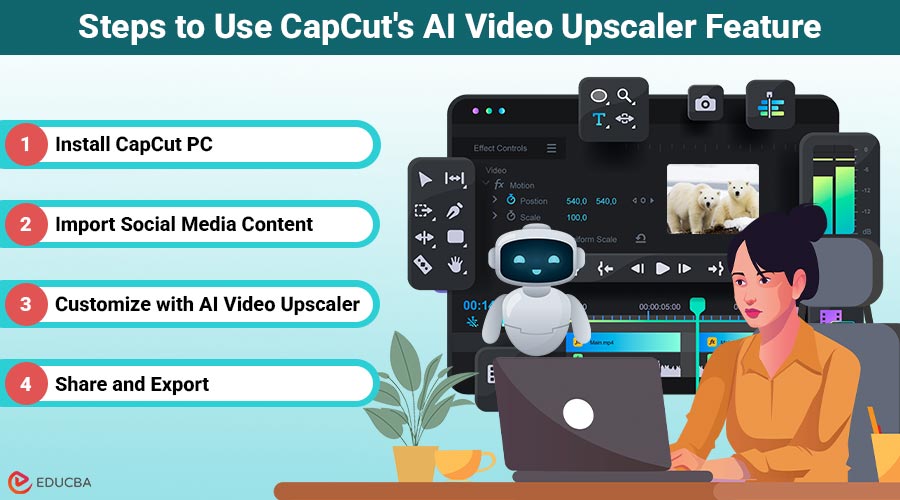
Steps to Use CapCut’s AI Video Upscaler Feature
Follow these easy steps to enhance your video quality using the video upscaler in CapCut PC and make your social media content look professional and eye-catching.
Step 1: Install CapCut PC
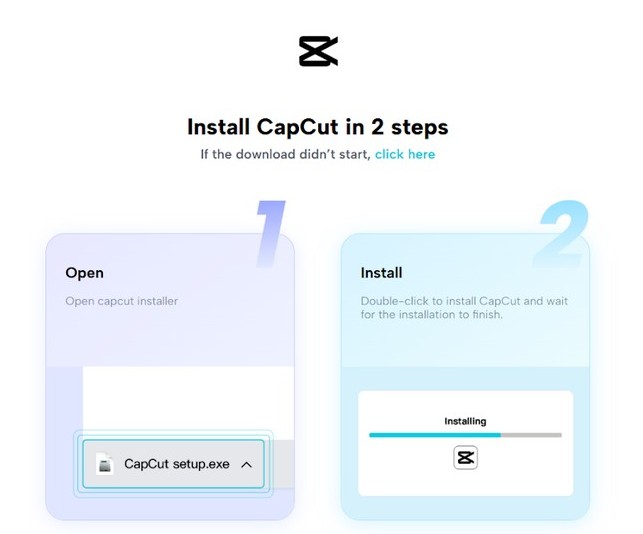
Visit CapCut’s website to download the version compatible with your PC, Windows, or Mac. Install the software, open it, and create a new project to learn how to improve your videos on social media.
Step 2: Import Social Media Content
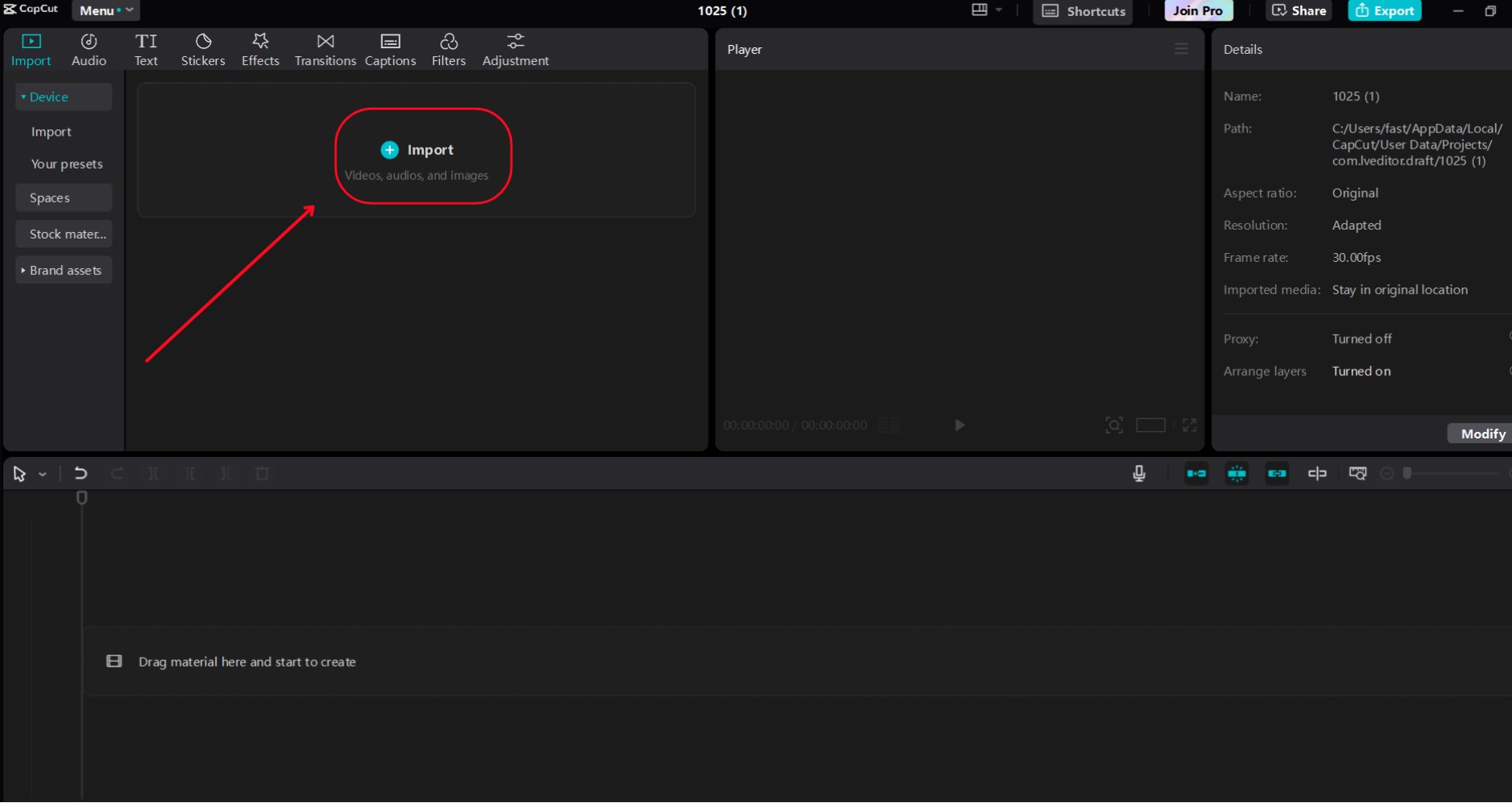
When you open the project interface, you need to “Import” your video clips, i.e., travel vlogs or product demos, as well as any low-resolution footage that requires enhancement.
Step 3: Customize with AI Video Upscaler
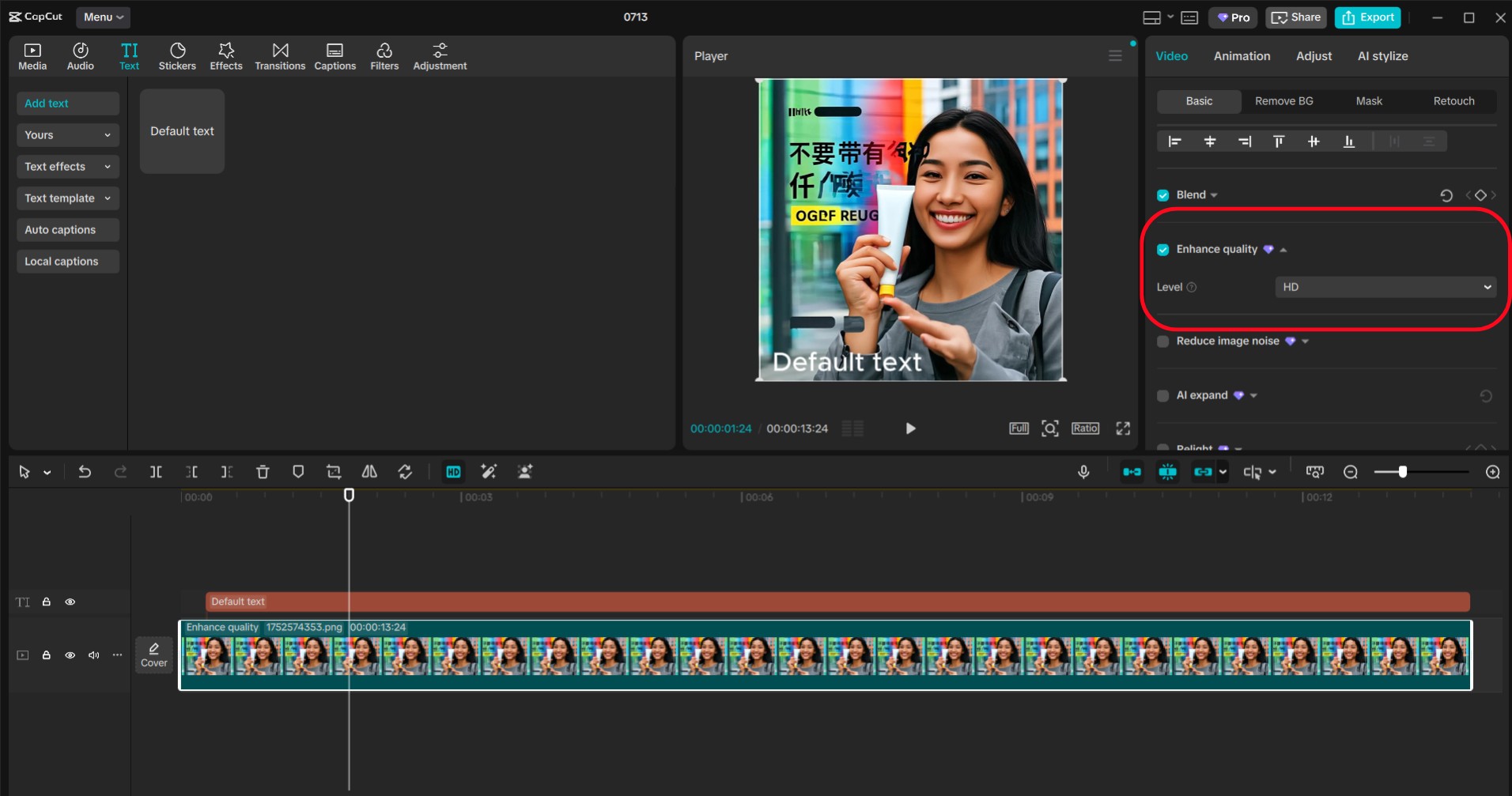
Go to the “Video” tab on the upper right corner, click the “Basic” tab, and then the “Enhance quality” option. Next, enable the toggle, select the 4K enhancement mode “UHD,” check the box, and increase the saturation to make it spectacular.
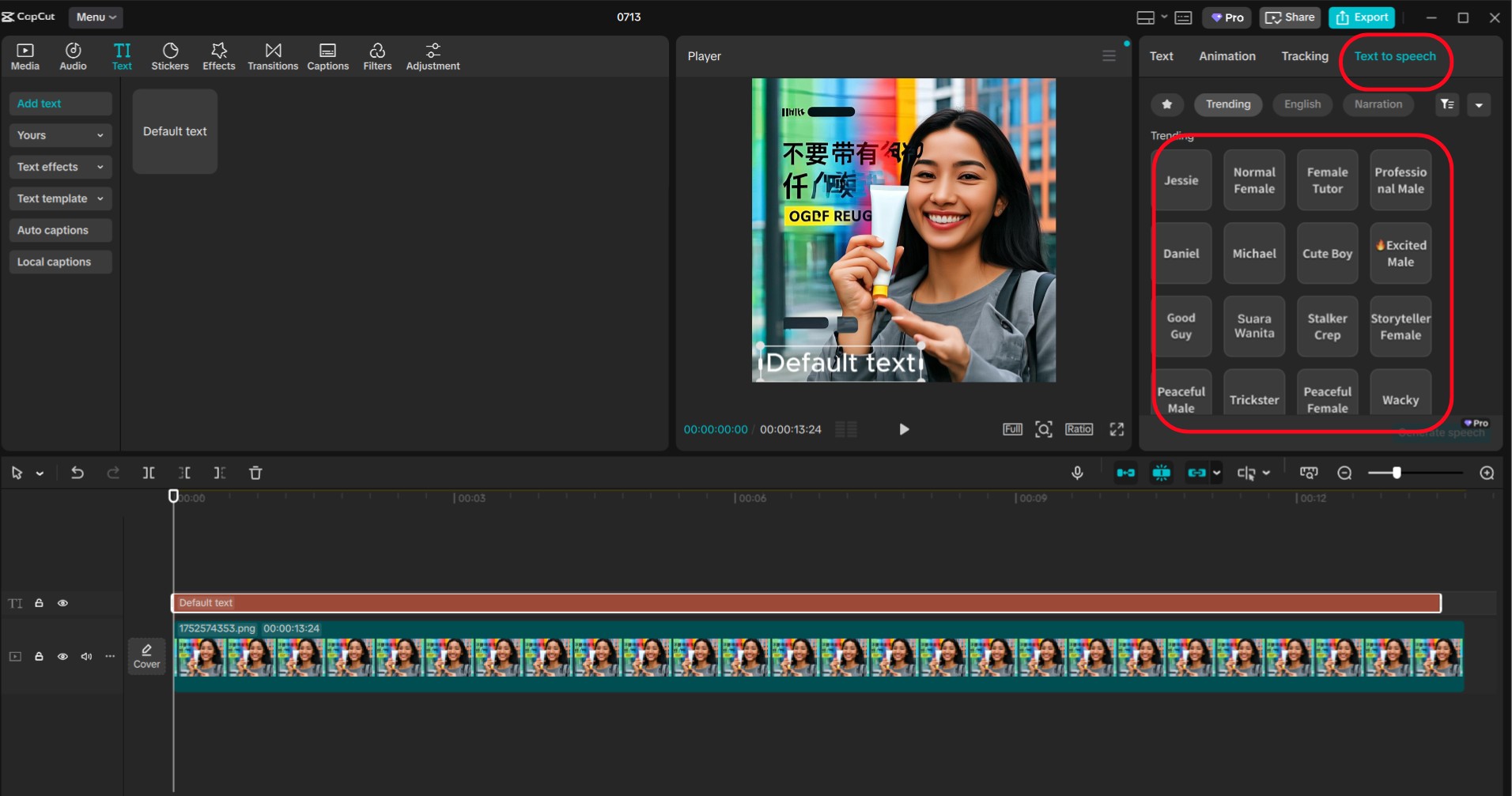
Then, visit the “Text” menu, click on “Text to speech,” and select “Trending.” Type a short script, i.e., a video intro or caption, select a voice, i.e., a voice like “Professional Male” or “Peaceful Female”. Adjust the font size to 15. Use sliders to adjust the speed and pitch, and preview to ensure the narration works with the upscaled video.
Step 4: Share and Export
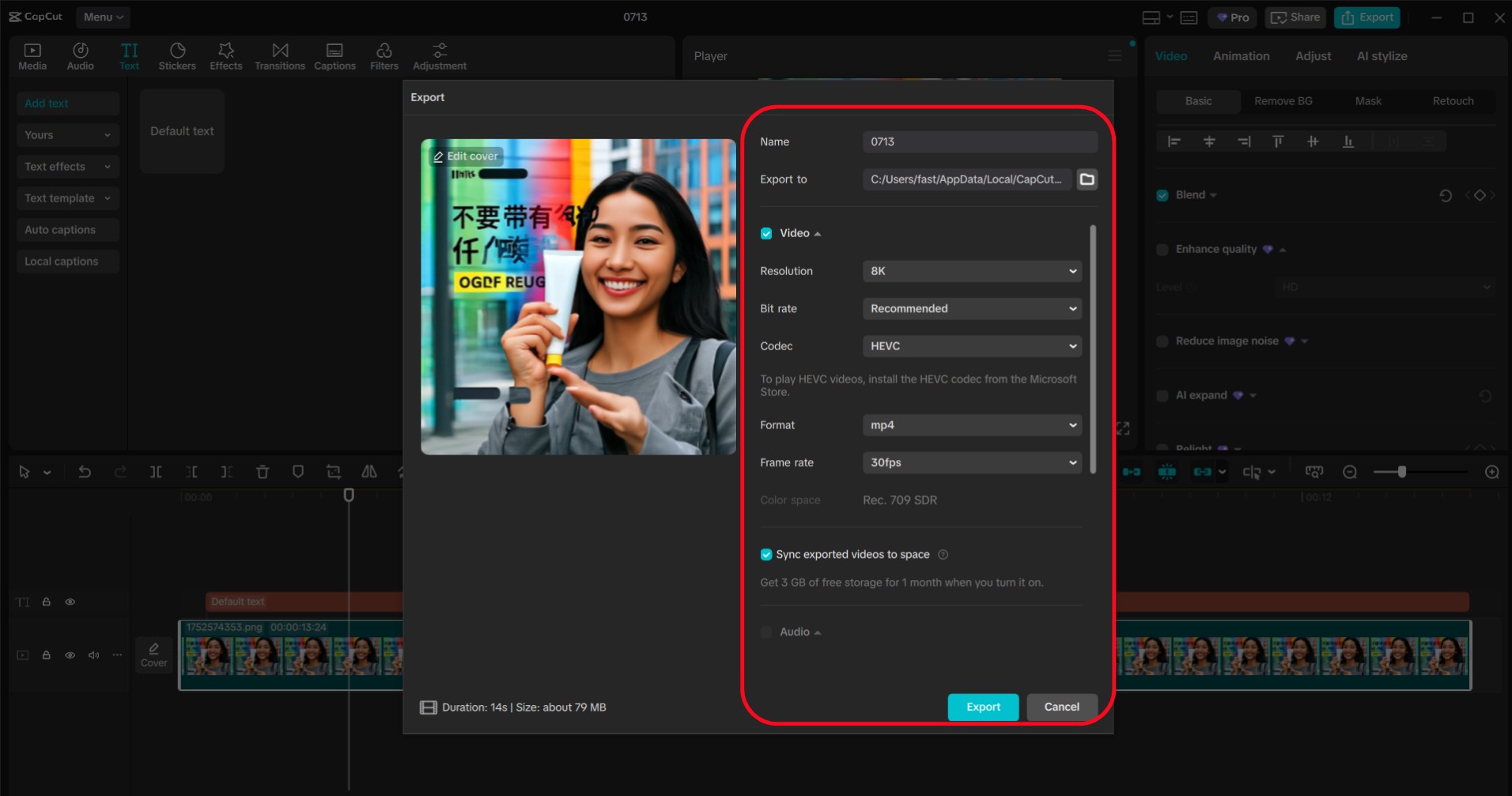
Click “Export” to save your videos in 1080p MP4 format, suitable for social media, and then save them to your device. Save your improved video by clicking the “Share” button and sharing it on Instagram, TikTok, or YouTube, focusing on your target audience.
Key Advantages of Using AI Video Upscaler in Social Media Videos
There are huge benefits to using a video upscaler with social media. Creators who need to deliver trending content quickly can accomplish quick upgrading through instant resolution enhancement. The tool enhances outreach by working across various devices, allowing videos to be viewed clearly on both phones and television sets.
Upscaling does not introduce new recordings and therefore privacy is assured, a consideration that is attractive to discrete content developers. The quality of the result is better than ever before, thereby increasing the visual appeal of posts and enabling clickability as well as the possibility of including Text-to-Speech narrations, which increase accessibility. All these combined advantages improve your social media presence, boosting the number of likes, shares, and followers.
Advanced Tips to Shine Through Your Social Media Videos
You can maximize your Social media impact by using these techniques. Experiment with the resolution parameters, one-to-four upscaling UHD with an AI video upscaler, to emphasize the finest details, such as the texture of a product or the background scenery. The preview mode enhances quality by fine-tuning contrast, ensuring visuals display correctly on smaller screens.
Use an AI voice generator to add interesting narration to create your unique commentary style, such as an excited voice in an unboxing video. Add trending filters or effects to CapCut’s library to align with platform trends and include an overlay of text with hashtags, synced with the voiceover. To create a polished, comfortable post, regularly preview and adjust the video-audio balance to ensure it is ready for posting.
Final Thoughts
Resolution upgrade of social media through the AI video upscaler of CapCut brings modification to the way creators and marketers can introduce their work. This is because re-shooting is unnecessary at great expense, and the system’s ease of use, clear images, and privacy features make it operate effectively through existing footage. The ability to produce high-quality upscaled videos paired with dynamic voiceovers is a key factor in building a successful online presence and boosting engagement. By skilling up and exploring more advanced features, CapCut enables you to create content that excels on social media, offering a chance to connect with millions of people with every post. Begin now and make your videos look professional.
Recommended Articles
We hope this guide on using an AI video upscaler helps you enhance your video quality with ease. Explore these recommended articles to discover more tools and tips for creating high-impact visual content.