
Updated March 10, 2023
Introduction to PowerShell List
PowerShell list is a data type or a data structure that is used to store a list of items. The size of the list is not fixed and can be altered at any point in time. The main advantage of the list over an array is that list can hold items of different data types, so it is considered a strong data type. This is present in the System. Collections dot net class. There are many methods and objects that are associated with a list. This article will cover in detail the list and its implementation along with appropriate examples.
Syntax:
There are two ways to create a list in PowerShell
$testlist = New-Object -TypeName 'System.Collections.ArrayList';
or
$testlist = [System.Collections.ArrayList]::new()
An empty list can be defined as
[System.Collections.ArrayList]$testlist= @()
E.g.:
Input:
Write-Host "Demo of list in Powershell"

$testlist = New-Object -TypeName 'System.Collections.ArrayList'

Write-Host "Datatype is " $testlist.GetType() -ForegroundColor Green

$testlist1 = [System.Collections.ArrayList]::new()

Write-Host "Datatype is " $testlist1.GetType() -ForegroundColor Green

Write-Host "Declaring an empty list"

[System.Collections.ArrayList]$testlist2= @()

Write-Host "Datatype is " $testlist2.GetType() -ForegroundColor Green
Output:
Demo of list in Powershell

Datatype is  System.Collections.ArrayList

Datatype is  System.Collections.ArrayList

Declaring an empty list

Datatype is  System.Collections.ArrayList
Methods available for an ArrayList
The following are some of the methods available for a list. They are add,addrange,binarysearch,clear,clone,contains,copyto,equals,getenumerator,gethashcode,getrange,gettype,insertrange,setrange,removerange,remove,removeat,sort,toarray,tostring,where,trimtosize,item and foreach.
The following are the properties;capacity,count,isfixedsize,isreadonly,issynchronized,syncroot.
Methods and use
Add(): This method is used to add an element to the list
Clear(): This method is used to empty the contents of the list
Contains(): This method is used to check if an item is present in the list
Sort(): This method is used to sort the elements of the items in the list
Remove(): This method removes an element whose value is specified
RemovetAt(): This method removes the element at the position specified.
Clone(): This method creates a replica of the list
CopyTo(): This method is used to copy the contents of one list to another list
InsertRange(): This method inserts a new element to the list within the specified range
TrimtoSize(): This element reduces the list to the specified size
Foreach(): This method is used for looping
GetType(): This method is used to find out the type of the list
RemoveRange(): This method removes the list of items in the range specified
ToArray(): This method converts the list to an array
Examples of PowerShell list
Given below are the examples of PowerShell list:
Example #1
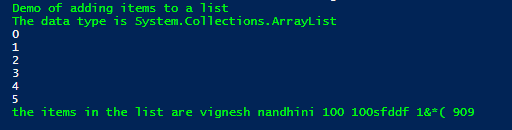
Adding an item to a list
Input:
Write-Host "Demo of adding items to a list" -ForegroundColor Green

$dlist = New-Object -TypeName 'System.Collections.ArrayList';

Write-Host "The data type is" $dlist.GetType() -ForegroundColor Green

$dlist.Add("vignesh")

$dlist.Add("nandhini")

$dlist.Add(100)

$dlist.Add("100sfddf")

$dlist.Add("1&*(")

$dlist.Add(909)

Write-Host "the items in the list are" -ForegroundColor Green $dlist
Output:
Example #2
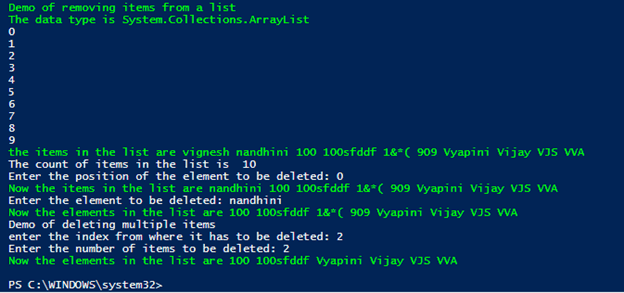
Removing items from a list
Input:
Write-Host "Demo of removing items from a list" -ForegroundColor Green

$dlist = New-Object -TypeName 'System.Collections.ArrayList';

Write-Host "The data type is" $dlist.GetType() -ForegroundColor Green

$dlist.Add("vignesh")

$dlist.Add("nandhini")

$dlist.Add(100)

$dlist.Add("100sfddf")

$dlist.Add("1&*(")

$dlist.Add(909)

$dlist.Add("Vyapini")

$dlist.Add("Vijay")

$dlist.Add("VJS")

$dlist.Add("VVA")

Write-Host "the items in the list are" -ForegroundColor Green $dlist

Write-Host "The count of items in the list is " $dlist.Count

$cin= Read-Host "Enter the position of the element to be deleted"

$dlist.RemoveAt($cin)

Write-Host "Now the items in the list are" $dlist -ForegroundColor Green

$cin= Read-Host "Enter the element to be deleted"

$dlist.Remove($cin)

Write-Host "Now the elements in the list are" -ForegroundColor Green $dlist

Write-Host "Demo of deleting multiple items"

$index= Read-Host "enter the index from where it has to be deleted"

$range= Read-Host "Enter the number of items to be deleted"

$dlist.RemoveRange($index,$range)

Write-Host "Now the elements in the list are" -ForegroundColor Green $dlist
Output:
Example #3
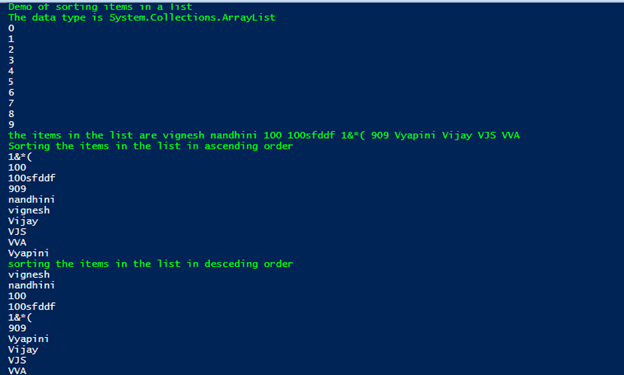
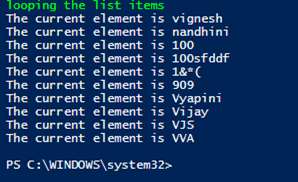
Sorting and looping items in a list
Input:
Write-Host "Demo of sorting items in a list" -ForegroundColor Green

$dlist = New-Object -TypeName 'System.Collections.ArrayList';

Write-Host "The data type is" $dlist.GetType() -ForegroundColor Green

$dlist.Add("vignesh")

$dlist.Add("nandhini")

$dlist.Add(100)

$dlist.Add("100sfddf")

$dlist.Add("1&*(")

$dlist.Add(909)

$dlist.Add("Vyapini")

$dlist.Add("Vijay")

$dlist.Add("VJS")

$dlist.Add("VVA")

Write-Host "the items in the list are" -ForegroundColor Green $dlist

Write-Host "Sorting the items in the list in ascending order" -ForegroundColor Green

$dlist |Sort-Object

Write-Host "sorting the items in the list in desceding order" -ForegroundColor Green

$dlist |Sort-Object Descending

Write-Host "looping the list items" -ForegroundColor Green

foreach($d in $dlist)

{

Write-Host "The current element is" $d

}
Output:
Example #4
Input :
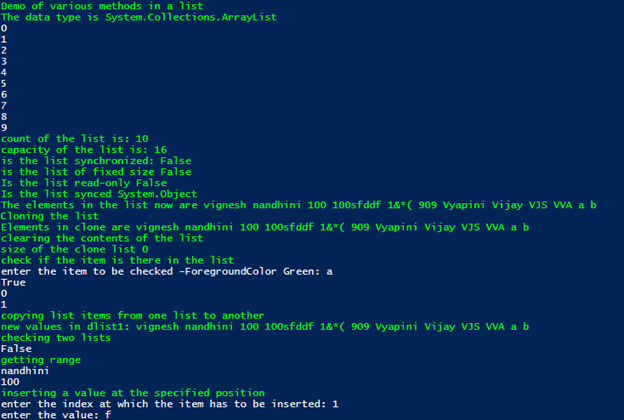
Write-Host "Demo of various methods in a list" -ForegroundColor Green

$dlist = New-Object -TypeName 'System.Collections.ArrayList';

Write-Host "The data type is" $dlist.GetType() -ForegroundColor Green

$dlist.Add("vignesh")

$dlist.Add("nandhini")

$dlist.Add(100)

$dlist.Add("100sfddf")

$dlist.Add("1&*(")

$dlist.Add(909)

$dlist.Add("Vyapini")

$dlist.Add("Vijay")

$dlist.Add("VJS")

$dlist.Add("VVA")

Write-Host "count of the list is:" -ForegroundColor Green $dlist.Count

Write-Host "capacity of the list is:" -ForegroundColor Green $dlist.Capacity

Write-Host "is the list synchronized:" -ForegroundColor Green $dlist.IsSynchronized

Write-Host "is the list of fixed size" -ForegroundColor Green $dlist.IsFixedSize

write-Host "Is the list read-only" -ForegroundColor Green $dlist.IsReadOnly

write-Host "Is the list synced" -ForegroundColor Green $dlist.SyncRoot

$dlist.AddRange(@("a","b"))

Write-Host "The elements in the list now are" $dlist -ForegroundColor Green

Write-Host "Cloning the list" -ForegroundColor Green

$dlistclone=$dlist.Clone()

Write-Host "Elements in clone are" $dlistclone -ForegroundColor Green

Write-Host "clearing the contents of the list" -ForegroundColor Green

$dlistclone.Clear()

Write-Host "size of the clone list" $dlistclone.Count -ForegroundColor Green

Write-Host "check if the item is there in the list" -ForegroundColor Green

$toc= Read-Host "enter the item to be checked" -ForegroundColor Green

$dlist.Contains($toc)

$dlist1 = New-Object -TypeName 'System.Collections.ArrayList';

$dlist1.Add("100000")

$dlist1.Add("999999")

Write-Host "copying list items from one list to another" -ForegroundColor Green

$dlist1.CopyTo($dlist)

Write-Host "new values in dlist1:" $dlist -ForegroundColor Green

Write-Host "checking two lists" -ForegroundColor Green

$dlist.Equals($dlist1)

Write-Host "getting range" -ForegroundColor Green

$dlist.GetRange(1,2)

Write-Host "inserting a value at the specified position" -ForegroundColor Green

$ind= Read-Host "enter the index at which the item has to be inserted"

$val= Read-Host "enter the value"

$dlist.Insert($ind,$val)

Write-Host "now the values of the list " $dlist -ForegroundColor Green

Write-Host "reducing the size of the list" -ForegroundColor Green

$siz= Read-Host "enter the size of the list to be"

$dlist.TrimToSize()

Write-Host "current length of the list is" -ForegroundColor Green $dlist.Count
Output:

Conclusion
Thus, the article covered in detail about listing in PowerShell. It explained in detail the various properties and methods that are associated with a list, its usage, and type, along with appropriate examples. To learn more about the PowerShell list, it is advisable to write sample scripts and practice them.
Recommended Articles
This is a guide to the PowerShell list. Here we discuss the various properties and methods that are associated with a list, its usage, and type along with appropriate examples. You may also have a look at the following articles to learn more –

