

Updated August 18, 2026
The competition among AI video models has shifted from “can it generate a clip” to “can it edit, restyle, and extend the clip you already have.” With Wan, Kling, and Seedance pushing motion-aware editing into mainstream production, creators now expect a single tool that handles face swaps, lip-sync, upscaling, and scene rework without bouncing between five platforms. That shift is exactly what Video to video AI tries to consolidate, and after spending real time inside the generator, here is what stood out across creator-style tasks rather than feature checklists.
(Image Source: Video to Video AI)
Why a Unified Workflow Matters for Modern Video Creators?
Most editing teams now juggle separate tools for dubbing, restyling, upscaling, and character replacement. Each handoff costs time, breaks consistency, and forces creators to re-learn prompt grammar across platforms. A unified Video to Video AI generator removes that switching tax. Before settling on an editing layer, it’s worth comparing the underlying generation models too. A Seedance 2.0 vs Kling 3.0 comparison shows how differently each handles motion consistency, which affects how much cleanup the editing stage needs later.It also makes iteration cheaper: when one shot requires both a wardrobe change and a lip-sync pass, doing it in a single-prompt environment is meaningfully faster than exporting between apps.
The Testing Framework Behind This Review
To avoid a generic feature tour, four creator-style tasks were run through the platform: a character replacement on a moving shot, a wardrobe swap, an English-to-Mandarin lip-synced dub, and a low-resolution clip cleanup. Each task was evaluated on five criteria: prompt comprehension, subject consistency, motion preservation, visible detail quality, and the workflow’s forgiveness when the first attempt misses.
Task One: Character Replacement With Multi-Angle References
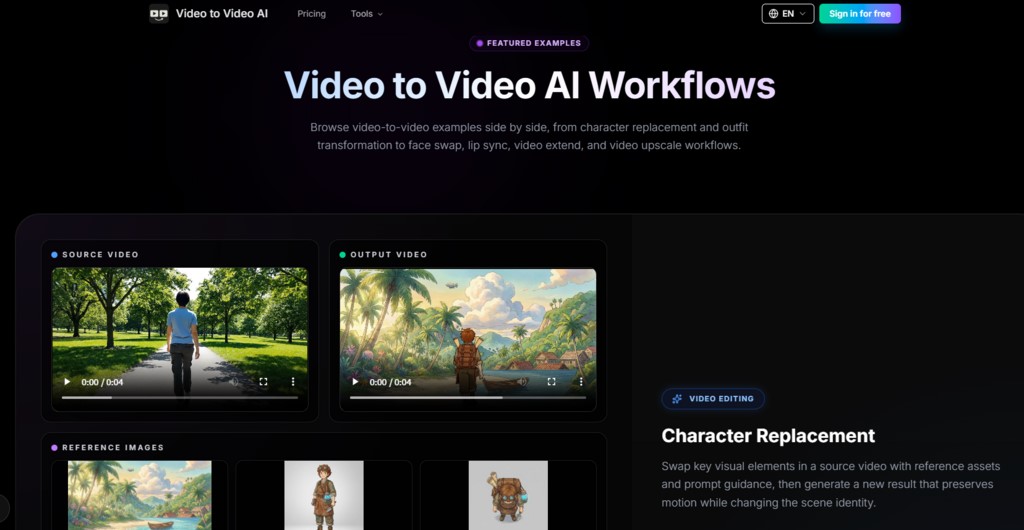
The Video Editing workflow accepts a source clip and reference images and uses prompt phrases such as @Element1 to point the model to the correct asset. With a front-, side-, and top-view reference pack, the replacement held its identity reasonably well across camera movements. The original action timing stayed intact, which matters when the source clip has any handheld motion.
What Worked and What Needed a Second Pass?
Identity held best when the reference pack included multiple angles rather than a single hero shot. From a practical user perspective, single-angle references produced softer results on profile turns. Writing the prompt with explicit references to the uploaded assets, instead of vague descriptions, made the difference between a clean swap and a generic restyle.
Task Two: Wardrobe Swap Without Rebuilding the Performance
The Clothing Swap variant of Video Editing takes a front-and-back garment reference and re-renders the outfit while preserving body motion and framing. In testing, it preserved fabric movement on walking shots better than expected, though tight patterns occasionally drifted on fast turns. The result may vary with prompt specificity; explicitly naming the garment type produced more stable runs than loosely describing it.
Task Three: Lip Sync for Multilingual Dubbing
The Video Lip Sync model is positioned for AI dubbing and dialogue replacement. Mouth alignment on a swapped audio track felt natural on direct-to-camera shots. On angled shots, the sync stayed believable, though very fast speech or overlapping dialogue still benefits from cleaner audio input. For creators localizing short-form ads, this is the Video to Video AI workflow most likely to replace a manual dubbing pipeline.
For teams already invested in motion-driven content, Video to Video AI is one of the few solutions that lets lip-syncing, face-swapping, and motion control run from the same prompt environment, simplifying the tracking of revision rounds within a single project.
Task Four: Video Upscaling With Detail Recovery
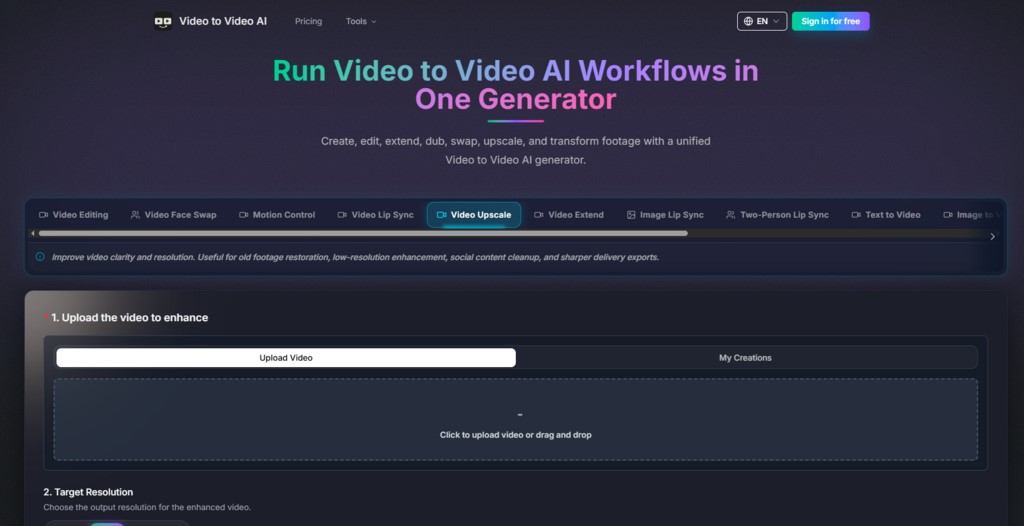
The Upscaler offers 720p, 1080p, 2K, and 4K targets. Unlike a simple resize, the recovered texture outputs on older, compressed footage rather than just enlarging blocky pixels. Edges on faces and product surfaces looked cleaner, though heavily noisy source clips still exhibited some residual artifacts, consistent with how most upscale models behave today.
How to Run the Video to Video AI Editing Workflow?
The official flow on the generator page is short and matches what appears on the homepage. A free tier is available after sign-in, making it practical to test the prompt grammar and reference workflow before committing to a larger project.
Step One: Upload the Source Video
(Image Source: Video to Video AI)
Keep the Clip Focused on One Edit Intent
Shorter clips with a clear subject produced more predictable edits than long montages with multiple scene cuts.
Step Two: Add Reference Images and Asset Packs
Use Multi-Angle Reference Packs Where Possible
Front, back, side, or top-view references improve identity and wardrobe stability on shots with visible camera movement.
Step Three: Write the Edit Prompt
Reference Uploaded Assets Explicitly in the Prompt
Naming the uploaded element rather than describing it generically yielded the cleanest results in testing.
Step Four: Generate and Review the New Version
Treat the First Output as a Draft, Not a Final
Complex shots may benefit from one or two regeneration passes before the result lands.
Video to Video AI vs. Single-Purpose Editing Tools
A short side-by-side helps frame where a unified Video to Video AI generator fits versus stitching together single-purpose tools.
| Dimension | Single-purpose Tools | Unified Video to Video Generator |
| Entry Barrier | Learn each app separately | One prompt environment |
| Workflow Clarity | Multiple exports between steps | Source, reference, prompt, generate |
| Creative Control | Strong inside one task | Strong across face, motion, style, audio |
| Scenario Coverage | Narrow per tool | Editing, swap, sync, upscale, extend |
| Stability of Experience | Varies by vendor | Consistent prompt and asset syntax |
| Learning Curve | Repeated per tool | Shared across models |
(Image Source: Video to Video AI)
Honest Limitations Worth Knowing Before Use
Prompt quality has a visible impact on output. Vague prompts produced restyled rather than truly replaced subjects, especially on wardrobe and character tasks. Complex shots with multiple moving subjects sometimes required a second generation to stabilize. Lip sync stayed clean on simple dialogue but felt slightly off on rapid overlapping speech in early tests. Results may also vary between runs, even with identical prompts, which is consistent across most Video to Video AI models rather than being specific to this platform.
Who Will Get the Most Value From This Generator?
Short-form ad teams running A/B variants benefit from the wardrobe and character swap workflows, since one base shot can fuel many variants without reshoots. Localization teams handling multilingual dubbing get the most out of the lip sync model. Independent creators restoring older footage will find the upscale and extend tools the most immediately useful. Heavy, effects-driven, cinematic work still falls within traditional pipelines. However, for fast iteration on creator and brand content, a unified Video to Video AI environment removes more friction than it adds.
Recommended Articles
We hope this guide on Video to Video AI helps you understand how AI-powered video editing can streamline content creation, improve localization, and enhance visual quality. Explore these recommended articles for more insights on AI video generation, lip sync technology, face swapping, video upscaling, and advanced AI editing workflows.